
Introduction:
This article is about creating a derived custom calendar server control in ASP.NET which will show the color change of the selection point whenever we move the cursor on the date which is shown on the calendar. By default, it has it's own color but by using a derived control it will show you a color on mouse over on the calendar. Derived custom controls are those controls which extend the feature of the control. Here we will discuss about how we create this type of custom control and how it is used. Firstly, we have to create it and later we will use it another application or website application. So by using the Calender class we will make it and it will extend the features of the calendar control in ASP.NET. First of all we have to inherit the Calendar class to extends the functionality of the calendar class. Further we will add control to the asp. net toolbox item. Now we will follow some step to complete it which is given below.
Step 1: Firstly we are going to open the Web server Control application.
-
Go to visual studio and open File->New->Project->Add ASP.NET Server Control application.
-
Click OK.
-
Give the name as H_Calendar.
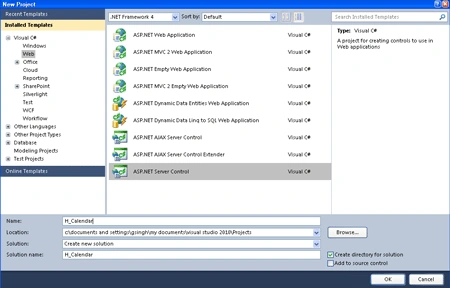
Step 2: Now you have to change the name of the ServerControl.cs file to DerivedCalendar.cs.
Step 3: Further, edit Toolbox Data attribute for the class, change the string "ServerCOntrol1" to "DerivedCalendar" in both places where it occurs. let see how we will add it.
[ToolboxData("<{0}:DerivedControl runat=server></{0}:DerivedControl>")]
Step 4: Now write the code for the class named as DerivedCalendar.cs which inherits the base class name as Calendar.
Code:
using
System;
using System.ComponentModel;
using System.Linq;
using System.Text;
using System.Web;
using System.Web.UI;
using System.Web.UI.WebControls;
using System.Drawing;
namespace H_Calendar
{
[DefaultProperty("Text")]
[ToolboxData("<{0}:DerivedCalendar runat=server></{0}:DerivedCalendar>")]
public class DerivedCalendar : Calendar
{
[Bindable(true)]
[Category("Appearance")]
[DefaultValue("")]
[Localizable(true)]
public string Text
{get
{
String s = (String)ViewState["Text"];
return ((s == null) ? "[" + this.ID + "]" : s);
}
set
{
ViewState["Text"] = value;
}
}
public Color h_color
{
get
{
// look for h_color in ViewState
object o = ViewState["h_color"];
if (o == null)
return Color.Empty;
else
return (Color)o;
}
set
{
ViewState["h_color"] = value;
}
}
protected override void OnDayRender(TableCell c, CalendarDay d)
{
if (h_color != Color.Empty)
{
c.Attributes["onmouseover"] = "this.style.backgroundColor='" + String.Format("#{0:x2}{1:x2}{2:x2}", this.h_color.R, this.h_color.G, this.h_color.B) +
"';";
if (this.DayStyle.BackColor != Color.Empty)
c.Attributes["onmouseout"] = "this.style.backgroundColor='" + String.Format("#{0:x2}{1:x2}{2:x2}", this.DayStyle.BackColor.R,
this.DayStyle.BackColor.G, this.DayStyle.BackColor.B) + "';";
else
c.Attributes["onmouseout"] = "this.style.backgroundColor='';";
}
base.OnDayRender(c, d);
}
protected override void RenderContents(HtmlTextWriter output)
{
output.Write(Text);
}
}
}
Code Description:
Now we will
discuss about the code of .cs file. Firstly, the class is named DerivedControl will inherit the Calendar Class which is known as the base
class. Note that the H_Color uses the ViewState to preserve the value
as a backing store for its value. That
is, in the get accessor, Now the property checks to see if there exists some Color
instance in ViewState[H_Color].
If there does, then this value is returned, else the default value Color.Empty will returned instead of it. Now we have to override the method name as
OnDayRender in which we have to take two argument named as Tablecell c,
CalendarDay d in which we are going to check and set some condition first we
check if h_color is not empty then initialize that color values to the
attribute. and further we are checking for it's daystyle back color if it is not
empty then initialize it. After that later we pass both argument to the override
method of base class.
Step 5: Now after doing all that we have to open a file named AssemblyInfo.cs and write the code given below.
-
Firstly add a namespace to the Top of the AssemblyInfo.cs file named as
using System.Web.UI;
-
Now write the assembly name at the end of the AssemblyInfo.cs file.
[assembly: TagPrefix("H_Calendar", "DC")].
Step 6: Now we have to build the application by click on build solution and close it.
Step 7: Now we have to take a website to test the application.
-
File->New->Web Site
-
Click OK.
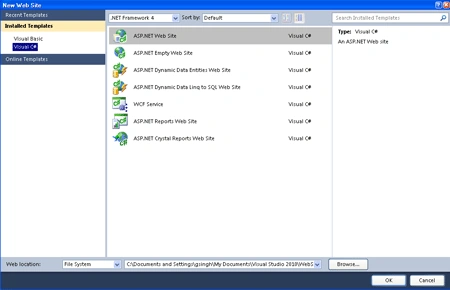
Step 8: Now we will add a new project
-
Go to Solution Explorer
-
Right Click on it and add existing project
-
Add the H_Calendar project to the website project.
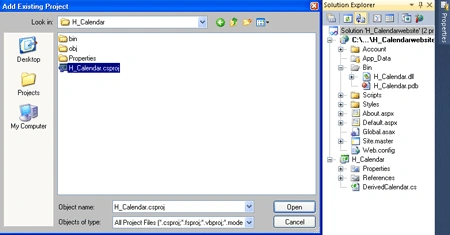
Step 9: Right click on Solution Explorer and set as start up project.
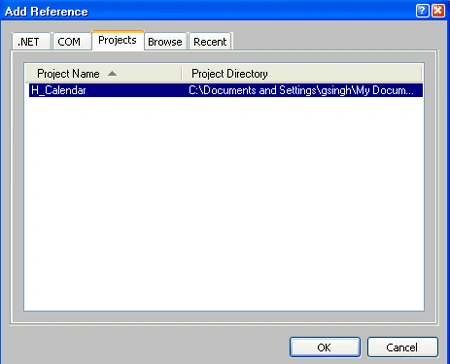
Step 10: Now Right Click on Website project and add reference of the project name as H_Calendar .
-
Go to add reference.
-
And select Project then add project named as H_calendar
-
Now go to Browse of that window and further select the H_calendar.dll file and click OK.
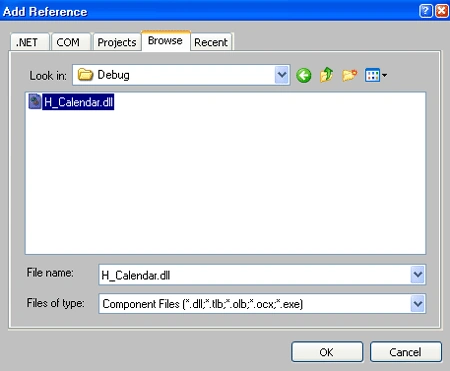
Step 11: Now it will appear into the DerivedCalendar Component which is at the top of the toolbox.
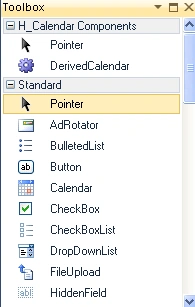
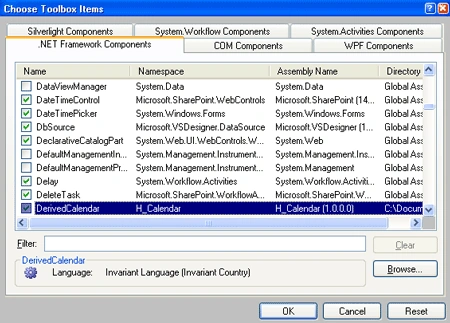
Step 12: Now if you want to add it into the Toolbox Control then
-
Right Click on any control of Toolbox.
-
And Select Choose item.
-
Select the .NET Component and browse the button add the H_Control.dll to the .Net Component
-
Now the component will be added to the .NET framework component.
-
Now the control will appear in the toolbox.
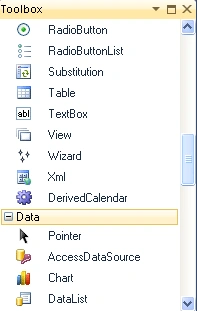
Step 13: We will see that a directive has been added to the source of the Default.aspx which is shown below.
<%@ Register assembly="H_Calendar" namespace="H_Calendar" tagprefix="DC" %>
Step 14: Now we have to write the below code for the Default.aspx.cs file.
Code:
using
System;
using
System.Collections.Generic;
using
System.Linq;
using
System.Web;
using
System.Web.UI;
using
System.Web.UI.WebControls;
using
System.Drawing;
public
partial class
_Default : System.Web.UI.Page
{
protected void
Page_Load(object sender,
EventArgs e)
{
}
public void
C_Effect(object sender,
System.Web.UI.WebControls.DayRenderEventArgs
e)
{
e.Cell.Attributes["onmouseover"] =
"this.style.backgroundColor='red';";
if (DC1.DayStyle.BackColor !=
Color.Empty)
e.Cell.Attributes["onmouseout"] =
"this.style.backgroundColor='" +
DC1.DayStyle.BackColor.ToKnownColor() + "';";
else
e.Cell.Attributes["onmouseout"]
= "this.style.backgroundColor='';";
}
}
Step 15: Further, you have to drag and drop the derived control from the toolbox and you see that in the source file of default.aspx there is something added and pass the method name on that control information shown in the source file of Default.aspx, it will seem like as given below. You can set the format of calendar whatever you want to show on page.
<DC:DerivedCalendar ID="DC1" runat="server" OnDayRender="C_Effect></DC:DerivedCalendar>
Step 16: Now you will run the application by pressing F5.
Before Run:
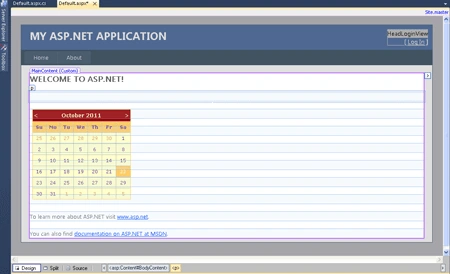
After Run:
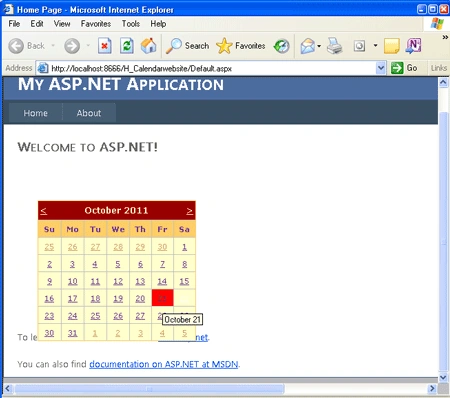
Now we will see that the cursor color has been changed whenever we are moving it on the calendar dates and etc.
Ravi kumarPosted Jun 9, 2014, 5:57 PM
HI mam, I am facing a problems like:- Error 1 'H_Calendar.DerivedCalendar' does not contain a definition for 'DayStyle' and no extension method 'DayStyle' accepting a first argument of type 'H_Calendar.DerivedCalendar' could be found (are you missing a using directive or an assembly reference?) C:\Users\Nandan\documents\visual studio 2010\Projects\H_Calendar\H_Calendar\DerivedCalendar.cs 54 25 H_Calendarplease help me..