
Many of us have faced a situation where we want the user to enter a number (an
integer or a float)
in a Text Box, thus seeking a way to
prevent him from inserting invalid characters. Almost all of the available
solutions required to use a custom control inherited from Text Box control. Regarding the fact that
the developers sometimes decide to add this facility to their Text Boxes after they have added several Text Box controls, and added many other
lines of code to their project based on these controls names, these solutions
are practically of limited use. The programmer needs to remove all Text Boxes, add the new custom control
instead of each of them, and make all the required changes to the code.Create the Custom Numeric Text box Control step by step :-
1.Fist of all we open the visual studio 2010----> Click the New Project..----> we have to take a Library Project named as Custom Control--->OK

2.Now we are going to add a Custom Control into the Library Project
Right Click on Project Name--->Add--->New Item..--->Choose custom control--->Add.

3.Now open the class1.cs file and write the following code
using System;
using System.Collections.Generic;
using System.Linq;
using System.Text;
using System.Windows.Forms;
namespace Custom_control1
{
public class NumericTextBox : TextBox
{
protected override void OnKeyPress(KeyPressEventArgs e)
{
// Ignore all non-control and non-numeric key presses.
if(!char.IsControl(e.KeyChar) && !char.IsDigit(e.KeyChar))
{
e.Handled = true;
}
// to Call the implementation in the base TextBox class,
// which raises the KeyPress event.
base.OnKeyPress(e);
}
}
}
In the above code we have to make a class name as Numeric Text box which inherit the Text box class and there is a event method name as On Key Press() which is protected which is a key press event on key pressing from the keyboard it will raise an event and check the control value. If key pressing with any non-numeric key or any character digit will not entered into the Text box. It will accept only numeric value not a any other value.
4.Now we will Build the solutions.
5.Now open visual studio--->open the Windows Form Application---> Right Click on Solution Explorer--->Add existing project--->project name(c# file)--->Open

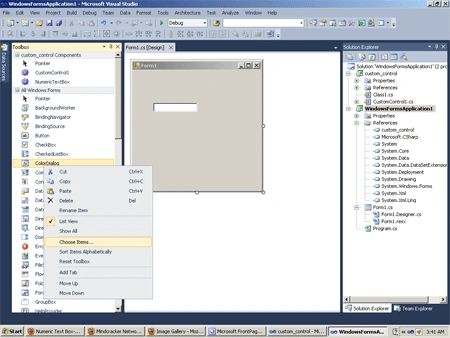
6. Now We will go on toolbox
Toolbox--->Right Click on any control-->Choose item--->select .net framework component--->mark the click on Component name as NumericTextBox1--->Ok.

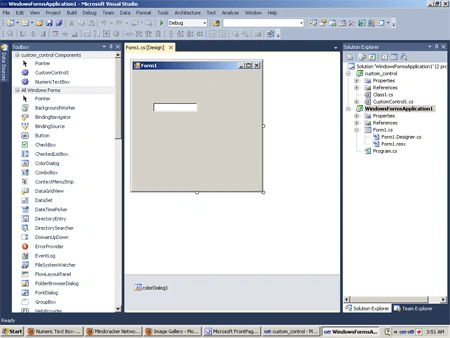
7. Now we drag and drop custom numeric Textbox control.
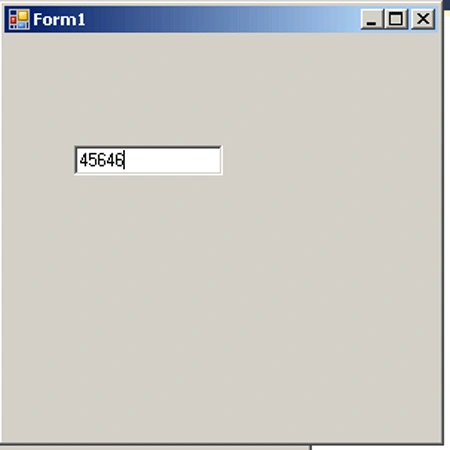
8. Press F5 to run it.
Kumar SambhavPosted Sep 17, 2012, 3:40 AM
Thank you......
RaananPosted Oct 20, 2011, 3:22 AM
Tx