

Nowadays, Desktop or Application sharing is common to coordinate work properly in IT as well as other fields also. Sometimes, it may require to record the Operations done by us on Desktop for future reference. I have not seen many applications which support Desktop recording, sharing and broadcasting of it. I think it's better to design an application that will do above operations little bit easier. So, I design this application in VS.NET 2005 using C# and windows forms. I will explain features provided by this application, one sample scenario where we can use this application followed by its design and coding.
Features present in this application:
- It allows us to record the Desktop Operations.
- It allows us to view the recordings with an inbuilt Media Player.
- It allows us to view the List of recent recordings.
- Inbuilt Functionality to add Audio to the Desktop recordings.
- Inbuilt Functionality to broadcast Desktop recordings.
- Inbuilt Functionality to see remote Desktop.
- Inbuilt Functionality to play, pause and stop recordings.
- Inbuilt Functionality to start, pause and stop recording.
- Inbuilt Functionality to show recording Duration, number of users connected to broadcast (desktop sharing).
- Easy to use UI.
- Now, Desktop recording and sharing is just a click away from us.
Sample Scenario for using this application:
Normally, software Testers use to prepare lot of descriptive documents for a bug to explain steps to be followed in reproducing it. I believe an image is equal to 1000's word description. So, why can't a tester record the steps for reproducing the bug in a video, instead of complex documents? Around of 50 - 60% of our effort in fixing the bug will be spent in analyzing, reproducing, get clarifications from testers regarding bug. So, in order to compensate it, the best solution is to record the bug's details in a video with audio support for extra information. In this kind of situations, this application will be very handy to use. There are other cases also, where this application will be useful like analyzing complex application's functionalities etc.
Prerequisites:
In order to use this application, we require Media Player Encoder 9. It is an plugin for Windows media player. It can be downloaded from here:
Now, create a new Windows Application using C# in VS.NET 2005 and name it as DesktopRecorder. Add controls to Main Form (DesktopRecorder) as shown below:
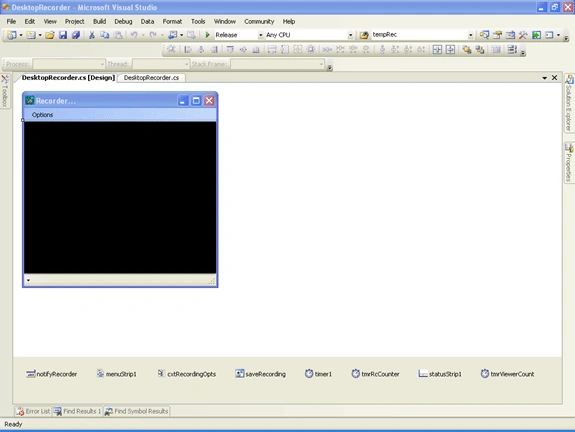
Now, I will outline functionality of few main controls in the application:
ContextMenu (cxtRecordingOpts):
This Control having few menu items for following operations:
- Start Recording --> To start recording the Desktop.
- Pause Recording --> To pause recording the Desktop.
- Stop Recording --> To stop & save recording the Desktop.
- Enter Audio File Path --> To enter Path of audio file to be used while recording as an input to it.
- Save Current Recording --> To save current recording.
- Broadcast --> To enable broadcast, set Port Number for broadcasting.
- Recent Recordings --> To see list of recent recordings.
menuStrip1 (Menu Strip):
This control is having an Option Menu with following items in it:
- Open Broadcast URL Recording --> To Set URL of broadcast for viewing in Media player.
- Play, Pause and Stop menuitems are used in changing the state of the player.
- Show Media Player UI --> To show/hide inbuilt media player UI.
- Exit --> To Exit the application.
Apart from this, I added few other controls to improve UI & Functionality.
Now, add a reference to COM dll (WMEncoderLib).If not, you can access this dlls from bin folder of code attached here. This will allows us to access functionality provided by Windows Media Player Encoder.
The main functionality of this application is it will record all desktop operations in wmv format for future reference along with sharing capability at a time.
Now, I will explain coding part of this application.
On Click of Start Recording --> Here, we are creating an instance media player encoder and setting its properties like input audio, video and broadcast path etc.
Finally, Encoder will be started to start recording. I will explain functionality of this event, little bit deeper. Since, this is the core for this application:
IWMEncProfile SelProfile;
IWMEncSource AudioSrc;
try
{
    if (DesktopEncoder != null)
    {
        //Checks Whether Encoder in is paused state or not.If it paused, it //will just starts it and returns.
        if (DesktopEncoder.RunState ==  MENC_ENCODER_STATE.WMENC_ENCODER_PAUSED)
        {
            DesktopEncoder.Start();
            return;
        }
    }
    #region Default settings for Encoder.
    DesktopEncoderAppln = new WMEncoderApp();
    DesktopEncoder = DesktopEncoderAppln.Encoder;
    IWMEncSourceGroupCollection SrcGroupCollection =     DesktopEncoder.SourceGroupCollection;
    IWMEncSourceGroup SrcGroup = SrcGroupCollection.Add("SG_1");
    IWMEncVideoSource2 VideoSrc = (IWMEncVideoSource2)SrcGroup.AddSource(WMENC_SOURCE_TYPE.WMENC_VIDEO);
    #endregion
    //Set Audio Source,if Add Audio Checkbox is checked.
    if (addAudio.Checked)
    {
        AudioSrc = SrcGroup.AddSource(WMENC_SOURCE_TYPE.WMENC_AUDIO);
        if (txtAudioFile.Text.Trim() != "")
        {
            if (File.Exists(txtAudioFile.Text.Trim()))
            {
                //Set audio file path to be used while encoding or recording.
                AudioSrc.SetInput(txtAudioFile.Text.Trim(), "", "");
            }
            else
            {
                //Set to use Default audio device as input,if file does not exist.
                AudioSrc.SetInput("Default_Audio_Device", "Device", "");
            }
        }
        else
        {
            AudioSrc.SetInput("Default_Audio_Device", "Device", "");
        }
    }
    //Set Video Source:Desktop.
    VideoSrc.SetInput("ScreenCapture1", "ScreenCap", "");
    IWMEncProfileCollection ProfileCollection = DesktopEncoder.ProfileCollection;
    ProfileCollection = DesktopEncoder.ProfileCollection;
    int lLength = ProfileCollection.Count;
    //Set Profile.
    if (toolstripEnableBroadcast.Checked && txtPortNbr.Text.Trim() != "")
    {
        IWMEncBroadcast broadcast = DesktopEncoder.Broadcast;
        broadcast.set_PortNumber(WMENC_BROADCAST_PROTOCOL.WMENC_PROTOCOL_HTTP, Convert.ToInt32(txtPortNbr.Text.Trim()));
        for (int i = 0; i <= lLength - 1; i++)
        {
            SelProfile = ProfileCollection.Item(i);
            //Set selected profile as Windows Media Video 8 for Local Area //Network,if broadcasting is enabled.
            if (SelProfile.Name == "Windows Media Video 8 for Local Area Network (768 Kbps)")
            {
                SrcGroup.set_Profile((IWMEncProfile)SelProfile);
                break;
            }
        }
    }
    else
    {
        for (int i = 0; i <= lLength - 1; i++)
        {
            SelProfile = ProfileCollection.Item(i);
            if (SelProfile.Name == "Screen Video/Audio High (CBR)")
            {
                SrcGroup.set_Profile((IWMEncProfile)SelProfile);
                break;
            }
        }
    }
    //Local File to Store Recording temporarily.
    IWMEncFile inputFile = DesktopEncoder.File;
    inputFile.LocalFileName = "C:\\TempRecording.wmv";
    DesktopEncoder.PrepareToEncode(true);
    DesktopEncoder.Start();
    tmrRcCounter.Enabled = true;
    recordStarttime = DateTime.Now;
    if (toolstripEnableBroadcast.Checked && txtPortNbr.Text.Trim() != "")
    {
        //Start Timer to Count Viewers connected to Broadcast.if broadcasting is enabled.
        tmrViewerCount.Enabled = true;
    }
}
catch (Exception ex)
{
    MessageBox.Show(ex.Message);
}
On Click of Stop Recording --> Here, Encoder will be stopped for stopping recording. Later, it will popup save dialog to store the recording to a file. The path of the file, where recording is saved will be added to Recent Recordings menu.
On Click of Exit (application closing) --> Here, all recent recording's path will be added to a file for loading it later.
Steps to be followed in using this application:
- Start the application, than click on Start Recording to start recording of desktop operations.
- If you want to broadcast (to be viewed by others) this recording, than goto Broadcast menu and click Enable Broadcast, set port number to be used for broadcasting. It will use HTTP protocol for broadcasting. So, it won't be blocked by firewalls. Than, start the recording. So that, at a time you can record your desktop operations and broadcast it also.
- If you want to add Audio to your recording, than goto Enter Audio File Path and set audio filename along with its path. Than, start the recording. So that, at a time you can record your desktop operations along with audio appended to it.
- Then, Click on Stop Recording when you are done with it. It will popup a save dialog to select filename for saving the recording.
- Then, you can play those recordings by going to Recent Recordings and selecting that filename from it.
- If you want to watch broadcasting of the desktop, than goto Options Menu and select set URL of the Broadcast ( like http://10.100.1.100:8000) and hit Enter. It will start playing the broadcast.
- In Status bar, you can see recording duration followed by number of users connected to your broadcast.
Finally, I added some code to enhance UI of the application. And, the final output will be like this:
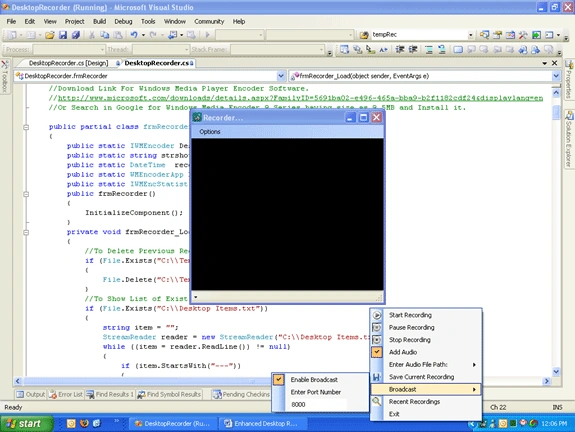
We can still enhance this application by improving UI, Broadcast Quality etc.
By using this application, we can record all your Desktop activities. I am attaching source code for further reference. I hope this code will be useful for all.
bashiruddin SheikhPosted Feb 9, 2019, 12:17 AM
Hello its not working windows 10....so please help me error '"{"Specified cast is not valid."}
Pinki YadavPosted Aug 28, 2018, 6:16 AM
Hey i want to add text in video in dot net how can i do this
Amit YadavPosted Aug 9, 2018, 8:14 AM
Can i integrate this application in web? if yes then please tell me how can i achieve that? I want to open this application using html javascript code and when recording is done then video file(as a blob) should be on html page. please help me thanks in advance.
Vikash KumarPosted Aug 22, 2017, 6:55 AM
Please update this article. The zip file is incomplete and there is a broken link to download the media player encoder 9
Zubair SaifPosted Apr 7, 2016, 8:23 AM
i have error in using wmencoderlib;
Sr KarthigaPosted Feb 18, 2016, 7:44 PM
GOOD ONE
Sr KarthigaPosted Feb 18, 2016, 7:43 PM
GOOD ONE
Sundararaj NPosted Sep 1, 2015, 3:27 AM
Recoding is not working. Only 0 byes is showing. What is the problem
Cheng chun yuanPosted Aug 12, 2015, 7:40 PM
could you install Media Player Encoder 9 64bits verion on windows10 OS ?
mursaleenfayyaz fayyazuddinPosted Jun 9, 2015, 9:51 AM
AudioSrc.SetInput("Default_Audio_Device", "Device", ""); this line recording audio from mic not from speakers. how to set speakers?
mursaleenfayyaz fayyazuddinPosted Jun 9, 2015, 9:51 AM
AudioSrc.SetInput("Default_Audio_Device", "Device", "");
mursaleenfayyaz fayyazuddinPosted Jun 9, 2015, 8:24 AM
Hi, I am getting recorded session. But the audio in recording is from mic. How to set audio of speakers to record?
wael adelPosted Dec 29, 2014, 11:43 AM
nice
viral chauhanPosted Mar 28, 2014, 7:24 AM
i have error get i have already install Windows Media Encoder 9 {"Exception from HRESULT: 0xC00D0072"}
Mehtech GlobalPosted Mar 26, 2014, 8:26 AM
i have error :the COM class factory for component with CLSID {36D27C48-A1E8-11D3-BA55-00C04F72F3... What to do..
Ravindran ThangaveluPosted Nov 12, 2013, 3:26 AM
Hi, Nice article and very useful, i have one doubt, at the time of start recording, i gave a path to store the file in C:\ but the video file is storing in C:\Users\XXXXX\AppData\Local\VirtualStore folder, is it possible to change the path?
shi buPosted Aug 10, 2013, 12:14 PM
good code, but i got Black & white output what?
Hitesh ChoudharyPosted Jun 4, 2013, 7:34 AM
Hi..thanks for such a helpful article but is it possible to capture any specific window?? Looking forward for your reply
shanmuga vijayPosted Mar 27, 2013, 2:57 AM
Hi could you please explain the broadcast feature in you application, Right now as setting the BroadCast url like here " http://10.100.1.100:8000 " Finally i browsed the given url , nothing happened, Please give me an suggestion on Broadcasting..
david leePosted Jun 23, 2012, 4:52 AM
hai any one have sample code for desktop recorder .
Bhutesh KumarPosted Mar 27, 2012, 7:44 AM
sir it will give following exception_ System.Runtime.InteropServices.COMException was unhandled Message="Exception from HRESULT: 0xC00D0072" Source="Interop.WMEncoderLib" ErrorCode=-1072889742 StackTrace: at WMEncoderLib.IWMEncoder.PrepareToEncode(Boolean bPrepare) at DesktopRecorder.frmRecorder.startRecordingToolStripMenuItem_Click(Object sender, EventArgs e) in C:\Documents and Settings\user2\Desktop\DesktopRecoder\DesktopRecorder\DesktopRecorder\DesktopRecorder.cs:line 196 at System.Windows.Forms.ToolStripItem.RaiseEvent(Object key, EventArgs e) at System.Windows.Forms.ToolStripMenuItem.OnClick(EventArgs e) at System.Windows.Forms.ToolStripItem.HandleClick(EventArgs e) at System.Windows.Forms.ToolStripItem.HandleMouseUp(MouseEventArgs e) at System.Windows.Forms.ToolStripItem.FireEventInteractive(EventArgs e, ToolStripItemEventType met) at System.Windows.Forms.ToolStripItem.FireEvent(EventArgs e, ToolStripItemEventType met) at System.Windows.Forms.ToolStrip.OnMouseUp(MouseEventArgs mea) at System.Windows.Forms.ToolStripDropDown.OnMouseUp(MouseEventArgs mea) at System.Windows.Forms.Control.WmMouseUp(Message& m, MouseButtons button, Int32 clicks) at System.Windows.Forms.Control.WndProc(Message& m) at System.Windows.Forms.ScrollableControl.WndProc(Message& m) at System.Windows.Forms.ToolStrip.WndProc(Message& m) at System.Windows.Forms.ToolStripDropDown.WndProc(Message& m) at System.Windows.Forms.Control.ControlNativeWindow.OnMessage(Message& m) at System.Windows.Forms.Control.ControlNativeWindow.WndProc(Message& m) at System.Windows.Forms.NativeWindow.DebuggableCallback(IntPtr hWnd, Int32 msg, IntPtr wparam, IntPtr lparam) at System.Windows.Forms.UnsafeNativeMethods.DispatchMessageW(MSG& msg) at System.Windows.Forms.Application.ComponentManager.System.Windows.Forms.UnsafeNativeMethods.IMsoComponentManager.FPushMessageLoop(Int32 dwComponentID, Int32 reason, Int32 pvLoopData) at System.Windows.Forms.Application.ThreadContext.RunMessageLoopInner(Int32 reason, ApplicationContext context) at System.Windows.Forms.Application.ThreadContext.RunMessageLoop(Int32 reason, ApplicationContext context) at System.Windows.Forms.Application.Run(Form mainForm) at DesktopRecorder.Program.Main() in C:\Documents and Settings\user2\Desktop\DesktopRecoder\DesktopRecorder\DesktopRecorder\Program.cs:line 17 at System.AppDomain._nExecuteAssembly(Assembly assembly, String[] args) at System.AppDomain.ExecuteAssembly(String assemblyFile, Evidence assemblySecurity, String[] args) at Microsoft.VisualStudio.HostingProcess.HostProc.RunUsersAssembly() at System.Threading.ThreadHelper.ThreadStart_Context(Object state) at System.Threading.ExecutionContext.Run(ExecutionContext executionContext, ContextCallback callback, Object state) at System.Threading.ThreadHelper.ThreadStart() InnerException: --- Can u plz tell wht is going wrong....
Mason ChanPosted May 10, 2011, 9:41 AM
Hello,your good application is helpful to me for my current screen recorder module. At the same time, i have a vlc media player embeded in my project, i'd like to use libvlc to resolve streaming video over lan. my vlc can play video with black screen. How can i resolve the bug? Is it possible to convert wmv(mss2) to in a regular wmv file? Thanks in advance.
Guest UserPosted Apr 28, 2011, 8:06 AM
Hi Satheesh, Thank full to you to present your valuable coding here . when i click on Start button this error is occuring please help me about this error . Retrieving the COM class factory for component with CLSID{632B606B-BBC6-11D2-A329-006097C4E76} due to the following error 80040154
sajan yamahaPosted Mar 24, 2011, 7:20 AM
the recorded thing is not saving ...
sajan yamahaPosted Mar 24, 2011, 6:28 AM
when clicking start recording..it says Retrieving the COM class factory for component with CLSID {36D27C48-A1E8-11D3-BA55-00C04F72F3...
thimmanagouda patilPosted Mar 18, 2011, 3:27 AM
suppose a notepad,a wordpad,firefox are opened.....if i want to record only operations done on notepad......plz give some help on how to capture the specific window
Arno van ZylPosted Feb 15, 2011, 4:04 AM
Hi Sateesh First of all, thanks a lot for the awesome example, it really works well. My question is this: I can't seem to get this program working on windows 7. I can record the video, but as soon as I want audio, the program crashes. Has anybody figured out how to get this working? Thanks for all your help in advance. Arno
Frederic SorengPosted Oct 25, 2010, 11:09 PM
Hi Satish, This article is really good. Can you please give some more light on braodcasting function over http. Thank you.
Marijke Van DaelePosted Sep 28, 2010, 5:31 AM
Hello, great feature!! I tried to run the program in VS2010 and Vista and I get the following error: HRESULT: 0xC00D0072 Anyone has found a workaround for this? Thanks.
mohmaed sameehPosted Sep 16, 2010, 9:17 PM
this is a very very very good program but the link you posted above (Media Player Encoder 9) is not found please send update it thanks you mohammed sameeh
Psychic SaintPosted Aug 15, 2010, 4:46 AM
i'd also like to know if we can record any other a/v format other than wmv and is there any way to keep the file size low without losing on quality.
Psychic SaintPosted Aug 15, 2010, 4:43 AM
sateesh, i must commend your work on this project (not well advertised though) and i'm glad that this thread is still alive and kicking. i have been trying to do a similar project and i was successful in recording desktop a/v using wmencoder the same way you've done it. however i reached your thread when i was trying to stream the recorded video live on internet. i'd appreciate some insight on this from you or anyone on this thread.
niks lodhaPosted Jun 18, 2010, 3:24 AM
in which video format it save the video.
suhas kumarPosted May 13, 2010, 12:41 AM
i choosen dis as my project i need details about encoder. some q 1>which compression technique used and how differ from others. 2>size of sceenshot and how many screenshots taken in 1 sec. 3>which part of code take sreanshots and compress it video. i searched lot on net but could't find any about encoder . atleast send me kink or url , where i can find answers.
Nur ChristianPosted Sep 14, 2009, 8:41 PM
This is very helpful tyvm Mr.Sateesh =)
Job VermeulenPosted Sep 10, 2009, 2:09 PM
On Windows 7 im getting this error: Retrieving the COM class fatory for component with CLSID xxxxxxx failed due the following error: 80040154
abhishek davePosted Aug 21, 2009, 9:27 AM
Hi, i tried to deploy this application working pretty fine but i cannot broadcast the live stream... is there something that this article doesnot say about broadcasting..
venkat aPosted May 2, 2009, 6:47 AM
Hi This application is working fine but clarity of recorded vedio is not good. what will we do for clarity video. when i run this application other folder and files are not opened. can any one tell me the solution thanks in advance.
Gerard BrandoneditedPosted Apr 29, 2009, 4:49 AMEdited Apr 29, 2009, 4:54 AM
Sateesh this is a first class example of simplicity and focus of a specific topic and well presented and the contribution is much appreciated. Two issues arise that perhaps you might be able to clarify. First the matter of broadcasting protocol remains unclear. If you could elaborate a little more on the steps needed to initiate this and what a client (other PC or internet user) would need to do to access the (live) broadcast. Secondly I am assuming that a broadcast would reduce the output and so cause the screen size to be reduced to accomodate the fps. This may be the reason for the reduction from higher quality to a 320 x 240px screen on broadcast. Finally the Screen_Capture is perfect for tutorials, but would this be possible to achieve application specific (exclusive of the desktop) recording and broadcast. This would perhaps enable the objective I have of desktop sharing. Gerry (Eplixo)
venkat aPosted Apr 27, 2009, 10:23 AM
when i add WMEncoderLib.dll its not loaded please any tell me the steps how do it. tell me the total process of this
Shanthi DharmarajPosted Mar 27, 2009, 7:24 AM
Hi,Thank you for giving us this excellent article.Its working fantastic.... I need your suggestion here. when we are recording it also captures the action when we stop recording. I want to avoid this. How can i do this? Is it posiible to capture a specific region or how we can do that? Please help me out.....
Habeeb MohammedPosted Jan 25, 2009, 1:27 AM
Wow. This is a very useful article put in a very simple way. Thank you Sateesh for sharing your expertise. I would like to know, rather than choosing an audio file, is there an option to record the live audio of the system which is in sync with the video capture. For example if I need to record my voice using microphone as part of the video is it possible?
PatPosted Sep 10, 2008, 9:03 AM
Has anyone found a way to get the double click to work when the Recorder is running?
bhavinPosted Aug 29, 2008, 9:25 AM
Hello, First of all Thanks for the Very Good Application..... Also I would like to ask that can we enhance it to record full webpage or the portion of a webpage. Thanks.