

In previous article, we had discussed about ASP.NET validation using VAB adapter. In this article, we will look into Win Forms adapter.
Create a new Win Forms application in VS 2008 and name it as WinFormsAdapterVAB. Now add the following dlls present in Enterprise Library installation folder:
Microsoft.Practices.EnterpriseLibrary.Common,
Microsoft.Practices.EnterpriseLibrary.Validation.Validators and
Microsoft.Practices.EnterpriseLibrary.Validation.Integration.WinForms
I am using same old Employee class definition of previous article.
Create UI on Form1 as shown below:
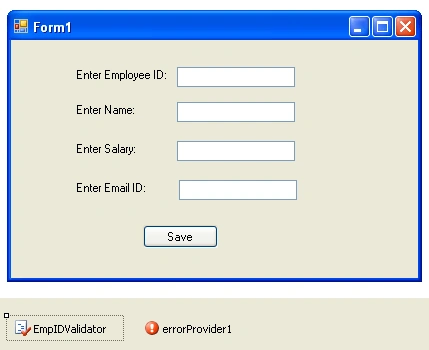
We have few labels, textboxes and ValidationProvider [present in Microsoft.Practices.EnterpriseLibrary.Validation.Integration.WinForms dll] on the page.
We need to set following properties for ValidationProvider named as EmpIDValidator:
Enabled  true.
true.
ErrorProvider errorprovider1.
RuleSetName Name of the Rule set [Group1].
SourceTypeName WinFormsAdapterVAB.Employee, WinFormsAdapterVAB.
SpecificationSource Both [default option]. We can set this to either Attributes or Configuration based on the location of validation code.
Than, we need to set following properties for each textbox:
Validated Property on EmpIDValidator should be name of the property of the control from where the value needs to be extracted for validating like Text property.
SourcePropertyName on EmpIDValidator should be name of the property on the source type for which validation information should be retrieved to validate value for the control.
PerformValidation on EmpIDValidator should be true/false, if it is true automatic validation will be performed when the validating event is fired like tab out.
Now, add the code to click event of Save button as shown below:
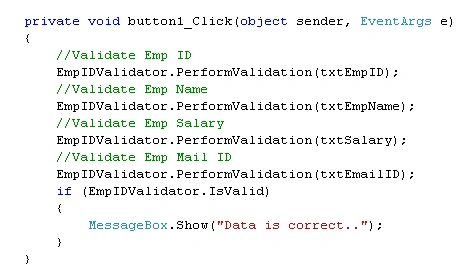
Here, PerformValidation method will do the validation on the control passed to it and displays error message using ErrorProvider.
Now, run the application. The output will be like this:
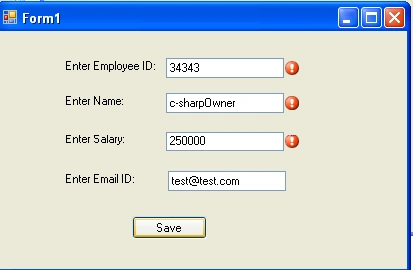
I will just outline the steps in using this VAB adapter for Win Forms.
- Create validation code using either attributes or configuration.
- Import VAB adapter for Win Forms into the application.
- Create ValidationProvider and set attributes discussed above.
- Set properties for each textbox discussed above.
- Run validation on the controls using provider's PerformValidation.
Sometimes, we might input invalid data like entering non-numeric values for salary. In order to handle that, ValidationProvider is having ValueConvert event. Now, we handle invalid salary and empid using EmpIDValidator as shown below:
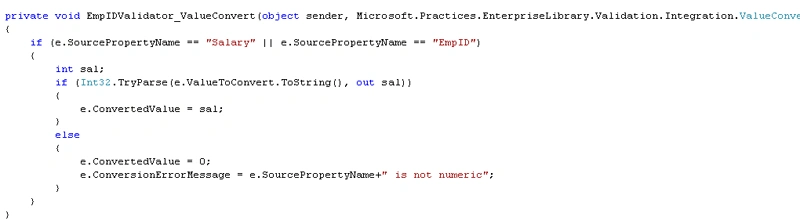
If the data is invalid, it will display an error message and set ConvertedValue to 0.
In certain cases, we might need to run some code after validation is performed. In order to handle that, ValidationProvider is having ValidationPerformed event. Now, we display an alert after validating empid as shown below:

I am ending the things here. I am attaching source code for reference. In coming articles, we will go deep into this Application block. I hope this article will be helpful for all.
Join the conversation! Your thoughts help the community grow.