

In the previous article, we discussed about VS add-ins. In this article, we will look into interfacing Win Forms with it. Integrating Win Forms in add-ins gives a better UI for interactions. I am going to explain the integration with a sample. Open our VS 2008 and create a new VS add-in as explained in the previous article with the name WinFormAddin.
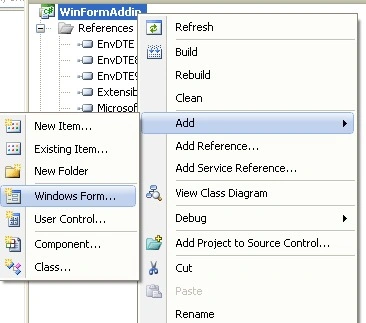
Now add a new Form named MyForm to the add-in as shown below.
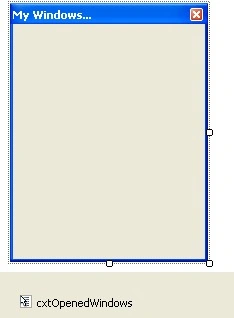
We will make our Form to show a list of opened VS windows. Design the form as shown below.
Go to connect. cs and add the below code to the Exec method.
public void Exec(string commandName, vsCommandExecOption executeOption, ref object varIn, ref object varOut, ref bool handled)
{
    handled = false;
    if (executeOption == vsCommandExecOption.vsCommandExecOptionDoDefault)
    {
        if (commandName == "WinFormAddin.Connect.WinFormAddin")
        {
            handled = true;
            MyForm objFrm = new MyForm((DTE2)_applicationObject);
            objFrm.Show();
            return;
        }
    }
}
Here, we are passing DTE2 to our form. By using this DTE2 instance, we can work on Visual Studio IDE events, windows, etc. When we run our add-in, it will call Exec(). In this method, we are defining the form's instance and passing DTE2 (_applicationobject) to it.
Now, go to code-behind behind MyForm and add the below code to it.
public partial class MyForm : Form
{
    public DTE2 MyDTE;
    public List<Window> MyWindows = new List<Window>();
    public Button PrevButton;
    public int FormHeight = 25;

    public MyForm(DTE2 myDTE)
    {
        MyDTE = myDTE;
        InitializeComponent();
    }

    private void MyForm_Load(object sender, EventArgs e)
    {
        LoadAllWindows();
    }

    private void LoadAllWindows()
    {
        if (MyDTE != null)
        {
            cxtOpenedWindows.Items.Clear();
            MyWindows.Clear();
            this.Controls.Clear();

            //Get List of Opened Windows.
            for (int i = 1; i <= MyDTE.Windows.Count; i++)
            {
                cxtOpenedWindows.Items.Add(MyDTE.Windows.Item(i).Caption, null, new EventHandler(WindowHandler));
                MyWindows.Add(MyDTE.Windows.Item(i));

                Button btn = new Button();
                btn.Text = MyDTE.Windows.Item(i).Caption;
                btn.Height = 20;
                btn.Width = this.Width - 10;

                if (PrevButton == null)
                {
                    btn.Top = 0;
                }
                else
                {
                    btn.Top = PrevButton.Top + 20;
                }

                FormHeight += btn.Height;
                btn.Click += new EventHandler(btn_Click);
                PrevButton = btn;
                this.Controls.Add(btn);
            }

            cxtOpenedWindows.Items.Add("Refresh Windows", null, new EventHandler(WindowHandler));
            this.Height = FormHeight;
        }
    }

    void btn_Click(object sender, EventArgs e)
    {
        string name = ((Button)sender).Text;
        OpenSelectedWin(name);
    }

    private void WindowHandler(object sender, EventArgs e)
    {
        string name = ((ToolStripItem)sender).Text;
        OpenSelectedWin(name);
    }

    private void OpenSelectedWin(string name)
    {
        //To refresh Windows List.
        if (name == "Refresh Windows")
        {
            PrevButton = null;
            FormHeight = 25;
            LoadAllWindows();
            return;
        }

        foreach (Window w in MyWindows)
        {
            if (w.Caption == name)
            {
                w.Activate();
                break;
            }
        }
    }
}
On Form load, we are getting a list of opened windows using MyDTE.Windows collection. Then, we create a button and contect menu item for each opened window. Finally, on click of the button; we are calling Activate() to set focus to the selected window. Run the application and select Tools WinFormAddIn and the output will be as shown below.
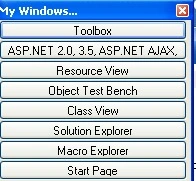
When we click on the button, it will set focus to that window. In this way, we can integrate win forms using DTE2 events and methods.
I am ending up with the things here. I am attaching the source code for reference. I hope this article will be helpful for all.
Gowtham RajamanickamPosted Apr 8, 2016, 9:57 AM
good one...
Sonu ChaudharyPosted Mar 18, 2016, 2:37 AM
good one share.
Mukesh KumarPosted Oct 16, 2015, 5:49 AM
Good One
Yashwanth MuthineniPosted Aug 14, 2015, 5:26 AM
Nice Share..
somuPosted Mar 6, 2009, 8:39 AM
I ran the application, it's opening the VS IDE again... Is it right? or i am missing something...? Please clarify...