

Introduction:
This article discusses the construction of an image viewer user control that may be used to display images from a directory containing a collection of image files. The control displays the previous and next images in the file along with the current image. The current image may be opened from the user control into the default image application on the user's machine based upon that machine's file associations. Image thumbnails are used to supply the previous, current, and next images from the directory. As shown in the demonstration, the user control could be added to an application where you might need to allow users to preview or visually scan images prior to opening them up for viewing or edit.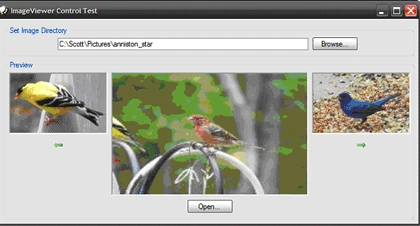
Figure 1: Image Viewer User Control Loaded into a Test Application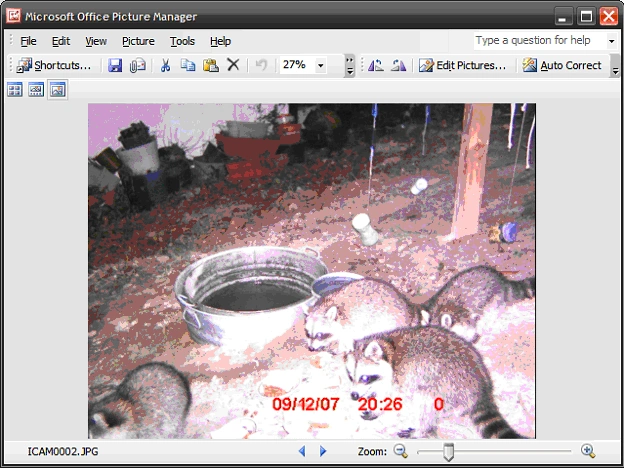
Figure 2: Opening an Image into the Default Image Application (Microsoft Office Picture Manager shown)
Getting Started:
In order to get started, unzip the included project and open the solution in the Visual Studio 2005 environment. There are two project contained in the solution. ImageViewer is the first project and it is control library project containing a single user control. The second project is a test application which displays a single form used to contain the user control.
In the solution explorer, you should note these files: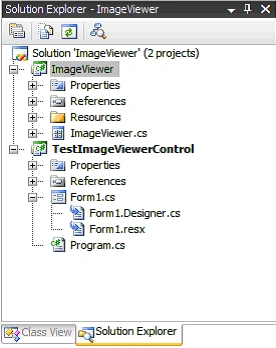
Figure 3: Solution Explorer
The Image Viewer User Control (ImageViewer.cs)
The Image Viewer user control contains everything necessary to browse to the image folder and to view the current, next, and previous images. The control itself contains a text box and browse button used to open a folder browser dialog box; when the user navigates to the desired folder and selects it, the path the folder will be shown in the textbox control and the browse button click event handler will trigger the collection of all of the image files contained in the selected folder and will start up the display of the images. The control contains three picture boxes used to display the previous, current, and next images. The previous and next images are accompanied by two buttons used to move backwards and forwards through the image collection. The paths to each of the image files are contained in an array list and an integer value with class scope is used to maintain the current position within that array list.
If you'd care to open the code view up in the IDE you will see that the code file begins with the following using statements; most included are per the default configuration but System.IO was added to support the directory operations used within the code.
using System;<?xml:namespace prefix = o ns = "urn:schemas-microsoft-com:office:office" />
using System.Collections;
using System.ComponentModel;
using System.Drawing;
using System.Data;
using System.IO;
using System.Text;
using System.Windows.Forms;
Following the imports, the namespace and class are defined and a constructor added as are a collection of local member variables used to maintain the folder path, the image file paths (in an array list), the image list position, and the images themselves (previous, current, and next).
namespace ImageViewer
{
/// <summary>
/// A user control used to allow previewing
/// the previous, current and next images in a
/// folder containing image files
/// </summary>
public partial class ImageViewer : UserControl
{
// private member variables
private string mFolder;
private ArrayList mImageList;
private int mImagePosition;
private Image mPreviousImage;
private Image mCurrentImage;
private Image mNextImage;
/// <summary>
/// Default constructor
/// </summary>
public ImageViewer()
{
InitializeComponent();
}
Next up is the user control's load event handler; this demonstration does not do anything in the load event but you may wish to use this handler to set a default image folder or something such as that if need be.
/// <summary>
/// Load Event for User Control
/// </summary>
/// <param name="sender"></param>
/// <param name="e"></param>
private void UserControl1_Load(object sender, EventArgs e)
{
// do nothing on load
}
The next section of the code is the browse button click event handler. In this section of the code, the handler opens the folder browser dialog box which the user may then use to set the path to the image folder. Once the folder has been set, the handler loops through that folder and locates all bitmap, jpeg, and gif files; the file paths any image files found are added to an array list (bitmaps, gifs, and jpegs). Once the array list is populated with the files paths, the click event handler wraps up but setting the list index position to zero and then it calls the SetImages method which sets up the current, previous, and next images into the appropriate picture box. The code is annotated and should be easy enough to follow:
/// <summary>
/// Set the image folder location.
///
/// Store all of the image file names into the
/// Image List (mImageList) and then load the
/// initial images
/// </summary>
/// <param name="sender"></param>
/// <param name="e"></param>
private void btnBrowse_Click(object sender, EventArgs e)
{
// Label the folder browser dialog
this.folderBrowserDialog1.Description = "Select the image directory.";
// disable create folder feature of folder browser
this.folderBrowserDialog1.ShowNewFolderButton = false;
// display the folder browser
DialogResult result = folderBrowserDialog1.ShowDialog();
if (result == DialogResult.OK)
{
// on okay, set the image folder to the
// folder browser's selected path
mFolder = folderBrowserDialog1.SelectedPath;
if (!String.IsNullOrEmpty(mFolder))
{
txtImageDirectory.Text = mFolder;
}
}
else
{
// exit if the user cancels
return;
}
// initialize the image arraylist
mImageList = new ArrayList();
// loop through the image directory
// and find all of the image files;
// add the found files to the image
// list - add other image types if
// necessary
DirectoryInfo dir = new DirectoryInfo(mFolder);
foreach (FileInfo f in dir.GetFiles("*.*"))
{
switch (f.Extension.ToUpper())
{
case ".JPG":
mImageList.Add(f.FullName);
break;
case ".BMP":
mImageList.Add(f.FullName);
break;
case ".GIF":
mImageList.Add(f.FullName);
break;
default:
break;
}
}
// set the starting position to 0
// and call the set images method
// to load the pictures
mImagePosition = 0;
SetImages();
}
The next bit of code is the SetImages function; this function is used to set the images for each of the picture boxes (previous, current, and next image). This code creates thumbnails the images stored as file paths in the images array list and then sets the picture boxes to display the thumbnails rather than the full images. The code is written to respond differently when hitting the limits of the array list used to store the file paths to the actual images; at the limits, the previous or next images will be blanked.
Further, the code clears out the images once they picture boxes are set, and garbage collection is called to clean it up each time the function is called. I found that, without garbage collection, the control would through an out of memory exception when scanning through large numbers of images in one setting. Again, this code is annotated and should be easy enough to follow:
/// <summary>
/// This function is used to set the previous,
/// current, and next images into the
/// correct picture boxes
/// </summary>
private void SetImages()
{
// clear any existing images
// memory will be an issue if
// cycling through a large
// number of images
mPreviousImage = null;
mNextImage = null;
mCurrentImage = null;
// set the previous image
if (mImagePosition > 0)
{
try
{
// set delegate
Image.GetThumbnailImageAbort prevCallback = new Image.GetThumbnailImageAbort(ThumbnailCallback);
// get the previous image
Bitmap prevBmp = new Bitmap(mImageList[mImagePosition - 1].ToString());
// thumbnail the image to the size
// of the picture box
mPreviousImage =prevBmp.GetThumbnailImage(160, 100,prevCallback, IntPtr.Zero);
// set the picture box image
picPreviousImage.Image = mPreviousImage;
// clear everything out
prevBmp = null;
prevCallback = null;
mPreviousImage = null;
}
catch
{
//stall if it hangs, the user can retry
}
}
else
{
// at the limit; clear the
// image
picPreviousImage.Image = null;
}
// set current image
if (mImagePosition < mImageList.Count)
{
try
{
// set delegate
Image.GetThumbnailImageAbort currentCallback =new Image.GetThumbnailImageAbort(ThumbnailCallback);
// get the current image
Bitmap currentBmp = new Bitmap(mImageList[mImagePosition].ToString());
// thumbnail the image to the size
// of the picture box
mCurrentImage =currentBmp.GetThumbnailImage(320, 200,currentCallback, IntPtr.Zero);
// set the picture box image
picCurrentImage.Image = mCurrentImage;
// clear everything out
currentBmp = null;
mCurrentImage = null;
currentCallback = null;
}
catch
{
//stall if it hangs, the user can retry
}
}
// set next image
if (mImagePosition < mImageList.Count-1)
{
try
{
// set delegate
Image.GetThumbnailImageAbort nextCallback = new Image.GetThumbnailImageAbort(ThumbnailCallback);
// get the next image
Bitmap nextBmp = new Bitmap(mImageList[mImagePosition + 1].ToString());
// thumbnail the image to the size
// of the picture box
mNextImage = nextBmp.GetThumbnailImage(160, 100, nextCallback,IntPtr.Zero);
// set the picture box image
picNextImage.Image = mNextImage;
// clear everything out
nextBmp = null;
nextCallback = null;
mNextImage = null;
}
catch
{
//stall if it hangs, the user can retry
}
}
else
{
// at the limit; clear the
// image
picNextImage.Image = null;
}
// call for garbage collection
GC.Collect();
}
The next bit of code is the code called if the thumbnail image attempt aborts; this is required by the method used to generate the thumbnail.
/// <summary>
/// Thumbnail image abort target
/// </summary>
/// <returns></returns>
public bool ThumbnailCallback()
{
return false;
}
The previous image button click event handler is next up; it is used to update the image position within the array list and to recall the SetImages method when the index position is updated:
/// <summary>
/// Set the image position and reset all of
/// the images when the previous image
/// button is clicked
/// </summary>
/// <param name="sender"></param>
/// <param name="e"></param>
private void btnPreviousImage_Click(object sender, EventArgs e)
{
if (mImagePosition >= 0 && picPreviousImage.Image != null)
{
mImagePosition;
SetImages();
}
}
The next image button click event handler is next up; it is used to update the image position within the array list and to recall the SetImages method when the index position is updated:
/// <summary>
/// Set the image position and reset all
/// of the images when the next image
/// button is clicked
/// </summary>
/// <param name="sender"></param>
/// <param name="e"></param>
private void btnNextImage_Click(object sender, EventArgs e)
{
if (mImagePosition <= (mImageList.Count - 2))
{
mImagePosition++;
SetImages();
}
}
The last method is used to open the current image into the default image viewing application as based upon the machine's file associations. This method merely calls the process start function and passes it the file path to the current image file.
/// <summary>
/// Open the current image using the default
/// program per the user's file associations
/// </summary>
/// <param name="sender"></param>
/// <param name="e"></param>
private void btnOpenImage_Click(object sender, EventArgs e)
{
System.Diagnostics.Process.Start(
mImageList[mImagePosition].ToString());
}
The Text Form (Form1.cs)
The test form contained with the test application contains a single instance of the Image Viewer user control; the form itself has no specific code leaving nothing to report here. The test application was set as the start up project and, when executed, the test form opens up and displays the user control.
Summary
This solution provides a user control that may be used to provide a user interface that may be helpful if the user of an application will need to browse for image files. The user control provides the controls necessary to browse for a folder containing images along with the means to preview the currently selected, previous, and next images. Through the control, the end user may browse through all of the image files contained in the folder and, if desired, may open on the images into a new application.
Join the conversation! Your thoughts help the community grow.