
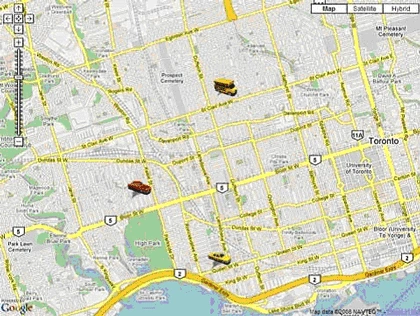
Features
- Enables you to draw google map. No javascript knowledge required. Just drag and drop control on your page.
- Uses Ajax calls to retrieve server side data.
- Enables you to change pushpin postions on the fly. No need to refresh full map.
- Enables you to change pushpin icons on the fly.
- Optimized to give you best performance. i.e. only those pushpin data will be retrieved from server that are changed.
- Allows you to draw polylines and polygons
How to use
In this part of article, I don't want you to explain how I created this control. Instead I want you to start using it.
Requirements
- Visual Studio 2005 or higher
- Microsot ASP.Net Ajax framework. You can download it from here.
- Internet Explorer 7.0 or Mozilla Firefox 2.x.
(Note: It may work on other browsers. I have tested on IE and Firefox only.)
Follow below steps in order to use it in your ASP.Net website.
- Download source from link provided on top of the page. Extract it somewhere on your harddrive.
- Open extracted folder as a website in Visual Studio and run it. When you run this website, you will be able to navigate few samples pages.
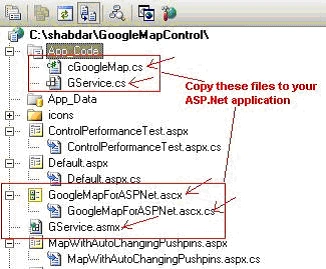
- To use this control in your application, copy following files to your ASP.Net application in same structure as shown below.
Now we will add reference to Ajax library. If you are already using Ajax controls in your application, you can skip following 4 steps.
Adding Ajax Framework to your website
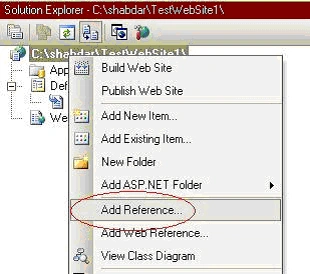
- Right click on your website in solution explorer and click add reference.
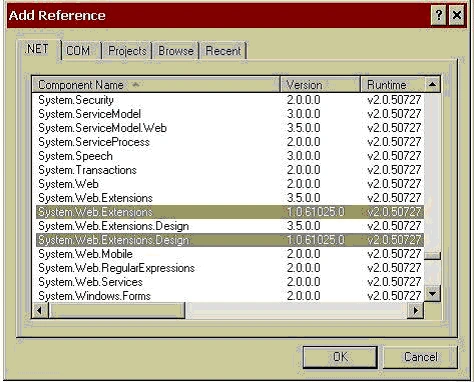
- In Add Reference window, select System.Web and System.Web.Extensions libraries and click OK. Note library versions (in below picture 1.0.61025.0. You may have another version. You can use any version).
- Go to your web.config file and add following lines between <System.Web></System.Web> element.
Note: Make sure that version of System.Web.Extension library is same as what you have selected when you added reference.
<httpHandlers>
  <remove path="*.asmx" verb="*"/>
  <add path="*.asmx" verb="*"
  type="System.Web.Script.Services.ScriptHandlerFactory,
   System.Web.Extensions,  Version=1.0.61025.0,
   Culture=neutral,
   PublicKeyToken=31BF3856AD364E35"
  validate="false"/>
  <add path="*_AppService.axd" verb="*"
  type="System.Web.Script.Services.ScriptHandlerFactory,
   System.Web.Extensions, Version=1.0.61025.0,
   Culture=neutral,
   PublicKeyToken=31BF3856AD364E35"
  validate="false"/>
  <add path="ScriptResource.axd" verb="GET,HEAD"
  type="System.Web.Handlers.ScriptResourceHandler,
   System.Web.Extensions, Version=1.0.61025.0,
   Culture=neutral,
   PublicKeyToken=31BF3856AD364E35"
  validate="false"/>
</httpHandlers>

<httpModules>
  <add name="ScriptModule"
  type="System.Web.Handlers.ScriptModule,
   System.Web.Extensions,
   Version=1.0.61025.0, Culture=neutral,
   PublicKeyToken=31BF3856AD364E35"/>
</httpModules>
Adding Google Map control to your webpage
- Open page where you want to insert Google Map.
- Drag GoogleMapForASPNet.ascx control to your page.
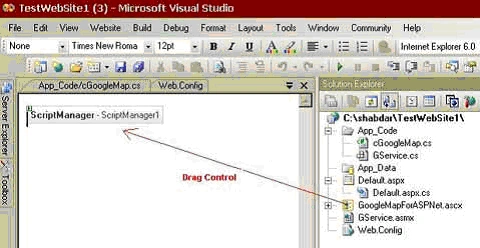
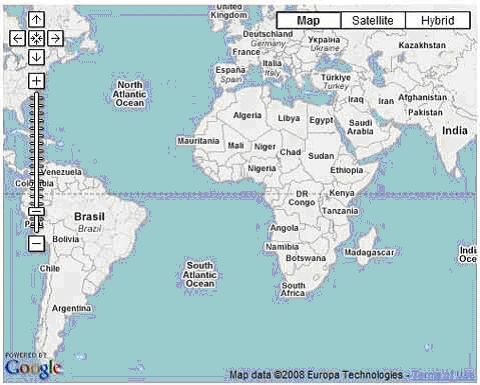
You won't be able to see Google Map in design view. Instead, you should see Script Manager as part of this control. - At this point you can run your application and you should be able to see a blank Google Map on your page as shown below.
Let's add few pushpins on this map. For that you will have to add some code in Page_Load() event of your page.
Passing parameters to Google Map control
- You must specify Google Map API Key for this component. You can obtain this key from http://code.google.com/apis/maps/signup.html.
if (!IsPostBack)
{
    GoogleMapForASPNet1.GoogleMapObject.APIKey = "<YourGoogleMapKey>";
Note that inialization code for map should go inside if (!IsPostBack) block.
- Optionally you can specify which version of Google maps API to use. You can get more information about Google Maps API version here.
GoogleMapForASPNet1.GoogleMapObject.APIVersion = "2"; - Specify width and height for map. You can specify either in pixels or in percentage relative to it's container.
GoogleMapForASPNet1.GoogleMapObject.Width = "800px"; GoogleMapForASPNet1.GoogleMapObject.Height = "600px"; - Specify zoom level. Default is 3.
GoogleMapForASPNet1.GoogleMapObject.ZoomLevel = 14; - Specify Center Point for map. Map will be centered on this point.
GoogleMapForASPNet1.GoogleMapObject.CenterPoint = new GooglePoint("CenterPoint", 43.66619, -79.44268); - Add pushpins for map. This can be done by initializing GooglePoint type object. In constructor of GooglePoint, First argument is ID of this pushpin. It must be unique for each pin. Second and third arguments are latitude and longitude.
GoogleMapForASPNet1.GoogleMapObject.Points.Add(new GooglePoint("1", 43.65669, -79.45278));
Alternatively you can also do it like below,
GooglePoint GP = new GooglePoint();
GP.ID = "1";
GP.Latitude = 43.65669;
GP.Longitude = -79.43270;
GoogleMapForASPNet1.GoogleMapObject.Points.Add(GP);
You can add as many pushpins as you wish. Now run website again and you should see pushpins on map.
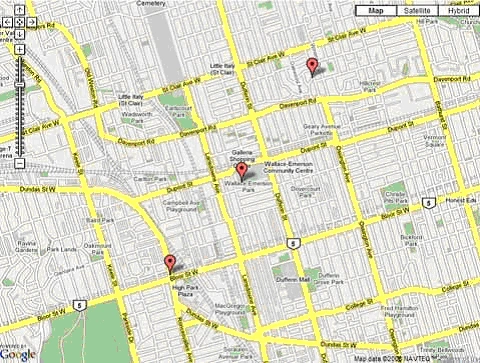
Assigning custom icon to pushpins
- You can assign your own icons with google map control. For that first copy your icons in some directory under root directory of your website. You can assign icon to a pushpin as below,
- GP.IconImage = "icons/pushpin-blue.png";
Note that path to image is relative to root folder. You should have icons (or whichever) directory in root folder of your website. - You can add description of a pushpin which will pop up when user clicks a pushpin.
GP.InfoHTML = "This is Pushpin-1";
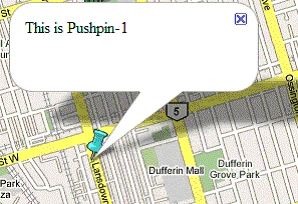
- You can format InfoHTML property using standard HTML tags.
example: GP.InfoHTML = "This is <font color='red'><b>Pushpin-1</b></font>";
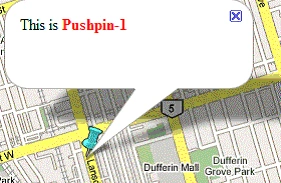
Up to this point, I have explained you basics of using Google Map control. Now let's implement some advanced functionality.
Let's say we want to move pushpins when user do some action. For example when a user clicks on a button. For that, follow below steps.
Creating Interactive Map
You can create interactive map using Google Map control. You can move pushpins when user clicks on a button. Here is how you can do it.
- Insert standard asp.net button on your web page. Write following code in click event of this button.
protected void Button1_Click(object sender, EventArgs e)
{
    GoogleMapForASPNet1.GoogleMapObject.Points["1"].Latitude += 0.003;
    GoogleMapForASPNet1.GoogleMapObject.Points["1"].Longitude += 0.003;
}
We are incrementing Latitude and Longitude value for Pushpin-1 here. Note that I am using ID(In above code "1") of pushpin to set new Latitude and Longitude. - Run your application and click on Button. You will note that whole page get's refreshed (or postback). To stop it from posting back, you need to wrap this button with an Ajax Update panel. Go to Visual Studio toolbox and drag Ajax Updatepanel control on your page.
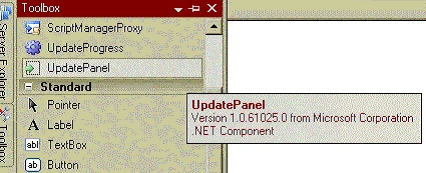
- Move your button inside this update panel.
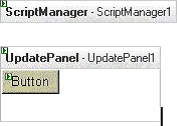
- Now run website again and click on button. You should notice that now page is not posting back and Pushpin moves on map.
Auto refreshing map and GPS Navigation
You can use Ajax Framewor's timer control in similar way as button control (I have explained above). On Timer_Tick() event you can specify new latitude longitude for all pushpins. This way Map will move all pushpins automatically after specified time delay. You can hook up any GPS service with this control to create GPS Navigation system.
Creating Polylines with Google Map control
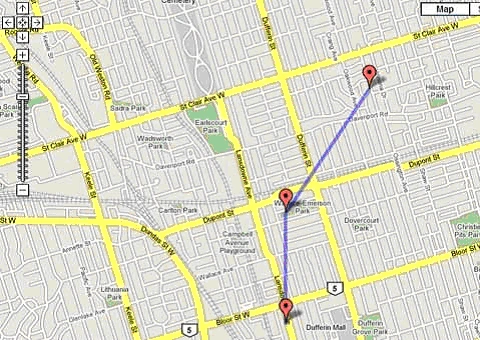
Create points for polyline
GooglePoint GP1 = new GooglePoint();
GP1.ID = "GP1";
GP1.Latitude = 43.65669;
GP1.Longitude = -79.44268;
GP1.InfoHTML = "This is point 1";
GoogleMapForASPNet1.GoogleMapObject.Points.Add(GP1);

GooglePoint GP2 = new GooglePoint();
GP2.ID = "GP2";
GP2.Latitude = 43.66619;
GP2.Longitude = -79.44268;
GP2.InfoHTML = "This is point 2";
GoogleMapForASPNet1.GoogleMapObject.Points.Add(GP2);

GooglePoint GP3 = new GooglePoint();
GP3.ID = "GP3";
GP3.Latitude = 43.67689;
GP3.Longitude = -79.43270;
GP3.InfoHTML = "This is point 3";
GoogleMapForASPNet1.GoogleMapObject.Points.Add(GP3);
Create polyline between points GP1, GP2 and GP3

//Define polyline
GooglePolyline PL1 = new GooglePolyline();
PL1.ID = "PL1";
//Give Hex code for line color
PL1.ColorCode = "#0000FF";
//Specify width for line
PL1.Width = 5;

//Add points
PL1.Points.Add(GP1);
PL1.Points.Add(GP2);
PL1.Points.Add(GP3);
Add Polyline to Google Map control,
GoogleMapForASPNet1.GoogleMapObject.Polylines.Add(PL1);
Creating Polygons with Google Map control
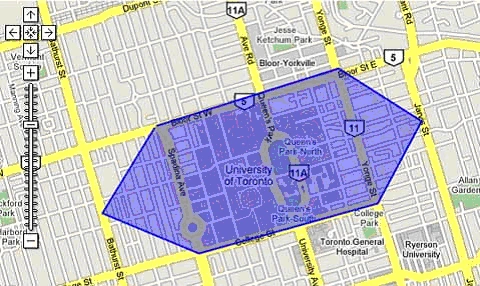
Create points for polyline,
//Define Points for polygon
GooglePoint GP1 = new GooglePoint();
GP1.ID = "GP1";
GP1.Latitude = 43.66675;
GP1.Longitude = -79.4042;

GooglePoint GP2 = new GooglePoint();
GP2.ID = "GP2";
GP2.Latitude = 43.67072;
GP2.Longitude = -79.38677;

//Define GP3,GP4,GP5,GP6 and GP7 in similar way
GooglePoint GP7 = new GooglePoint();
GP7.ID = "GP7";
GP7.Latitude = 43.66656;
GP7.Longitude = -79.40445;

//Create Polygon using above points
GooglePolygon PG1 = new GooglePolygon();
PG1.ID = "PG1";

//Give Hex code for line color
PG1.FillColor = "#0000FF";
PG1.FillOpacity = 0.4;

//Stroke is outer border of polygon.
PG1.StrokeColor = "#0000FF";
PG1.StrokeOpacity = 1;
PG1.StrokeWeight = 2;

//Add points to polygon
PG1.Points.Add(GP1);
PG1.Points.Add(GP2);
PG1.Points.Add(GP3);
PG1.Points.Add(GP4);
PG1.Points.Add(GP5);
PG1.Points.Add(GP6);
PG1.Points.Add(GP7);

//Add polygon to google map control,
GoogleMapForASPNet1.GoogleMapObject.Polygons.Add(PG1);
Go through samples provided in download. I have explained all sort of circumtances in which you may want to use google map control. If you have any questions, feel free to ask.
In Part 2, I will explain you souce code of Google Map user control and how to customize it for your own use.
marty goldbergPosted Feb 29, 2024, 5:30 PM
I'm having trouble getting the example code to display the map at all. I downloaded the code, inserted my Google Maps API key in web.config, added as an application in IIS manager using the .net 4.5 Classic application pool, and opened the default page. When I click to one of the map pages I see the text and links but no map at all. Suggestions?
arockia dossPosted Jul 27, 2020, 2:13 AM
Parser ErrorDescription: An error occurred during the parsing of a resource required to service this request. Please review the following specific parse error details and modify your source file appropriately.Parser Error Message: The base class includes the field 'GoogleMapForASPNet1', but its type (GoogleMapForASPNet) is not compatible with the type of control (ASP.googlemapforaspnet_ascx). Source Error: Line 4: </asp:Content> Line 5: <asp:Content ID="Content2" ContentPlaceHolderID="ContentPlaceHolder1" runat="server"> Line 6: <uc1:GoogleMapForASPNet ID="GoogleMapForASPNet1" runat="server" /> Line 7: <p> Line 8: <br />
Extreme PanditPosted Apr 10, 2014, 2:32 AM
its great very helpful............
Esteban de OrtuzarPosted Feb 10, 2014, 2:26 PM
Shabdar Ghata, I have a question, when the user drags on the map or zoom out as he can the map shows a very shortly-gray scale refresh into the EEUU map. Do you check it?
MinChan SikePosted Aug 28, 2013, 4:16 AM
Cool , you help me a lot. Thanks
Sunil SamantrayPosted Aug 7, 2013, 6:55 AM
Hi there, Its really Cool & Great Work, It doesn't allows you to add a Script manager on .aspx page so cant use Ajax conrols can you guide me to use your example for the same..
Maulik ShahPosted Jun 18, 2013, 1:37 AM
Great Work. Google has deprecated V2 Maps API and not providing new key for the same. Can you guide me to use your example for Maps API v3.
kaushik joshiPosted Apr 3, 2013, 8:07 AM
Nice Article
Don TrainerPosted Mar 7, 2013, 4:49 PM
Quick Question, I want to add a label to my markers such as A, B, C etc. Can't seem to find that. Any hints?
Kavita DatarPosted Jan 28, 2013, 11:03 PM
thanks a lot...its of great help..
Mohammad MirshahiPosted Oct 10, 2012, 1:14 AM
hi it is good... nice
riham baraziPosted Sep 9, 2011, 8:19 AM
hi how i get the mouse coordinates in the map when i clicked to the map???
sac zadPosted Jun 7, 2011, 7:57 AM
i have tried this application with ip address url i created virtual directory and tried to open with http://ipaddress/virtual directoryname/ but am getting error like need to registerd api key. it is working fine with localhost url but not with ip address. thanks you so my requirnment is to use this app with ip address
bhaskar godugunuriPosted May 8, 2011, 3:02 PM
Thank you very much for providing such a great info about googlemapcontrol.
Tania PushkineditedPosted Apr 4, 2011, 10:28 PMEdited Apr 5, 2011, 1:43 AM
Is it possible to add kmz/kml layer to GoogleMapForASPNet control?
Alvi AlviPosted Mar 24, 2011, 3:09 PM
Regards ! Ahmad Jamal Alvi
mahipal yadav rewariPosted Mar 9, 2011, 6:58 AM
this is eight wonderful of world . this real superstar programming all program excute my e-mailid --- [email protected]
karthikeya ThangamaniPosted Dec 24, 2010, 8:40 AM
sir i need a explanation for googlemapControl
talha karkunPosted Nov 25, 2010, 5:09 AM
Hi Shabdar This is good article about google map control. but it is not working in IIS. i don't know what is the problem. i placed this whole application(without any changing) in IIS then it gives error about api key. I already generate new API key with new URL where i take in IIS application. if u find any solution then pls give me ASAP
Sanjay JhaPosted Sep 24, 2010, 1:24 AM
how to implement geofence in this application. I have know abt it. Thanks, Sanjay
Dave MavinPosted Sep 12, 2010, 5:11 AM
This is an awesome control and has saved me many hours building this from scratch, many thans appreciated :)
SHIFT BLOGPosted Aug 29, 2010, 1:13 AM
GREAT CONTROL
m gPosted Apr 6, 2010, 5:40 PM
hello i want to ask a question about infobox, it is possible to add photo or image on infoboxes but how could i add my photo or any imege can anyone explain to me..?? for example when i click the icon window will open and i will see the photo on it please help me..!
Armando Medrano DuranPosted Mar 11, 2010, 9:37 PM
part 2 please
Mohamed KaiedPosted Feb 15, 2010, 3:36 AM
hi I try to use the code but I have this error GService' is undefined please can provide me what can solve this problem
rh lPosted Jan 20, 2010, 12:16 PM
When will you post Part II?
dineshPosted Jan 11, 2010, 11:29 PM
tks you very much
JpPosted Aug 9, 2009, 12:26 PM
I got problem running on firefox ver 2&3, url is http://housewarming.awantravel.com/test2.aspx. Anyone can help?
SerefPosted Jul 16, 2009, 11:14 AM
I tried to this googlemapcontrol but when I try to compile GoogleMap Object not found message which I have received.Could you help me ?
Feroze AhmedPosted Jun 15, 2009, 2:26 AM
how to customize zoom level image?
jessica winsletPosted May 6, 2009, 8:51 AM
I need the code for find the lat,long value of an mouse click point with the help of winning gambling strategies GoogleMapForASPNet1 control and display in a list box.can anyone provide that?
mani phanieditedPosted Nov 28, 2008, 4:08 PMEdited Nov 28, 2008, 4:09 PM
How do we default the map type to HybridType etc? Thanks,
kamal kannanPosted Nov 28, 2008, 3:25 PM
Hi First i appreciate this article, it is great and very useful form me. I have implemented sample for to auto refresh pushpins in the maps, when I increase the zoom level before the timer tick event is fired, after tick event is fired the default zoom level is automatically set. How we can maintain the zoom level after push pins refresh in the maps? Please give me a solution.
Sam LamPosted Sep 18, 2008, 1:28 PM
great article. are you going to have part 2 of the article coming soon? I'd like to know how to creat a geo fence from your polyline concept. Thank you.
jonPosted Aug 22, 2008, 11:17 PM
Nice control! I have a map with 3000 data points.. How can I maximize the performance. Any suggustions... Can the GoogleMaps Marker Manager be implemented. thanks