

Introduction
FXCOP is one of the legendary tools which help us automate reviews using set of rules against compiled assemblies. This article will discuss some basics of FXCOP and then concentrate mainly on how we can add custom rules in FXCOP.
Basics of FXCOP
As the name suggests, the COP in FXCOP means the police. So it's an analysis tool which runs rules against the .NET assemblies and gives a complete report about broken rules. As it runs on the assembly, it can be run on any language like C#, VB.NET etc. You can download the latest copy of FXCOP from here.
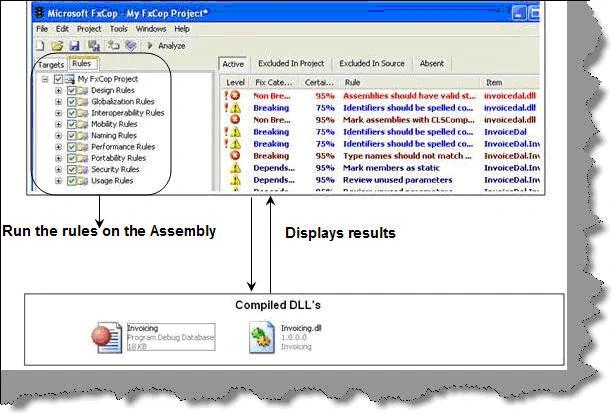
The below figure gives a visual outlook of how FXCOP runs the rules on the assembly and then displays the broken rules in a different pane.
Using the Existing Rules
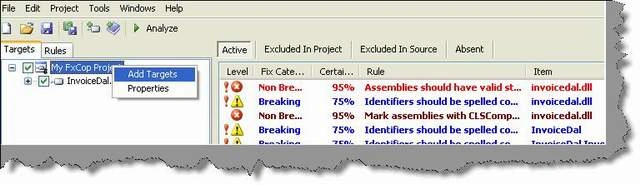
Using the existing rules is pretty simple. Open the FXCOP tool and you will see two tabs, one is the targets tab and the other the rules tab. Targets tab is where you add the assembly. You can add the assembly DLL by right clicking and then clicking on add targets.
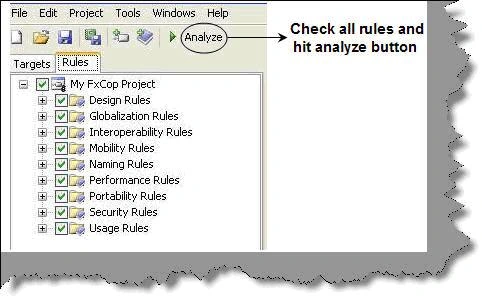
The rules which need to be run can be selected in the second tab 'Rules'. So click on the tab and select the necessary rules and hit analyze.
Adding a Custom Rule - All Connection Objects Should be Closed
To understand the concept of custom rule, we will take a practical example. What we will do is when any connection object is opened in a method, we will ensure that it's closed. If it's not closed, FXCOP will throw an error.
Step 1
To make custom rules, the first step is to create a class library. FXCOP expects an XML file in which rules are defined. The format of the XML file is shown below. We have named this file as 'Connection.XML'. The Rule tag has the 'TypeName' property which has the class name i.e. 'ClsCheck'. We will create the class at a later stage. The description tag defines what error message should be thrown in case the rules are broken.
<?xml version="1.0" encoding="utf-8" ?>
<Rules>
<Rule TypeName="clsCheck" Category="Database" CheckId="Shiv001">
<Name>Connection object Should be closed</Name>
<Description> Connection objects should be closed</Description>
<Owner> Shivprasad Koirala</Owner>
<Url>http://www.questpond.com</Url>
<Resolution> Call the connection close method </Resolution>
<Email></Email>
<MessageLevel Certainty="99"> Warning</MessageLevel>
<FixCategories> Breaking </FixCategories>
</Rule>
Step 2
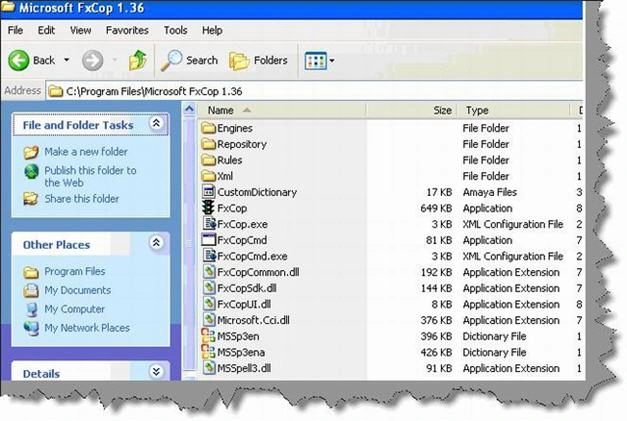
The first thing is to reference and import the FXCOP SDK. So add a reference to the FxCopSdk.DLL. You can find FxCopSdk.dll where FxCop is installed.
Once you have added a reference, you need to import the DLL in the class file.
using System;
using System.Collections.Generic;
using System.Text;
using Microsoft.FxCop.Sdk;
Step 3
For defining custom rule, you need to inherit from the 'BaseIntrospectionRule' class of FxCop. So below is the custom class 'ClsCheck' which inherits from 'BaseIntrospectionrule' class. The constructor of 'ClsCheck' is very important. We are basically calling the parent constructor where we need to pass the class name and the XML file. So we have passed the 'clsCheck' class and the 'Connection.XML' file name. We also have to override the 'Check' method. The 'Check' method is called when every method is parsed. If there are any issues, we need to return back a problemcollection array which will be displayed in the FXCOP UI.
public class clsCheck : BaseIntrospectionRule
{
public clsCheck(): base("clsCheck", "MyRules.Connection", typeof(clsCheck).Assembly) { }
public override ProblemCollection Check(Member member)
{
..........
}
Step 4
So the first thing is we convert the member into the Method object. We have defined two Boolean variables, one which specifies that the connection object has been opened and the second that the connection object has been closed.
Method method = member as Method;
bool boolFoundConnectionOpened = false;
bool boolFoundConnectionClosed = false;
Instruction objInstr = null;
Step 5
Every method has an instruction collection which is nothing but the actual code. So we loop through all instructions and check if we find the string of SQLConnection. If yes, we set the Boolean value of the found connection to true. If we find that we have found 'Dbconnection.close', we set the found connection closed to true.
for (int i = 0; i < method.Instructions.Count; i++)
{
objInstr = method.Instructions[i];
if (objInstr.Value != null)
{
if (objInstr.Value.ToString().Contains("System.Data.SqlClient.SqlConnection"))
{
boolFoundConnectionOpened = true;
}
if (boolFoundConnectionOpened)
{
if(objInstr.Value.ToString().Contains("System.Data.Common.DbConnection.Close"))
{
boolFoundConnectionClosed = true;
}
}
}
}
Step 6
Now the last thing. We check if the connection is opened, was it closed? If not, then we get the message of the connection.xml file and add it to the problems collection. This problems collection is returned to the FXCOP to display it.
if((boolFoundConnectionOpened)&&(boolFoundConnectionClosed ==false))
{
Resolution resolu = GetResolution(new string[] { method.ToString() });
Problems.Add(new Problem(resolu));
}
Step 7
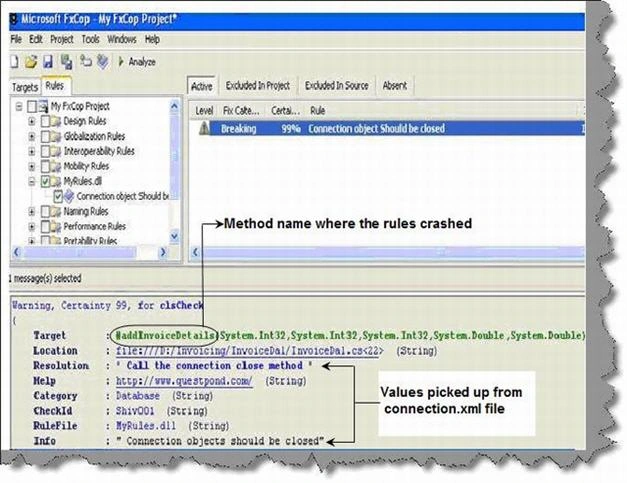
Once you have compiled the DLL, add the DLL as rules and run the analyze project button. Below is the project which was analyzed and the 'objConnection' object which was open and was never closed.
public void addInvoiceDetails(int intInvoiceid_fk,
int intCustomerId,
int intProductid_fk,
double dblTotalAmount,
double dblTotalAmountPaid)
{
SqlConnection objConnection = new SqlConnection();
}
You can see in the output how the method name is displayed with the resolution read from the connection.xml file.
At the top of this article you can get the Source Code.
Gaurav OjhaPosted Dec 2, 2010, 1:55 PM
Error 1 The type or namespace name 'Member' could not be found (are you missing a using directive or an assembly reference?) C:\Users\Gaurav\Documents\Visual Studio 2008\Projects\MyRules\MyRules\Class1.cs 16 49 MyRules
Manikavelu VelayuthamPosted Sep 24, 2010, 2:38 AM
Consider the below line of code CResMsgGetCATriggerMapping objResMsgGetCATriggerMapping = new CResMsgGetCATriggerMapping(); objResMsgGetCATriggerMapping = objCannedDocumentWS.GetCATriggerMapping(objReqMsgGetCATriggerMapping); Before using the objResMsgGetCATriggerMapping, i need to check the condition like if (objResMsgGetCATriggerMapping.oContextInformation.Errors.Count == 0) { } I need to catch the code which fails to check the above condition. Can you help me in implementing the above ?