

Lets start with creating a new window forms project, then place a picture box and place 8 labels in the main form. 4 labels for the items for the data headers, and 4 for the data display. Select an image to be loaded in the picture box.
right Click on the picture box and in then select properties then the events, and double click on "MouseMove" this will make an event when a mouse moves over the picture box.
Notice the function created
|
MouseEventArgs e holds attributes concerning the Mouse Position in the image box.
Put this part a side, and lets the function that will display the color coordinates, given the coordinates of the selected point. Simply this function takes image from the picture box, and gets a the given point from the extracted image, then displays the coordinates and the color components in the labels.
Here is my code:
|
Lets go back to the Mouse Move event function. Call inside it the function PrintColorComponents and give it the following parameters, e.X, and e.Y which are the location of the cursor inside the picture box.
|
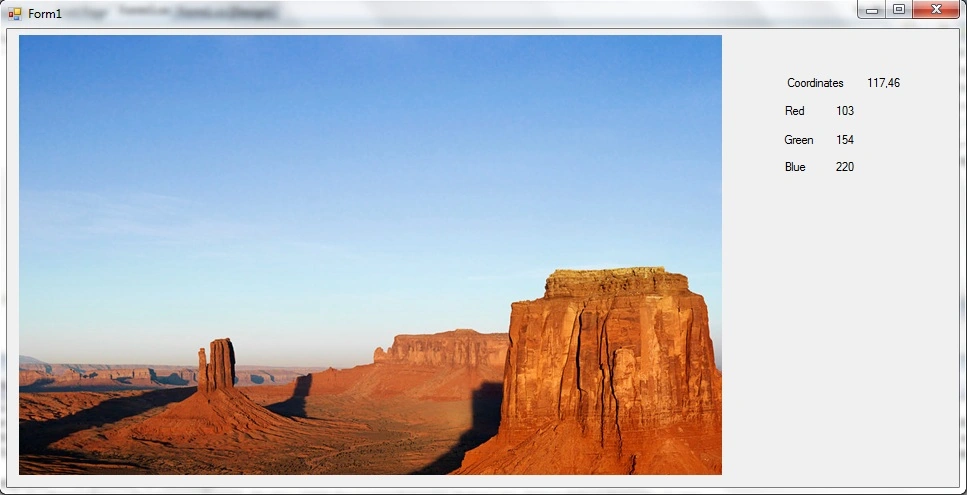
Then Run the program; Here is a screen shot of mine.
()
Attached is the sample program.
In the next article we will learn how to change the background of an image, for instance replacing the white background of my picture with evil tower, as if I took it in Paris!!!
Feel free to contact me.
Sharjeel QadeerPosted Feb 28, 2011, 2:32 PM
if i want to change image on run time then wil it work on that image?
hai nam ngoPosted Oct 10, 2010, 10:30 AM
this error: Parameter must be positive and < Width. Parameter name: x
hai nam ngoPosted Oct 10, 2010, 12:10 AM
i was tried your code but there is one error
Mike GoldPosted Jun 13, 2010, 5:21 PM
This is a nice free utility for determining color components. Good article. One thing you might want to add is a way to toggle between hex and decimal using String.Format( "{0:x}", color.R);