In our company we had a requirement to customize employee searching in MOSS 2007. We were asked to show employee information with image in this way
-----------------------------------------------------------
Name: Tariq Younas
Ext:1122, Email: [email protected]
Department: CTS, P&L: Intech, Office: Lahore
Designation: Software Engineer
-----------------------------------------------------------
I did some customization of People Search in MOSS 2007 Using Microsoft Office SharePoint designer 2007.
Microsoft Office SharePoint designer is great tool to customization.
Given below is Step by Step Search Customization
Let's start........
1- Click to edit search page
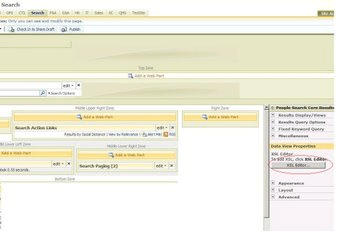
2- Click on Edit XSL Editor and paste the following xml code
<xsl:stylesheet version="1.0"
xmlns:xsl="http://www.w3.org/1999/XSL/Transform">
<xsl:output method="xml" version="1.0" encoding="UTF-8" indent="yes"/>
<xsl:template match="/">
<xmp><xsl:copy-of select="*"/></xmp>
</xsl:template>
</xsl:stylesheet>
3- Replace the existing XSL markup from the Search Core Results Web Part with the following snippet
4- It will give you raw XML output during search

5- Now if you publish the page, you will see a result like the result in the following picture, which illustrates how the raw XML could look: copy it
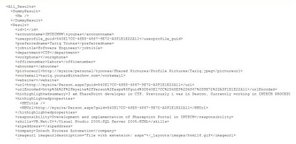
6- Take a blank text file and paste it with XML extension now it will look like this
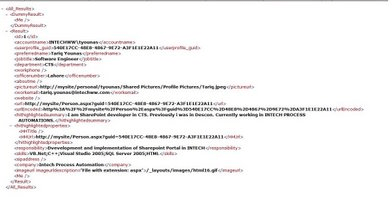
7- Open SharePoint designer and click on new aspx page
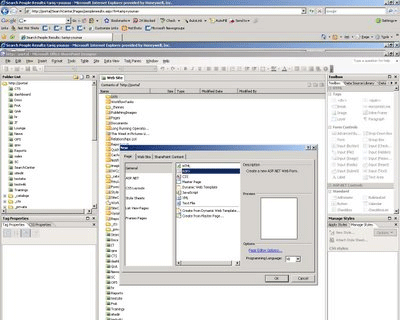
8- From SharePoint designer menu items click on Data View & insert Data view
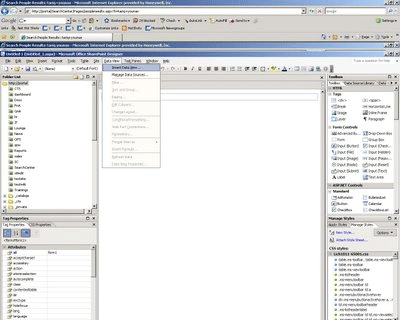
9- Now click to add temp.xml and add your XML in SharePoint designer
10- After importing click on XML then there will option to show data
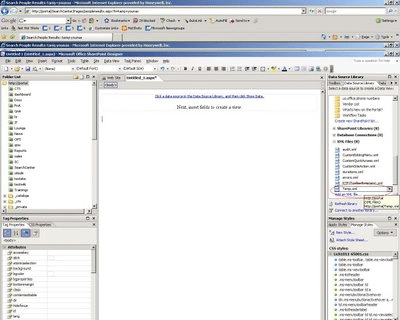
11- On right side pane you will see data
12- Just drag and drop you data fields as per your requirements
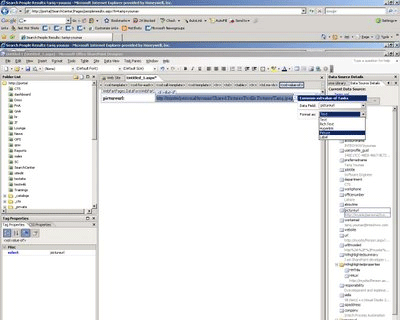
13- Click on the split window on aspx page. A XSL code will appear
14- Copy code between two tags to next
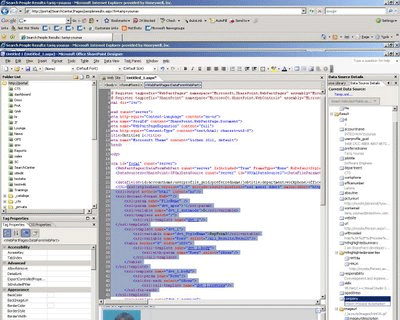
15- Edit your search page and paste this code in XSL editor and apply

16- Search like employee name
As I searched tariq younas. Now results will be like this

Happy Search Customization