

In this article I will explain how can we download and read excel file using excel services in a simple way.
Step 1
- Open document library where you have uploaded excel files in SharePoint.
- Copy path of document library and add the path into trusted location to enable excel services.
Steps to add Path in Trusted File Location:-
- Open Shared Services from central administration.
- Go to Excel Service section and click on Trusted File Location.
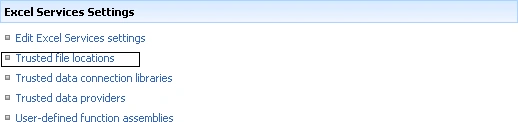
- A new window will be open, Click on Add Trusted File Location.

- A new window will be open to add the path into trusted file location, paste the url in address field.
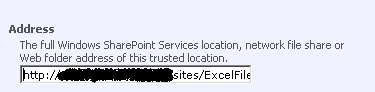
- Click on OK button. Now document library added in trusted file location.

Step 2
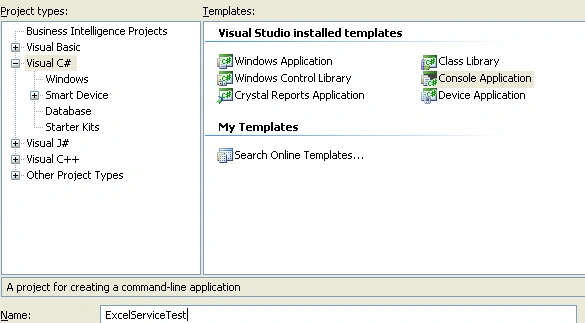
- Open Visual Studio >> File >> New >>Project choose console application from C# Project Window.
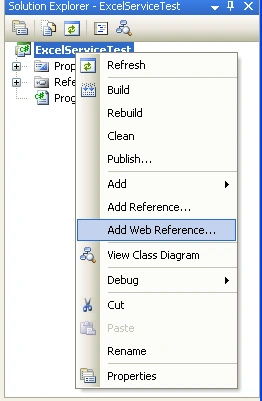
- Right click on ExcelServiceTest solution and select Add Web Reference.
- In add web reference window specify excel web service url i.e http:// <sharepoint site url>/_vti_bin/excelservice.asmx.
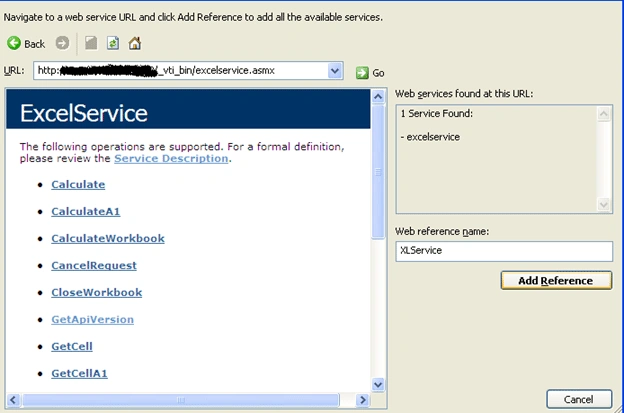
- Give the web reference name as XLService and click on Add Reference button. Now Excel Service web reference is added in the ExcelServiceTest solution as shown below.
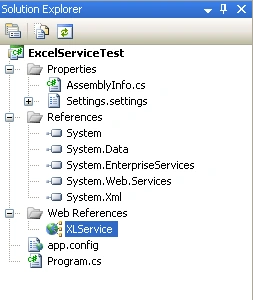
- Add namespace of the XLService reference in Program.cs file
using ExcelServiceTest.XLService;
Function for Reading Excel File:-
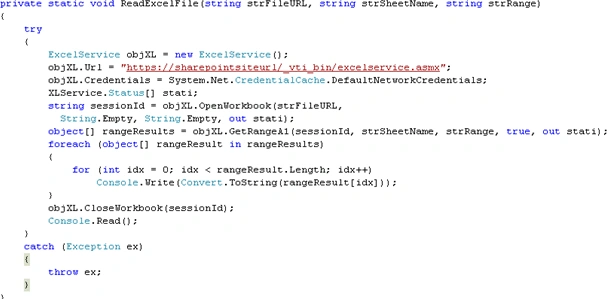
ReadExcelFile contains following arguments-
- strFileURL- Give the url of the excel i.e.
http://<sharepointsiteurl>/<documentlibrary>/excelfilename.xlsx - strSheetName- Give the name of sheet which you want to read i.e. Sheet1.
- strRange- Give the range of sheet i.e. A1:D4.
Function for download excel file:-
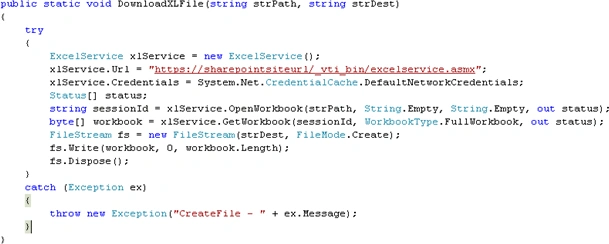
DownloadXLFile contains following arguments-
- strPath- Give the url of the excel i.e.
http://<sharepointsiteurl>/<documentlibrary>/excelfilename.xlsx - strDest- Give the local file path to download i.e. c:\TestExcel.xlsx.
Note: - This solution will work only with Office 2007 onwards.
Please download complete code for Reading/downloading Excel File from the SharePoint Doc Library.
Enjoy it.
Santhosh KumarPosted Aug 13, 2015, 5:57 AM
I have a console Application for downloading excel from sharepoint document library and its working fine as a separate. My question here is How do I integrate / Consume in SharePoint?
Ganesh AlagumalaiPosted Feb 26, 2015, 1:22 AM
I have a requirement to read an excel data from SharePoint and send an email scheduled email. This email should have excel data in the body of the message as HTMLI am trying to read the excel from SharePoint from console app and send email to selected recipients. Can someone help on this? Regards, Ganesh A
Suresh KPosted Mar 18, 2014, 2:52 PM
getting access denied
Fincy PhilipPosted Mar 12, 2013, 2:15 AM
hi..404 error is coming when calling excelservice.asmx....please see..https://sharepointsite/_vti_bin/excelservice.asmx is giving 404 error when opening in the browser....but for lists.asmx...its opening.... Problem in detailed..... https://<sharepointsite>/_vti_bin/lists.asmx....I was not able to give the direct webreferance....So I opened I t in a browser https://<sharepointsite>/_vti_bin/lists.asmx? wsdl...saved to the C:/ folder/Lists.XML and added the web referance....to my console application. But the same procedure if I try for excelservice.asmx, Its giving 404 error...Why
zuhal kilicaslanPosted Sep 1, 2012, 8:56 AM
thanks a lot:) it helps me.
Saurabh JhaPosted Nov 10, 2011, 10:23 AM
Really good artical