

Using PropertyGrid control in .NET
PropertyGrid is a standard component in Windows forms, that is in both 1.0 and 2.0 versions of the .NET Framework. This component allows the developer to display properties for nearly all types of objects without writing any additional code.
The Simplest Example
In the simplest case you write a class with properties related to an object, such as a button, and displaying them in a PropertyGrid on a form.
Start a new Windows project, place a button and PropertyGrid on a new Form. In the property editor name the button "btnAssign" and the PropertyGrid, "prpG". After this add a new class to the solution with the following code:
class PropertyGridSimpleDemoClass
{
int m_DisplayInt;
public int DisplayInt
{
get { return m_DisplayInt; }
set { m_DisplayInt = value; }
}
string m_DisplayString;
public string DisplayString
{
get { return m_DisplayString; }
set { m_DisplayString = value; }
}
bool m_DisplayBool;
public bool DisplayBool
{
get { return m_DisplayBool; }
set { m_DisplayBool = value; }
}
Color m_DisplayColors;
public Color DisplayColors
{
get { return m_DisplayColors; }
set { m_DisplayColors = value; }
}
}
After this, double-click on the button, and write the following code:
PropertyGridSimpleDemoClass pgdc = new PropertyGridSimpleDemoClass();
prpG.SelectedObject = pgdc;
Compile and run the project and then click the button. You'll see something like this: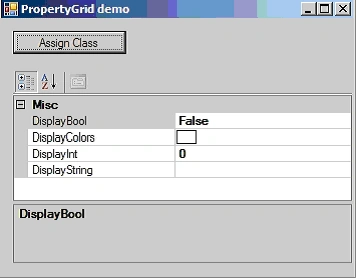
Using Attributes in PropertyGrid
In System.ComponentModel there are some useful attributes such as:
[Browsable(bool)] "To show property or not"
[ReadOnly(bool)] "Ability to edit property"
[Category(string)] "Group of property"
[Description(string)] "Property description, which can be a hint"
[DisplayName(string)] "Display Name property"
If using this class for assigning to SelectedObject:
class PropertyGridSimpleDemoClass2
{
int m_DisplayInt = 50; // some initialization
[Browsable(true)] //this property should be visible
[ReadOnly(true)] //but just read only
[Description("sample hint1")] // sample hint1
[Category("Category1")]// Category that I want
[DisplayName("Int for Displaying")] // I want to say more, than just DisplayInt
public int DisplayInt
{
get { return m_DisplayInt; }
set { m_DisplayInt = value; }
}
string m_DisplayString;
[Browsable(true)] //this property should be visible
[ReadOnly(false)] //this property is for editing
[Description("Example Displaying hint 2")] // sample hint2
[Category("Category1")]// Category that I want
[DisplayName("Name")] // and more than Display String
public string DisplayString
{
get { return m_DisplayString; }
set { m_DisplayString = value; }
}
bool m_DisplayBool;
[Category("Category2")]// Category that I want
[Description("To be or not to be")] // yet one hint
[DisplayName("To dring or not to drink")] // that is a question
public bool DisplayBool
{
get { return m_DisplayBool; }
set { m_DisplayBool = value; }
}
Color m_DisplayColors;
[Browsable(false)]//this property shoul be hided;
public Color DisplayColors
{
get { return m_DisplayColors; }
set { m_DisplayColors = value; }
}
}
then we receive this screen: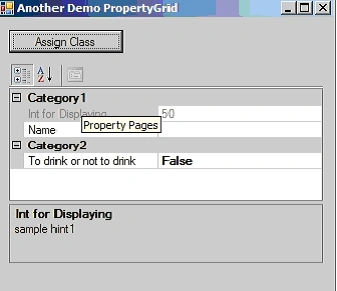
Enhancing Display Names and Boolean Values
Sometimes it is not enough to display just text values. Sometimes we need to display more helpful information. For example, we might want to say "To drink or not to drink" with possible values of "Yes" and "Yes, of course". In this situation we need to use attribute TypeConverter. First we need to create two additional classes. Name the first "PropertyGridSimpleDemoClass3" and the second "DrinkerClassConverter". Here is the code you should copy:
class PropertyGridSimpleDemoClass3
{
bool m_DrinkOrNot;
[DisplayName("Drink or not")]
[Description("Drink or not")]
[Category("Make right decision")]
[TypeConverter(typeof(DrinkerClassConverter))]
public bool DrinkOrNot
{
get { return m_DrinkOrNot; }
set { m_DrinkOrNot = value; }
}
}
class DrinkerClassConverter : BooleanConverter
{
public override object ConvertTo(ITypeDescriptorContext context,
CultureInfo culture,
object value,
Type destType)
{
return (bool)value ?
"Yes" : "Yes, of course";
}
public override object ConvertFrom(ITypeDescriptorContext context,
CultureInfo culture,
object value)
{
return (string)value == "Yes";
}
}
Using Attribute TypeConverter in our BooleanConverter and overriding ConvertTo and ConvertFrom, you see results like this: 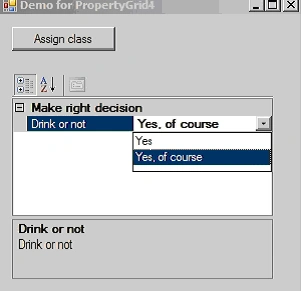
Changing Default Display
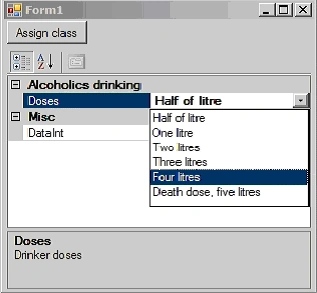
Imagine that you want more than two items in list. The boolean type is not enough; you need to set Description attributes with a name for every element in enum.
enum DrinkDoses
{
[Description("Half of litre")]
litre,
[Description("One litre")]
oneLitre,
[Description("Two litres")]
twoLitre,
[Description("Three litres")]
threeLitres,
[Description("Four litres")]
fourLitres,
[Description("Death dose, five litres")]
fiveLitres
}
In another class you need to utilize the type EnumConverter.
class DrinkDosesConverter : EnumConverter
Abdul Amin KhanPosted Oct 21, 2017, 2:00 AM
How to use Background Image/Image on Control like button using this grid
suzanne marie solomonPosted Aug 10, 2011, 4:39 AM
im gonna use this article of yours for my web applications 2 course reporting.thanks :)
eivind tjorePosted Feb 16, 2011, 6:16 AM
It is useful