

In this article, I will show how to connect to a Data reader destination component within a given SQL Server Integration Services package. The client application in this context is a simple console application that I have built using C# 3.5.
Requirements
First of all, there are conditions and requirements to be fulfilled in order to proceed and follow the subsequent walkthrough steps.
- First, you have to have SQL server 2005/2008 at least the standard edition as it supports BI tools, namely SQL server integration services, SQL server analysis services and SQL server reporting services. But for our case we will be interested only on SQL server integration services.
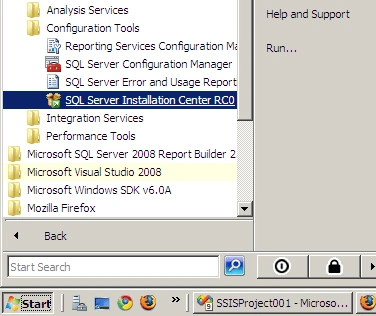
- You have to install those BI tools if they aren't already installed. To install them you have to lunch the SQL Installation Center
- And then switch to the installation tab, then lunch the installation wizard through the first link
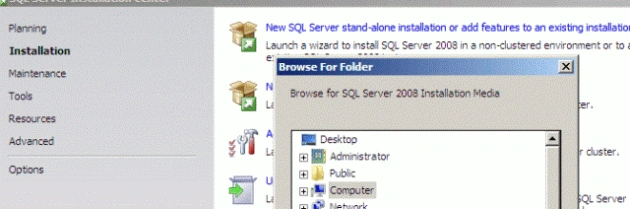
- Of Corse, you have to have the SQL Server installation CD in the drive. Then follow the installation steps until you rich the bellow level
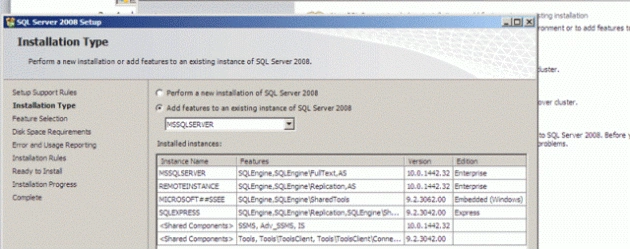
- Of Corse, if you want to install a new named instance select the first alternative, and if you want to enhance an already existed instance then select the second choice
Remarque: The installation step details are beyond the scope of this article, to know how to install SQL Server in detail please refer to this guide for 2005 version:
http://www.impromed.com/documents/SQL_Server_2005_09252006.pdf
And for 2008 version :
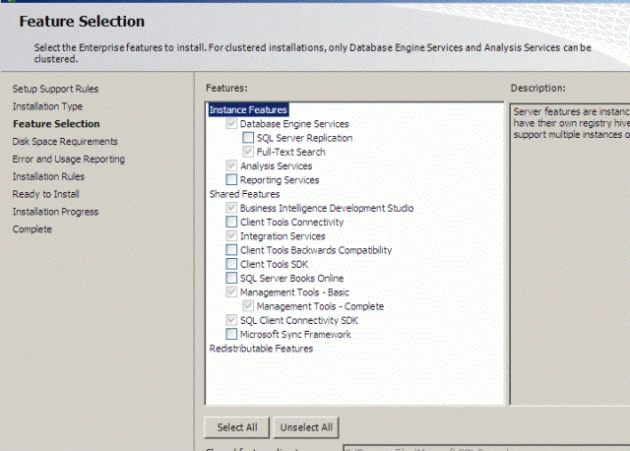
http://blog.sqlauthority.com/2008/06/12/sql-server-2008-step-by-step-installation-guide-with-images/ - Now, we are concerned by the bellow installation step, the Integration services must be checked
- After the installation verify that the BI IDE which is Business Intelligence Development Studio BIDS is installed
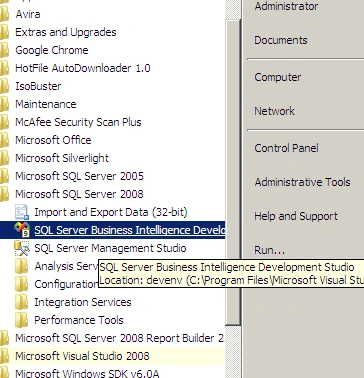
The Data Reader destination case
The data reader destination component is a particular one among the rest of the other SSIS components as it is designed not to load data within a given data base or within a given file but it loads data in memory in order to be accessed by client applications like the .Net assemblies.
- To starts let's first create a SSIS project
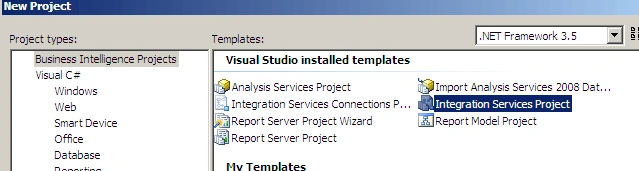
- The create a new package by right clicking the packages folder within the solution explorer and then select create new package, then rename it by right clicking it and giving it a new name
- Drag a data flow component within the scene
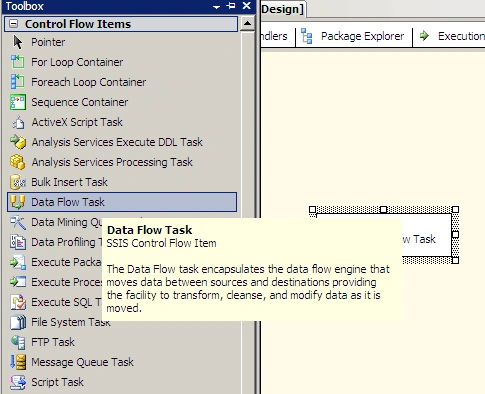
- Double click that data flow in the scene then drag a OLEDB Source and a Data Reader destination
- First begin by configuring the OLE DB source by double clicking it, then set the connection manager by configuring its provider, data base and data source which could be a table, a view or a command. The last one is better for performance issues. In my case, I connect to the Adventure works data base and retrieve full name which is a derived column and the city one and the state one. To choose an SQL command, you can select it from the SQL command text drop down list; you will remark that the page look will change. Then you can use the Build Query option to compose you query if you're not strong enough in SQL ; )
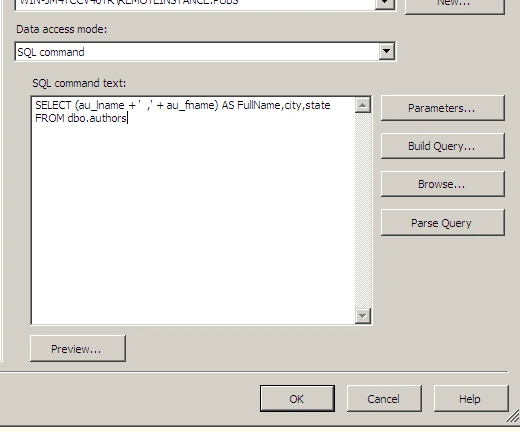
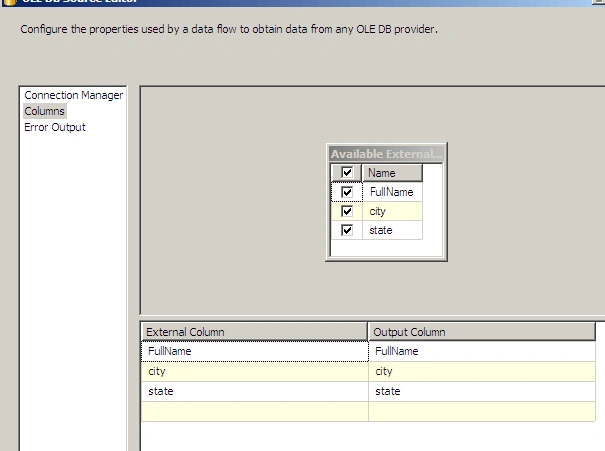
- Always with the OLE DB source configuration wizard, ensure that all the desired columns within the view are selected by switching to the columns tab
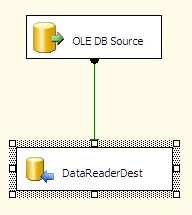
- Now, we step through to the data reader destination configuration, to do that, double click on that component, and first, let's link it with the OLE DB source component.
Second, let's verify that all columns are correctly mapped by switching to the Input Columns tab.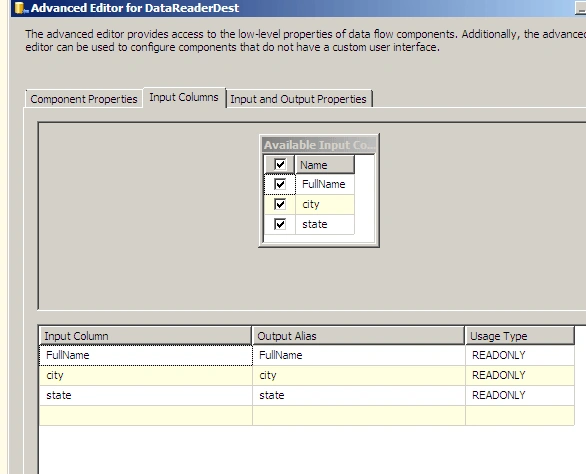
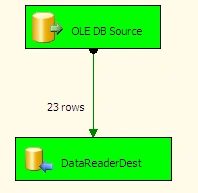
- We can verify the correctness of the package content by debugging it by hitting F5, all the packages must turn to green color
- Now, let's create a client application that consumes data from that package
For this case we can create a simple console application to consume that data flow. To do that, add a console application project to the solution. - Add a reference to the Microsoft.SqlServer.Dts.DtsClient.dll which is a managed assembly located in %ProgramFiles%\Microsoft SQL Server\100\DTS\Binn
- Then add this code to the class Program of the client, Of Corse, in my case I'm supposing to retrieve data from MyPackage.dtsx which is located in
C:\Users\Administrator\Documents\VisualStudio 2008\Projects\SSISProject001\SSISProject001\ folder. The name of the data reader destination component is DataReaderDest that could be found within the properties grid of that component, in deed, you can change that name to suit your needs. In my case, I suppose to retrieve the full name, the city and the state fields from that data reader destination.
using System;
using System.Collections.Generic;
using System.Linq;
using System.Text;
using System.Data;
using Microsoft.SqlServer.Dts.DtsClient;
using System.Windows.Forms;
namespace DataClient
{
class Program
{
static DtsConnection connection;
static DtsCommand command;
static IDataReader reader;
static void Main(string[] args)
{
using (connection = new DtsConnection())
{
connection.ConnectionString = @"/File "" C:\Users\Administrator\Documents\Visual Studio 2008\Projects\SSISProject001\SSISProject001\MyPackage.dtsx""";
try
{
connection.Open();
command = new DtsCommand(connection);
command.CommandText = "DataReaderDest";
reader = command.ExecuteReader(CommandBehavior.Default);
while (reader.Read())
{
Console.WriteLine(string.Format("Full name: " +
reader[0]+
" City" + reader[1] ));
}
}
catch (ApplicationException caught)
{
Console.WriteLine(caught.Message + " ,something is wrong");
}
finally
{
Console.Read();
}
}
}
}
}
Very important issue: SSIS packages could be stored in the file system like our case, and then connection string is in that case as follow:
@"/File "" <The path>\<The package name>.dtsx"""
They could also be stored within the SQL server instance and exactly within the msdb system data base. In this case, the connection should be modified to be:
@"/SQL ""<The package name>"""
Then, if the package is stored within SSIS storage, the SQL keyword must be replaced by DTS one.
You can play around by importing the given package within SQL Server Management Studio and exactly the SQL Server Integration Services instance if you have right permissions to do that and then try those connection strings to retrieve data from the package. - Finally, to lunch and test the client let start by setting the integration service project as a startup project and then lunch it by hitting F5, then you should wait until every component become green. Afterward, Start a new instance of the client
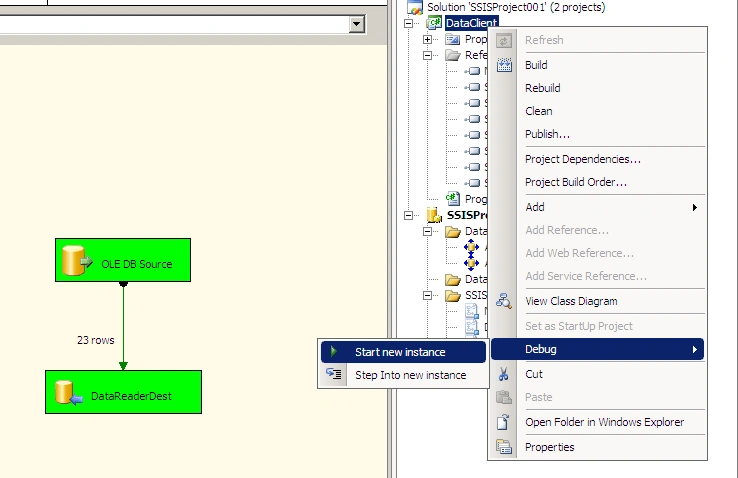
And the result will be as expected
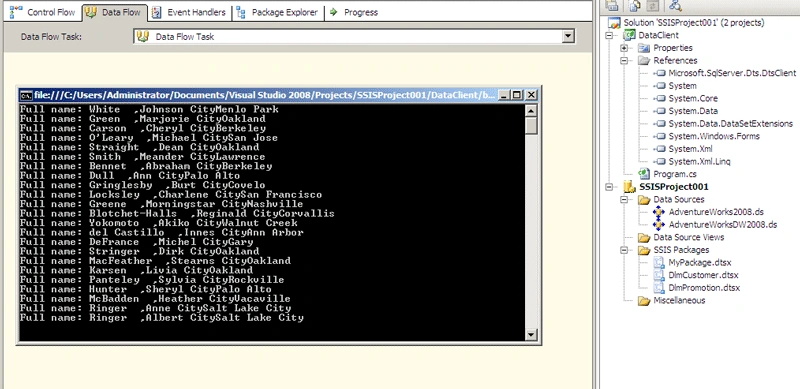
It retrieves in memory data successfully.
krunal vakhariyaPosted Oct 31, 2017, 12:36 AM
I implement same process and apply same code but I got exception "5". May I know what's this exception says?
Gowtham RajamanickamPosted Apr 16, 2016, 8:24 AM
Very good one...
Sandeep SharmaPosted Jul 24, 2014, 7:21 AM
but in my set up that option not found .which setup i can use
shubhangi khandalePosted Mar 12, 2011, 2:37 AM
but in my set up that option not found .which setup i can use