

In a previous article, we discovered how to define and configure a Grid control using XAML. In this second article, I'll demonstrate how to do the same task using the code behind, I mean using C#.
Walkthrough:
1. To do so, create a new WPF project
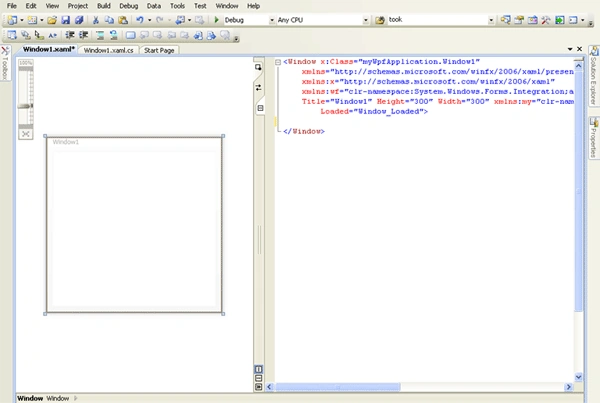
Figure1
2. Right click on the window and select view code, then replace the existing code by this one
public partial class Window1 : Window
{
public Window1()
{
InitializeComponent();
InitializeGrid();
}
private void InitializeGrid()
{
Grid oGrid = new Grid();
oGrid.Width = 200;
oGrid.Height = 200;
oGrid.Background = System.Windows.Media.Brushes.Bisque;
//Set the rows
RowDefinition Row0 = new RowDefinition();
RowDefinition Row1 = new RowDefinition();
RowDefinition Row2 = new RowDefinition();
//Set the columns
ColumnDefinition Col0 = new ColumnDefinition();
ColumnDefinition Col1 = new ColumnDefinition();
ColumnDefinition Col2 = new ColumnDefinition();
//Add the columns and rows to the Grid control
oGrid.ColumnDefinitions.Add(Col0);
oGrid.ColumnDefinitions.Add(Col1);
oGrid.ColumnDefinitions.Add(Col2);
oGrid.RowDefinitions.Add(Row0);
oGrid.RowDefinitions.Add(Row1);
oGrid.RowDefinitions.Add(Row2);
//Show the grid lines
oGrid.ShowGridLines = true;
this.Content = oGrid;
}
}
3. Run the project and observe, a window like this will appear, as you see the grid is visible now
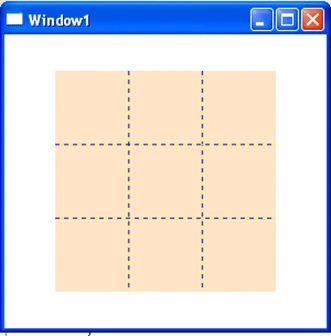
Figure 2
The Star definition
As we explained in the previous article, it means that the related size could be expressed as weighted proportion of available space, for example, if a size of a given first row is double of a second given row size, then the first one will receive two units of the entire grid size, meanwhile, the second one will have one unit as size. Rows and columns sizes are expressed by this symbol * that represents a unit of size. To do so using C# code, use this code snippet. It should be copied and pasted within the scope of InitializeGrid().
private void InitializeGrid()
{
Grid oGrid = new Grid();
oGrid.Width = 200;
oGrid.Height = 200;
oGrid.Background = System.Windows.Media.Brushes.Bisque;
//Set the rows
RowDefinition Row0 = new RowDefinition();
RowDefinition Row1 = new RowDefinition();
RowDefinition Row2 = new RowDefinition();
//Set the columns
/* This code add the star option to resize the
First row as double of the rest of columns*/
ColumnDefinition Col0 = new ColumnDefinition();
Col0.Width = new GridLength(2, GridUnitType.Star);
ColumnDefinition Col1 = new ColumnDefinition();
ColumnDefinition Col2 = new ColumnDefinition();
//Add the columns and rows to the Grid control
oGrid.ColumnDefinitions.Add(Col0);
oGrid.ColumnDefinitions.Add(Col1);
oGrid.ColumnDefinitions.Add(Col2);
oGrid.RowDefinitions.Add(Row0);
oGrid.RowDefinitions.Add(Row1);
oGrid.RowDefinitions.Add(Row2);
//Show the grid lines
oGrid.ShowGridLines = true;
this.Content = oGrid;
}
Run the project and the result will be
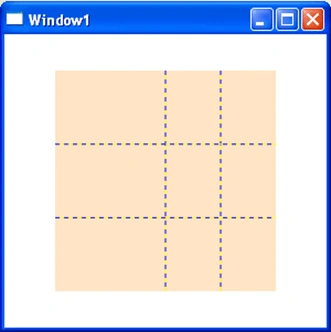
Figure 3
The Pixel definition
It means that the size is defined in terms of pixels such as in the ASP applications. This bellow C# code illustrates how to define a dimension of a given column or row based on pixels.
private void InitializeGrid()
{
Grid oGrid = new Grid();
oGrid.Width = 200;
oGrid.Height = 200;
oGrid.Background = System.Windows.Media.Brushes.Bisque;
//Set the rows
RowDefinition Row0 = new RowDefinition();
RowDefinition Row1 = new RowDefinition();
RowDefinition Row2 = new RowDefinition();
//Set the columns
/* This code add the pixel option to resize the
First row as double of the rest of columns*/
ColumnDefinition Col0 = new ColumnDefinition();
Col0.Width = new GridLength(50, GridUnitType.Pixel);
ColumnDefinition Col1 = new ColumnDefinition();
ColumnDefinition Col2 = new ColumnDefinition();
//Add the columns and rows to the Grid control
oGrid.ColumnDefinitions.Add(Col0);
oGrid.ColumnDefinitions.Add(Col1);
oGrid.ColumnDefinitions.Add(Col2);
oGrid.RowDefinitions.Add(Row0);
oGrid.RowDefinitions.Add(Row1);
oGrid.RowDefinitions.Add(Row2);
//Show the grid lines
oGrid.ShowGridLines = true;
this.Content = oGrid;
}
The Auto definition
It means that the size is proportional to the content object size. Once the column or the row width or height is set to auto and there is no object contained with it. It disappears from the grid but it doesn't mean that it is deleted. If you add controls within, it takes exactly the control dimension. For example, if we make a rectification of the previous C# code.
private void InitializeGrid()
{
Grid oGrid = new Grid();
oGrid.Width = 200;
oGrid.Height = 200;
oGrid.Background = System.Windows.Media.Brushes.Bisque;
//Set the rows
/* This code add the auto option to resize the
first row to fit the contained control size*/
RowDefinition Row0 = new RowDefinition();
Row0.Height = new GridLength(0, GridUnitType.Auto);
RowDefinition Row1 = new RowDefinition();
RowDefinition Row2 = new RowDefinition();
//Set the columns
/* This code add the auto option to resize the
first column to fit the contained control size*/
ColumnDefinition Col0 = new ColumnDefinition();
Col0.Width = new GridLength(0, GridUnitType.Auto);
System.Windows.Controls.Button oButton = new System.Windows.Controls.Button();
oButton.Height = 50;
oButton.Width = 50;
oButton.Content = "Button";
/* The bellow couple lines tell
that the button will be contained in the first
sector row 0 col 0 */
Grid.SetRow(oButton, 0);
Grid.SetColumn(oButton, 0);
ColumnDefinition Col1 = new ColumnDefinition();
ColumnDefinition Col2 = new ColumnDefinition();
oGrid.Children.Add(oButton);
//Add the columns and rows to the Grid control
oGrid.ColumnDefinitions.Add(Col0);
oGrid.ColumnDefinitions.Add(Col1);
oGrid.ColumnDefinitions.Add(Col2);
oGrid.RowDefinitions.Add(Row0);
oGrid.RowDefinitions.Add(Row1);
oGrid.RowDefinitions.Add(Row2);
//Show the grid lines
oGrid.ShowGridLines = true;
this.Content = oGrid;
}
Run the application and the result will be
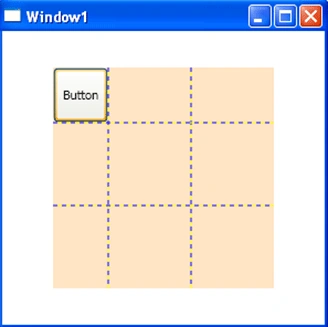
Figure 4
Conclusion:
In How to define and configure a Grid control within a WPF application using XAML: Part I, we discovered how to define and configure a given Grid object using XAML and in this a second part, we discovered how to perform the same task using C# and that's it.
Good Dotneting!!!
Join the conversation! Your thoughts help the community grow.