

The sequence of events that are raised when a navigation action is performed are represented in the following diagram
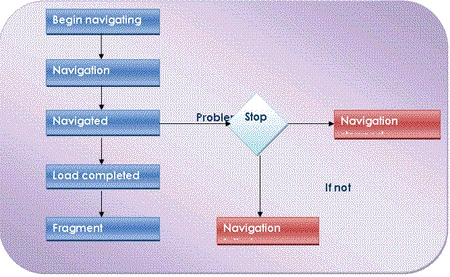
Figure 1
Now, I will represent some of the frame most important members
|
Member |
Description |
| Source-property | It represents the current URI used to navigate, it is necessary to create a new URI object and overload its constructor by the URI string: oFrame = new Frame(); oFrame.Source= new Uri( @"http://www.tunisianproducts.com/", UriKind.RelativeOrAbsolute); |
| CurrentSource-property | This property gets the current used source, indeed this property couldn't be used directly using XAML. It is only used within a C# code context |
| Content-property | This property enables get or set a contained object |
| Navigate-method | It has three overloaded instances, the first one is Navigate(object) it enables Navigate asynchronously to content that is contained by an object, the second one is Navigate(uri) it Navigates asynchronously to content that is specified by a uniform resource identifier. Then the third is Navigate(object,object) it enables Navigate asynchronously to content that is contained by an object, and passes an object that contains data to be used for processing during navigation. Finally the Navigate(uri, object) that enables Navigate asynchronously to source content located at a uniform resource identifier (URI), and passes an object that contains data to be used for processing during navigation. |
| GoForward-method | It enables go to the most recent item located in the forward navigation history |
| GoBack-method | It enables go to the most recent item located in the previous navigation history |
| NavigationUIVisibility-property | As the frame provides a user interface that enables navigate forward and back. This user interface could be displayed or not according to this property state. To render this user interface visible then oFrame.NavigationUIVisibility = System.Windows.NavigationUIVisibility.Visible; |
| JournalOwnership-property | This is very important property witch determines if the frame will manage its own navigation history or it will be leaved to the parent navigator such as a Navigation Window object. To enable the frame manage its navigation history then oFrame.JournalOwnership = System.Windows.Navigation.JournalOwnership.OwnsJournal; else if the parent is preferred to do this then oFrame.JournalOwnership = System.Windows.Navigation.JournalOwnership.UsesParentJournal; Else, the Automatic alternative is used to indicate that the journal ownership depends on the type of parent. oFrame.JournalOwnership = System.Windows.Navigation.JournalOwnership.Automatic; |
Those are the most important properties according to the frame object.
To more understand the frame object in practice, I provide this example that consists of creating a primitive browser witch is developed by following those steps.
- First, create a new WPF application
- Copy and paste the bellow XAML code in the XAML code editor
<Window x:Class="myWpfApplication.Window1"
xmlns="http://schemas.microsoft.com/winfx/2006/xaml/presentation"
xmlns:x="http://schemas.microsoft.com/winfx/2006/xaml"
Title="Window1" Margin="0,0,0,0" Loaded="Window_Loaded" Height="720" Width="1060">
<Grid Name="myGrid">
<Grid.RowDefinitions>
<RowDefinition Height="72*" />
<RowDefinition Height="40*" />
<RowDefinition Height="569*" />
<RowDefinition Height="31*" />
</Grid.RowDefinitions>
<Menu Grid.Row="0" Name="myMenu" Height="24" VerticalAlignment="Top">
<MenuItem Header="File">
<MenuItem Name="NewWindow" Header="New window" Click="NewWindow_Click"/>
<MenuItem Name="NewTab" Header="New tab" Click="NewTab_Click"/>
<MenuItem Name="OpenFile" Header="Open file" Click="OpenFile_Click"/>
<MenuItem Name="Quit" Header="Quit" Click="Quit_Click"/>
</MenuItem>
</Menu>
<TextBox Grid.Row="1" Name="textBox1" Margin="0,4.202,0,0" Height="26" VerticalAlignment="Top" HorizontalAlignment="Left" Width="1109" />
<Button Grid.Row="1" HorizontalAlignment="Right" Margin="0,4.202,0,0" Name="button1" Width="65" Height="26" VerticalAlignment="Top">Browse</Button>
<StatusBar Grid.Row="3" Name="statusBar1" />
<TabControl Grid.Row="2" Name="tabControl1" />
</Grid>
</Window>
-
Switch to the design mode to see the presentation that will be as follow:

Figure 2
As you remark, the browser is formed by a menu, a navigation bar, a tab control that will host the frames objects and finally a status bar bellow that displays the last navigated Uri.
-
In the other hand, implement this code in the code behind zone.
namespace myWpfApplication
{
/// <summary>
/// Primitiv browser sample
/// </summary>
public partial class Window1 : Window
{
public Window1()
{
InitializeComponent();
}
/* oTabItem is a tab item that belongs to the multi tab control
witch is the logical parent of the frames used to browse through
internet*/
TabItem oTabItem;
/* The frame is the object used to browse through internet
*/
Frame oFrame;
/* The oLabel is used to display the current Uri*/
Label oLabel;
/*This is used as index for the new created tab items*/
int i = 1;
private void Window_Loaded(object sender, RoutedEventArgs e)
{
//Set the default value of the browser text
textBox1.Text = "http://";
//This will set the bacground of the browser
System.Windows.Media.LinearGradientBrush oBrush;
oBrush = new LinearGradientBrush(System.Windows.Media.Colors.Red, System.Windows.Media.Colors.Cornsilk, 40);
this.Background = oBrush;
myMenu.Background = System.Windows.Media.Brushes.RosyBrown;
//Instanciate a new tabl item
oTabItem = new TabItem();
oTabItem.Header = "Tab0";
tabControl1.Items.Add(oTabItem);
//Instanciate a new frame object
oFrame = new Frame();
//Set the user interface user fo navigation visibility
oFrame.NavigationUIVisibility = System.Windows.Navigation.NavigationUIVisibility.Visible;
//Set the source of the current navigation, Navigate method could be used instead indeed
oFrame.Source = new Uri(@"http://www.tunisianproducts.com/", UriKind.RelativeOrAbsolute);
//Set the focus on the current tab
oTabItem.Focus();
//set the logical parent of the new frame as the focused tab item
oTabItem.Content = oFrame;
//This label is used to display the current uri in the status bar
oLabel = new Label();
oLabel.Content = @"http://www.tunisianproducts.com/";
statusBar1.Items.Add(oLabel);
}
private void NewWindow_Click(object sender, RoutedEventArgs e)
{
//This enables create a new window and display it
Window1 oWindow1 = new Window1();
oWindow1.Show();
}
private void NewTab_Click(object sender, RoutedEventArgs e)
{
//This enables create a new tab and configure it then display its contents
CreateNewTabAndBrowse();
}
private void CreateNewTabAndBrowse()
{
if (textBox1.Text != "")
{
oTabItem = new TabItem();
oTabItem.Header = "Tab" + i.ToString();
tabControl1.Items.Add(oTabItem);
oTabItem.MouseDown += new MouseButtonEventHandler(oTabItem_MouseDown);
oFrame = new Frame();
oFrame.NavigationUIVisibility = System.Windows.Navigation.NavigationUIVisibility.Visible;
oFrame.Source = new Uri(textBox1.Text, UriKind.RelativeOrAbsolute);
oTabItem.Focus();
oTabItem.Content = oFrame;
i++;
oLabel = new Label();
oLabel.Content = "Last visited: " + textBox1.Text;
statusBar1.Items.RemoveAt(0);
statusBar1.Items.Add(oLabel);
}
else
{
System.Windows.MessageBox.Show("You have to define an uri", "You have to define an uri");
}
}
private void oTabItem_MouseDown(object sender, MouseEventArgs e)
{
//This enble to discard a tab item by just right click on it
tabControl1.Items.Remove(tabControl1.SelectedItem);
}
private void OpenFile_Click(object sender, RoutedEventArgs e)
{
//This enables to open a html file in the local machine
System.Windows.Forms.OpenFileDialog Open = new System.Windows.Forms.OpenFileDialog();
Open.Filter = "(*.html)|*.html";
Open.ShowDialog();
if (Open.ShowDialog() == System.Windows.Forms.DialogResult.OK)
oFrame.Source = new Uri(Open.FileName);
}
private void Quit_Click(object sender, RoutedEventArgs e)
{
//This enables to close the current window
this.Close();
}
//This button is used to directly browse to the desired internet content
private void button1_Click(object sender, RoutedEventArgs e)
{
NewTab_Click(sender, e);
}
}
}
-
Now, run the application and the result will be
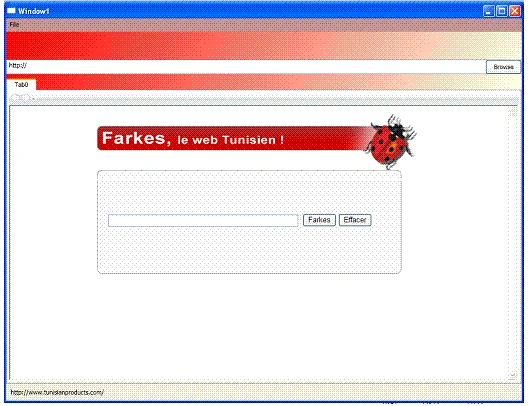
Finally, I can say that it is a very primary browser. It is constructed thanks to the frame object, so try to play around with it. Indeed, it could be enhanced to perform other functionalities supported browsers such as internet explorer or Opera for example. That's it
Good Dotneting!!!
Join the conversation! Your thoughts help the community grow.