
Introduction
Ajax (Asynchronous JavaScript and XML) is a new web development technique used for interactive websites. AJAX can help us develop web applications and retrieve small amounts of data from the web server. AJAX consists of different types of technology.
- JavaScript
- XML
- Asynchronous Call to the server
Modal popup extender control
Modal Popups are commonly seen in desktop applications. The Modal Popup Extender allows pages to display content to the user in a modal manner which prevents the user from interacting with the rest of the page.
Property
- TargetControlID
- BehaviourID
- OkCantrolID
- DropShadowID
Grid view
A GridView displays the value of a data source in a table where each column represents a field and each row represents a record.
Step 1. Open Visual Studio 2010.
- Go to File->New->WebSite
- Select ASP.NET Empty WebSite
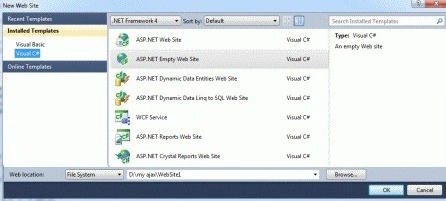
Step 2. Go to Solution Explorer and right-click.
- Select Add->New Item
- Select WebForm
- Default.aspx page open
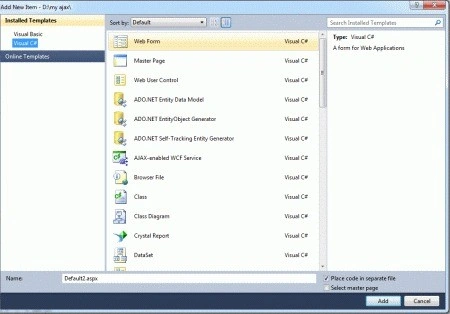
Step 3. Go to the Default.aspx page click on the [Design] option and drag the control from the Toolbox.
- Drag ScriptManager, GridView, UpdatePanel, LinkButton, Button.
Step 4. Go to Solution Explorer and right-click.
- Select-> AddNewItem
- Select SqlServerDatabase
Create table
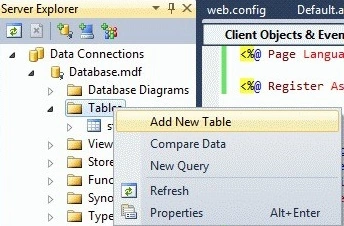
Step 5. Go to ServereExplorer and click on the Database option.
- Right click ->Table
- Select Add New Table
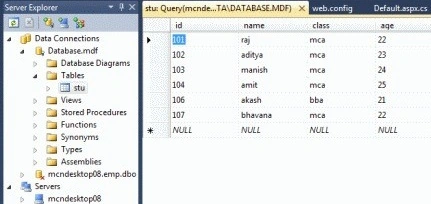
- Define Field
Step 6. Now we define id, name, class, and age for the complete data list.
Step 7. Now go to Default.aspx page[Design] option and click on GridView control.
- Select choose DataSource option
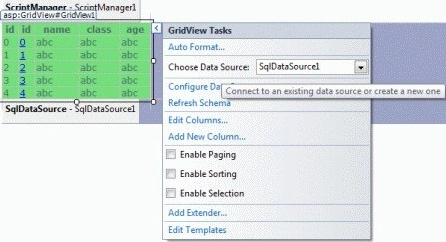
Define SQL data source
Step 8. Now we select the DataSource option.
- Define SqlDataSource1
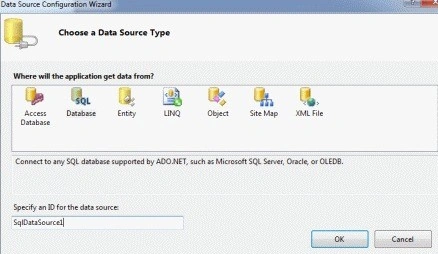
Connection string
Step 9. Now click on the New ConnectionString option and establish the connection String.
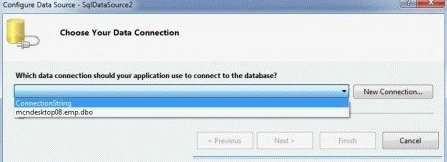
<asp:SqlDataSource ID="SqlDataSource1" runat="server" ConnectionString="<%$ ConnectionStrings:ConnectionString %>" SelectCommand="SELECT * FROM [stu]"></asp:SqlDataSource>
Content template
Step 10. Now go to Default.aspx[Source] option and define <contenttTemplate> and set the DataSource property to the "SQLDataSource1".
<asp:UpdatePanel ID="UpdatePanel1" runat="server">
    <ContentTemplate>
        <asp:GridView ID="GridView1" runat="server" AutoGenerateColumns="False" DataSourceID="SqlDataSource1" onselectedindexchanged="GridView1_SelectedIndexChanged" Width="200px" BackColor="#72DE7A">
            <Columns>
                <asp:BoundField DataField="id" HeaderText="id" SortExpression="id" />
                <asp:TemplateField HeaderText="id">
                    <ItemTemplate>
                        <asp:LinkButton ID="LinkButton1" runat="server" Text='<%# Eval("id") %>' OnClick="LinkButton1_Click">LinkButton</asp:LinkButton>
                        <br />
                    </ItemTemplate>
                </asp:TemplateField>
Step 11. We will now add columns to the GridView as shown below. Observe that the id is displayed as a link. We will display the student details when the user clicks on the link.
<asp:GridView ID="GridView1" runat="server" AutoGenerateColumns="False" DataSourceID="SqlDataSource1" onselectedindexchanged="GridView1_SelectedIndexChanged" Width="200px" BackColor="#72DE7A">
    <Columns>
        <asp:BoundField DataField="id" HeaderText="id" SortExpression="id" />
        <asp:TemplateField HeaderText="id">
            <ItemTemplate>
Step 12. Now go to Default.aspx page[Source] option and drag ModalPopupExtender control from Toolbox.
- Define TargetControlID
- PopupControlID
<asp:ModalPopupExtender ID="ModalPopupExtender1" runat="server" TargetControlID="btnshowModalPopup" PopupControlID="divPopUp" PopupDragHandleControlID="panelD" DropShadow="true" BackgroundCssClass="popUpStyle">
</asp:ModalPopupExtender>
Step 13. The CSS files are declared divpopup and PaneDragHandle Property for ModalPopupControl property.
<style type="text/css">
    body {
        font: normal 12px auto "Trebuchet MS", Verdana;
        background-color: #ffffff;
        color: #4f6b72;
    }

    .popUpStyle {
        font: normal 11px auto "Trebuchet MS", Verdana;
        background-color: #ffffff;
        color: #4f6b72;
        padding: 6px;
        filter: alpha(opacity=80);
        opacity: 0.8;
    }

    .drag {
        background-color: #dddddd;
        cursor: move;
        border: solid 1px gray;
    }
</style>
Step 14. Go to Default.aspx.cs file and write a code.
using System;
using System.Collections.Generic;
using System.Linq;
using System.Web;
using System.Web.UI;
using System.Web.UI.WebControls;
using System.Configuration;
using System.Data;
using System.Data.SqlClient;

public partial class _Default : System.Web.UI.Page
{
    protected void Page_Load(object sender, EventArgs e)
    {
    }

    protected void GridView1_SelectedIndexChanged(object sender, EventArgs e)
    {

    }

    protected void LinkButton1_Click(object sender, EventArgs e)
    {
        LinkButton lb = sender as LinkButton;
        string id = lb.Text;
        lblValue.Text = id;
        string constr = System.Web.Configuration.WebConfigurationManager.ConnectionStrings["ConnectionString"].ConnectionString;
        string sql = "SELECT name, class, Age FROM stu WHERE id = @id";
        SqlConnection connection = new SqlConnection(constr);
        SqlCommand cmd = new SqlCommand(sql, connection);
        cmd.Parameters.AddWithValue("@id", id);
        cmd.CommandType = CommandType.Text;
        connection.Open();
        SqlDataReader dr = cmd.ExecuteReader();
        GridView2.DataSource = dr;
        GridView2.DataBind();
        connection.Close();
        ModalPopupExtender1.Show();
    }
}
Step 15. Go to Default.aspx[Source] option write a code.
<asp:ScriptManager ID="ScriptManager1" runat="server"></asp:ScriptManager>
<div style="background-color: #9EA3C7">
    <asp:UpdatePanel ID="UpdatePanel1" runat="server">
        <ContentTemplate>
            <asp:GridView ID="GridView1" runat="server" AutoGenerateColumns="False"
                DataSourceID="SqlDataSource1" onselectedindexchanged="GridView1_SelectedIndexChanged"
                Width="200px" BackColor="#72DE7A">
                <Columns>
                    <asp:BoundField DataField="id" HeaderText="id" SortExpression="id" />
                    <asp:TemplateField HeaderText="id">
                        <ItemTemplate>
                            <asp:LinkButton ID="LinkButton1" runat="server" Text='<%# Eval("id") %>' OnClick="LinkButton1_Click">LinkButton</asp:LinkButton>
                            <br />
                        </ItemTemplate>
                    </asp:TemplateField>
                    <asp:BoundField DataField="name" HeaderText="name" SortExpression="name" />
                    <asp:BoundField DataField="class" HeaderText="class" SortExpression="class" />
                    <asp:BoundField DataField="age" HeaderText="age" SortExpression="age" />
                </Columns>
            </asp:GridView>
            <asp:Button runat="server" ID="btnShowModalPopup" style="display:none" />
            <asp:ModalPopupExtender ID="ModalPopupExtender1" runat="server" TargetControlID="btnshowModalPopup"
                PopupControlID="divPopUp" PopupDragHandleControlID="panelD" DropShadow="true"
                BackgroundCssClass="popUpStyle">
            </asp:ModalPopupExtender>
            <div class="popUpStyle" id="divPopUp" style="display:none">
                <asp:Panel runat="Server" ID="panelD" CssClass="drag">
                    |
                    Hold here to Drag this Box
                </asp:Panel>
                <asp:Label runat="server" ID="lblText" Text="id :"></asp:Label>
                <asp:Label ID="lblValue" runat="server"></asp:Label>
                <asp:GridView ID="GridView2" runat="server" Width="200"></asp:GridView>
                <br />
                <br />
                <asp:Button ID="btnClose" runat="server" Text="close" />
                <br />
            </div>
        </ContentTemplate>
    </asp:UpdatePanel>
    <asp:SqlDataSource ID="SqlDataSource1" runat="server" ConnectionString="<%$ ConnectionStrings:ConnectionString %>"
        SelectCommand="SELECT * FROM [stu]"></asp:SqlDataSource>
</div>
Step 16. Now run the application by Pressing F5.
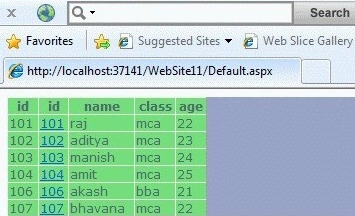
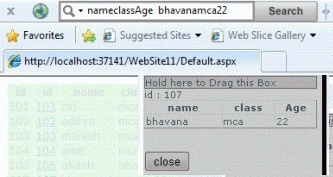
Step 17. Now click on the id option, and a ModalPopup with the student details appears as shown below.
CHAITANYA KIRAN KASANIeditedPosted Jan 27, 2013, 5:36 AMEdited Jan 27, 2013, 5:38 AM
hi Davin Martyn, Your Article Is Good...I Had Run Your Code..When I Hold The SubPanel Of The Popup Panel, It is Not Leaving The Cursor Even I Leave The Mouse. The Popup Panel Attaches To The Mouse Pointer.And It Is Following Even I Drop.Due To This I Am Unable To Close The Popup Panel..So Let Me Know How To Fix The Bug......