

In this article we are discussing about uploading a blob using the PutBlock method. I would like to give a note that there are two types of blob in Windows Azure:
- Block Blob
- Page Blob
The Block Blob uploading is discussed here as
Block Blobs are used for large file uploads. The associated code was developed
to upload large files to Windows Azure Blob. The large file will be split into 4 MB chunks and then uploaded.
Method
The following are the important methods used:
- CloudBlockBlob.PutBlock()
- CloudBlockBlob.PutBlockList()
The PutBlock method is called for each 4MB file
chunk and the PutBlockList method is called at the end passing the file chunk ids.
Code
The following is the code of AzureBlobUtil.cs
public
class AzureBlobUtil
{
private const
int MaxBlockSize = 4000000;
// Approx. 4MB chunk size
public Uri UploadBlob(string
filePath, CloudStorageAccount account,
string containerName)
{
byte[] fileContent =
File.ReadAllBytes(filePath);
string blobName =
Path.GetFileName(filePath);
return UploadBlob(fileContent, account,
containerName, blobName);
}
public Uri UploadBlob(byte[]
fileContent, CloudStorageAccount account,
string containerName,
string blobName)
{
CloudBlobClient blobclient =
account.CreateCloudBlobClient();
CloudBlobContainer container =
blobclient.GetContainerReference(containerName);
container.CreateIfNotExist();
CloudBlockBlob blob = container.GetBlockBlobReference(blobName);
HashSet<string>
blocklist = new
HashSet<string>();
foreach (FileBlock
block in GetFileBlocks(fileContent))
{
blob.PutBlock(
block.Id,
new
MemoryStream(block.Content, true),
null
);
blocklist.Add(block.Id);
}
blob.PutBlockList(blocklist);
return blob.Uri;
}
private IEnumerable<FileBlock>
GetFileBlocks(byte[] fileContent)
{
HashSet<FileBlock>
hashSet = new
HashSet<FileBlock>();
if (fileContent.Length == 0)
return new
HashSet<FileBlock>();
int blockId = 0;
int ix = 0;
int currentBlockSize = MaxBlockSize;
while (currentBlockSize == MaxBlockSize)
{
if ((ix + currentBlockSize) >
fileContent.Length)
currentBlockSize = fileContent.Length - ix;
byte[] chunk =
new byte[currentBlockSize];
Array.Copy(fileContent, ix,
chunk, 0, currentBlockSize);
hashSet.Add(
new
FileBlock()
{
Content = chunk,
Id = Convert.ToBase64String(System.BitConverter.GetBytes(blockId))
});
ix +=
currentBlockSize;
blockId++;
}
return hashSet;
}
public Stream DownloadBlobAsStream(CloudStorageAccount
account, string blobUri)
{
Stream stream =
new MemoryStream();
CloudBlobClient blobclient =
account.CreateCloudBlobClient();
CloudBlockBlob blob =
blobclient.GetBlockBlobReference(blobUri);
if (blob != null)
blob.DownloadToStream(stream);
return stream;
}
public string DownloadBlobAsFile(CloudStorageAccount
account, string blobUri)
{
Stream stream =
DownloadBlobAsStream(account, blobUri);
string fileName =
"Blob.file";
// Please change file name based on
your need
if (stream != null)
{
FileStream fileStream =
File.Create(fileName);
stream.Position = 0;
stream.CopyTo(fileStream);
fileStream.Close();
return fileName;
}
return string.Empty;
}
}
internal
class FileBlock
{
public string
Id
{
get;
set;
}
public byte[] Content
{
get;
set;
}
}
Testing Code
For uploading a blob into the container use the following code:
//
Upload
Uri blobUri = _blobUtil.UploadBlob(
filePathHere,
CloudStorageAccount.DevelopmentStorageAccount,
"files");
// Download
Stream stream = _blobUtil.DownloadBlobAsStream(
CloudStorageAccount.DevelopmentStorageAccount,
blobUri.ToString()
);
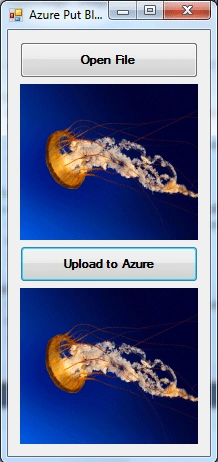
Associated Example
On running the example, after opening and uploading an image file, you can see
the following result. The first box shows the source image. The second box shows
the uploaded image from Azure.
Pre-Requisites
Please ensure the Storage Emulator is running while testing the example
Reference
You can find more information on Block and Page blob using following link:
http://msdn.microsoft.com/en-us/library/windowsazure/ee691964.aspx
Summary
In this article we have seen the usage of Block Blob upload as chunks. The
source code can be used to upload large files to Azure Blob. The associated
example can be downloaded along with this article. The utility method was
verified with 100MB file upload and download.
candidate interviewPosted Dec 20, 2017, 1:28 AM
Can you help me on this http://www.c-sharpcorner.com/Forums/saving-video-to-azure-unable-to-load-video-some-times