

JDBC connection to Microsoft Access
Introduction
In this article, we make a connection using JDBC to a Microsoft Access database. This connection is made with the help of a JdbcOdbc driver. You need to use the following steps for making a connection to the database.
Creating a Database
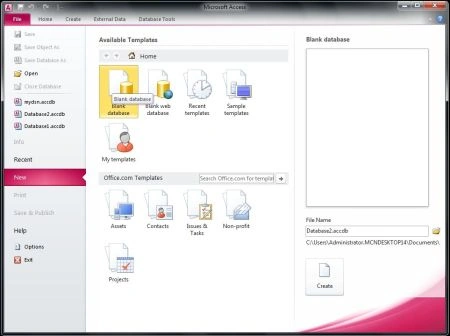
Step 1: Open Microsoft Access and select Blank database option and give the database name as File name option
Step 2: Create a table and insert your data into the table
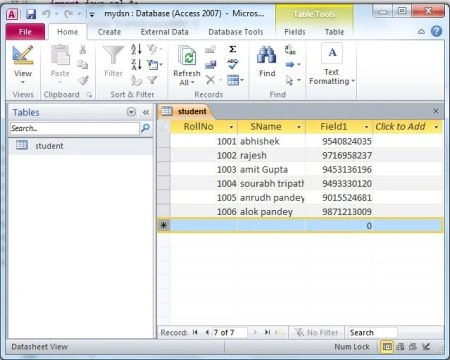
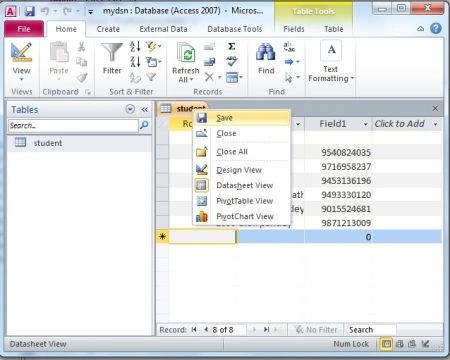
Step 3: Save the table with the desired name; in this article, we save the following records with the table name student.
Now Creating DSN of your database
Step 4: Open your Control Panel and then select Administrative Tools.
Step 5 : Click on Data Source(ODBC)-->System DSN.
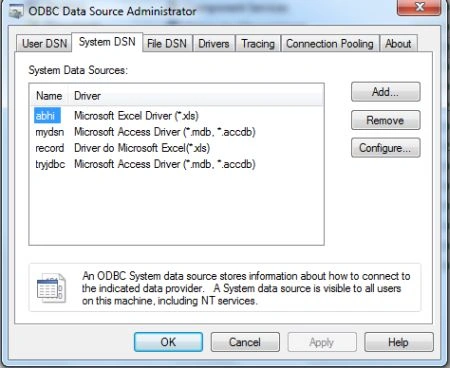
Step 6: Now click on add option for making a new DSN.select Microsoft Access Driver (*.mdb. *.accdb) and then click on Finish
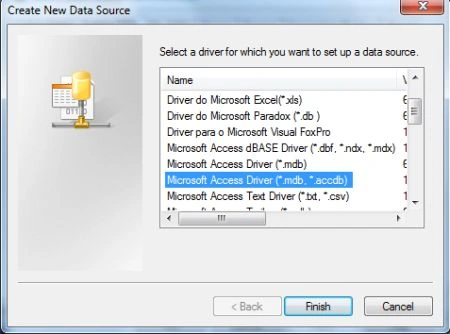
Step 7: Make your desired Data Source Name and then click on the Select option, for example in this article we use the name mydsn
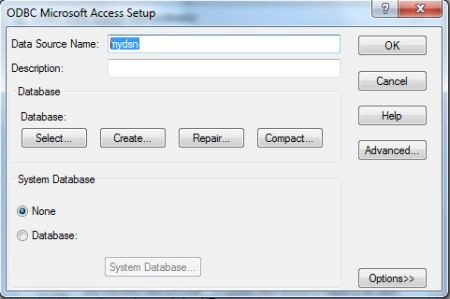
Step 8: Now you select your data source file for storing it and then click ok and then click on Create and Finish
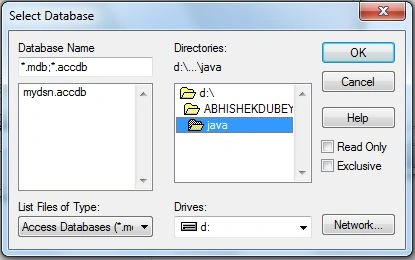
Step 9: Java program code
- import java.sql.*;
- public class MsAcessODBC {
- public static void main(String[] args) {
- try {
- // loading thejdbc odbc driver
- Class.forName("sun.jdbc.odbc.JdbcOdbcDriver");
- // creating connection toth data base
- Connection con = DriverManager.getConnection("jdbc:odbc:mydsn", "", "");
- Statement st = con.createStatement();
- // create an execute sql command on database
- ResultSet rs = st.executeQuery("Select * from student order by rollno asc");
- ResultSetMetaData rsmd = rs.getMetaData();
- // this getColumnCount reurn the number of column in the selected table
- int numberOfColumns = rsmd.getColumnCount();
- // while loop and with while loop code use for print the data
- while (rs.next()) {
- for (int i = 1; i <= numberOfColumns; i++) {
- if (i > 1)
- System.out.print(", ");
- String columnValue = rs.getString(i);
- System.out.print(columnValue);
- }
- System.out.println("");
- }
- st.close();
- con.close();
- } catch (Exception ex) {
- System.err.print("Exception: ");
- System.err.println(ex.getMessage());
- }
- }
- }
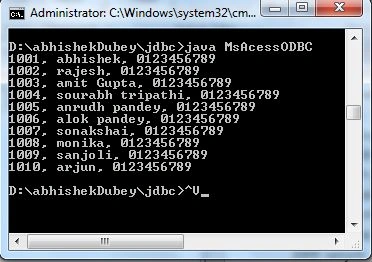
Resource
Anonymous HackerPosted Mar 26, 2018, 1:29 PM
Dude the screenshot u have provided are not matching the steps just change it Like On Step 8 : Now you select your data source file for storing it and then click ok and then click on Create and Finish >>>>>>>>>> We have to click on select and then finish
Pratik RajpadhyPosted Feb 24, 2017, 9:18 AM
I have a exception in // loading thejdbc odbc driver Class.forName("sun.jdbc.odbc.JdbcOdbcDriver");
Abhishek DubeyPosted Apr 18, 2015, 1:31 AM
Why not ?
Shantanu KumarPosted Apr 17, 2015, 4:59 PM
Java 8 cant do MS Access any more :p :p
Abhishek DubeyPosted Aug 29, 2014, 9:07 AM
May be its your windows security and authentication problem
Muralie VRPosted Aug 18, 2014, 6:54 AM
I tried the same but am getting the error message "Exception: [Microsoft][ODBC Driver Manager] The specified DSN contains an architecture mismatch between the Driver and Application" Am using windows 7 64 bit machine
dsk techPosted Aug 8, 2014, 3:53 AM
Exception :sun.odbc.jdbc.Jdbc.Odbcdriver
nitin jainPosted Jan 14, 2014, 12:53 AM
how to store d images in the database and retrieve it.... can someone help me out....
Naveen MohanPosted Nov 19, 2013, 10:03 PM
Thanks a ton.. super work...
srinath arunaPosted Apr 6, 2013, 12:36 PM
thank, it's work