

In visual studio configure the membership,role,session state and profile provider.Run the tool and set configuration options and will be modify in web.config file.
The MySQL Website Configuration Tool shown in asp.net website as a small icon on the Solution Explorer toolbar in Visual Studio.
As shown below.
MySQL Website Configuration Tool
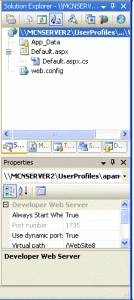
Clicking the Website Configuration Tool icon
launches the wizard and displays the first screen.
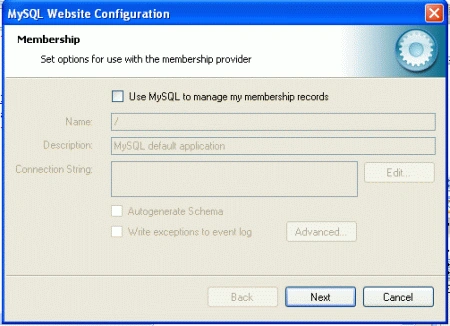
This allows you to enable use of the MySQL
Membership Provider. Simply click the check box to enable this. You can now
enter the name of the application that you are creating the configuration for.
You can also enter a description for the application.
You can then click the button to launch the Connection String Editor:
MySQL
Website Configuration Tool - Connection String Editor
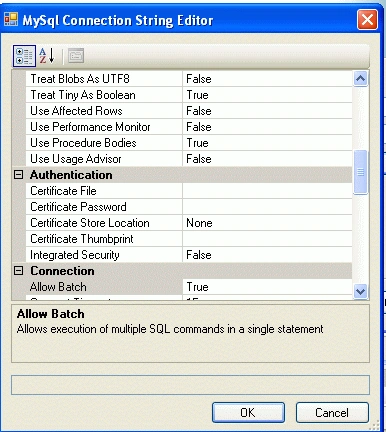
Note That if we have already defined a
connection string for the providers manually in
web.config,
or previously using the tool, this will be automatically loaded and displayed,
and can then be modified in this dialog.
We can also ensure that the necessary schema are created automatically by
selecting the Auto generate Schema check box. These schema are used to store
membership information. The database used to storage is the one specified in the
connection string.
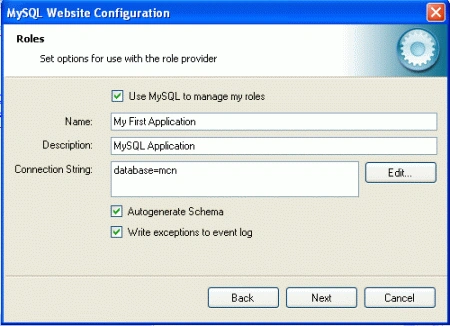
The exceptions generated by the application will be written to the event log by selecting the Write exceptions to event log check box.
Clicking the button launches a dialog that enables we to set Membership Options. These options dictate such variables as password length required when a user signs up, whether the password is encrypted and whether the user can reset their password or not.
MySQL
Website Configuration Tool - Advanced Options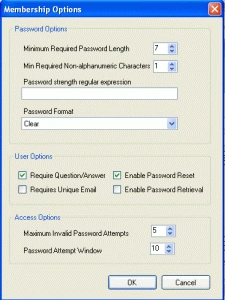
Once information has been set up as required for configuration of
the Membership Provider the button can
be clicked to display the Roles Provider screen.
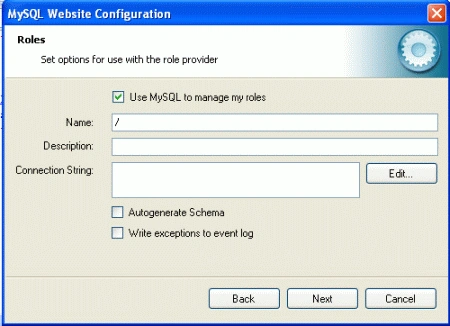
Again the connection string can be edited, a description added and Autogenerate
Schema can be enabled before clicking to go
to the Profiles Provider screen.
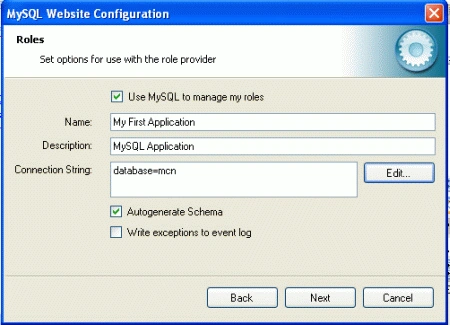
MySQL Website Configuration Tool - MySQL Application
MySQL Website Configuration Tool - Session State
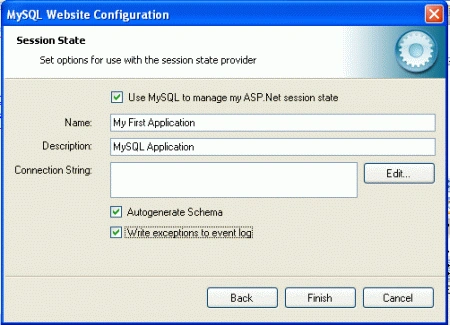
Once you have set up the Session State Provider as required, click to exit the wizard.
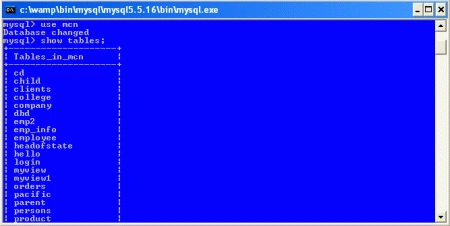
It is necessary to select the Authentication Type to From Internet. This can be done by launching the ASP.NET Configuration Tool, and selecting the Security tab. Click the Select authentication type link and ensure that the From the internet radio button is selected. We can now examine the database we have to created to store membership information. All the necessary tables will have been created for myself.
MySQL Website Configuration Tool - Tables
Resources
Here are some useful related resources:
Join the conversation! Your thoughts help the community grow.