

Gtk+
GTK+, or the
GIMP Toolkit, is a multi-platform toolkit for creating graphical user
interfaces. GTK+ is a highly usable, feature rich toolkit for
creating graphical user interfaces which boasts cross platform compatibility and
an easy to use API.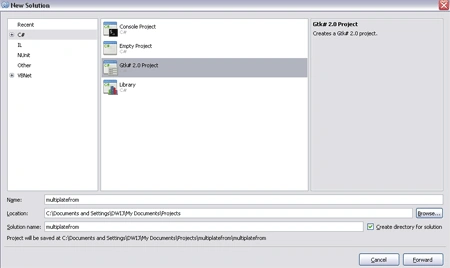
Gtk started as a collection of widgets for the
GNU Image Manipulation Program (GIMP) but has since grown in popularity, its
popularity has been encouraged through its language independence, which is achieved through language bindings (also called wrappers). These
wrappers provide the API for accessing the Gtk+ toolkit from multiple languages
such as C, C++, Java, Perl, Python,and of course C# and scale to be used by a significant number of applications,
including the GNOME desktop.
The Gtk+ toolkit fundamentally consists of a number of libraries, including the
following:
- Glib
A core library that provides important basic functionality required by not just Gtk+ but also by GNOME. This functionality includes support for threads, data structures, event handling, and so on.
- Pango
Provides support for layout management and text rendering, including the ability to provide support for internationalization.
- Accessibility Toolkit (ATK) library
Provides support for accessibility standards to be used in tools for people with special needs, such as the visually impaired. Some examples of accessibility tools include screen readers, magnifiers, and so on.
Packages Gtk+
GTK+ individual packages
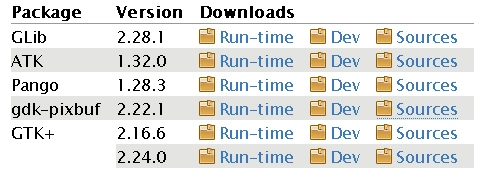
Required third party dependencies
The run-time packages here are required by the
GTK+ stack.
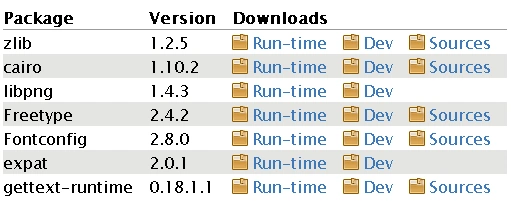
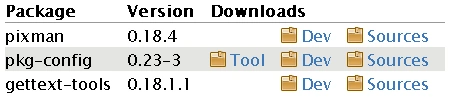
Other third party software
These
packages are not needed to run software that uses just GTK+, or to develop such
software. These packages are used when building and running more complex
applications.
Glade
Glade is a RAD (Rapid Application Development) tool for designing GTK+
applications. Glade is a GTK+ application itself. It is simply a piece of
software developers use to simplify the process of laying out an application's
interface. Glade creates what will here forth be referred to a s a "glade file".
A glade file is actually an XML file which describes the hierarchy of the
widgets comprising the interface.
Glade is an open-source tool that allows you to visually design your user
interface using the Gtk+ toolkit and then save this visual representation as an
XML file that can be dynamically loaded and utilized by an application that is using the appropriate library.
Glade interface
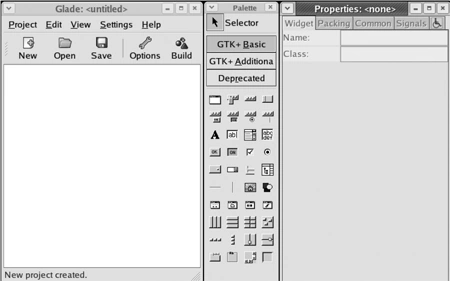
Navigating the Glade User Interface
The Glade tool makes defining the user interface to your application simple.
It's presented as three windows that interact with one another, including the
main window, the Pallet window, and the Properties window.
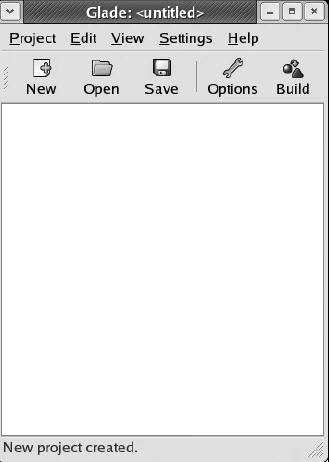
Main Window
Palette Window
The controls, or widgets, by selecting the button associated with the category
of controls you want to view
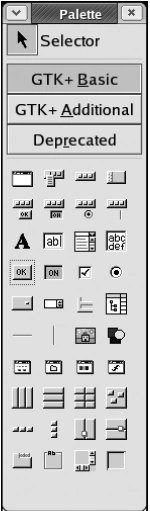
The categories exposed via the buttons include the following:
-
Gtk+ Basic: This holds the basic controls that form the foundation of most GUIs (for example, the Window control and the Button control).
-
Gtk+ Additional: This holds controls that are useful but used less often (for example, the Font Selection Dialog control and the Calendar control).
-
Deprecated: This holds controls that are no longer being developed and have since been replaced but are shown for backward compatibility.
Properties Window
The Properties window allows you to view and
modify a variety of properties associated with the control that currently has
the focus.
f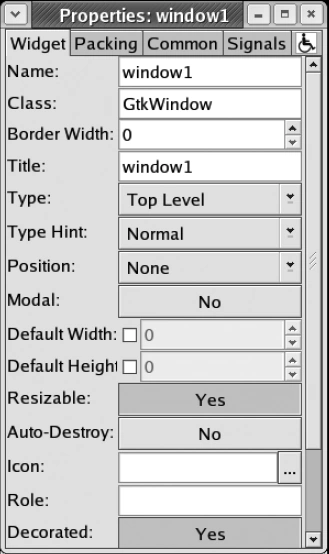
You can access a tab by simply selecting it; the properties associated with that category then display for you to view or edit. These categories are as follows:
-
Widget: This set contains the core properties associated with the selected control and are typically focused on visual attributes such as DefaultWidth, DefaultHeight, and so on.
-
Packing: These properties are associated with those controls that have an array of elements and prescribed order. For example, the Tab control is an array of tabs with properties that can be modified through the Packing tab.
-
Common: As its name suggests, this set contains the common properties associated with a given control, both visual and programmatic. These properties are common to all controls and as such are contained on their own tab. For example, this includes Width, Height, Modal, and Event masks (indicators of which events you want to be raised).
-
Signals: These properties allow you to associate event handlers with events (that is, signals)that the control may encounter. These signals are hierarchical in nature and so include all the events that may be thrown by the control and all the descendants.
-
Accessibility: These controls allow you to modify attributes to make your applications more accessible. For example, the ZoomText control provides a "zoom" window for the visually impaired that displays text in a large font.
Join the conversation! Your thoughts help the community grow.