

Introduction
In this article, we are going to explain how to launch the File Explorer with a drive list in Windows 8. When we launch the File Explorer in Windows 8, the My Documents window is shown by default. This is very useful if we actually use the My Documents feature but many prefer the traditional behavior of My Computer where the drives are listed instead.
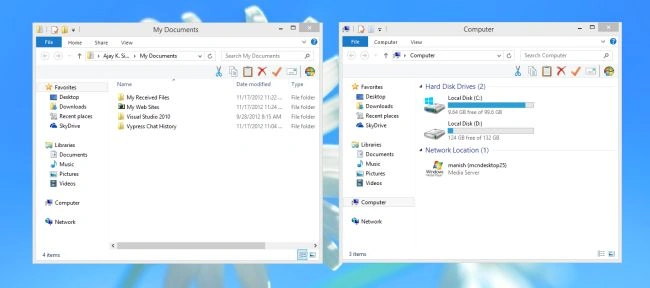
Step 1
First, we open the Windows 8 Desktop.
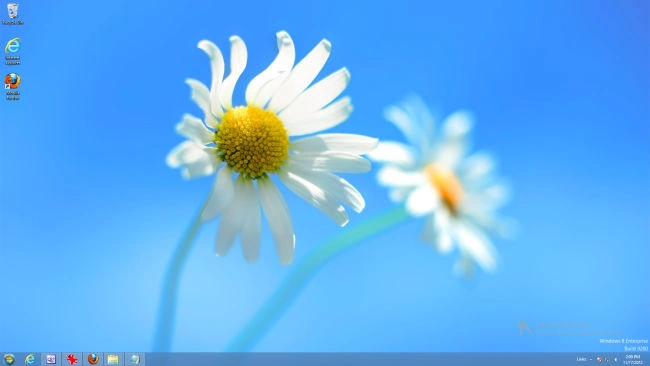
Step 2
This behavior can be changed by editing the shortcut target.
Right-click on the Taskbar icon for File Explorer.
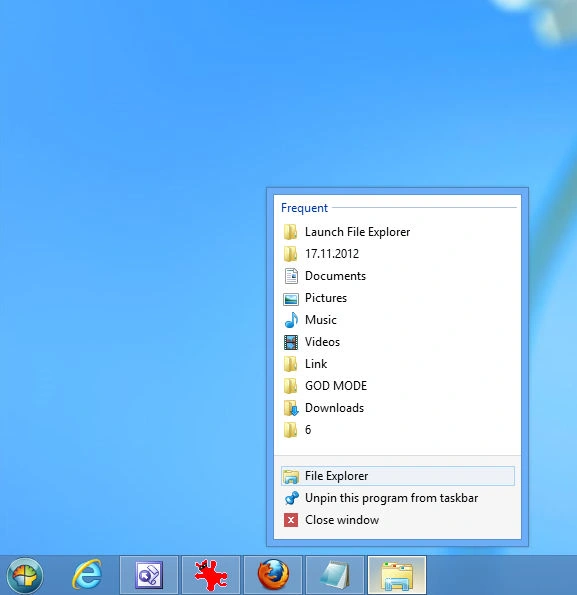
Step 3
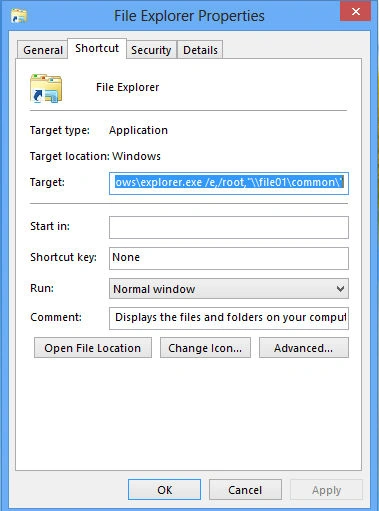
Right-click on File Explorer and click properties.
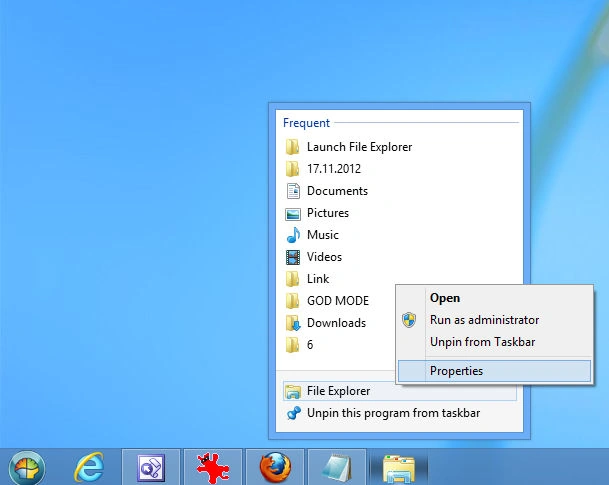
Step 4
Open File Explorer properties in Windows 8.
Step 5
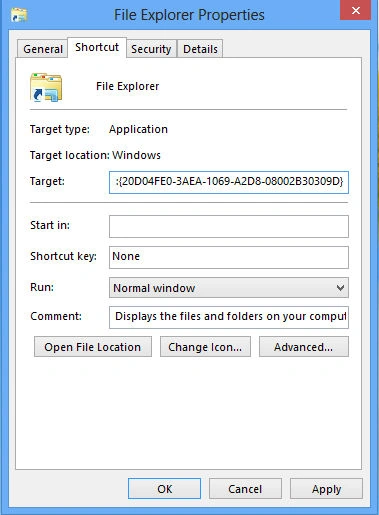
Then change the target of the shortcut to the following path:
%SystemRoot%\explorer.exe ,::{20D04FE0-3AEA-1069-A2D8-08002B30309D}
Step 6
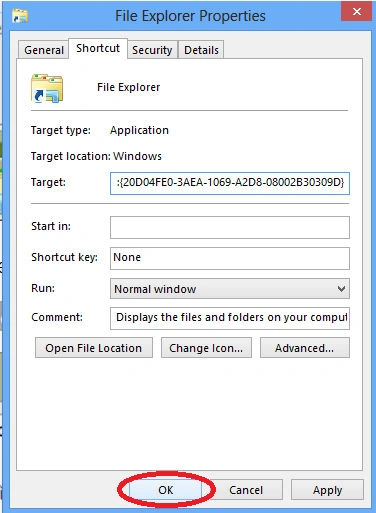
After this process clicks the OK tab.
Summary
In this article, we learned about Launch File Explorer With Drive List in Windows 8.
Join the conversation! Your thoughts help the community grow.