
Microsoft Word provides the feature for splitting an existing table into two or more tables. But the single operation will always divide a table into two tables. So when you want to split two or more tables you need to perform two or more split operations.
In this article you will learn how to split a single table in two or more tables.
Do the following to split a table into two tables.
Step 1
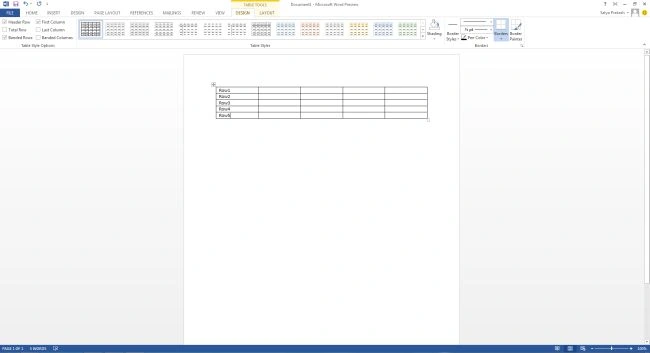
Open Microsoft Word 2013 and create a simple table.
Step 2
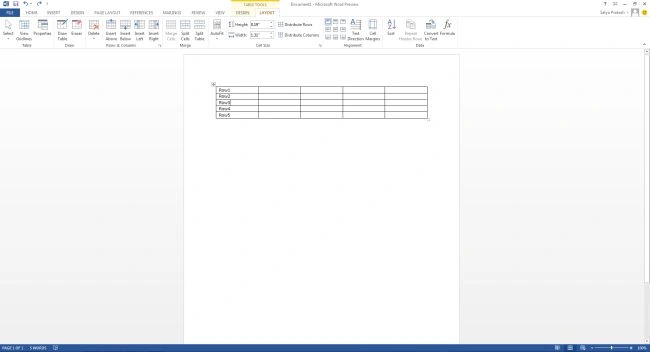
Put your mouse pointer in the row from where you want to split the table. Here I put the mouse pointer in row 3:
Step 3
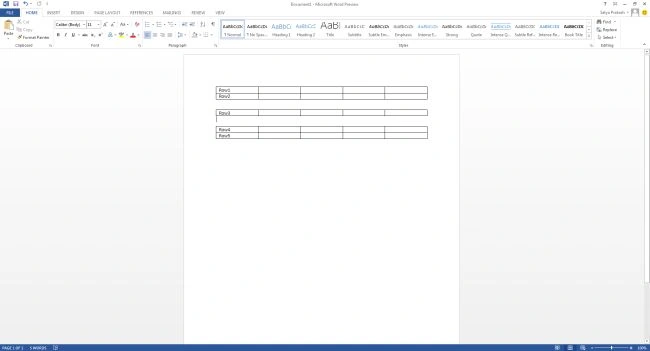
Click on Layout tab and then click Split Table Button which splits the table into two tables, as in:
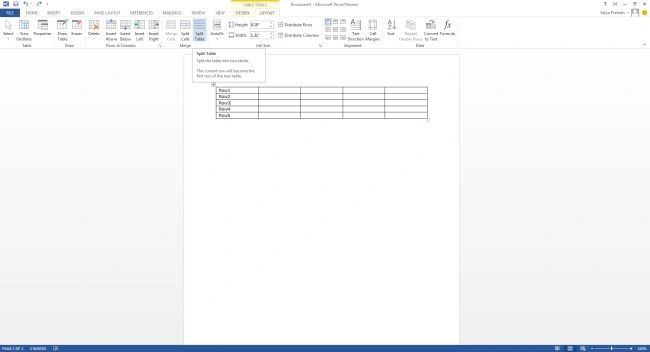
Note: The selected row will become the first row of the lower table.
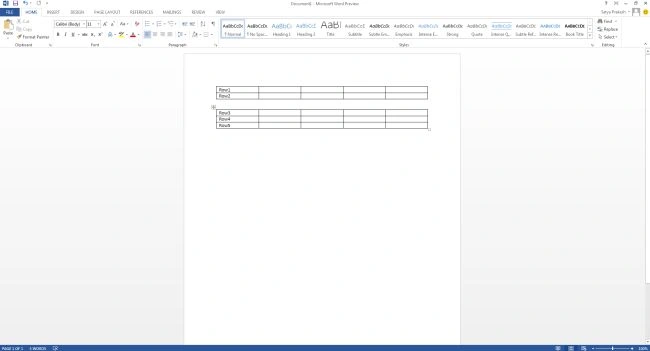
Note: You can further divide it into two parts and you can continue dividing Word tables as long as a table has more than one row.
Mc JacquesPosted Sep 7, 2017, 11:14 AM
Place the cursor where you want the next table to start..i.e. The first row of the next table Press ctrl>shift>enter........And there you have your two tables