

In this article we will see how we can develop a Web Browser Like Internet Explorer, Mozilla Firefox etc.
First of all create a new WPF project and then Drag & Drop the "Web Browser" Control into your designer from Toolbox.
See image below:

After that take one textbox & three buttons.
The Textbox is used for entering the user's URL and three buttons are used for Go Back, Go & Go Forward Respectively.
Xaml Code :
<Window x:Class="WPFWebControl.MainWindow"
xmlns="http://schemas.microsoft.com/winfx/2006/xaml/presentation"
xmlns:x="http://schemas.microsoft.com/winfx/2006/xaml"
Title="My Web Browser" WindowState="Normal" Loaded="Window_Loaded" WindowStyle="ThreeDBorderWindow" mc:Ignorable="d" xmlns:d="http://schemas.microsoft.com/expression/blend/2008" xmlns:mc="http://schemas.openxmlformats.org/markup-compatibility/2006" Height="529" Width="731">
<Grid>
<Button Content="<<" Height="23" HorizontalAlignment="Left" Margin="10,5,0,0" Name="MyBack" VerticalAlignment="Top" Width="25" ToolTip="Backword" Click="MyBack_Click" />
<WebBrowser Height="445" HorizontalAlignment="Left" Margin="10,33,0,0" Name="MyWebBrowser" VerticalAlignment="Top" Width="687" LoadCompleted="MyWebBrowser_LoadCompleted" />
<TextBox Height="23" Margin="103,5,12,0" Name="MyTextBox" VerticalAlignment="Top" />
<Button Content="|>" Height="23" HorizontalAlignment="Left" Margin="41,5,0,0" Name="MyGo" VerticalAlignment="Top" Width="25" ToolTip="Go" Click="MyGo_Click" />
<Button Content=">>" Height="23" HorizontalAlignment="Right" Margin="0,5,612,0" Name="MyForward" VerticalAlignment="Top" Width="25" ToolTip="Forward" Click="MyForward_Click" />
</Grid>
</Window>
MyWebBrowser.Source = new Uri("http://www.c-sharpcorner.com");
Using the above code, it will load the given URL into your Web Browser Control, in that I take one constructor of Uri Class & in that pass the URl.
Here I used as default page for the web browser control, so when you open this application at that time it will load this URL everytime as default.
MyWebBrowser.GoBack();
For go backward just call it's predefined function.
MyWebBrowser.GoForward();
For go forward just call it's predefined function.
MyWebBrowser.Source = new Uri("http://" + MyTextBox.Text);
Using the above line, it will open a URL which will be passed by user into the textbox.
private void MyWebBrowser_LoadCompleted(object sender, NavigationEventArgs e)
{
MessageBox.Show("Completed.");
}
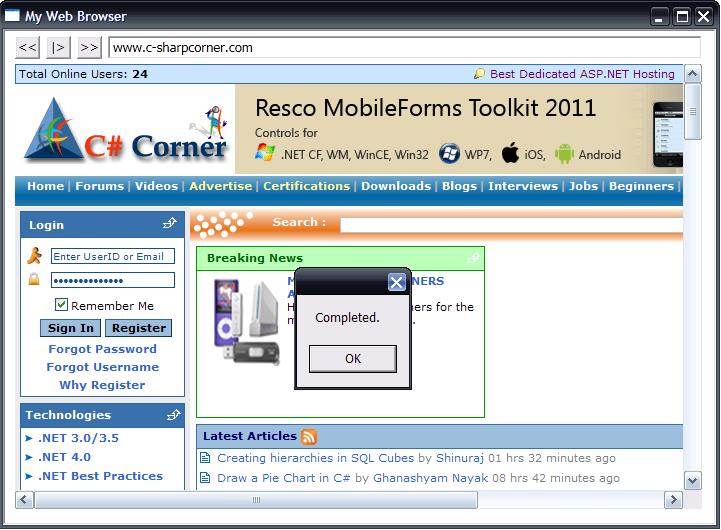
When Page load is completed it will display a messagebox as I written in code..but you can write your own logic…
Main Code :
using System;
using System.Collections.Generic;
using System.Linq;
using System.Text;
using System.Windows;
using System.Windows.Controls;
using System.Windows.Data;
using System.Windows.Documents;
using System.Windows.Input;
using System.Windows.Media;
using System.Windows.Media.Imaging;
using System.Windows.Navigation;
using System.Windows.Shapes;
namespace WPFWebControl
{ /// <summary>
/// Interaction logic for MainWindow.xaml
/// </summary>
public partial class MainWindow : Window
{
public MainWindow()
{
InitializeComponent();
}
private void Window_Loaded(object sender, RoutedEventArgs e)
{
try
{
//If You Want to define a defualt URI then you can define like below...
MyWebBrowser.Source = new Uri("http://www.c-sharpcorner.com");
//Otherwise for blank you can set it as like below...
//MyWebBrowser.Source = new Uri("about:blank");
}
catch (Exception ex)
{
MessageBox.Show(ex.Message);
}
}
private void MyBack_Click(object sender, RoutedEventArgs e)
{
try
{
MyWebBrowser.GoBack();
}
catch (Exception ex)
{
MessageBox.Show(ex.Message);
}
}
private void MyForward_Click(object sender, RoutedEventArgs e)
{
try
{
MyWebBrowser.GoForward();
}
catch (Exception ex)
{
MessageBox.Show(ex.Message);
}
}
private void MyGo_Click(object sender, RoutedEventArgs e)
{
try
{
MyWebBrowser.Source = new Uri("http://" + MyTextBox.Text);
}
catch (Exception ex)
{
MessageBox.Show(ex.Message);
}
}
private void MyWebBrowser_LoadCompleted(object sender, NavigationEventArgs e)
{
MessageBox.Show("Completed.");
}
}
}
See Below Images As Output :
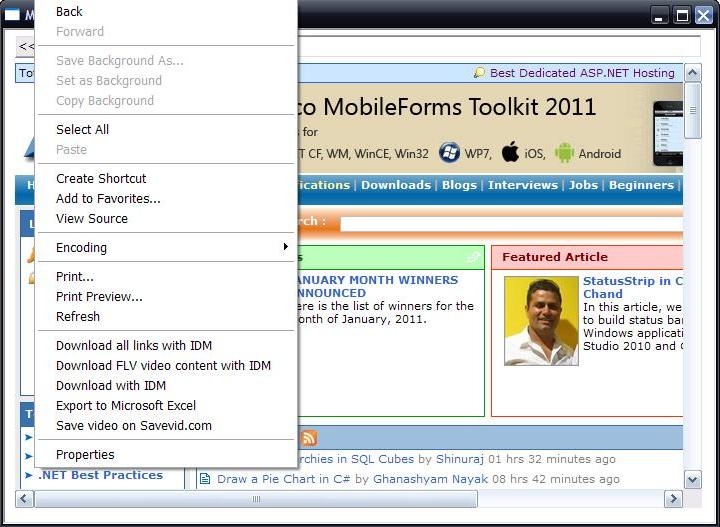
Here it will also display Context Menu like other web browser when you Right Click...
When the page Load has been Completel then it will display a message. You can write your own logic instead.
The Three main buttons which are Back, Go & Forward...

girish koltePosted Oct 3, 2012, 3:05 AM
i m trying to access my website in this control, and i have put javascript alert on keypress.. but only once the alert is called.. then it done not get called, i found the issue, its because the focus is set to some where else... when i select something on page and keypress, the alert again get called once... can you suggest what is actually happening...? thanks
girish koltePosted Oct 3, 2012, 3:05 AM
i m trying to access my website in this control, and i have put javascript alert on keypress.. but only once the alert is called.. then it done not get called, i found the issue, its because the focus is set to some where else... when i select something on page and keypress, the alert again get called once... can you suggest what is actually happening...? thanks
girish koltePosted Oct 3, 2012, 3:05 AM
i m trying to access my website in this control, and i have put javascript alert on keypress.. but only once the alert is called.. then it done not get called, i found the issue, its because the focus is set to some where else... when i select something on page and keypress, the alert again get called once... can you suggest what is actually happening...? thanks
girish koltePosted Oct 3, 2012, 3:05 AM
i m trying to access my website in this control, and i have put javascript alert on keypress.. but only once the alert is called.. then it done not get called, i found the issue, its because the focus is set to some where else... when i select something on page and keypress, the alert again get called once... can you suggest what is actually happening...? thanks