

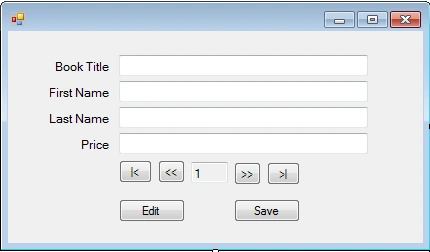
Let us see how the form actually looks:
First of all let us see how to read values from a XML file.
- XmlDocument myXMLDoc = new XmlDocument();
- myXMLDoc.Load(@"C:\Users\Indus_User\Desktop\books.xml");
- XmlNodeList myTitle;
- XmlNodeList myFirstName;
- XmlNodeList myLastName;
- XmlNodeList myPrice;
- myTitle = myXMLDoc.GetElementsByTagName("title");
- myFirstName = myXMLDoc.GetElementsByTagName("first-name");
- myLastName = myXMLDoc.GetElementsByTagName("last-name");
- myPrice = myXMLDoc.GetElementsByTagName("price");
- i = Convert.ToInt16(txtCount.Text);
- txtTitle.Text = myTitle[i - 1].InnerText;
- txtFName.Text = myFirstName[i - 1].InnerText;
- txtLName.Text = myLastName[i - 1].InnerText;
- txtPrice.Text = myPrice[i - 1].InnerText;
Using the above code, it will retrieve the particular index value & display into the related text boxes.
- if (Convert.ToInt16(txtCount.Text)== myTitle.Count)
- {
- MessageBox.Show("It's Last Record.", "Info", MessageBoxButtons.OK);
- }
- else
- {
- i = Convert.ToInt32(txtCount.Text);
- i = i + 1;
- txtCount.Text = i.ToString();
- txtTitle.Text = myTitle[i-1].InnerText;
- txtFName.Text = myFirstName[i-1].InnerText;
- txtLName.Text = myLastName[i-1].InnerText;
- txtPrice.Text = myPrice[i-1].InnerText;
- }
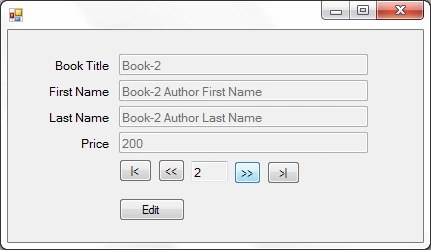
When the user clicks on the next button (>>) then it will perform the above code & in that it will increase the index value & load the next indexed value into the related textboxes.
Here in the above code it will also check whether the index is the last index or not. If the index is last then it will display a message to the user.
See the following image for a better understanding:

- if (Convert.ToInt16(txtCount.Text)== 1)
- {
- MessageBox.Show("It's First Record.", "Info", MessageBoxButtons.OK);
- }
- else
- i = Convert.ToInt32(txtCount.Text);
- i = i - 1;
- txtCount.Text = i.ToString();
- txtTitle.Text = myTitle[i-1].InnerText;
- txtFName.Text = myFirstName[i-1].InnerText;
- txtLName.Text = myLastName[i-1].InnerText;
- txtPrice.Text = myPrice[i-1].InnerText;
- }
When the user clicks on the previous button (<<) then it will perform the above code.
In this code it will decrease the index & then load the previous values into the related text boxes. If the index is the first then it will display a message to the user.
See the following image for a better understanding:

- i = 1;
- txtCount.Text = i.ToString();
- txtTitle.Text = myTitle[i-1].InnerText;
- txtFName.Text = myFirstName[i-1].InnerText;
- txtLName.Text = myLastName[i-1].InnerText;
- txtPrice.Text = myPrice[i-1].InnerText;
When the user clicks on the First button (|<) then it will perform the above code.
In this code it will set the index as first 7 then it will load the related first record values into the text boxes.
- i = myTitle.Count;
- txtCount.Text = i.ToString();
- txtTitle.Text = myTitle[i-1].InnerText;
- txtFName.Text = myFirstName[i-1].InnerText;
- txtLName.Text = myLastName[i-1].InnerText;
- txtPrice.Text = myPrice[i-1].InnerText;
When the user clicks on the Last button (>|) then it will perform the above code.
In this code it will set the index as last & then it will load the last records values into the related text boxes.
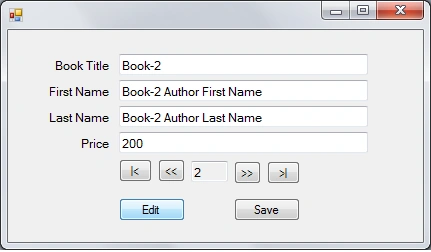
- btnSave.Visible = true;
- txtTitle.Enabled = true;
- txtFName.Enabled = true;
- txtLName.Enabled = true;
- txtPrice.Enabled = true;
See the following Image:
- i = Convert.ToInt16(txtCount.Text);
- myTitle[i - 1].InnerText = txtTitle.Text;
- myFirstName[i - 1].InnerText = txtFName.Text;
- myLastName[i - 1].InnerText = txtLName.Text;\
- myPrice[i - 1].InnerText = txtPrice.Text;
- myXMLDoc.Save(@"C:\Users\Indus_User\Desktop\books.xml");
- if (MessageBox.Show("Save Successfully", "Confirm", MessageBoxButtons.OK) == System.Windows.Forms.DialogResult.OK)
- {
- btnSave.Visible = false;
- txtTitle.Enabled = false;
- txtFName.Enabled = false;
- txtLName.Enabled = false;
- txtPrice.Enabled = false;
- }
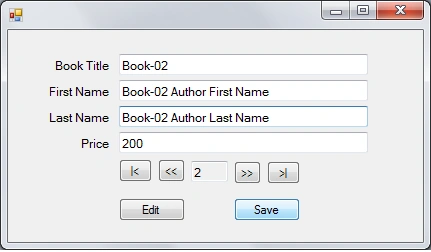
In this code it will save the updated values into the related indexed values from the textboxes using the InnerText Property & then it will save the updated values into the XML file.
See the following Image:
When the values are stored into the XML file then it will display a confirmation message to the user like below:
When the user clicks on the OK button from the message box then it will hide the save button & also disable all the textboxes like in the following image:

Hope all this is clear for you.
SenyeditedPosted Nov 24, 2012, 5:13 PMEdited Nov 24, 2012, 5:13 PM
Good Work!!!Very nice and usefull for many people i think... But personaly i believe that you should upload the XML file structure and update the path in this line "myXMLDoc.Save(@"C:\Users\Indus_User\Desktop\books.xml");" with "myXMLDoc.Save("books.xml");" to look like more with database. However, this is realy GOOD WORK!!!
Sumita JainPosted Feb 8, 2012, 11:22 PM
thnx for sharing it...
Daisy KrausePosted Feb 8, 2012, 11:17 PM
You have presented your article very nicely.
Laura ParkerPosted Feb 8, 2012, 11:16 PM
Very well presentation
Abhi KumarPosted Feb 8, 2012, 11:15 PM
Very useful article. Thanks for sharing.
Nitin SinghPosted Feb 8, 2012, 11:02 PM
Really thanks Mr. Ghanashyam for this great article