

Introduction
In this article we will see all the new changes and functionalities that are introduced in SharePoint 2013 tasks list.
- How to create a new tasks list
- How to create a new task in tasks list
- How to add/remove the task in the timeline
- How to create a subtask
- Task views
- Edit the tasks list in datasheet view
How to create a new tasks list
The following steps must be performed to create a new tasks list in SharePoint 2013:
- Navigate to the SharePoint site http://c4968397007/.
- Click on Site Contents in the quick launch bar.
- Click on "add an app".
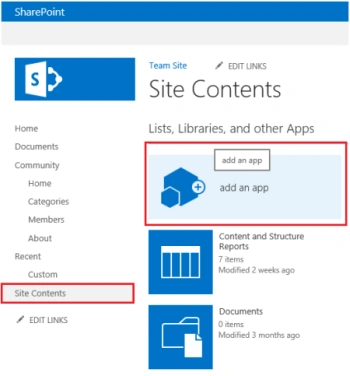
Figure 1: Site Contents
- Click on Tasks app.
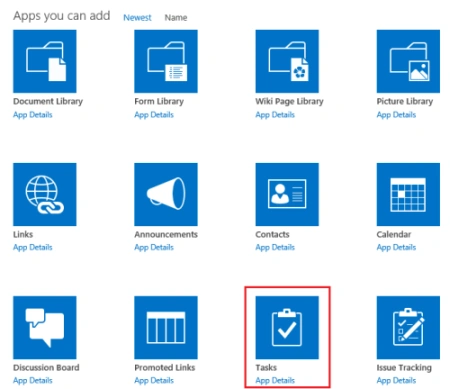
Figure 2: Apps
- Enter the Name and then click on Create.
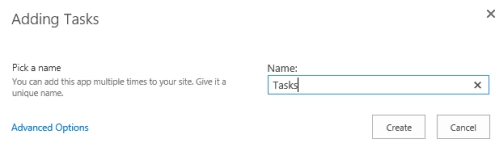
Figure 3: Create new task list
- A new tasks list is created successfully.
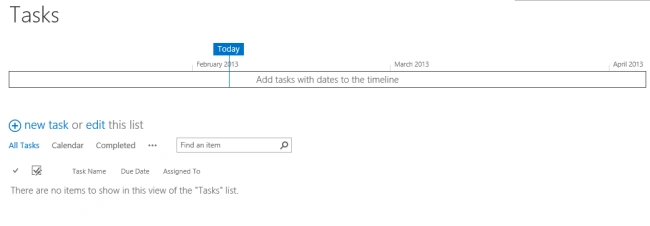
Figure 4: New task list created successfully.
How to create a new task in the tasks list
The following steps must be performed to create a new task in a SharePoint 2013 tasks list:
- Click on "new task" in the tasks list.
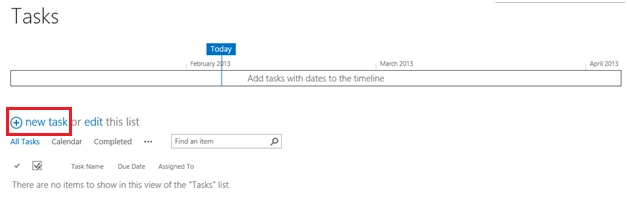
Figure 5: New task
- Enter the task details and click on "Save".
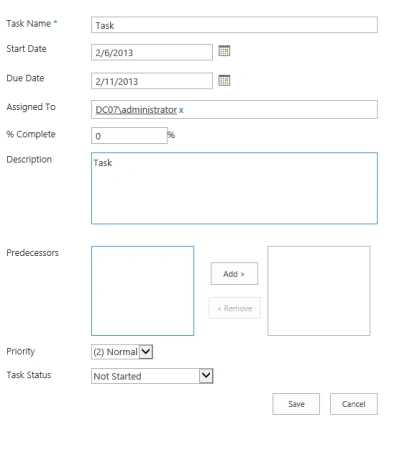
Figure 6: Task details
- A new task item is created successfully.
How to add/remove a task in the timeline
The Timeline is a new feature introduced in SharePoint 2013. The user will be able to see the timeline for the tasks and will be able to differentiate each task by giving a different color and/or font to a task. The following steps must be performed to add the task to a timeline in SharePoint 2013.
- Select the task and then click on (...).
- A preview window will be opened. Click on "ADD TO TIMELINE".
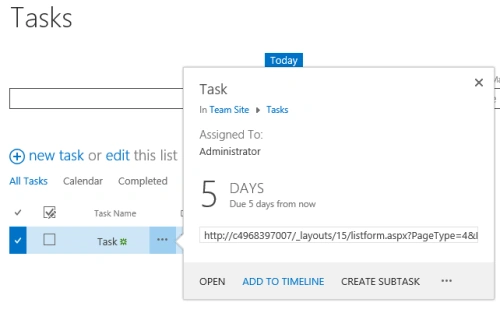
Figure 7: Add the task to timeline
- The task is successfully added to the timeline as shown in Figure 8.
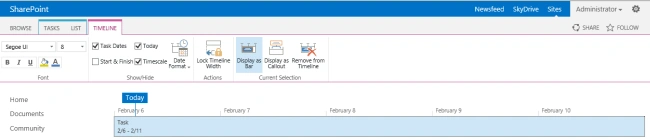
Figure 8: Task added to timeline
- Select the task in the timeline and you can find a new option enabled in the ribbon interface called TIMELINE.
- You will be able to change the color, font and highlighted color; remove from the Timeline and few more options will be available as shown in figure 9.
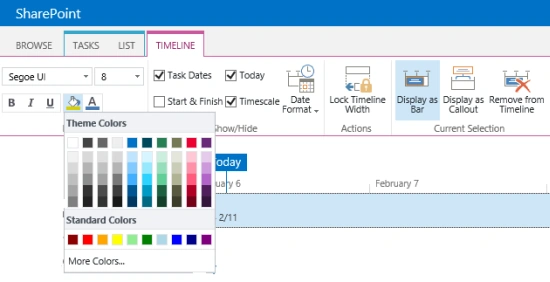
Figure 9: TIMELINE options in the ribbon interface
- Click the task in the timeline; you can find the following options: Open, Edit Date Range and Remove from TimeLine. You can remove the task from the timeline by clicking on "REMOVE FROM TIMELINE".
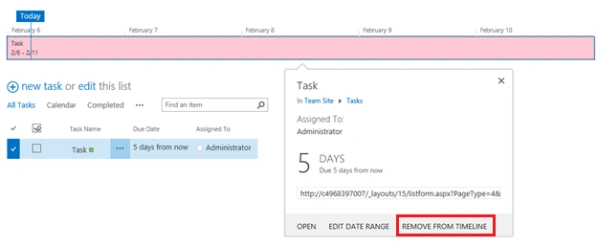
Figure 10: Remove the task from timeline
- You can change the start date and end date for the task by clicking on "EDIT DATE RANGE". Click on "EDIT DATE RANGE"; a new dialog will pop up as shown in Figure 11.
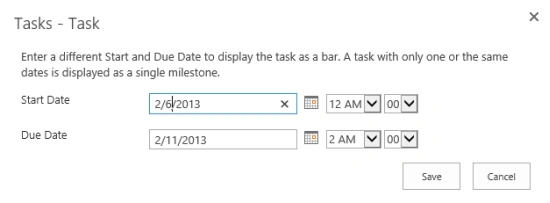
Figure 11: Edit the date range for the task
How to create a subtask in the tasks list
The following steps must be performed to create a subtask in SharePoint 2013.
- Select the task and then click on (...) button.
- Click on the "CREATE SUBTASK" link in the preview window.
- The Datasheet view will be opened to create a new subtask, enter the subtask details and then click on "Stop editing this list".
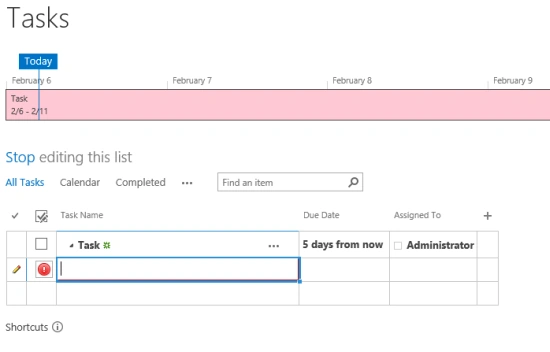
Figure 13: Enter the subtask details and stop editing the list
- You can add the subtask to the time line and it looks as in Figure 14.
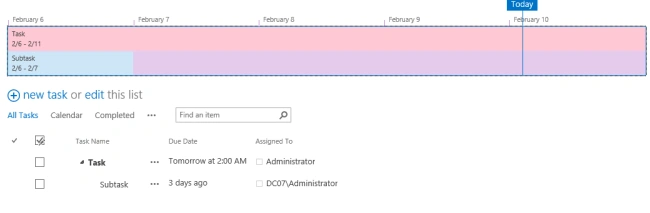
Figure 14: Timeline

Figure 12: Create a subtask
The following task views are present by default in the tasks list:
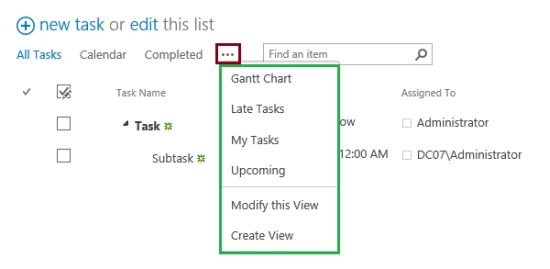
Figure 15: Tasks views
Edit the tasks list in the datasheet view.
In the tasks list you can find an option called "edit this list" that will enable you to edit the list in datasheet mode.
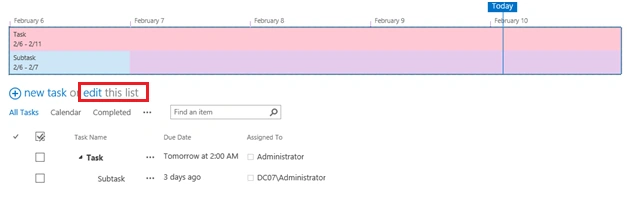
Figure 16: Edit the list
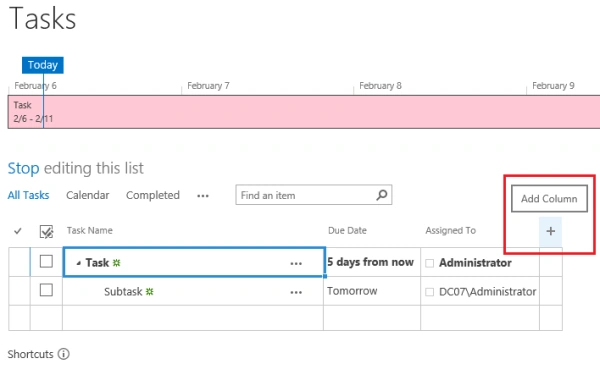
Figure 17: Add column
In the datasheet mode you can find an option to add a new column as shown in Figure 17. By default the following column types will be available as shown in Figure 18.
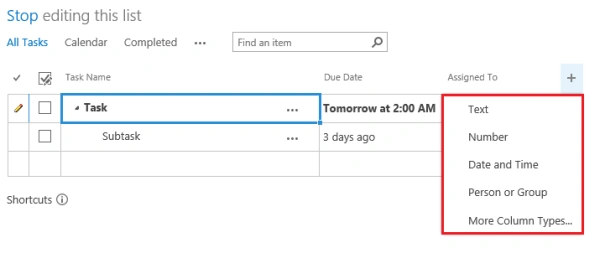
Figure 18: Default column types
You can click on More Column Types to get the other column types as shown in Figure 19.
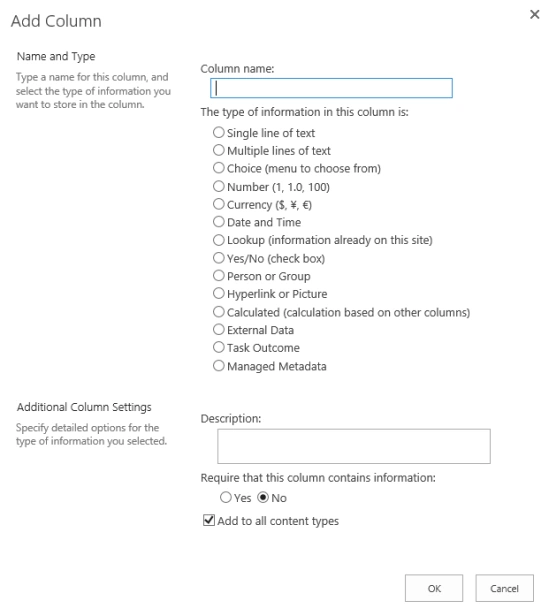
Figure 19: More column types
To stop editing the list click on "Stop editing this list" as shown in Figure 20.
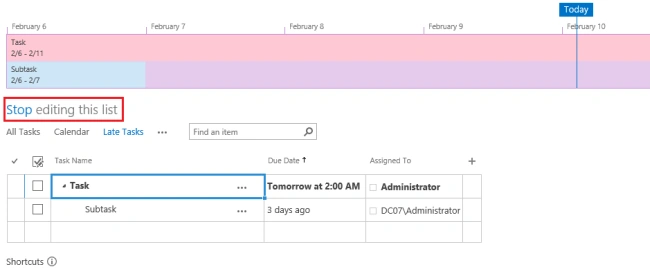
Figure 20: Stop editing
Summary
Thus in this article you have seen the new changes made in SharePoint 2013 Tasks List.
ashutosh awasthiPosted Jul 18, 2014, 9:32 AM
Could you please suggest me how can i remove "Timeline" from workflow task list in sharepoint APP ?
sam rodsPosted Apr 16, 2013, 10:11 AM
how do i validate the sub task against the parent task in terms of start date and end date
Fozia LakhoPosted Feb 11, 2013, 8:02 AM
Superb site!!!
Fozia LakhoPosted Feb 11, 2013, 8:02 AM
Wow amazing Blog!!!