

In this article I explain how to add various fields in access 2013. Suppose I want a database in which one field contains the date, another contains the checkbox denoting the Active/Inactive state and many more various fields. Rather than writing the data manually we can just select the type that we want in a particular column and add it. For this use the following steps:
Step 1 : First open the Access 2013 and then give the name of the database and click on create.
Step 2 : A new database is created with the empty table.
Step 3 : Now suppose I want a database in which the field contains id, name, address, email_id, dateofjoining, active/inactive state etc. For this if I want to add a name then first I go to the more field options and then select name; it automatically includes the first name and last name columns; see: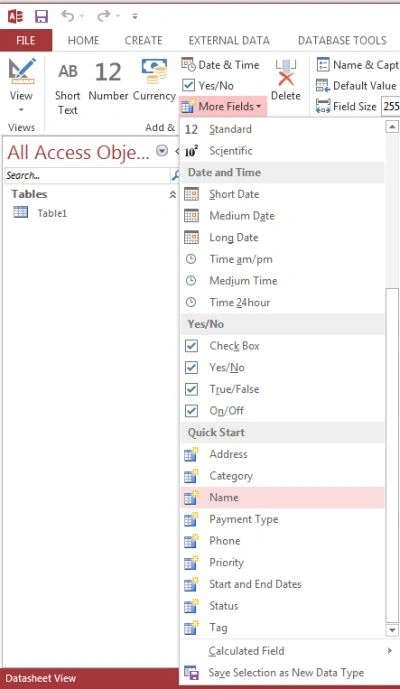
The fields are added as:
Now add an address in the same manner as the name. It will add columns as address, city, state province, Zip Postal, Country Region as:

Add an email field by selecting a hyperlink. When anything is entered into the field it becomes a hyperlink.
After that, for adding dateofjoining add a Date & Time field as:
Now if I click on this dateofjoining field the calender is displayed so that we can select the date for this column. For active/inactive state add Yes/No which is placed after the Date & Time column.
Step 4 : Now add some data and save the data; it then looks like:
Join the conversation! Your thoughts help the community grow.