

Introduction
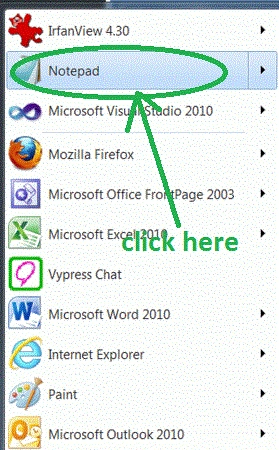
- Open start->Notepad.
- The name of the editor is "Tom."
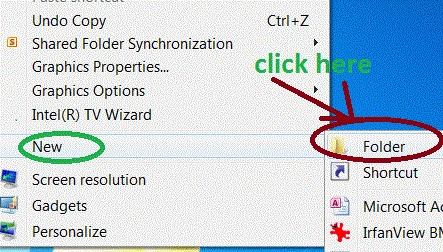
- Right-click on desktop.
- New->add folder.
- The name of the folder is own choice there is "Joy".
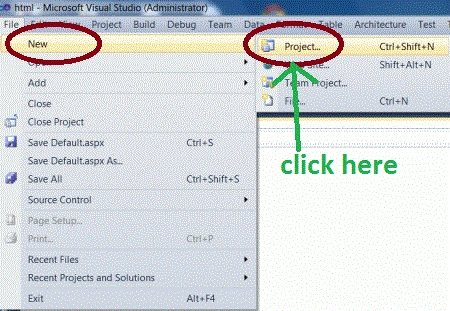
- Go to file -> New->Projects.
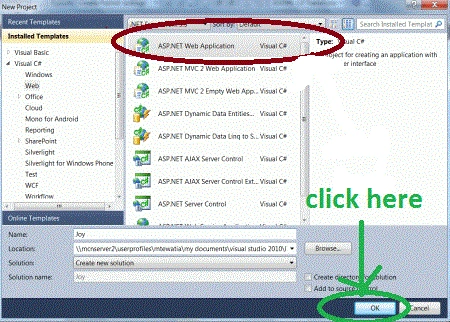
- Create an ASP. NET Web Application.
- Name of "Img.aspx".
- Right-click on Solution Explorer.
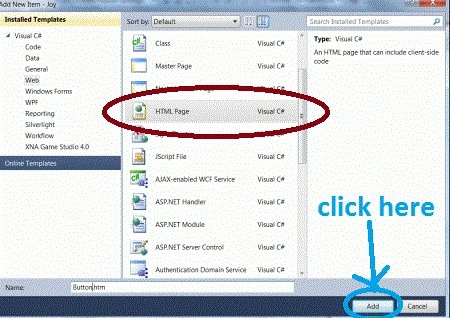
- Add->add new item->HTML form.
- The Name of the HTML form is "Gallery.html".
- <div class="gallery">
- <a tabindex="1">
- <img src="images/IM1.gif" />
- </a>
- <a tabindex="1">
- <img src="images/IM10.gif" />
- </a>
- <a tabindex="1">
- <img src="images/DSC03240 - Copy.JPG"/ >
- </a>
- <a tabindex="1">
- <img src="images/DSC03240.JPG" />
- </a>
- <a tabindex="1">
- <img src="images/DSC03241 - Copy.JPG"/ >
- </a>
- <a tabindex="1">
- <img src="images/DSC03241.JPG" />
- </a>
- <a tabindex="1">
- <img src="images/DSC03243 - Copy.JPG" / >
- </a>
- <a tabindex="1">
- <img src="images/DSC03243.JPG" / >
- </a>
- <a tabindex="1">
- <img src="images/DSC03262 - Copy.JPG" / >
- </a>
- <a tabindex="1">
- <img src="images/DSC03262.JPG" />
- </a>
- <a tabindex="1">
- <img src="images/DSC03262.JPG" />
- </a>
- <a tabindex="1">
- <img src="images/DSC03267.JPG"/>
- </a>
- <a tabindex="1">
- <img src="images/DSC03282.JPG" />
- </a>
- <a tabindex="1">
- <img src="images/avatar.jpg" />
- </a>
- <a tabindex="1">
- <img src="images/c7e8afa53ad15d62ebbb636ff860d604.jpg" />
- </a>
- <a tabindex="1">
- <img src="images/SamTomato.jpg" />
- </a>
- <span class="closed">+</span>
- </div>
Step 6: Show all the resources used in the application.
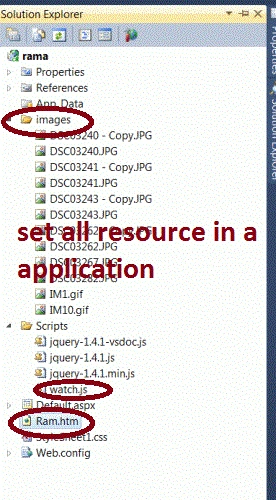
Step 7: The complete code of an image gallery application is given below.
Code
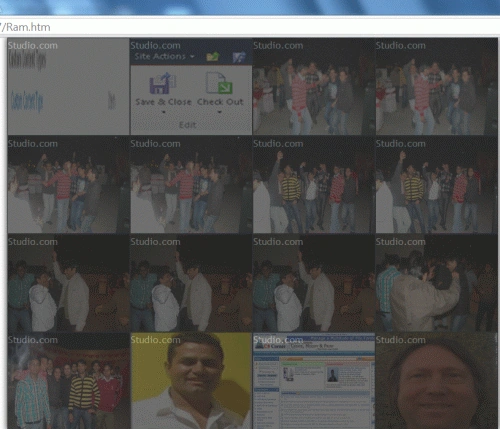
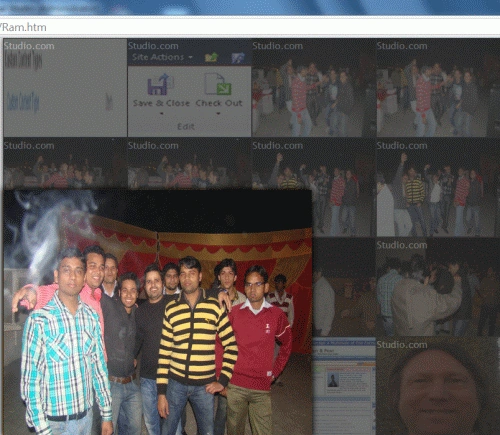
Step 8: Run an application on a browser.
- <html>
- <head>
- <link rel="stylesheet" href="StyleSheet1.css" type="text/css"/>
- <title>manish</title>
- </head>
- <body>
- <div class="gallery">
- <a tabindex="1">
- <img src="images/IM1.gif" />
- </a>
- <a tabindex="1">
- <img src="images/IM10.gif" />
- </a>
- <a tabindex="1">
- <img src="images/DSC03240 - Copy.JPG"/ >
- </a>
- <a tabindex="1">
- <img src="images/DSC03240.JPG" />
- </a>
- <a tabindex="1">
- <img src="images/DSC03241 - Copy.JPG"/ >
- </a>
- <a tabindex="1">
- <img src="images/DSC03241.JPG" />
- </a>
- <a tabindex="1">
- <img src="images/DSC03243 - Copy.JPG" / >
- </a>
- <a tabindex="1">
- <img src="images/DSC03243.JPG" / >
- </a>
- <a tabindex="1">
- <img src="images/DSC03262 - Copy.JPG" / >
- </a>
- <a tabindex="1">
- <img src="images/DSC03262.JPG" />
- </a>
- <a tabindex="1">
- <img src="images/DSC03262.JPG" />
- </a>
- <a tabindex="1">
- <img src="images/DSC03267.JPG"/>
- </a>
- <a tabindex="1">
- <img src="images/DSC03282.JPG" />
- </a>
- <a tabindex="1">
- <img src="images/avatar.jpg" />
- </a>
- <a tabindex="1">
- <img src="images/c7e8afa53ad15d62ebbb636ff860d604.jpg" />
- </a>
- <a tabindex="1">
- <img src="images/SamTomato.jpg" />
- </a>
- <span class="closed">+</span>
- </div>
- <div style="display:none;">
- <script type="text/javascript">
- (function (w, c) {
- (w[c] = w[c] || []).push(function () {
- try {
- w.yaCounter1378189 = new Ya.Metrika({ id: 1378189,
- clickmap: true
- });
- }
- catch (e) { }
- });
- })(window, 'manish application');
- </script>
- </div>
- <script src="Scripts/watch.js" type="text/javascript" defer="defer"></script>
- </body>
- </html>
Gowtham RajamanickamPosted Apr 11, 2015, 1:13 PM
good
ROHAN PANDEYPosted Mar 8, 2015, 9:33 AM
note well explain not usefull