

Before reading this article, I highly recommend reading the previous parts of the series:
- JQueryUI - Day 1
- JQueryUI - Day 2 (Draggable)
- JQueryUI - Day 3 (Droppable)
- JQueryUI - Day 4 (Resizable)
- JQueryUI - Day 5 (Selectable)
- JQueryUI - Day 6 (Accordion)
- JQueryUI - Day 7 (AutoComplete)
- JQueryUI - Day 8 (Datepicker)
- JQueryUI - Day 9 (Dialog)
A menu widget provides mouse and keyboard interactions for navigation. A menu widget usually consists of a main menu bar with pop up menus. Each pop menu may have a sub pop menu. A menu may be created by list element (ul or ol) or may be created using other markup elements.
Syntax:
$(selector, context).menu (options)
or
$(selector, context).menu ("action", params)
Example
- <!DOCTYPEhtml>
- <head runat="server">
- <title></title>
- <link href="http://code.jquery.com/ui/1.10.4/themes/blitzer/jquery-ui.css" rel="stylesheet">
- <script src="http://code.jquery.com/jquery-1.10.2.js">
- </script>
- <script src="http://code.jquery.com/ui/1.10.4/jquery-ui.js">
- </script>
- <script>
- $(document).ready(function() {
- $("#menu-1").menu({
- icons: {
- submenu: "ui-icon-transferthick-e-w"
- },
- "select": function(event, ui) {
- alert(ui.item.text());
- }
- });
- });
- </script>
- <style>
- .ui-menu {
- width: 180px;
- margin-left: 400px;
- font-size: 24px;
- margin-top: 50px
- }
- #div1 {
- background-color: coral;
- color: ButtonHighlight;
- font-size: 30px;
- height: 450px;
- width: 1000px;
- text-align: center;
- margin-left: 150px
- }
- </style>
- </head>
- <body>
- <div id="div1">
- <span>************Menu*************</span>
- <ul id="menu-1">
- <li>
- <a href="#">Element1</a>
- </li>
- <li>
- <a href="#">Element2</a>
- </li>
- <li>
- <a href="#">Element3</a>
- <ul>
- <li>
- <a href="#">Element3-1</a>
- </li>
- <li>
- <a href="#">Element3-2</a>
- </li>
- <li>
- <a href="#">Element3-3</a>
- </li>
- </ul>
- </li>
- <li>
- <a href="#">Element4</a>
- </li>
- </ul>
- </div>
- </body>
- </html>
Output
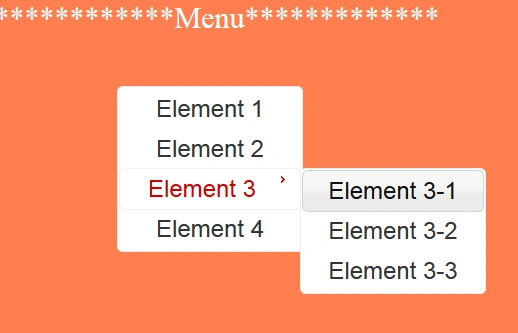
Option
Option | Description | Example |
isable | If set to set disables the menu | $("#menu-1").menu({ disabled: true }); |
icon | Define icon used for menu | $("#menu-1").menu({ icons: { submenu: "ui-icon-transferthick-e-w" }, }); |
items | Define selector for the elements that serve as the menu items. Default value is “> *” | $("#menu-1").menu({ items: "*" }); |
menus | Define a selector for the elements that serve as the menu container, including sub-menus. By default its value is ul. | $("#menu-1").menu({ menus: "div" }); |
position | Define the position of submenus in relation to the associated parent menu item. By default value is | $("#menu-1").menu({ position:{ my: "left top", at: "left top" } }); |
role | Define ARIA roles used for the menu and menu items. By default its value is menu. | $("#menu-1").menu({ role: null }); |
Methods
Method | Description | Example |
blur(event) | Removes focus from a menu and resets any active element styles | $("#menu-1").menu("blur"); |
collapse(event) | Closes the currently active sub-menu. | $("#menu-1").menu("collapse"); |
expand(event) | Opens the sub-menu below the currently active item, if one exists. | $("#menu-1").menu("expand"); |
focus(event,item) | This method activates a particular menu item, begins opening any sub-menu if present and triggers the menu's focus event. | $("#menu-1").menu("focus", null, menu.find(".ui-menu-item:first")); |
isFirstItem() | This method returns a boolean value, if the current active menu item is the first menu item. | varobj=$("#menu-1").menu("isFirstItem"); |
isLastItem() | This method returns a boolean value, if the current active menu item is the last menu item. | varobj=$("#menu-1").menu("isLastItem"); |
nextPage(event) | This method moves active state to first menu item below the bottom of a scrollable menu or the last item if not scrollable | $("#menu-1").menu("nextPage"); |
previos(event) | This method moves active state to previous menu item. | $("#menu-1").menu("previous"); |
previousPage(event) | This method moves active state to first menu item above the top of a scrollable menu or the first item if not scrollable. | $("#menu-1").menu("previousPage"); |
referesh() | This method initializes sub-menus and menu items that have not already been initialized. | $("#menu-1").menu("refresh"); |
select() | This method selects the currently active menu item, collapses all sub-menus and triggers the menu's select event. | $("#menu-1").menu("select"); |
Events:
Event | Description | Example |
blur(event,ui) | Event triggered when the menu loses focus. | $("#menu-1").menu({ blur: function (event, ui) { } }); |
create(event,ui) | Event triggered when the menu is created. | $("#menu-1").menu({ create: function (event, ui) { } }); |
focus(event,ui) | Event triggered when a menu gains focus or when any menu item is activated. | $("#menu-1").menu({ focus: function (event, ui) { } }); |
select(event,ui) | Event triggered when a menu item is selected. | $("#menu-1").menu({ select: function (event, ui) { } }); |
Let us take some example:
Example 1
- <!DOCTYPE html>
- <head runat="server">
- <title></title>
- <link href="http://code.jquery.com/ui/1.10.4/themes/hot-sneaks/jquery-ui.css" rel="stylesheet">
- <script src="http://code.jquery.com/jquery-1.10.2.js">
- </script>
- <script src="http://code.jquery.com/ui/1.10.4/jquery-ui.js">
- </script>
- <script>
- $(document).ready(function() {
- $("#menu").menu({
- icons: {
- submenu: "ui-icon-transferthick-e-w"
- },
- });
- });
- </script>
- <style>
- .ui-menu {
- width: 180px;
- margin-left: 400px;
- font-size: 24px;
- margin-top: 50px
- }
- #div1 {
- background-color: coral;
- color: ButtonHighlight;
- font-size: 30px;
- height: 450px;
- width: 1000px;
- text-align: center;
- margin-left: 150px
- }
- </style>
- </head>
- <body>
- <div id="div1">
- <span>************Menu*************</span>
- <ul id="menu">
- <li>
- <a href="#">Bihar</a>
- </li>
- <li>
- <a href="#">Assam</a>
- <ul>
- <li>
- <a href="#">Dhubri</a>
- </li>
- <li>
- <a href="#">Goalpara</a>
- </li>
- <li>
- <a href="#">Golaghat</a>
- </li>
- </ul>
- </li>
- <li>
- <a href="#">Haryana</a>
- <ul>
- <li>
- <a href="#">Bhiwani</a>
- </li>
- <li>
- <a href="#">Gurgaon</a>
- </li>
- <li>
- <a href="#">Hisar</a>
- </li>
- </ul>
- </li>
- <li class='ui-state-disabled'>
- <a href="#">Rajasthan</a>
- </li>
- <li>
- <a href="#">Goa</a>
- <ul>
- <li>
- <a href="#">North Goa</a>
- </li>
- <li>
- <a href="#">South Goa</a>
- </li>
- </ul>
- </li>
- </ul>
- </div>
- </body>
- </html>
Output
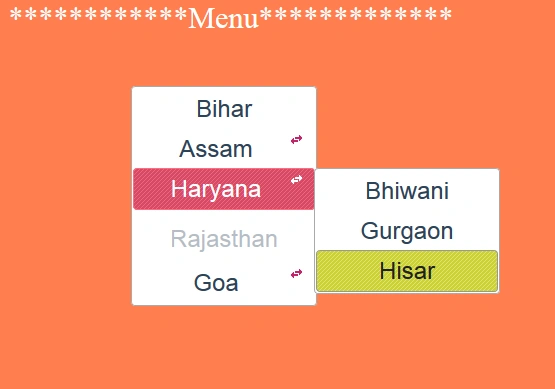
In above example we used the “ui-state-disabled” class for li(rajasthan) item. This class is used to disable any item in the menu.
Example 2
- <!DOCTYPE html>
- <head runat="server">
- <title></title>
- <link href="http://code.jquery.com/ui/1.10.4/themes/hot-sneaks/jquery-ui.css" rel="stylesheet">
- <script src="http://code.jquery.com/jquery-1.10.2.js">
- </script>
- <script src="http://code.jquery.com/ui/1.10.4/jquery-ui.js">
- </script>
- <script>
- $(document).ready(function() {
- $("#menu").menu({
- icons: {
- submenu: "ui-icon-transferthick-e-w"
- },
- items: "> :not(.ui-widget-header)"
- });
- });
- </script>
- <style>
- .ui-menu {
- width: 180px;
- margin-left: 400px;
- font-size: 24px;
- margin-top: 50px
- }
- #div1 {
- background-color: coral;
- color: ButtonHighlight;
- font-size: 30px;
- height: 450px;
- width: 1000px;
- text-align: center;
- margin-left: 150px
- }
- </style>
- </head>
- <body>
- <div id="div1">
- <span>************Menu*************</span>
- <ul id="menu">
- <li class="ui-widget-header">East India</li>
- <li>
- <a href="#">Bihar</a>
- </li>
- <li>
- <a href="#">Assam</a>
- <ul>
- <li>
- <a href="#">Dhubri</a>
- </li>
- <li>
- <a href="#">Goalpara</a>
- </li>
- <li>
- <a href="#">Golaghat</a>
- </li>
- </ul>
- </li>
- <li class="ui-widget-header">North India</li>
- <li>
- <a href="#">Haryana</a>
- <ul>
- <li>
- <a href="#">Bhiwani</a>
- </li>
- <li>
- <a href="#">Gurgaon</a>
- </li>
- <li>
- <a href="#">Hisar</a>
- </li>
- </ul>
- </li>
- <li class='ui-state-disabled'>
- <a href="#">Rajasthan</a>
- </li>
- <li class="ui-widget-header">South India</li>
- <li>
- <a href="#">Goa</a>
- <ul>
- <li>
- <a href="#">North Goa</a>
- </li>
- <li>
- <a href="#">South Goa</a>
- </li>
- </ul>
- </li>
- <li class="ui-widget-header">West Indian</li>
- <li>
- <a href="#">Gujarat</a>
- </li>
- </ul>
- </div>
- </body>
- </html>
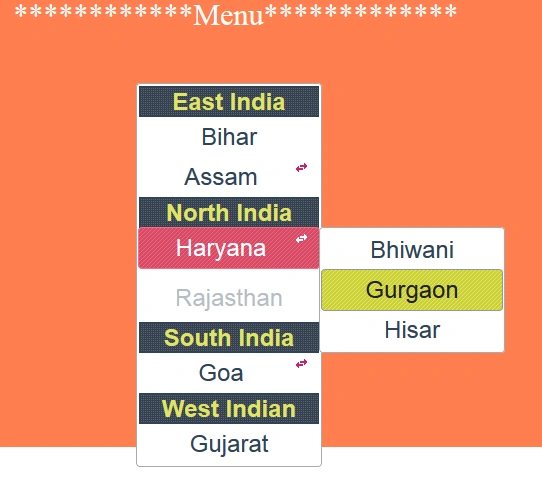
Output
Sonu ChaudharyPosted Mar 1, 2016, 12:51 AM
can u share some artical on simple javascript
Zeeshan AzimPosted Feb 11, 2016, 7:28 AM
Please share How make this menu dynamically from database ????
Raja TPosted Jan 18, 2016, 7:04 AM
Nice,Thanks for sharing
Ankit BansalPosted Jan 18, 2016, 12:32 AM
Really helpful..
Santhakumar MunuswamyPosted Jan 17, 2016, 2:03 PM
Thanks for nice share
Gowtham KPosted Jan 16, 2016, 11:14 PM
Good One, Thanks for sharing