

Before reading this article, I highly recommend reading my previous parts:
- JQueryUI - Day 1
- JQueryUI - Day 2 (Draggable)
- JQueryUI - Day 3 ( Droppable )
- JQueryUI - Day 4 (Resizable)
In selectable widget we select the element using the mouse. We can access single element or elements in a group. Using selectable() method we can select element by mouse click or dragging while holding the ctrl or mouse button.
Syntax:
- $(selector).selectable(options) //Define Element Seletable
- $(selector).selectable(“option”,”option_name”,value) // Work as Setter
- $(selector).selectable(“option”,”option_name”) // Work as Getter
- <htmlxmlns="http://www.w3.org/1999/xhtml">
- <head>
- <title></title>
- <scriptsrc="jquery-ui-1.11.4.custom/external/jquery/jquery.js">
- </script>
- <scriptsrc="jquery-ui-1.11.4.custom/jquery-ui.js">
- </script>
- <linkhref="jquery-ui-1.11.4.custom/jquery-ui.css" rel="stylesheet" />
- <linkhref="jquery-ui-1.11.4.custom/jquery-ui.structure.css" rel="stylesheet" />
- <linkhref="jquery-ui-1.11.4.custom/jquery-ui.theme.css" rel="stylesheet" />
- <script>
- $(document).ready(function ()
- {
- $("#select").selectable(
- {});
- })
- </script>
- <style>
- #select.ui-selecting {
- background: ActiveCaption
- }
- #select.ui-selected {
- background: darkgoldenrod
- }
- #div1 {
- background-color: bisque;
- width: 100%;
- height: 400px;
- padding-top: 40px
- }
- #select {
- margin-left: 520px;
- font-size: 24px;
- width: 100px;
- list-style: none;
- margin-top: 40px;
- }
- li {
- margin-bottom: 4px;
- width: 180px;
- text-align: center;
- }
- span {
- margin-left: 420px;
- font-size: 30px;
- }
- </style>
- </head>
- <body>
- <formid="form1" runat="server">
- <divid="div1"> <span>**********Selectable**********</span>
- <ulid="select">
- <liclass="ui-widget-content">Element1</li>
- <liclass="ui-widget-content">Element2</li>
- <liclass="ui-widget-content">Element3</li>
- <liclass="ui-widget-content">Element4</li>
- <liclass="ui-widget-content">Element5</li>
- <liclass="ui-widget-content">Element6</li>
- <liclass="ui-widget-content">Element7</li>
- <liclass="ui-widget-content">Element8</li>
- </ul>
- </div>
- </form>
- </body>
- </html>
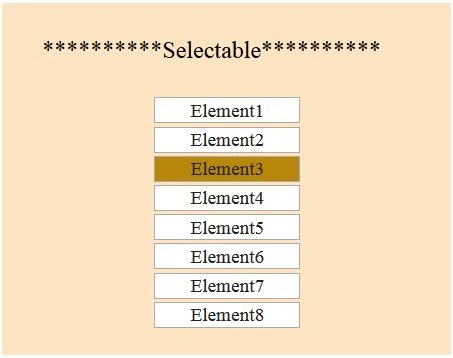
After designing the page now we will read about Options, Methods, Events of selectable.
Options
| Option | Description | Example |
| appendTo | Define which element the selection helper (the lasso) should be appended to. | $("#selectable_").selectable({ appendTo: "body" }); |
| autoReferesh | This determines whether to refresh (recalculate) the position and size of each selectee at the beginning of each select operation. Default value is true. | $("#selectable_").selectable({ autoRefresh: false }); |
| cancel | Prevents selecting if you start on elements matching the selector. | $("#select").selectable({ cancel: "a,.cancel" }); |
| delay | It used to set time in milliseconds and defines when the selecting should start. Default value is zero. | $("#select").selectable({ delay: 550 }); |
| disabled | It is used to Disables the selectable if set to true. Default values is false. | $("#select").selectable({ disabled: true }); |
| distance | Define the length after which selecting should start. If specified, selecting will not start until the mouse has been dragged beyond the specified distance. Default value is 0 | $("#select").selectable({ distance: 100 }); |
| filter | This option is a selector indicating which elements can be part of the selection. By default its value is *. | $("#select").selectable({ filter: "tr" }); |
| tolerance | Specifies which mode to use for testing whether the selectable should select an item. Fit: overlaps the item entirely., touch: overlaps the item by any amount., default value is touch. | $("#select").selectable({ tolerance: "touch" }); |
Methods
| Method | Description | Example |
| destroy | Removes the selectable functionality of an element completely. The elements return to their pre-init state. | $("#select").selectable("destroy"); |
| disable | Disables the selectable. | $("#select").selectable("disable"); enable Enables the selectable. $("#select").selectable("enable"); |
| instance | Retrieves the selectable element’s instance object. If the element does not have an associated instance, undefinedwill returned. | $("#select").selectable("instance"); |
| option(OptionName) | Gets the value currently associated with the specified option. | var obj=$("#select").selectable ("option","tolerance"); |
| option(“OptionName”,”value”) | Sets the value of the selectable option associated with the specified option. | $("#select").selectable ("option","disabled",true); |
| option | Gets an object containing key/value pairs representing the current selectable options. | var obj=$("#select").selectable("option"); |
| refresh | Refresh the position and size of each selectee element. | $("#select").selectable("referesh"); |
| widget | Return a jQuery object containing the selectable element. | $("#select").selectable("widget"); |
Events
| Event | Description | Example |
| create(event,ui) | Triggered when the selectable created. | $("#select").selectable({ create: function (event, ui) { //Discription }}); |
| selected(event,ui) | Triggered when an element is selected. | $("#select").selectable({ selected: function (event, ui) { //Discription }}); |
| selecting(event,ui) | Triggered when an element is selecting | $("#select").selectable({ selecting: function (event, ui) { //Discription }}); |
| start(event,ui) | Triggered at beginning of select operation | $("#select").selectable({ start: function (event, ui) { //Discription }}); |
| stop(event,ui) | Triggered at the end of select operation. | $("#select").selectable({ stop: function (event, ui) { //Discription }}); |
| unselected(event,ui) | This event is triggered at the end of the select operation for each element that becomes unselected. | $("#select").selectable({ unselected: function (event, ui) { //Discription }}); |
| unselecting(event,ui) | Triggered during the select operation, on each element removed from the selection. | ("#select").selectable({ unselecting: function (event, ui) { //Discription }}); |
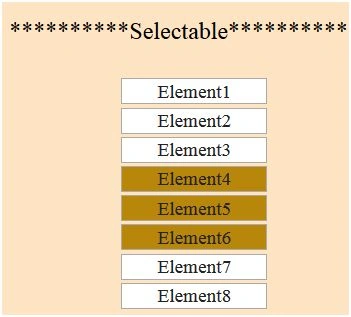
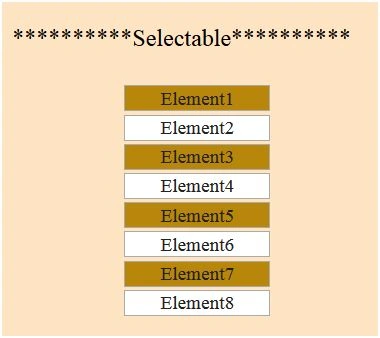
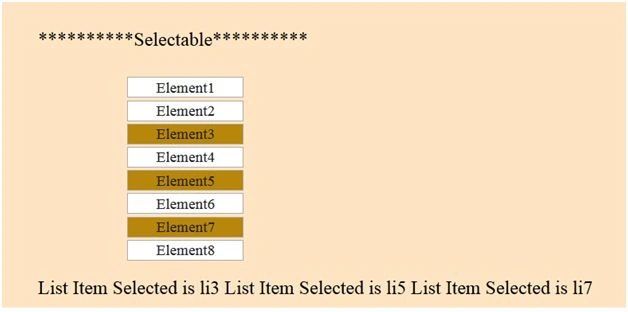
Now we take some example using above option, method and events.
Example 1
Santhakumar MunuswamyPosted Jan 10, 2016, 11:34 AM
Thanks for nice article
Sthitaprajnya Debasis NayakPosted Jan 10, 2016, 10:42 AM
Helpful
Karthikeyan KPosted Jan 10, 2016, 9:44 AM
Good one...
Manoj KallaPosted Jan 10, 2016, 6:01 AM
Good one..
Nanddeep NachanPosted Jan 10, 2016, 4:45 AM
Nice!
Ankit BansalPosted Jan 10, 2016, 2:46 AM
nice one..keep sharing..