

Description
Project Server is now integrated with Share Point 2016. This article describes how to activate the Project Server Web App within Share Point.
Microsoft Project Server 2013 as stated on the Microsoft Office Product website,
"It is a flexible solution for project portfolio management (PPM) and everyday work. Team members, project participants, and business decision makers can get started, prioritize project portfolio investments and deliver the intended business value from virtually anywhere."
This was sold as a separate license for use with Share Point 2013. It also needed a separate installation.
For using it within SharePoint 2013 we had to run the Project Server installer and then run the SharePoint Products Configuration Wizard. The wizard had to be run on all application servers in the farm before you could start using Project Server. However, Microsoft realized the need for integrating it into Share Point. In Share Point 2016 it comes inbuilt as a Service Application within the system. All you have to do is create the Service Application and activate a couple of features. The good thing is you don’t need a separate license for using it within Share Point 2016 and the bad thing is in future they intend to license it.
Let’s try to provision Project Server Service Application and Site Collection in our Share Point 2016 environment.
For using it within SharePoint 2013 we had to run the Project Server installer and then run the SharePoint Products Configuration Wizard. The wizard had to be run on all application servers in the farm before you could start using Project Server. However, Microsoft realized the need for integrating it into Share Point. In Share Point 2016 it comes inbuilt as a Service Application within the system. All you have to do is create the Service Application and activate a couple of features. The good thing is you don’t need a separate license for using it within Share Point 2016 and the bad thing is in future they intend to license it.
Let’s try to provision Project Server Service Application and Site Collection in our Share Point 2016 environment.
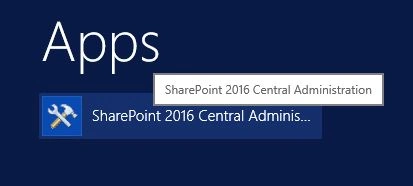
- Go to Share point Central administration.
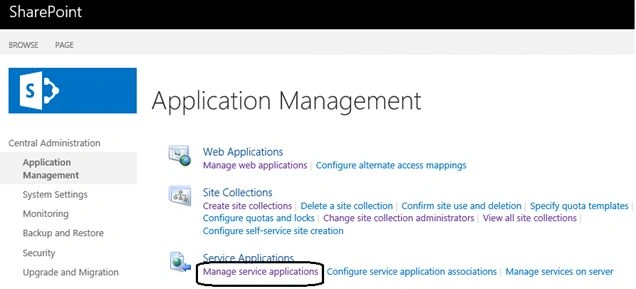
- Select ‘Manage Service Applications’ from the ‘Application Management’ section.
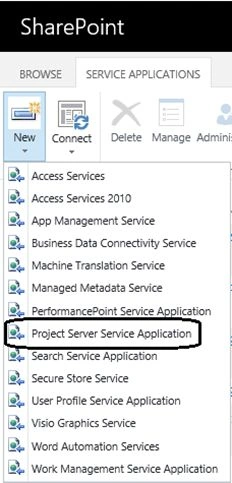
- From the next window click on ‘New ‘and select ‘Project Server Service Application’.
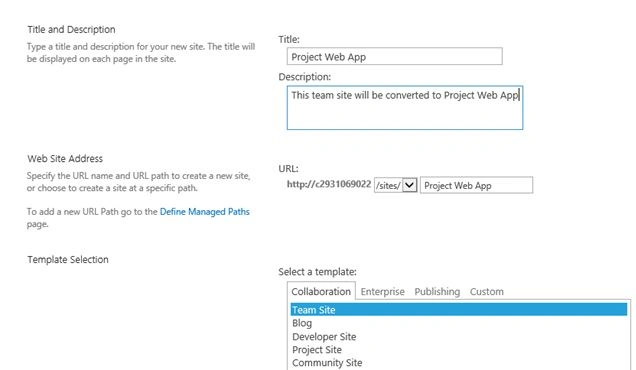
- Next step involves the creation of the Project Server Service Application. Specify the name of the Service Application and provide a managed account to administer the application.

- Click ‘OK’. This will successfully provision the Project Server Service Application.
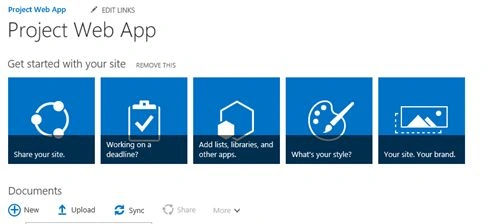
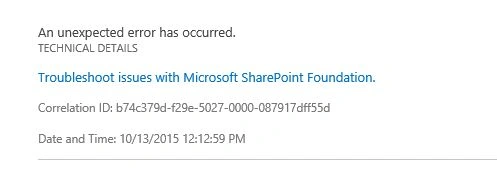
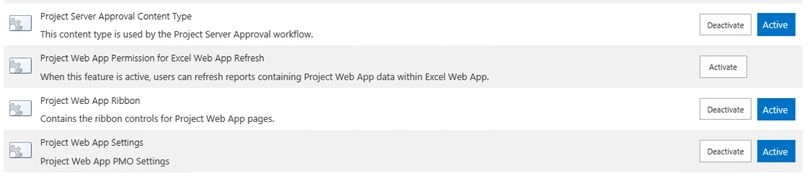
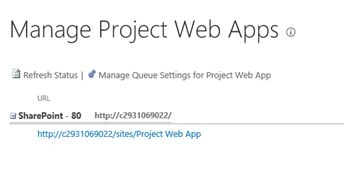
It will be listed in the available Service Application group as shown below:



Santhakumar MunuswamyPosted Oct 18, 2015, 3:14 AM
Good one
Sibeesh VenuPosted Oct 15, 2015, 4:14 AM
Thanks for sharing
Ankit BansalPosted Oct 15, 2015, 12:47 AM
nice..thanks for sharing
Rupali ShindePosted Oct 14, 2015, 11:31 PM
good job sir
Suman VermaPosted Oct 14, 2015, 9:23 AM
Good work
Priyaranjan K SPosted Oct 14, 2015, 9:08 AM
Thank You very much N Vinodh
Priyaranjan K SPosted Oct 14, 2015, 9:07 AM
Thanks for reading Mukesh Kumar
Priyaranjan K SPosted Oct 14, 2015, 9:07 AM
Thanks Harshad Pansuriya
Priyaranjan K SPosted Oct 14, 2015, 9:07 AM
Thank You Akash Varshney
Priyaranjan K SPosted Oct 14, 2015, 9:07 AM
Thanks Nilesh Jadav
Vinodh NarayananPosted Oct 14, 2015, 9:03 AM
good one..
Harshad PansuriyaPosted Oct 14, 2015, 8:18 AM
Nice one
Akash VarshneyPosted Oct 14, 2015, 7:46 AM
Great work!!
Nilesh JadavPosted Oct 14, 2015, 7:21 AM
Good Share sir !!
Mukesh KumarPosted Oct 14, 2015, 6:34 AM
Great Job, thanks