

This article is a proven experience from a
global contest I recently joined.
I've built an application with 2-3 pages that has a sound playing in the
background. Even when it navigates among pages, the music plays like a
background task.
So let's start building the application.
Counting on you have a sound file (mp3 is preferred) and have added 2 pages.
The trick to do it is to make some modifications in 3 files in your Windows
Store App:
- Common/StandardStyles.xaml
- App.xaml.cs
- MainPage.xaml.cs (MainScreen of your app)
Modifying StandardStyles
To add a global background music you need to add it as a style and embed the
MediaElement file inside this style. This will make it global.
Add this style to a Common/StandardStyles.xaml Page:
<Style
x:Key="RootFrameStyle"
TargetType="Frame">
<Setter
Property="Template">
<Setter.Value>
<ControlTemplate
TargetType="Frame">
<Grid>
<MediaElement
x:Name="MediaPlayer"
IsLooping="True"
Source="ms-appx:///Sounds/Sound1.mp3"
AudioCategory="BackgroundCapableMedia"
AutoPlay="True"
/>
<!-- if you
need other musics to play,embed them here !-->
<ContentPresenter
/>
</Grid>
</ControlTemplate>
</Setter.Value>
</Setter>
</Style>
Modifying App.xaml.cs
For modification you should check out the OnLaunched event and update its "if (rootFrame
== null)" block as follows:
protected
override void
OnLaunched(LaunchActivatedEventArgs args)
{
Frame rootFrame = Window.Current.Content as
Frame;
if (rootFrame ==
null)
{
rootFrame = new Frame();
if (args.PreviousExecutionState ==
ApplicationExecutionState.Terminated)
{
}
rootFrame.Style = Resources["RootFrameStyle"]
as Style;
Window.Current.Content = rootFrame;
}
if (rootFrame.Content ==
null)
{
if (!rootFrame.Navigate(typeof(MainPage),
args.Arguments))
{
throw new
Exception("Failed to create initial page");
}
}
Window.Current.Activate();
}
Modifying MainPage.xaml.cs
To play the background sound in MainPage you need to get the items from
ControlTemplate. For this the best way is to look up VisualTreeHelper and its
children.
First define a MediaElement as public so that you can access it to stop, play,
pause or do other things.
MediaElement rootMediaElement;
Later in MainPage's loaded event, note this code to look up the requested sound:
DependencyObject rootGrid =
VisualTreeHelper.GetChild(Window.Current.Content, 0);
rootMediaElement = (MediaElement)VisualTreeHelper.GetChild(rootGrid,
0);
Now run your application and test it! You'll listen to the music even it plays
in all pages continously.
Let me explain the last code:
The first line of code helps us to bring the first grid of the style.
The second line of code helps us to look for a MediaElement element and if found
assigning the values of it to our newly created MediaElement "rootMediaElement";
see:
rootMediaElement = (MediaElement)VisualTreeHelper.GetChild(rootGrid,
0);
The "0" value in this code defines the first MediaElement we added in Common/StandardStyles.xaml
file.
If you had another MediaElement and wanted it to play like here:
<Style
x:Key="RootFrameStyle"
TargetType="Frame">
<Setter
Property="Template">
<Setter.Value>
<ControlTemplate
TargetType="Frame">
<Grid>
<MediaElement
x:Name="MediaPlayer"
IsLooping="True"
Source="ms-appx:///Sounds/Sound1.mp3"
AudioCategory="BackgroundCapableMedia"
AutoPlay="True"
/>
<MediaElement
x:Name="buttonses"
IsLooping="False"
Source="ms-appx:///Sounds/Sound2.mp3"
AudioCategory="BackgroundCapableMedia"
AutoPlay="False"
/>
<ContentPresenter
/>
</Grid>
</ControlTemplate>
</Setter.Value>
</Setter>
</Style>
If you wanted to play "Sound2.mp3" as described above you need to define:
DependencyObject rootGrid =
VisualTreeHelper.GetChild(Window.Current.Content, 0);
rootMediaElement = (MediaElement)VisualTreeHelper.GetChild(rootGrid,
1);
"1" refers to the second item of the grid in your style.
If you want to mute it on or off then you can use this code in a button click
event:
rootMediaElement.IsMuted = true;
And if there's a problem playing the sound, you can check your Manifest file and
add a BackgroundTask with an Audio Type as added here: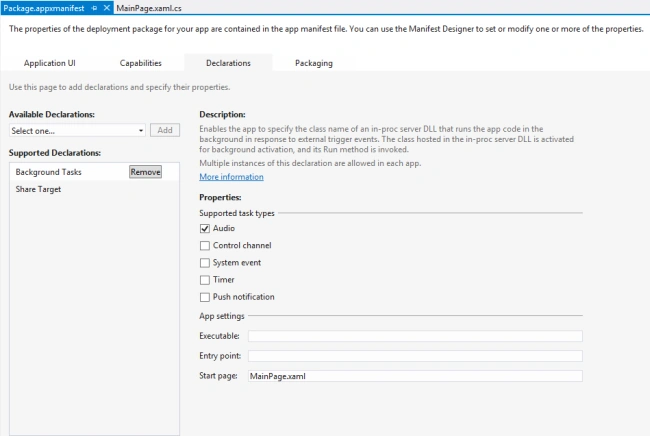
The Package file can be found in your Solution, just double-click on it!
I'm pretty sure this method I described will help you at some point of time when
you're building a game or application.
If you still have problems, please let me know so that I can help you!
Hope you liked it!
Priscillia AgnesPosted Jun 18, 2014, 10:56 PM
how to implement this when standardstyles.xaml is not there?
vaibhav malikPosted Jul 30, 2013, 7:10 AM
i am developing a windows store app... what is the concept of standard styles.xaml... i cant locate it in the project & i have assigned mediaelements to diff. pages.. so how to implement this when standardstyles.xaml is not there
taskeenPosted Jul 19, 2013, 4:04 PM
thanks it works fine. but how do I change its source dynamically on code behind?
Ibrahim ErsoyPosted Dec 2, 2012, 3:50 AM
Your welcome! Yes there s a rule that you need to let user to mute the music.As i described at the last part of the article you can set a sound's ismute property as true or false according to user's option.For that the best thing is doing it classic way by using a button or using new ToggleSwitch control which takes 2 values: On or Off .i believe muting it on or off would be enough.No need to set volume level.
MildPosted Dec 2, 2012, 1:31 AM
Thanks for this great article. I wonder are there any specific certification requirements that need to be take care of when having backgroun audio on all pages like: - Provide On/Off button for music - Provide volume settings feature Thanks.
Gaurav GuptaPosted Nov 26, 2012, 3:22 AM
Thanks.. for Explanation..
Ibrahim ErsoyPosted Nov 26, 2012, 1:05 AM
No Gaurav,just embed it in StandardStyles.xaml page.it implements the style properties of the page thats why your MediaElement defined in that page will become global and can be accessed anywhere using the same codes in MainPage.xaml.cs. But if you have multiple Style Pages,you may need to re-define the MediaElement for each Style Page.
Gaurav GuptaPosted Nov 25, 2012, 10:13 PM
Can I need to embed Media Element code in every page?