

Introduction
In this article we will see how to access a WCF service and use it in our ASP.Net MVC application. In my previous articles we have seen the creation and consumtion of WCF services by a console client and a WPF client. In this article we will create the client as a MVC application.
For creating a WCF service you can read more over here. For this article we will create one simple WCF service which will return the dataset and in the MVC application we will simply access this WCF service and display the list of authors on the View. So let's start by creating the WCF service.
Creating WCF Author Service
Create a new WCF project in Visual Studio and name it AuthorService. When the service is created a default service will be created; delete it and add a new service to the project and name it ServiceAuthor which will create an IServiceAuthor Interface and a ServiceAuthor.cs class. Define one method in IServiceAuthor which returns a Dataset and in ServiceAuthor.cs implement the method which returns the dataset like below. Here I'm creating it on the fly but you can populate it from a database.
IServiceAuthor Code
public interface IServiceAuthor
{
[OperationContract]
void DoWork();
[OperationContract]
DataSet ReturnAuthor();
}
ServiceAuthor.cs
public class ServiceAuthor : IServiceAuthor
{
public void DoWork()
{
}
public System.Data.DataSet ReturnAuthor()
{
DataSet ds = new DataSet(); DataTable dt = new DataTable("Author");
DataColumn dc1 = new DataColumn("AuthorId", typeof(Int32));
DataColumn dc2 = new DataColumn("Name", typeof(string));
DataColumn dc3 = new DataColumn("Location", typeof(string));
dt.Columns.Add(dc1);
dt.Columns.Add(dc2);
dt.Columns.Add(dc3);
DataRow dr1 = dt.NewRow();
dr1[0] = 10;
dr1[1] = "Krishna Garad";
dr1[2] = "India";
dt.Rows.Add(dr1);
DataRow dr2 = dt.NewRow();
dr2[0] = 20;
dr2[1] = "Mahesh Chand";
dr2[2] = "USA";
dt.Rows.Add(dr2);
ds.Tables.Add(dt);
return ds;
}
}
Now run the service application and copy the address.
Creating MVC client Application
Start a new MVC web application; add the controller in the controller folder with the name Home. Now add the service reference by right-clicking on the solution and selecting Service Reference and paste the copied address in the address box in the opened dialog like below.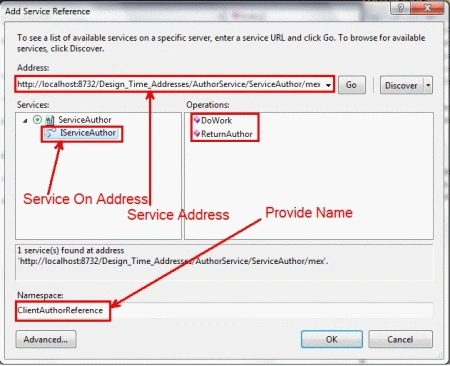
Now we also have a service reference, so create the proxy for our WCF service like below in the Home controller.
ClientAuthorReference.ServiceAuthorClient obj = new ClientAuthorReference.ServiceAuthorClient();
Still now we have a proxy for our WCF service; now we can call the methods of our WCF service. On start up only we will show the AuthorList return from WCF service so in the Index Action write the following code and add the view to display the List of Authors.
public ActionResult Index()
{
DataSet ds = obj.ReturnAuthor();
ViewBag.AuthorList = ds.Tables[0];
return View();
}
Add a view to display the list of Authors by looping over the DataTables which we supplied to ViewBag. Write the following code in your aspx page.
<table>
<tr><td>AuthorId</td><td>Name</td><td>Location</td></tr>
<%foreach (System.Data.DataRow dr in ViewBag.AuthorList.Rows)
{%>
<tr>
<td><%=dr["AuthorId"].ToString()%></td>
<td><%=dr["Name"].ToString() %></td>
<td><%=dr["Location"].ToString() %></td>
</tr>
<% } %>
</table>
In the above markup we are simply reading each row and displaying on the page. Now run the application and view the Author List returned from WCF service.
Conclusion
In this way we can use a WCF service as a Model for our MVC application.
Digioz MultimediaPosted Nov 11, 2015, 10:19 AM
Thanks for the hint Bala! It appears unless the WCF is available in the Visual Studio Solution this checkbox needs to be unchecked to be able to access the Service.
BalaPosted Aug 7, 2015, 8:22 AM
If you are unable to access the services in the code. Right-click on service, select "Configure Service Reference". A new window will open then in it uncheck the “Reuse types in referenced assemblies” checkbox.. Then you can able to access the service in your code.
dinesh devarajPosted Apr 20, 2015, 8:31 AM
if your using razor above code will be workful in mvc 4
dinesh devarajPosted Apr 20, 2015, 8:30 AM
<table> <tr><td>AuthorId</td><td>Name</td><td>Location</td></tr> @foreach (System.Data.DataRow dr in ViewBag.AuthorList.Rows) { <tr> <td>@dr["AuthorId"].ToString()</td> <td>@dr["Name"].ToString() </td> <td>@dr["Location"].ToString()</td> </tr> } </table>
vineet sharmaPosted Mar 28, 2014, 1:13 AM
it is not working in mvc4 please help me to get it done
Ran jithPosted May 23, 2013, 7:28 AM
This is the solution: 1) Right click on Service Reference 2) Select Configure Service Reference 3) Select Reuse types in specified referenced assemblies 4) Just select everything except "Newtonsoft.json" It worked for me as well.
Willian PalenciaPosted Mar 8, 2013, 11:57 AM
This doesn't work with MVC4, are you missing something?
Dhakshin KumarPosted Mar 6, 2013, 7:54 AM
I'm able to publish the service. But i'm not able to invoke the service in my MVC Web Application. Please suggest me how to do it?
Arjun PanwarPosted Jan 27, 2012, 11:28 PM
Thanks for using this services