SIGN UP MEMBER LOGIN:    
ARTICLE

Controlling behavior of existing services in system

Posted by Praveen Kumar Articles | Windows Services in C# February 23, 2006
This article shows how to access the windows services in your system and change the behavior of the services from your application.
Reader Level:
Download Files:
 

This article shows how to access the windows services in your system and change the behavior of the services from your application.

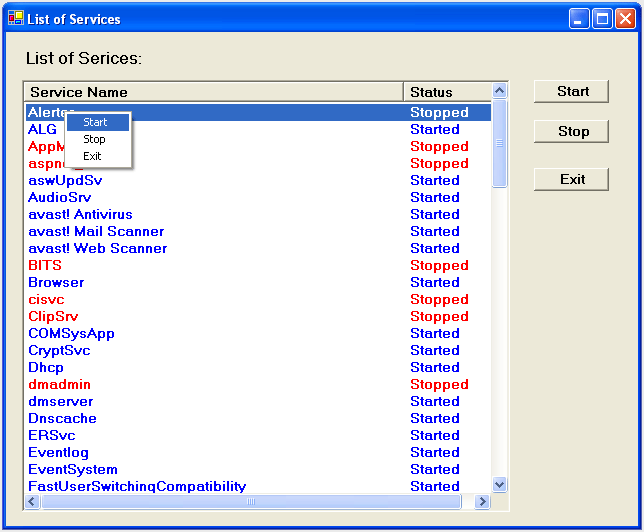
The example application with this article shows a simple windows application which fetches the services into a ListView and changing its status by click of the button.

This application uses ServiceController component to connect to and control the behavior of existing services.

I have used the GetServices() method on the ServiceController class to retrieve a list of the services on a particular computer. The GetServices method returns an array of all of a computer's available services, except for those associated with device drivers. You can retrieve the device driver services using the GetDevices method.

Fetching Services:

Here is the code to fetch all the services:

private void listService()

{

          ServiceController[] ser;

          ser = ServiceController.GetServices();

          listView1.Items.Clear();

          for (int i = 0; i <  ser.Length; i++)

          {

                   string str1=ser[i].ServiceName;

                   System.ServiceProcess.ServiceController sc2 = new System.ServiceProcess.ServiceController(str1);

                   listView1.Items.Add(str1);

                   if (sc2.Status.Equals(System.ServiceProcess.ServiceControllerStatus.Stopped))

                   {

                             listView1.Items[i].ForeColor=Color.Red;

                             listView1.Items[i].SubItems.Add("Stopped");

                   }

                   else

                   {

                             listView1.Items[i].ForeColor=Color.Blue;

                             listView1.Items[i].SubItems.Add("Started");

                   }       

          }

}

Here I have ListView control with two columns. The first column display's the service name and the second column displays the current status.

Different row color is given for services whose status is stopped or started.

Starting Service:

The code below shows how to start the service whose status is stopped now:

private void StartService()

{

          ListView.SelectedListViewItemCollection seltest = listView1.SelectedItems;

          ListViewItem lt = seltest[0];

          string str1 = lt.Text;                    

          string str2 ="Already Started";

          DialogResult res;

          System.ServiceProcess.ServiceController sc2 = new System.ServiceProcess.ServiceController(str1);

          if (sc2.Status.Equals(System.ServiceProcess.ServiceControllerStatus.Running))

          {

                   res=MessageBox.Show(this,str2);

          }

          else

          if (sc2.Status.Equals(System.ServiceProcess.ServiceControllerStatus.Stopped))

          {

                   sc2.Start();


          }

          listService();
}


Stopping Service:

The code below shows how to stop the service whose status is started now:

private void StopService()

{

          ListView.SelectedListViewItemCollection seltest = listView1.SelectedItems;

          ListViewItem lt = seltest[0];

          string str1 = lt.Text;

          string str2 ="Already Stopped";

          DialogResult res;

          System.ServiceProcess.ServiceController sc2 = new System.ServiceProcess.ServiceController(str1);

          if (sc2.Status.Equals(System.ServiceProcess.ServiceControllerStatus.Stopped))

          {

                   res=MessageBox.Show(this,str2);

          }

          else

          if (sc2.Status.Equals(System.ServiceProcess.ServiceControllerStatus.Running))

          {

                   sc2.Stop();

          }

          listService();

}

All I have done here in above two codes is to check the status of the selected service from ListView. Depending upon the status I am changing the status to start or stop by calling Start() and Stop() method of the ServiceController class.

In this example application, I have also used the ContextMenu. One can start and stop the service by right clicking on the service name and clicking the appropriate option.

Here is the snapshot of the application:
Until next time.

Happy .NETing!


Login to add your contents and source code to this article
share this article :
post comment
 

I get the following error if I attempt to stop a service:

Cannot open <ServiceName> service on computer '.'.
Based on my internet searches, this is related to rights. Any idea how to bypass this? Some sites suggested using impersonation, but that was specific to ASP.NET.

Posted by Josef Hlawatschek Nov 23, 2010

can anybody tell me how to check the status of IIS on remote system and install IIS if it is not there

Posted by MITHUN KANUNGO Jan 25, 2008

Can anyone tell me how can i make some changes in my existing running winservice without stopping it?

Posted by Sudhanshu Joshi Dec 20, 2007

Can anyone tell me how can i make some changes in my existing running winservice without stopping it?

Posted by Sudhanshu Joshi Dec 20, 2007

Can anyone tell me how can i make some changes in my existing running winservice without stopping it?

Posted by Sudhanshu Joshi Dec 20, 2007
Become a Sponsor
PREMIUM SPONSORS
  • Finally – a virtual platform that delivers next-generation Windows Server 2008 Hyper-V virtualization technology from a managed hosting partner you can truly depend on. Visit www.maximumasp.com/max for a FREE 30 day trial. Hurry offer ends soon. Climb aboard the MaxV platform and take advantage of High Availability, Intelligent Monitoring, Recurrent Backups, and Scalability – with no hassle or hidden fees. As a managed hosting partner focused solely on Microsoft technologies since 2000, MaximumASP is uniquely qualified to provide the superior support that our business is built on. Unparalleled expertise with Microsoft technologies lead to working directly with Microsoft as first to offer IIS 7 and SQL 2008 betas in a hosted environment; partnering in the Go Live Program for Hyper-V; and product co-launches built on WS 2008 with Hyper-V technology.
    Finally – a virtual platform that delivers next-generation Windows Server 2008 Hyper-V virtualization technology from a managed hosting partner you can truly depend on. Visit www.maximumasp.com/max for a FREE 30 day trial. Hurry offer ends soon. Climb aboard the MaxV platform and take advantage of High Availability, Intelligent Monitoring, Recurrent Backups, and Scalability – with no hassle or hidden fees. As a managed hosting partner focused solely on Microsoft technologies since 2000, MaximumASP is uniquely qualified to provide the superior support that our business is built on. Unparalleled expertise with Microsoft technologies lead to working directly with Microsoft as first to offer IIS 7 and SQL 2008 betas in a hosted environment; partnering in the Go Live Program for Hyper-V; and product co-launches built on WS 2008 with Hyper-V technology.
Nevron Gauge for SharePoint
Become a Sponsor