Hey guys, in this article I am going explain how to draw home with 2D drawings in WPF.
This topic provides an overview of 3-D functionality in the Windows Presentation Foundation (WPF) graphics system. The WPF 3-D implementation allows developers to draw, transform, and animate 3-D graphics in both markup and procedural code, using the same capabilities afforded by the platform to 2-D graphics. Developers can combine 2-D and 3-D graphics to create rich controls, provide complex illustrations of data, or enhance the user experience of an application's interface. 3-D support in WPF is not designed to provide a full-featured game-development platform. Windows Presentation Foundation 3-D classes allow developers to create 3D models in Windows applications as a part of GUI.
Creating 3D Models involves following features:
- Creating 3D surfaces by defining more number of triangular surfaces
- Assigning Material property for the 3D model
- Creating light sources
- Creating camera to visualize the 3D model from different angle.
- Animating the models
- 3D graphics is to produce 2D images from 3D models suitable for displaying on an output such as your computer screen.
Here is snap shot.
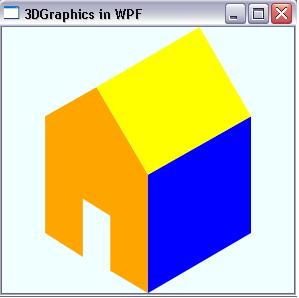
Here is design:
<Grid>
<Image>
<Image.Source>
<DrawingImage>
<DrawingImage.Drawing>
<DrawingGroup x:Name="House">
<GeometryDrawing x:Name="Front" Brush="Orange" Geometry="M0,260 L0,600 L110,670 L110,500 L190,550 L190,710 L300,775 L300,430 L150,175">
</GeometryDrawing>
<GeometryDrawing x:Name="Side" Brush="Blue" Geometry="M300, 430 L300, 775 L600, 600 L600, 260">
</GeometryDrawing>
<GeometryDrawing x:Name="Roof" Brush="Yellow" Geometry="M150,175 L300, 430 L600, 260 L450, 0">
</GeometryDrawing>
</DrawingGroup>
</DrawingImage.Drawing>
</DrawingImage>
</Image.Source>
</Image>
</Grid>
I hope you will like this article. If yes drop me a line or write a comment below in the comments section.