Normally, if we want to know about your system components performance like browser, cache, System the only option is to meet our System administrator. But, this application will help us to know about our system a lot.
This application displays System component's performance in web page. From that, we can get details of our system.
I created this application in VS.NET 2003 using C#.
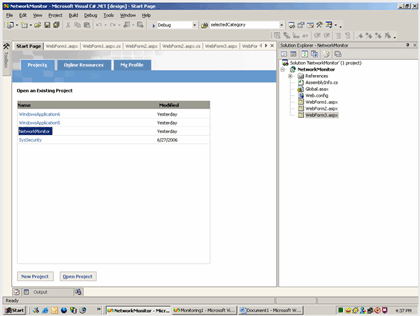
First, create a Web application. Add 3 web pages to it. Finally, solution explorer will be like this:
Next go to WebForm1.aspx, write this code in body tag:
onload
="loader()"
Next write this JavaScript code as shown in below figure:
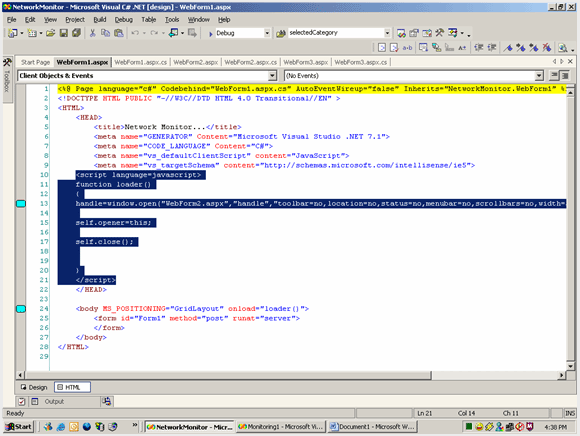
function loader()
{
handle=window.open("WebForm2.aspx","handle","toolbar=no,location=no,status=no,menubar=no,scrollbars=no,width= 500,height=260,left=510,top=450");
self.opener=this;
self.close();
}
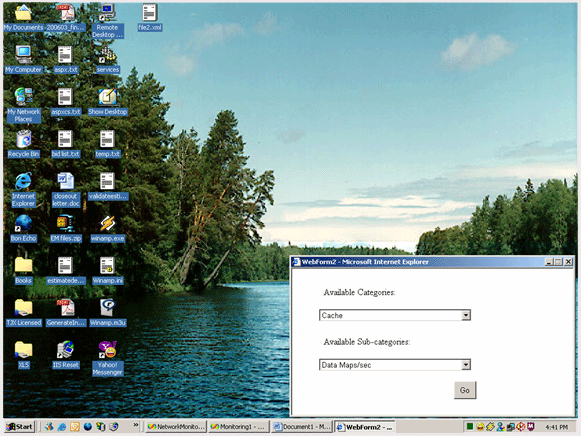
This will open the next window(WebFrom2.aspx) in a small size, as shown in below:
Next go to WebForm2.aspx, place the controls as shown below:
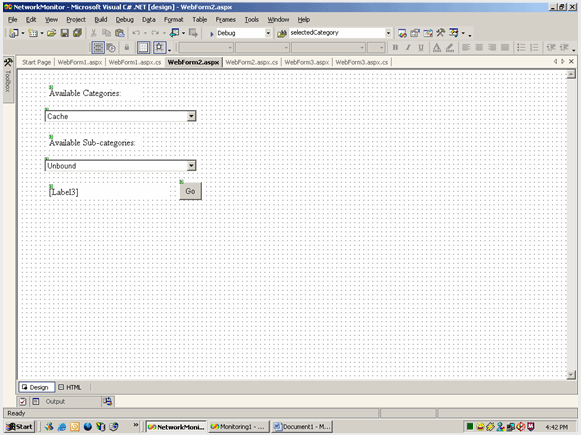
Next add these items to "Available Categories" combobox:
-
Cache
-
System
-
Server
-
Memory
-
Browser
Next set AutoPostBack to true for both comboboxes.
By this application, we are going to get properties of above objects of our system.
Add this variable
public string selectedCategory;
Next go to Page_load event in webform2.aspx.cs:
selectedCategory="cache";
Button1.Attributes.Add("OnClick","showwindow()");
if(!IsPostBack)
{
System.Diagnostics.PerformanceCounter[] pc;
System.Diagnostics.PerformanceCounterCategory cat =
new System.Diagnostics.PerformanceCounterCategory("cache");
DropDownList2.Items.Clear();
pc = cat.GetCounters();
for (int i = 0 ; i <pc.Length ; i++)
{
DropDownList2.Items.Add(pc[i].CounterName);
}
}
I am using performancecounter to monitor system component's. First, I add JavaScript code to open a new window for showing each component's properties on Button click. First, I displayed properties of cache object, when page loads. Next go to DropDownList1_SelectedIndexChanged event and write this code:
System.Diagnostics.PerformanceCounter[] pc;
System.Diagnostics.PerformanceCounterCategory cat =
new System.Diagnostics.PerformanceCounterCategory(DropDownList1.SelectedItem.Text.ToString());
DropDownList2.Items.Clear();
pc = cat.GetCounters();
for (int i = 0 ; i <pc.Length ; i++)
{
DropDownList2.Items.Add(pc[i].CounterName);
}
selectedCategory=DropDownList1.SelectedItem.Text.ToString();
This will load selected item properties in sub-category combobox. Next go to DropDownList2_SelectedIndexChanged event and write this code:
System.Diagnostics.PerformanceCounter pc=new System.Diagnostics.PerformanceCounter();
pc.CategoryName =DropDownList1.SelectedItem.Text.ToString();
pc.CounterName =DropDownList2.SelectedItem.Text.ToString();
pc.MachineName =".";
pc.InstanceName =string.Empty;
Label3.Text =DropDownList2.SelectedItem.Text.ToString()+":"+pc.NextValue().ToString();
Next go to WebForm2.aspx and write this JavaScript code as shown below in HEAD tag:
<
script language="javascript">
function showwindow()
{
handle1=window.open("WebForm3.aspx?selectedcategory="+"","handle1","toolbar=no,location=no,status=no,menubar=no,scrollbars=no,width=850,height=600");
}
</script>
Next go to WebFrom3.aspx and add a datagrid and format, set AllowPaging=true and PageSize=8 and go to events of DataGrid and select DataGrid1_PageIndexChanged and write this code:
DataGrid1.CurrentPageIndex =e.NewPageIndex;
to allow paging for DataGrid.
Next go to Page_Load event of WebForm3.aspx:
string category=Request.QueryString[0];
System.Diagnostics.PerformanceCounter[] pc;
System.Diagnostics.PerformanceCounterCategory cat =
new System.Diagnostics.PerformanceCounterCategory(category);
pc = cat.GetCounters();
StreamWriter writer=File.CreateText("d:\\file2.xml");
writer.WriteLine("<?xml version='1.0'?>");
writer.Write("<"+category+">");
ListItemCollection col=new ListItemCollection();
for (int i = 0 ; i <pc.Length ; i++)
{
ListItem item=new ListItem();
item.Text =pc[i].CounterName.ToString();
item.Value =pc[i].CounterName.ToString();
col.Add(item);
}
for (int i = 0 ; i <pc.Length ; i++)
{
writer.Write("<subcategory>");
if(pc[i].CounterName.ToString().IndexOf("/")!=-1)
{
string countername=pc[i].CounterName.ToString().Replace("/"," per ");
writer.Write("<name>"+countername+"</name>");
}
else
{
writer.Write("<name>"+pc[i].CounterName.ToString()+"</name>");
}
if(pc[i].CounterName == col.FindByText(pc[i].CounterName.ToString()).Text.ToString())
{
System.Diagnostics.PerformanceCounter pc1=new System.Diagnostics.PerformanceCounter();
pc1.CategoryName=category;
pc1.CounterName=pc[i].CounterName.ToString();
pc1.MachineName =".";
pc1.InstanceName =string.Empty;
writer.Write("<value>"+pc[i].NextValue().ToString()+"</value>");
writer.Write("</subcategory>");
}
}
writer.Write("</"+category+">");
writer.Flush();
writer.Close();
DataSet ds=new DataSet();
ds.ReadXml("d:\\file2.xml");
DataGrid1.DataSource =ds.Tables[0];
DataGrid1.DataBind();
File.Delete("d:\\file2.xml");
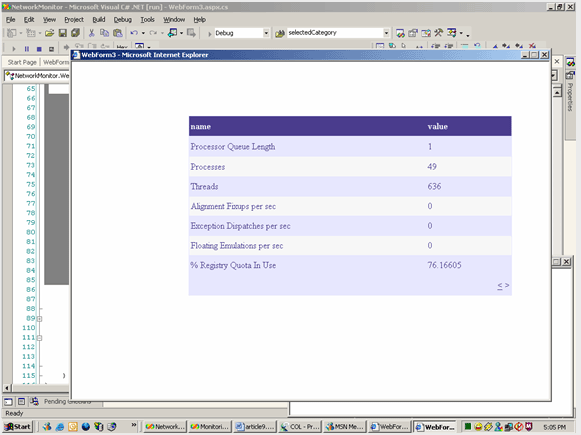
This code will display details of selected item(like browser, cache) properties and values in grid.
I am just getting selected item using QueryString and storing its properties and values in a XML file and showing that contents in a grid.
Final, screen will be like this:
By using this code, even a ordinary person can know about his system properties. So, I think no need of System admin from now onwards, if we enhance this application. Just add required objects to Categories combobox and display its properties in Grid. If you have any doubts, just drag PerformanceCounter object from Components tab of toolbox and see CategoryName, CounterName, InstanceName properties....
I hope this code will be useful for all.