

In our previous articles (listed below), we learned how to create a DevTest lab and also configured policies in the DevTest lab to reduce the waste and cost.
- Azure DevTest Labs: A Self-Service Sandbox Environment – Basics
- Azure DevTest Labs: Policies To Control Costs - Part One
- Azure DevTest Labs: Policies To Control Costs - Part Two
- Azure DevTest Lab – Administration - Add Developer / Tester to the Lab
- Azure DevTest Lab: Review Policies As DevTest Lab Users - Developers Or Testers
In this article, we will learn how to view the trends related to the cost incurred for the complete lab.
We have now understood how to create a lab and add the developers and testers to the labs for DevTest labs users. This means the users can now add virtual machines within the lab (of course, please note that these users cannot create virtual machines outside the lab).
In a real-time scenario within organizations, the IT Department (lab owners) provides access to multiple DevTest lab users, where each can create multiple virtual machines, that depends on the policies set by the DevTest lab owners. We also know that each individual user can opt-out of the Auto-Shutdown policy.
Now, though the owner has complete access to restrict the DevTest lab users to select limited VM sizes and number of virtual machines to be created by each individual user within the lab, it would be really nice to view and understand how much is being spent on all the virtual machines that all the users of the Dev Test labs users are spending per month.
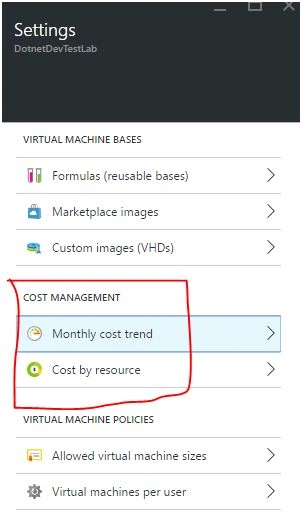
Yes, there are a few cool reports that the DevTest lab provides to the owner to view the spending costs along with estimated cost for the month (based on the usage of the data for the last five days). These reports can be accessed by navigating to the “Cost Management” section of the “Settings” blade of the DevTest lab, as shown below:
Click the “monthly cost trend” link, you will be taken to the “Monthly cost trend report” as shown below:
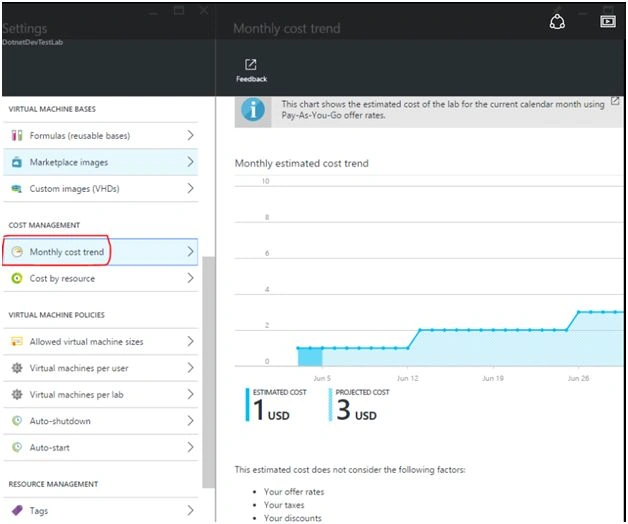
The report provides us the details about the following:
- Estimated cost
Cost that was incurred until the date right from the creation of the lab. It showsa round number of the next whole number in USD only (for now as of this writing).
- Projected cost
This is the projected cost per month based on the usage for the last five days. If you would like to understand the projected cost for the next two weeks, just hover your mouse on the expected date and it shows an approximate value
The estimated cost does not include the following.
- Your offer rates
- Your taxes
- Your discounts
- Your billing currency
The “Monthly Cost Trend” is an aggregated report of all the virtual machines that you have created within the Lab.
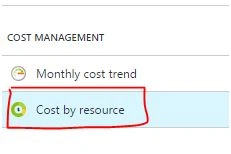
Now, if you would like to view the cost of each individual virtual machine that all the DevTest lab users have created, then there is another nice report named “Cost by Resource” report, which could be reached by clicking on the “Cost by resource” under the “Cost Management” section of the settings blade of the DevTest lab, as shown below:
“Cost by resource” is depicted in the screenshot, shown below:
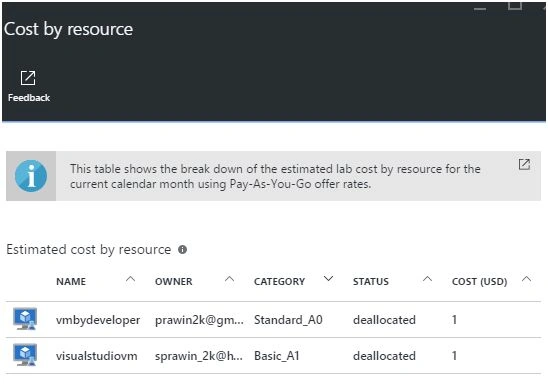
The reports, shown above, help to display all the details about the name of the user who created the virtual machine, the size, status and the cost incurred so far.
Hope you enjoyed reading the article. Your feedback is highly appreciated!
Praveen SreeramPosted Jun 9, 2016, 12:53 AM
Thanks Santhakumar Munuswamy
Santhakumar MunuswamyPosted Jun 9, 2016, 12:34 AM
Thank you for nice share
Praveen SreeramPosted Jun 7, 2016, 7:39 AM
Thanks Vignesh Mani
Vignesh ManiPosted Jun 7, 2016, 6:58 AM
Nice
Praveen SreeramPosted Jun 6, 2016, 9:28 PM
Thanks @Sonu
Sonu ChaudharyPosted Jun 6, 2016, 1:53 PM
good one