

Introduction
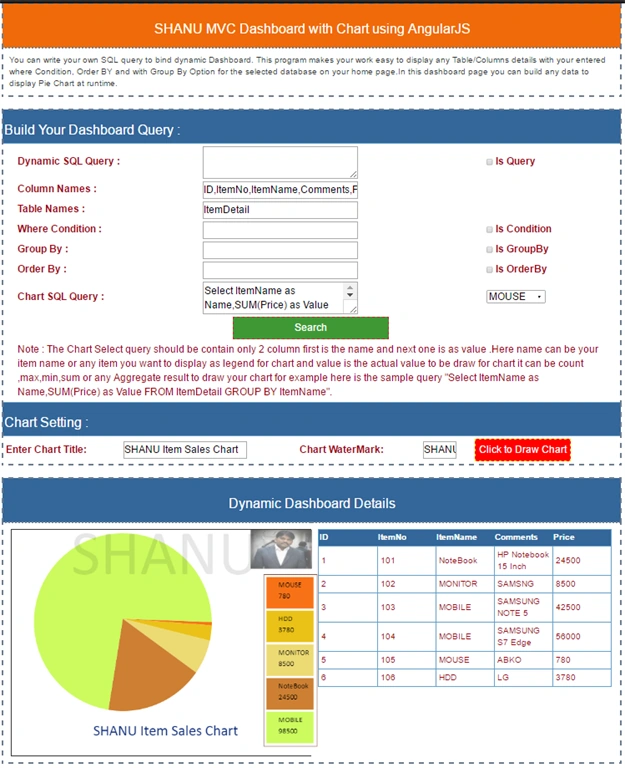
In this article, we will see in detail about how to create a Dynamic MVC dashboard with the chart and data display, using AngularJS and WEB API. Using this Web Application, you can write your own SQL query to bind the dynamic dashboard with the chart and data. This program makes your work easy in displaying any table/columns details with your entered where condition, order by, and group by options for the selected database on your home page with both the data and chart.
In our previous article,
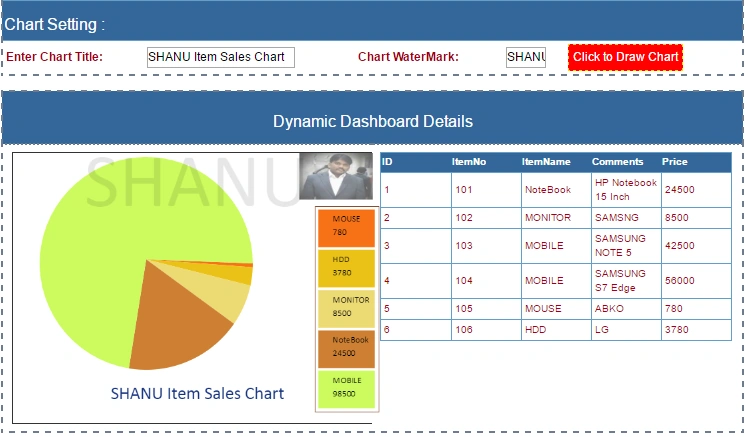
In this demo Application, we have drawn a pie chart in our MVC dashboard page. You can draw any chart as per your requirement. In our previous article, we have explained about how to draw a chart such as Line, Pie, Bar, Donut, Bubble and Line and Bar Chart in MVC Application .
Features in Shanu MVC Dashboard
- Dynamic SQL Query
- Column Names
- Table Names
- Where Condition
- Group By
- Order By
- Chart SQL Query
- Chart Setting and Draw Chart
Here, we will see the details of each part.
Kindly refer to our previous article MVC Dashboard Using AngularJS And Web API for the sections from 1 to 6. We have explained in detail about each section with the animated images.
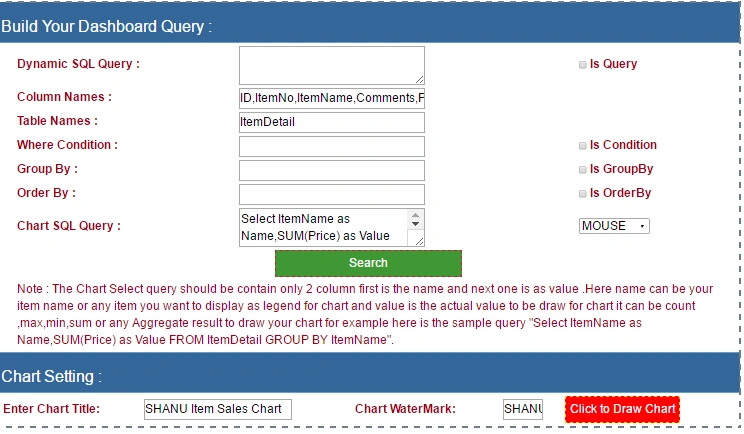
This article has all the same features with the additional chart feature, to be displayed on our MVC dashboard. - Chart SQL Query: To display the chart first, we need to write our Select query to display both the chart item and the value.

Here, the sample query is used to display the chart in our MVC dashboard page. Here, for chart binding; the user can enter the complete Select query to bind the result in the Combo box.
Sample Select query to be used for our Application is given below:To draw a chart, we have fixed the standard -- as always display two columns, where one is the name and another one is the value. Here, the name is any name (Legend) to be displayed for a chart and a value is the actual value to draw the chart. In search button click, we first bind the chart item to the Combo box. We will be using this Combo box result to draw the chart.- Select ItemName as Name,SUM(Price) as Value FROM ItemDetail GROUP BY ItemName ORDER BY Value,Name
- Chart Setting and Draw Chart
A user can add Chart Title and Watermark text, as per his requirement at the run time and click “Click to Draw Chart) button to draw your chart on the dashboard.

You can display any chart data from any table from the given database. All you need to do is, write the Select query for the chart with the name and value column.
Prerequisites
Visual Studio 2015: You can download it from here.
Step 1:
Create a sample database and table to test this Application. Here is a SQL Script to create the database and the table with Insert query. Kindly run the code, given below, in your SQL Server to create DB and the tables.
- USE MASTER
- GO
- --1) Check for the Database Exists .If the database is exist then drop and create new DB
- IF EXISTS (SELECT [name] FROM sys.databases WHERE [name] = 'DashboardDB' )
- DROP DATABASE DashboardDB
- GO
- CREATE DATABASE DashboardDB
- GO
- USE DashboardDB
- GO
- -- 1) //////////// ItemDetails table
- -- Create Table ItemDetails,This table will be used to store the details like Item Information
- IF EXISTS ( SELECT [name] FROM sys.tables WHERE [name] = 'ItemDetail' )
- DROP TABLE ItemDetail
- GO
- CREATE TABLE [dbo].[ItemDetail](
- [ID] [int] IDENTITY(1,1) NOT NULL,
- [ItemNo] [varchar](100) NOT NULL ,
- [ItemName] [varchar](100) NOT NULL,
- [Comments] [varchar](100) NOT NULL,
- [Price] INT NOT NULL,
- PRIMARY KEY CLUSTERED
- (
- [ID] ASC
- )WITH (PAD_INDEX = OFF, STATISTICS_NORECOMPUTE = OFF, IGNORE_DUP_KEY = OFF, ALLOW_ROW_LOCKS = ON, ALLOW_PAGE_LOCKS = ON) ON [PRIMARY]
- ) ON [PRIMARY]
- GO
- Insert into ItemDetail(ItemNo,ItemName,Comments,Price) values
- ('101','NoteBook', 'HP Notebook 15 Inch', 24500)
- Insert into ItemDetail(ItemNo,ItemName,Comments,Price) values
- ('102','MONITOR', 'SAMSNG', '8500')
- Insert into ItemDetail(ItemNo,ItemName,Comments,Price) values
- ('103','MOBILE', 'SAMSUNG NOTE 5', 42500)
- Insert into ItemDetail(ItemNo,ItemName,Comments,Price) values
- ('104','MOBILE', 'SAMSUNG S7 Edge', 56000)
- Insert into ItemDetail(ItemNo,ItemName,Comments,Price) values
- ('105','MOUSE', 'ABKO', 780)
- Insert into ItemDetail(ItemNo,ItemName,Comments,Price) values
- ('106','HDD' ,'LG', 3780)
- select * from ItemDetail
- select ItemName,SUM(convert(int,Price)) as totalCost
- from ItemDetail
- GROUP BY ItemName
- -- 2) User table
- IF EXISTS ( SELECT [name] FROM sys.tables WHERE [name] = 'UserDetails' )
- DROP TABLE UserDetails
- GO
- CREATE TABLE [dbo].UserDetails(
- [UserID] [int] IDENTITY(1,1) NOT NULL,
- [UserName] [varchar](100) NOT NULL,
- [UserType] [varchar](100) NOT NULL,
- [Phone] [varchar](20) NOT NULL,
- PRIMARY KEY CLUSTERED
- (
- [UserID] ASC
- )WITH (PAD_INDEX = OFF, STATISTICS_NORECOMPUTE = OFF, IGNORE_DUP_KEY = OFF, ALLOW_ROW_LOCKS = ON, ALLOW_PAGE_LOCKS = ON) ON [PRIMARY]
- ) ON [PRIMARY]
- Insert into UserDetails(UserName,UserType,Phone) values
- ('SHANU','Admin','01039124503')
- Insert into UserDetails(UserName,UserType,Phone) values
- ('Afraz','user','01039120984')
- Insert into UserDetails(UserName,UserType,Phone) values
- ('Afreen','user','01039120005')
- Insert into UserDetails(UserName,UserType,Phone) values
- ('Raj','Admin','01039120006')
- Insert into UserDetails(UserName,UserType,Phone) values
- ('Mak','Manager','01039124567')
- Insert into UserDetails(UserName,UserType,Phone) values
- ('Jack','Manager','01039120238')
- Insert into UserDetails(UserName,UserType,Phone) values
- ('Pak','User','01039125409')
- Insert into UserDetails(UserName,UserType,Phone) values
- ('Ninu','Accountant','01039126810')
- Insert into UserDetails(UserName,UserType,Phone) values
- ('Nanu','Accountant','01039152011')
- -- select * from Userdetails
- -- 3 UserAddress
- IF EXISTS ( SELECT [name] FROM sys.tables WHERE [name] = 'UserAddress' )
- DROP TABLE UserAddress
- GO
- CREATE TABLE [dbo].UserAddress(
- [UserAddID] [int] IDENTITY(1,1) NOT NULL,
- [UserID] [int] ,
- [Address] [varchar](200) NOT NULL,
- [Email] [varchar](100) NOT NULL,
- PRIMARY KEY CLUSTERED
- (
- [UserAddID] ASC
- )WITH (PAD_INDEX = OFF, STATISTICS_NORECOMPUTE = OFF, IGNORE_DUP_KEY = OFF, ALLOW_ROW_LOCKS = ON, ALLOW_PAGE_LOCKS = ON) ON [PRIMARY]
- ) ON [PRIMARY]
- Insert into UserAddress(UserID,Address,Email) values
- (1,'Madurai,Tamil Nadu, India','[email protected]')
- Insert into UserAddress(UserID,Address,Email) values
- (2,'Madurai,Tamil Nadu, India','[email protected]')
- Insert into UserAddress(UserID,Address,Email) values
- (3,'Seoul,South Korea','[email protected]')
- select * from UserAddress
- select A.UserName,A.UserType,A.Phone,B.Address,B.Email
- From
- Userdetails A Left Outer JOIN UserAddress B
- on
- A.UserID=B.UserID
This is our main stored procedure used to run all our dynamic SQL Select queries and return the result to bind in our MVC page.
- USE [DashboardDB]
- GO
- /****** Object: StoredProcedure [dbo].[USP_Dashboard_Select] ******/
- SET ANSI_NULLS ON
- GO
- SET QUOTED_IDENTIFIER ON
- GO
- -- 1) select top 10 random kidsLearnerMaster records
- -- Author : Shanu
- -- Create date : 2016-05-14
- -- Description :To run dymanic Query
- -- Tables used : Dynamic Table
- -- Modifier : Shanu
- -- Modify date : 2016-05-14
- -- =============================================
- -- To Select all user roles
- -- EXEC USP_Dashboard_Select @columnName = 'UserName,UserType,Phone' ,@TableNames = 'UserDetails' ,@isCondition=0,@ConditionList='UserType=''ADMIN'' ',@isGroupBY =1,@GroupBYList = 'UserName,UserType,Phone', @isOrderBY =1,@OrderBYList = ' UserType '
- -- EXEC USP_Dashboard_Select @columnName = 'ItemName,SUM(Price) as totalCost' ,@TableNames = 'ItemDetail' ,@isCondition=0,@ConditionList='Price>''400'' ',@isGroupBY =1,@GroupBYList = 'ItemName'
- -- EXEC USP_Dashboard_Select @sqlQuery = 'Select * from ItemDetail'
- -- EXEC USP_Dashboard_Select @sqlQuery = 'select ID,ItemNo ,ItemName ,Comments ,Price from ItemDetail'
- -- =============================================
- ALTER PROCEDURE [dbo].[USP_Dashboard_Select]
- (
- @sqlQuery varchar(MAX)='',
- @columnName varchar(MAX)='',
- @TableNames varchar(MAX)='',
- @isCondition INT=0,
- @ConditionList varchar(MAX)='',
- @isGroupBY INT=0,
- @GroupBYList varchar(MAX)='',
- @isOrderBY INT=0,
- @OrderBYList varchar(MAX)=''
- )
- AS
- BEGIN
- BEGIN TRY
- IF @sqlQuery =''
- BEGIN
- SET @sqlQuery = 'SELECT ' + @columnName + ' FROM ' + @TableNames
- IF @isCondition=1
- BEGIN
- SET @sqlQuery = @sqlQuery+ ' WHERE ' + @ConditionList
- END
- IF @isGroupBY=1
- BEGIN
- SET @sqlQuery = @sqlQuery+ ' GROUP BY ' + @GroupBYList
- END
- IF @isOrderBY=1
- BEGIN
- SET @sqlQuery = @sqlQuery+ ' Order BY ' + @OrderBYList
- END
- EXEC (@sqlQuery)
- END
- ELSE
- BEGIN
- EXEC (@sqlQuery)
- END
- END TRY
- BEGIN CATCH
- SELECT ERROR_NUMBER() AS ErrorNumber
- ,ERROR_MESSAGE() AS ErrorMessage;
- END CATCH
- END
After installing our Visual Studio 2015; click Start, followed by Programs, and select Visual Studio 2015. Click Visual Studio 2015. Click New, followed by Project, select Web and then select ASP.NET Web Application. Enter your project name and click OK.
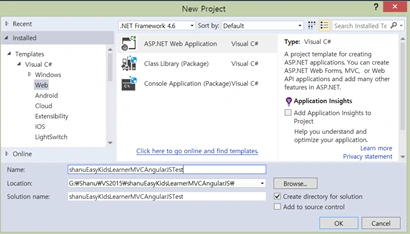
Select MVC, WEB API and click OK.
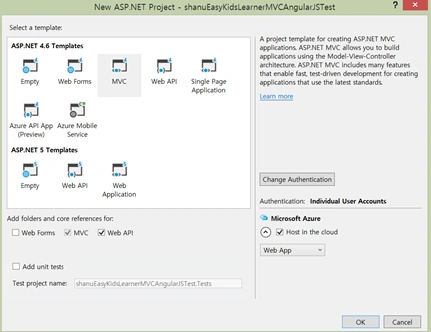
Now, we have created our MVC Application. As a next step, we add our connection string in our Web.Config file. Here, we are not using entity framework. Here, we will directly get the data from our MVC Web API controller method, using the normal ADO.NET method.
- <add name="dashboard" connectionString="Data Source=SQLSERVERNAME;Initial Catalog=DashboardDB;Persist Security Info=True;User ID=UID;Password=PWD" providerName="System.Data.SqlClient" />
Step 3: Add web API Controller
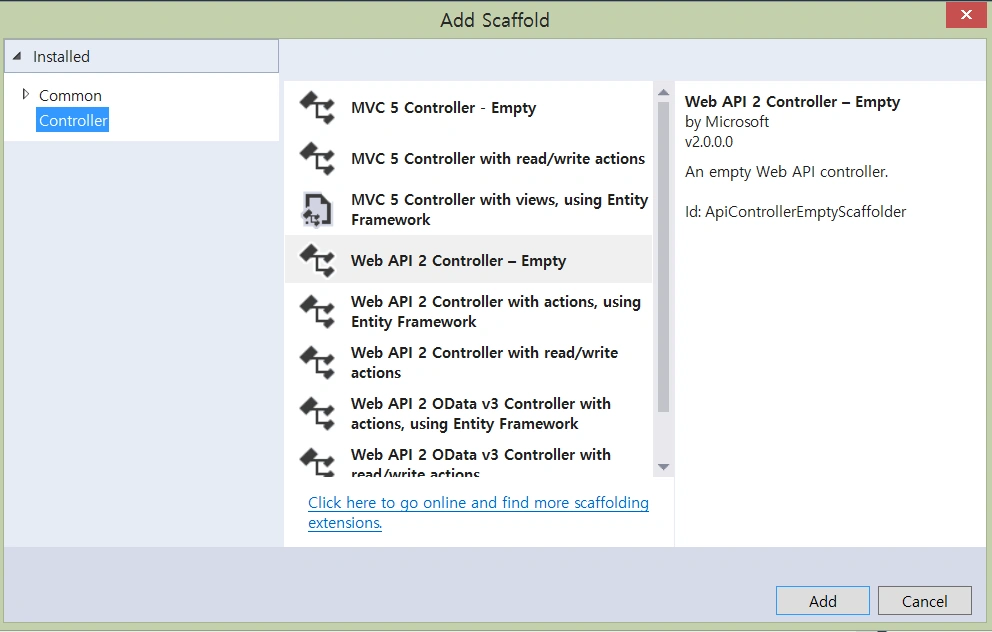
Right click Controllers folder, click Add and click Controller.
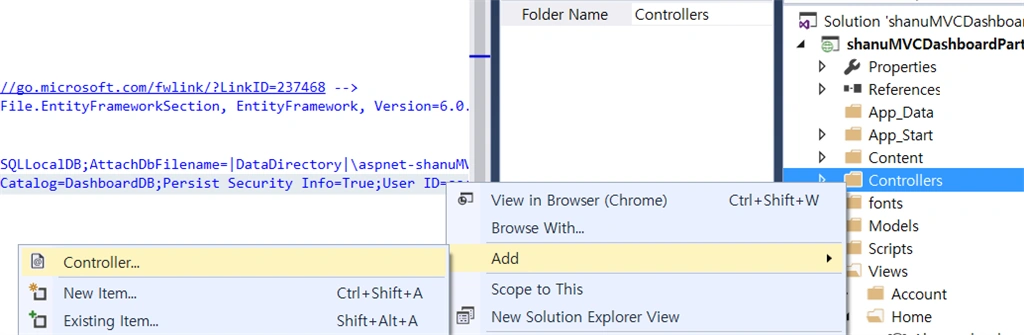
Here, we will add a WEB API Controller to be used for our AngularJS.
Select Web API 2 Controller – Empty and click Add .next, enter the controller name as DashboardAPIController
Here, use the Http GET method to get all our dynamic data from the database, using normal ADO.NET method.
- [HttpGet]
- public string getDashboardDetails(string sqlQuery, string columnName, string tableNames, Nullable<int> isCondition, string conditionList, Nullable<int> isGroupBY, string groupBYList, Nullable<int> isOrderBY, string orderBYList)
- {
- if (sqlQuery == null)
- sqlQuery = "";
- if (columnName == null)
- columnName = "";
- if (tableNames == null)
- tableNames = "";
- if (isCondition == null)
- isCondition = 0;
- if (conditionList == null)
- conditionList = "";
- if (isGroupBY == null)
- isGroupBY = 0;
- if (groupBYList == null)
- groupBYList = "";
- if (isOrderBY == null)
- isOrderBY = 0;
- if (orderBYList == null)
- orderBYList = "";
- string connectionString = ConfigurationManager.ConnectionStrings["dashboard"].ToString();
- DataSet ds = new DataSet();
- using (SqlConnection connection = new SqlConnection(connectionString))
- {
- // Create the SQL command and add Sp name
- SqlCommand command = new SqlCommand();
- command.Connection = connection;
- command.CommandText = "USP_Dashboard_Select";
- command.CommandType = CommandType.StoredProcedure;
- // Add parameter for Query.
- SqlParameter parameter = new SqlParameter();
- parameter.ParameterName = "@sqlQuery";
- parameter.SqlDbType = SqlDbType.NVarChar;
- parameter.Direction = ParameterDirection.Input;
- parameter.Value = sqlQuery;
- command.Parameters.Add(parameter);
- // Add parameter for Column Names
- SqlParameter parameter1 = new SqlParameter();
- parameter1.ParameterName = "@columnName";
- parameter1.SqlDbType = SqlDbType.NVarChar;
- parameter1.Direction = ParameterDirection.Input;
- parameter1.Value = columnName;
- command.Parameters.Add(parameter1);
- // Add parameter for Table names
- SqlParameter parameter2 = new SqlParameter();
- parameter2.ParameterName = "@tableNames";
- parameter2.SqlDbType = SqlDbType.NVarChar;
- parameter2.Direction = ParameterDirection.Input;
- parameter2.Value = tableNames;
- command.Parameters.Add(parameter2);
- // Add parameter to check for Where condition
- SqlParameter parameter3 = new SqlParameter();
- parameter3.ParameterName = "@isCondition";
- parameter3.SqlDbType = SqlDbType.NVarChar;
- parameter3.Direction = ParameterDirection.Input;
- parameter3.Value = isCondition;
- command.Parameters.Add(parameter3);
- // Add parameter for Where conditions
- SqlParameter parameter4 = new SqlParameter();
- parameter4.ParameterName = "@ConditionList";
- parameter4.SqlDbType = SqlDbType.NVarChar;
- parameter4.Direction = ParameterDirection.Input;
- parameter4.Value = conditionList;
- command.Parameters.Add(parameter4);
- // Add parameter to check for Group By
- SqlParameter parameter5 = new SqlParameter();
- parameter5.ParameterName = "@isGroupBY";
- parameter5.SqlDbType = SqlDbType.NVarChar;
- parameter5.Direction = ParameterDirection.Input;
- parameter5.Value = isGroupBY;
- command.Parameters.Add(parameter5);
- // Add parameter for Group By
- SqlParameter parameter6 = new SqlParameter();
- parameter6.ParameterName = "@groupBYList";
- parameter6.SqlDbType = SqlDbType.NVarChar;
- parameter6.Direction = ParameterDirection.Input;
- parameter6.Value = groupBYList;
- command.Parameters.Add(parameter6);
- // Add parameter to check for Order By
- SqlParameter parameter7 = new SqlParameter();
- parameter7.ParameterName = "@isOrderBY";
- parameter7.SqlDbType = SqlDbType.NVarChar;
- parameter7.Direction = ParameterDirection.Input;
- parameter7.Value = isOrderBY;
- command.Parameters.Add(parameter7);
- // Add parameter for OrderBY
- SqlParameter parameter8 = new SqlParameter();
- parameter8.ParameterName = "@orderBYList";
- parameter8.SqlDbType = SqlDbType.NVarChar;
- parameter8.Direction = ParameterDirection.Input;
- parameter8.Value = orderBYList;
- command.Parameters.Add(parameter8);
- connection.Open();
- using (SqlDataAdapter da = new SqlDataAdapter(command))
- {
- da.Fill(ds);
- connection.Close();
- }
- }
- return DataTableToJSONWithJavaScriptSerializer(ds.Tables[0]);
- }
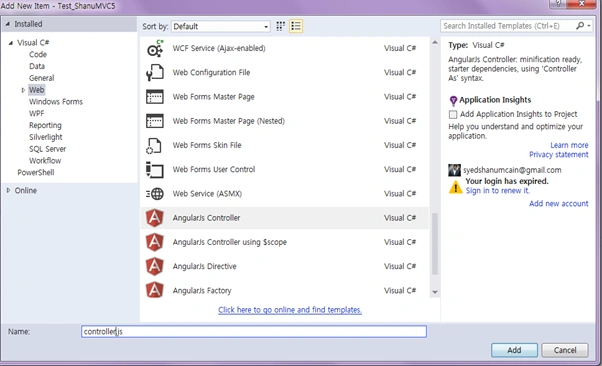
First, create a folder inside the Script Folder and we give the folder name as “MyAngular”.
Now, add your Angular Controller inside the folder.
Right Click the MyAngular Folder and click Add and New Item > Select Web > Select AngularJs Controller and give the name to Controller. We have given my AngularJs Controller as “Controller.js”.
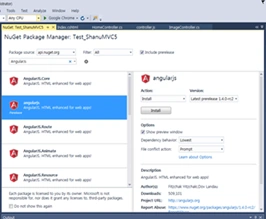
If the Angular JS package is missing, then add the package to your project.
Right Click your MVC project and Click-> Manage NuGet Packages. Search for AngularJs and click Install.
- // <reference path="../angular.js" />
- /// <reference path="../angular.min.js" />
- /// <reference path="../angular-animate.js" />
- /// <reference path="../angular-animate.min.js" />
- var app;
- (function () {
- app = angular.module("dashbordModule", ['ngAnimate']);
- })();
Variable declarations
First, we declare all the local variables required to be used.
- app.controller("AngularJs_Controller", function ($scope, $filter, $timeout, $rootScope, $window, $http) {
- $scope.date = new Date();
- $scope.MyName = "shanu";
- $scope.isQuerys = false;
- $scope.Querys = "";
- $scope.ColumnNames = "UserName,UserType,Phone";
- $scope.TableNames = "UserDetails";
- $scope.isCondition = false;
- $scope.whereCondition = 0;
- $scope.Conditions = "";
- $scope.isGroupBy = false;
- $scope.GroupBy = 0;
- $scope.GroupBys = "";
- $scope.isOrderBy = false;
- $scope.OrderBy = 0;
- $scope.OrderBys = "";
- // Array value to check for SQL Injection
- $scope.sqlInjectionArray = ['create', 'drop', 'delete', 'insert', 'update', 'truncate',
- 'grant', 'print', 'sp_executesql', 'objects', 'declare',
- 'table', 'into', 'sqlcancel', 'sqlsetprop', 'sqlexec',
- 'sqlcommit', 'revoke', 'rollback', 'sqlrollback', 'values',
- 'sqldisconnect', 'sqlconnect', 'system_user', 'schema_name',
- 'schemata', 'information_schema', 'dbo', 'guest', 'db_owner',
- 'db_', 'table', '@@', 'Users', 'execute', 'sysname', 'sp_who',
- 'sysobjects', 'sp_', 'sysprocesses', 'master', 'sys', 'db_',
- 'is_', 'exec', 'end', 'xp_', '; --', 'alter', 'begin', 'cursor',
- 'kill', '--', 'tabname', 'sys'];
- // Declaration for Chart
- $scope.chartQuerys = "Select ItemName as Name,SUM(Price) as Value FROM ItemDetail GROUP BY ItemName ORDER BY Value,Name";
- $scope.sItemName = "";
- $scope.itemCount = 5;
- $scope.selectedItem = "MOUSE";
- $scope.chartTitle = "SHANU Item Sales Chart";
- $scope.waterMark = "SHANU";
- $scope.ItemValues = 0;
- $scope.ItemNames = "";
- $scope.minsnew = 0;
- $scope.maxnew = 0;
In this method, we call on search button click. Here, we check for all the validation of the user entered data, before passing all the parameters to our Web API method. In this method, we have commented to check each condition.
In this method, we call the searchbildChartData method to bind the select result to the Combo box.
- //search Details
- $scope.searchDetails = function () {
- // 1. Check for Select Query -> In this fucntion we check for SQL injection in user entered select query if any key word from the array list is found then we give msg to user to entert he valid select query
- if ($scope.isQuerys == true) {
- if ($scope.Querys != "") {
- $scope.whereCondition = 1;
- for (var i = 0; i < $scope.sqlInjectionArray.length-1; i++) {
- if ($filter('lowercase')($scope.Querys).match($scope.sqlInjectionArray[i])) {
- alert("Sorry " + $scope.sqlInjectionArray[i] + " keyword is not accepted in select query");
- return;
- }
- }
- searchTableDetails($scope.Querys, $scope.ColumnNames, $scope.TableNames, $scope.whereCondition, $scope.Conditions, $scope.GroupBy, $scope.GroupBys, $scope.OrderBy, $scope.OrderBys);
- return;
- }
- else {
- alert("Enter Your Select Query !");
- return;
- }
- }
- else
- {
- $scope.Querys = "";
- }
- // 2. Check for Column Names -> If user entered the valid column names the details will be checkd and binded in page
- if ($scope.ColumnNames == "") {
- alert("Enter the Column Details !");
- return;
- }
- else
- {
- for (var i = 0; i < $scope.sqlInjectionArray.length - 1; i++) {
- if ($filter('lowercase')($scope.ColumnNames).match($scope.sqlInjectionArray[i])) {
- alert("Sorry " + $scope.sqlInjectionArray[i] + " keyword is not accepted in Column Names");
- return;
- }
- }
- }
- // 3. Check for Table Names -> If user entered the valid Table names the details will be checkd and binded in page
- if ($scope.TableNames == "") {
- alert("Enter the Table Details !");
- return;
- }
- else {
- for (var i = 0; i < $scope.sqlInjectionArray.length - 1; i++) {
- if ($filter('lowercase')($scope.TableNames).match($scope.sqlInjectionArray[i])) {
- alert("Sorry " + $scope.sqlInjectionArray[i] + " keyword is not accepted in Table Names");
- return;
- }
- }
- }
- // 4. Check for Where condition -> If user check the Where condition check box, the user entered where condition will be added to the select query
- if ($scope.isCondition == true) {
- if ($scope.Conditions == "") {
- alert("Enter the Where Condition !");
- return;
- }
- else {
- for (var i = 0; i < $scope.sqlInjectionArray.length - 1; i++) {
- if ($filter('lowercase')($scope.Conditions).match($scope.sqlInjectionArray[i])) {
- alert("Sorry " + $scope.sqlInjectionArray[i] + " keyword is not accepted in Where Condition");
- return;
- }
- }
- $scope.whereCondition = 1;
- }
- }
- else {
- $scope.whereCondition = 0;
- }
- // 5. Check for GroupBy condition -> If user check the GroupBy condition check box, the user entered GroupBy condition will be added to the select query
- if ($scope.isGroupBy == true) {
- if ($scope.GroupBys == "") {
- alert("Enter the Group By Details !");
- return;
- }
- else {
- for (var i = 0; i < $scope.sqlInjectionArray.length - 1; i++) {
- if ($filter('lowercase')($scope.GroupBys).match($scope.sqlInjectionArray[i])) {
- alert("Sorry " + $scope.sqlInjectionArray[i] + " keyword is not accepted in GroupBy");
- return;
- }
- }
- $scope.GroupBy = 1;
- }
- }
- else {
- $scope.GroupBy = 0;
- }
- // 6. Check for OrderBy condition -> If user check the OrderBy condition check box, the user entered OrderBy condition will be added to the select query
- if ($scope.isOrderBy == true) {
- if ($scope.OrderBys == "") {
- alert("Enter the Group By details !");
- return;
- }
- else {
- for (var i = 0; i < $scope.sqlInjectionArray.length - 1; i++) {
- if ($filter('lowercase')($scope.OrderBys).match($scope.sqlInjectionArray[i])) {
- alert("Sorry " + $scope.sqlInjectionArray[i] + " keyword is not accepted in OrderBy");
- return;
- }
- }
- $scope.OrderBy = 1;
- }
- }
- else {
- $scope.OrderBy = 0;
- }
- searchTableDetails($scope.Querys, $scope.ColumnNames, $scope.TableNames, $scope.whereCondition, $scope.Conditions, $scope.GroupBy, $scope.GroupBys, $scope.OrderBy, $scope.OrderBys);
- // 7. Check for Chart Select Query -> In this fucntion we check for SQL injection in user entered select query if any key word from the array list is found then we give msg to user to entert he valid select query
- if ($scope.chartQuerys != "") {
- $scope.whereCondition = 0;
- for (var i = 0; i < $scope.sqlInjectionArray.length - 1; i++) {
- if ($filter('lowercase')($scope.chartQuerys).match($scope.sqlInjectionArray[i])) {
- alert("Sorry " + $scope.sqlInjectionArray[i] + " keyword is not accepted in select query");
- return;
- }
- }
- searchbildChartData($scope.chartQuerys, $scope.ColumnNames, $scope.TableNames, $scope.whereCondition, $scope.Conditions, $scope.GroupBy, $scope.GroupBys, $scope.OrderBy, $scope.OrderBys);
- return;
- }
- else {
- alert("Enter Your Chart Select Query !");
- return;
- }
- }
Finally, after the validation, we call our main bind method to pass all the parameters to our WEB API to get the dynamic data from the database.
- // Main Select and Bind function
- //All query details entered by user after validation this method will be called to bind the result to the Dashboard page.
- function searchTableDetails(sqlQuery, columnName, tableNames, isCondition, conditionList, isGroupBY, groupBYList, isOrderBY, orderBYList) {
- $http.get('/api/DashboardAPI/getDashboardDetails/', { params: { sqlQuery: sqlQuery, columnName: columnName, tableNames: tableNames, isCondition: isCondition, conditionList: conditionList, isGroupBY: isGroupBY, groupBYList: groupBYList, isOrderBY: isOrderBY, orderBYList: orderBYList } }).success(function (data) {
- $scope.dashBoadData = angular.fromJson(data);;
- //alert($scope.dashBoadData.length);
- //if ($scope.dashBoadData.length > 0) {
- //}
- })
- .error(function () {
- $scope.error = "An Error has occured while loading posts!";
- });
- }
This method will be called from our main method to bind the result to combobox to draw our Pie chart.
- // For binding the Chart result to Listbox before bind result to Chart
- function searchbildChartData(sqlQuery, columnName, tableNames, isCondition, conditionList, isGroupBY, groupBYList, isOrderBY, orderBYList) {
- $http.get('/api/DashboardAPI/getDashboardDetails/', { params: { sqlQuery: sqlQuery, columnName: columnName, tableNames: tableNames, isCondition: isCondition, conditionList: conditionList, isGroupBY: isGroupBY, groupBYList: groupBYList, isOrderBY: isOrderBY, orderBYList: orderBYList } }).success(function (data) {
- $scope.itemData = angular.fromJson(data);
- $scope.itemCount = $scope.itemData.length;
- $scope.selectedItem = $scope.itemData[0].Name;
- $scope.minsnew = $scope.itemData[0].Value;
- $scope.maxnew = $scope.itemData[$scope.itemData.length-1].Value;
- })
- .error(function () {
- $scope.error = "An Error has occured while loading posts!";
- });
- }
We are using jQuery to draw our Pie Chart. In draw chart button, Click event, and we call the draw Pie Chart jQuery method to draw our chart. In this method, we get the chart value and name from the Combo box and draw the chart on the canvas tag, which we placed on our MVC Dashboard main page.
- function drawPieChart() {
- var lastend = 0;
- var XvalPosition = xSpace;
- chartWidth = (canvas.width / 2) - xSpace;
- chartHeight = (canvas.height / 2) - (xSpace / 2);
- widthcalculation = parseInt(((parseInt(chartWidth) - 100) / noOfPlots));
- //Draw Xaxis Line
- //-- draw bar X-Axis and Y-Axis Line
- var XLineStartPosition = xSpace;
- var yLineStartPosition = xSpace;
- var yLineHeight = chartHeight;
- var xLineWidth = chartWidth;
- colorval = 0;
- var chartTotalResult = getChartTotal();
- $('#DropDownList1 option').each(function () {
- if (isNaN(parseInt($(this).val()))) {
- }
- else
- {
- ctx.fillStyle = pirChartColor[colorval];
- ctx.beginPath();
- ctx.moveTo(chartWidth, chartHeight);
- //Here we draw the each Pic Chart arc with values and size.
- ctx.arc(chartWidth, chartHeight + 6, chartHeight, lastend, lastend +
- (Math.PI * 2 * (parseInt($(this).val()) / chartTotalResult)), false);
- ctx.lineTo(chartWidth, chartHeight);
- ctx.fill();
- lastend += Math.PI * 2 * (parseInt($(this).val()) / chartTotalResult);
- //END Draw Bar Graph **************==================********************
- }
- colorval = colorval + 1;
- });
}
roi tambalPosted Jan 23, 2021, 10:43 AM
Very nice !!
Ravi KandelPosted Jul 14, 2016, 12:09 PM
Thanks for sharing.
Saurabh SarkarPosted Jul 8, 2016, 8:22 AM
Nice
Vinodh NarayananPosted Jul 1, 2016, 1:40 AM
Good one
Humayun Kabir MamunPosted Jun 25, 2016, 5:15 AM
Great work Mr. Shanu...
Santhakumar MunuswamyPosted Jun 25, 2016, 12:49 AM
Thank you for well written. Keep it up
Prasanna MuraliPosted Jun 23, 2016, 10:19 AM
Nice one....
Saurabh SarkarPosted Jun 23, 2016, 3:46 AM
Nice article.
GokulPosted Jun 23, 2016, 3:12 AM
Thanks for sharing
Anu VPosted Jun 22, 2016, 7:24 AM
Nice sharing
Kunal PatelPosted Jun 22, 2016, 3:32 AM
Nice article sir. Always learn something new from your article.
RajaPosted Jun 22, 2016, 1:54 AM
Good One..
kalu singh raoPosted Jun 22, 2016, 1:50 AM
Nice...
Davronbek UmirovPosted Jun 22, 2016, 12:40 AM
Waiting for next article... Nice
Vignesh ManiPosted Jun 21, 2016, 4:56 PM
Nice one
Kuppurasu NagarajPosted Jun 21, 2016, 12:38 PM
Nice Sharing..
farooq smdPosted Jun 21, 2016, 11:03 AM
nice one