Step 1: Open a new project of type Windows; name it SelectionReport.
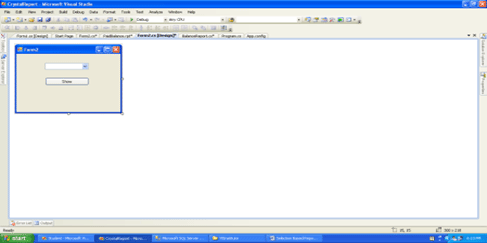
Step 2: put a Button and ComboBox on the form & write code for the form's Load event.
using System;
using System.Collections.Generic;
using System.ComponentModel;
using System.Data;
using System.Drawing;
using System.Linq;
using System.Text;
using System.Windows.Forms;
using System.Data.SqlClient;
namespace SelectionReport
{
public partial class Form1 : Form
{
SqlConnection con;
SqlDataAdapter da;
DataSet ds;
public Form1()
{
InitializeComponent();
}
private void Form1_Load(object sender, EventArgs e)
{
con = new SqlConnection ("<Path of Connectionstring>");
da = new SqlDataAdapter ("Select StudentID From Student", con);
ds = new DataSet();
da.Fill(ds, "Student");
comboBox1.DataSource = ds.Tables[0];
comboBox1.DisplayMember = " StudentID";
}
private void button1_Click(object sender, EventArgs e)
{
ReportSelection Report = new ReportSelection();
Report.Studno = int.Parse(ComBox1.Text);
Report.ShowDialog();
}
Step 3:
Add a Crystal Report to the project; choose blank report.
Configure a report with DB; open the field Explorer; right-click on a Database field, Database Expert; create a new connection using oledb, choose the provider Microsoft Oledb Provider for Sql/Sql Native Client; Connection Details or ServerName.
Choose StoredProcedure/Command Node Node under Connection node; open a window where you can define a select statement in LHS text area.
As Shown in figure.
Right-click on parameter field.
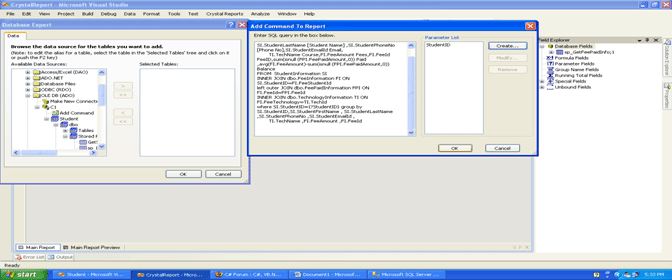
Write this Query into the prompt:
select
SI.StudentID,SI.StudentFirstName +' ' + SI.StudentLastName [Student Name] ,SI.StudentPhoneNo [Phone No],SI.StudentEmailId Email,
TI.TechName Course,FI.FeeAmount Fees,FI.FeeId FeeID,sum(isnull (FPI.FeePaidAmount,0)) Paid ,avg(FI.FeeAmount)-sum(isnull (FPI.FeePaidAmount,0)) Balance
FROM StudentInformation SI
INNER JOIN dbo.FeeInformation FI ON SI.StudentID=FI.FeeStudentId
left outer JOIN dbo.FeePaidInformation FPI ON FI.FeeId=FPI.FeeId
INNER JOIN dbo.TechnologyInformation TI ON FI.FeeTechnology=TI.TechId
where SI.StudentID={?StudentID} group by SI.StudentID,SI.StudentFirstName , SI.StudentLastName ,SI.StudentPhoneNo ,SI.StudentEmailId,TI.TechName ,FI.FeeAmount ,FI.FeeId
Click ok, ok, ok which will add Command in Database Field, if we expand it will Display the column we mention under Select statement.
Note: parameter fields are used to send values to report in runtime.
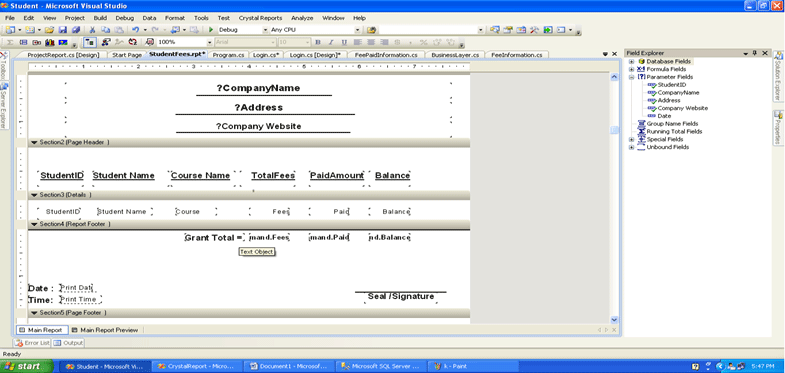
We can also add the parameter using Field Explorer Window, to create a parameter; right-click on the node parameter and select Add which will prompt for name of Parameter; enter name & click ok. Follow the process to cerate 2 parameters for example Company Name, Address and Website; drag & drop onto the report header & make the necessary alignments.
Design the report a as per your requirements as shown in the following figure.
Step 3: (launching the Report) Add new form and place Crystal Report Viewer Control on it set the Windows state property as Maximized.
Add a Reference of System. Configuration assembly also Add "Application Configuration File" i.e. application config & under it write the following:
<?xml version="1.0" encoding="utf-8" ?>
<configuration>
<configSections>
</configSections>
<connectionStrings>
<add name="Student.Properties.Settings.StudentConnectionString"
connectionString="Data Source=.;Initial Catalog=Student;User ID=sa;word=p@ssw0rd"
providerName="System.Data.SqlClient" />
</connectionStrings>
<appSettings >
<add key="CName" value="XYZ Software Solution"/>
<add key="Addr" value=" Address-"/>
<add key="WebSite" value=" Website:"/>
<add key="Y5Institute" value="Data Source=C1;Initial Catalog=Student;User ID=sa;word=p@ssw0rd;"/>
</appSettings>
</configuration>
In this case to launch a report and send the parameters to the report for execution we need to make use of the class
ReportDocument present under CrystalDecisions.CrystalReport.Engine Namespace.
Step 4: Write the following code under form:
using CrystalDecisions.CrystalReports.Engine;
using System.Configuration;
using CrystalDecisions.Shared;
namespace Student
{
public partial class ProjectReport : Form
{
Internal int Sno;
public ProjectReport()
{
InitializeComponent();
}
private void ProjectReport_Load(object sender, EventArgs e)
{
ConnectionInfo CInfo = new ConnectionInfo();
CInfo.ServerName = "Connection";
CInfo.UserID = "sa";
CInfo.word = "p@ssw0rd";
TableLogOnInfo tableInfo = new TableLogOnInfo();
tableInfo.ConnectionInfo = CInfo;
TableLogOnInfos tablelog = new TableLogOnInfos();
tablelog.Add(tableInfo);
crystalReportViewer1.ReportSource = F:\\kiran1\\Institute\\Student\\Student\\StudentFees.rpt";//path of ur report
crystalReportViewer1.LogOnInfo = tablelog;
string cname = ConfigurationManager.AppSettings.Get("CName");
string addr = ConfigurationManager.AppSettings.Get("Addr");
ReportDocument obj = new ReportDocument();
obj.Load("F:\\kiran1\\Institute\\Student\\Student\\ StudentFees.rpt");
crystalReportViewer1.ReportSource = obj;
obj.SetParameterValue("CompanyName", cname);
obj.SetParameterValue("Address", addr);
}
}
}
I attached database (tables & Stored Procedure) to execute it.