

Introduction
Here is perhaps the simplest, shortest way to download a file in an ASP.Net application.
Response.ContentType = "application/pdf";
Response.AppendHeader("Content-Disposition", "attachment; filename=MyFile.pdf");
Response.TransmitFile(Server.MapPath("~/Files/MyFile.pdf"));
Response.End();
The first step is to set the content type. In the example above, we're downloading a .pdf file. Here are some of the most common content types.
- .htm, .html: Response.ContentType = "text/HTML"
- .txt: Response.ContentType = "text/plain"
- .doc, .rtf, .docx: Response.ContentType = "Application/msword"
- .xls, .xlsx: Response.ContentType = "Application/x-ms excel"
- .jpg, .jpeg: Response.ContentType = "image/jpeg"
- .gif: Response.ContentType = "image/GIF"
- .pdf: Response.ContentType = "application/pdf"
Response.TransmitFile retrieves a file and writes it to the Response. By calling TransmitFile, you ensure that the browser's Open / Save dialog box opens rather than simply opening the file in the browser window.
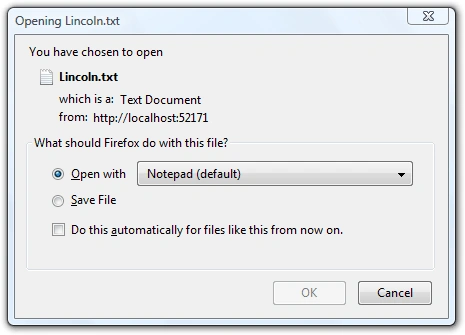
In some cases, we can't call TransmitFile because we can't map a path to the file. Instead, we'll get the file as a Stream and write it to the Response object:
Response.ContentType = "application/pdf";
Response.AppendHeader("Content-Disposition", "attachment; filename=MyFile.pdf");

// Write the file to the Response
const int bufferLength = 10000;
byte[] buffer = new Byte[bufferLength];
int length = 0;
Stream download = null;

try
{
    download = new FileStream(Server.MapPath("~/Files/Lincoln.txt"),
                            FileMode.Open,
                            FileAccess.Read);

    do
    {
        if (Response.IsClientConnected)
        {
            length = download.Read(buffer, 0, bufferLength);
            Response.OutputStream.Write(buffer, 0, length);
            buffer = new Byte[bufferLength];
        }
        else
        {
            length = -1;
        }
    }
    while (length > 0);

    Response.Flush();
    Response.End();
}
finally
{
    if (download != null)
        download.Close();
}
As before, the Open / Save dialog should open in the browser.
The project download includes working examples of both of these techniques.
Rod FalangaPosted Aug 25, 2021, 5:44 PM
Hello Andrew, your post looks like it will help me with an old ASP.NET WebForms app I maintain. But one thing I'm wondering about is how to clean up the file, after it's been generated? The original coder of this app made it write to the web server's C:\Temp folder. The problem he had is he named the file the same thing (Export.xls) then immediately deleted the Export.xls file. Sometimes the user would get it. Sometimes the user gets a "network issue" message from the browser. Initially I tried tacking on the SessionID onto the filename (e.g.: Export2635152.xls), then delaying the deletion of the file asynchronously. However, that doesn't seem to be working. (Might be because I'm not giving enough of a delay.) Anyway, if I'm correct about the timing of how long it takes before the WebForms app deletes the file, how can I leave it around long enough for someone to actually download it?
Dhruval ShahPosted Sep 20, 2019, 3:51 AM
Is there any way to not getting Open/Save dialogue and directly file will downloaded?
Shweta GawkarPosted Oct 27, 2015, 12:58 AM
Thanks a lot..!!!
muthu selvanPosted May 25, 2015, 8:43 AM
Hi Andrew its very nice post that i am looking for but my requirment is to downloada complete folder with more than one .txt file .It will be very helpfull if you have solution for this
muthu selvanPosted May 25, 2015, 8:41 AM
Hi Andrew ,
Miguel RamonPosted Mar 8, 2015, 12:31 PM
This is what I needed. Thanks for posting it. Good work.
Hammad SaleemPosted Mar 6, 2015, 6:04 PM
good work
vasanthan RajaramPosted Mar 6, 2014, 4:57 AM
not worked in android browser..
tommaso damPosted Aug 9, 2013, 4:38 AM
Hi I'll try and to run all files but when I use .XLSX And .DOCX I get characters not encoded ...Why ?
Mayur GujrathiPosted May 31, 2013, 3:59 AM
how to start download from where it stopped asp.net?
Ni tarPosted Jul 5, 2012, 2:54 AM
Thank you very much for your posting. Nitar
Steve BeckerPosted May 5, 2011, 10:49 AM
This is exactly what I needed. Thanks very much for posting it. Regards, Steve Becker
Fu KinglongPosted Feb 23, 2011, 7:17 AM
I have translate it into Chinese,and put it in this site addres:http://www.biye5u.com/article/netsite/ASPNET/2011/3986.html IF you fee lnfringement,Please tell me?O(n_n)O~