

In this article we will be seeing how to add the existing site column to the
content type in SharePoint.
Adding a existing site column to the content type using powershell script
$site = Get-SPSite -Identity "http://serverName:4001/"
$web = $site.RootWeb
$ct=$web.ContentTypes["_Custom Content Type"];
$fieldAdd=$web.Fields["Custom Site Column"]
$fieldLink=New-Object Microsoft.SharePoint.SPFieldLink($fieldAdd)
$ct.FieldLinks.Add($fieldLink);
$ct.Update()
$web.Dispose()
$site.Dispose()
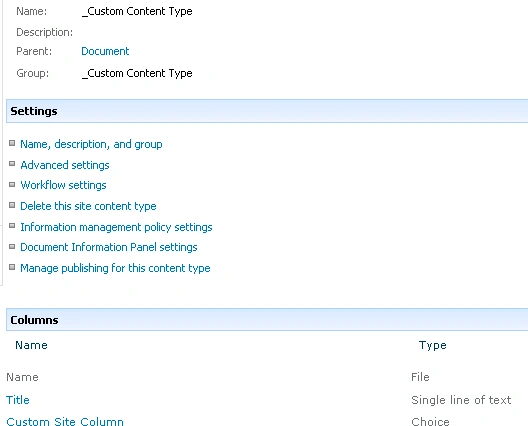
The existing content type "Custom Site column" is added to the content type
"_Custom Content Type".
Adding a existing site column to the content type using C#
using
System;
using
System.Collections.Generic;
using
System.Linq;
using
System.Text;
using
Microsoft.SharePoint;
namespace
Testing
{
class Program
{
static void
Main(string[] args)
{
using (SPSite
site = new SPSite("http://serverName:4001/"))
{
using (SPWeb
web = site.RootWeb)
{
SPContentType ct =
web.ContentTypes["_Custom Content Type"];
SPField field =
web.Fields["Custom Site Column"];
SPFieldLink fieldLink =
new SPFieldLink(field);
ct.FieldLinks.Add(fieldLink);
ct.Update();
}
}
}
}
}
$site = Get-SPSite -Identity "http://serverName:4001/"
$web = $site.RootWeb
$field=$web.Fields["Custom Site Column"]
$field.Type= "Choice"
$field.Update($true)
$web.Dispose()
$site.Dispose()
The property of the existing site column is changed from "Text" to "Choice".

Join the conversation! Your thoughts help the community grow.