In this article we will be seeing how to create a custom button in the SharePoint 2010 Ribbon user interface.
Steps Involved:
I. Open Visual Studio 2010.
ii. Go to File => New =>Project.
iii. Select Empty SharePoint project template from the installed template SharePoint => 2010.
iv. Enter the Name and click OK.
v. Check the option "Deploy as a Sandbox solution".
vi. Click Ok.
vii. Right click on the solution and select "Add a new item".
viii. Select Empty Element template, enter the Name and click Ok.
ix. In the Elements.xml replace the code with the following.
<?xml version="1.0" encoding="utf-8"?>
<Elements xmlns="http://schemas.microsoft.com/sharepoint/">
<CustomAction
Id="Demo_CustomButton"
RegistrationType="List"
RegistrationId="101"
Location="CommandUI.Ribbon">
<CommandUIExtension>
<CommandUIDefinitions>
<CommandUIDefinition
Location="Ribbon.Documents.New.Controls._children">
<Button
Id="Ribbon.Documents.New.Controls.Demo_CustomButton"
Alt="Demo_CustomButton"
Sequence="10"
Image32by32="/_layouts/images/PPEOPLE.GIF"
Command="Demo_CustomButton"
LabelText="My Custom Button"
TemplateAlias="o2"/>
</CommandUIDefinition>
</CommandUIDefinitions>
<CommandUIHandlers>
<CommandUIHandler
Command="Demo_CustomButton"
CommandAction="javascript:alert('My custom button!');" />
</CommandUIHandlers>
</CommandUIExtension>
</CustomAction>
</Elements>
x. Go to the SharePoint site where you have deployed your solution.
xi. Go to Shared Documents =>Library Tools => Documents.
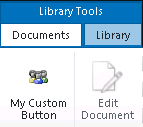
xii. You will see My Custom Button in the Ribbon User Interface.
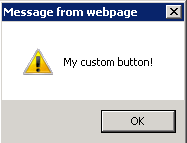
xiii. Click on the button and you will see an alert message.