

Bitmap Effect
As defined in MSDN; bitmap effects enable designers and developers to apply visual effects to rendered WPF content.
Bitmap effects are simple pixel processing operations. A bitmap effect takes a BitmapSource as an input and produces a new BitmapSource after applying the effect.
The following are the available Bitmap Effects in WPF:
-
BlurBitmapEffect
-
OuterGlowBitmapEffect
-
DropShadowBitmapEffect
-
BevelBitmapEffect
-
EmbossBitmapEffect
Each bitmap effect has properties that can control the filtering properties, such as Radius of BlurBitmapEffect.
We will see the above BitmapEffects in our sample application, let's create one.
Creating WPF Application
Fire up Visual Studio 2008 and create a WPF Application, name it as WPFBitmapEffects.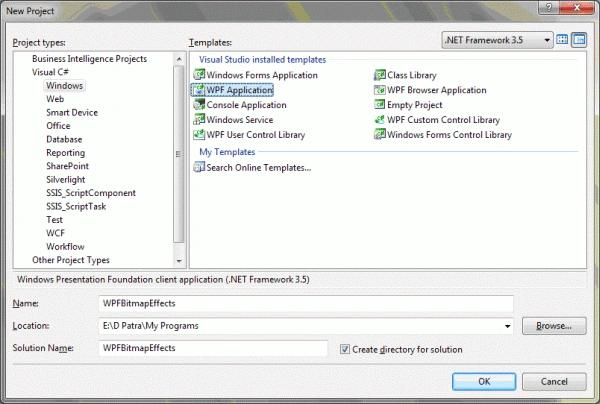
We will try the BitmapEffects one after another.
Blur Bitmap Effect
This Bitmap Effect simulates look at an object through an out-of-focus lens.
Let's have a TabControl which will have 5 different Tabs for each Bitmap effect.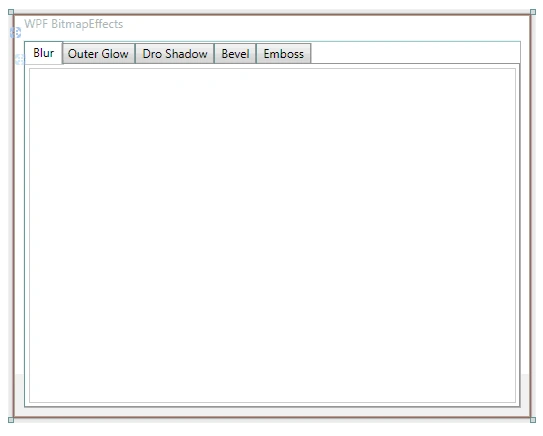
Let's add few controls that will make us see the effect happening.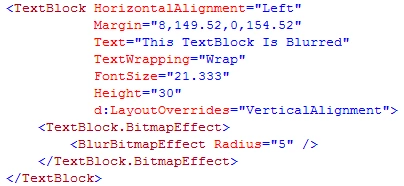
As you see above we have a TextBlock and we have implemented the Blur Bitmap Effect, as we discussed above, we have a property as Radius, based on that the blur depth would be defined.
Remember the BitmapEffects are only visible in runtime of the application. Even if you apply the effects it would not be visible in design mode.
Now let's try out on an Image and a Button.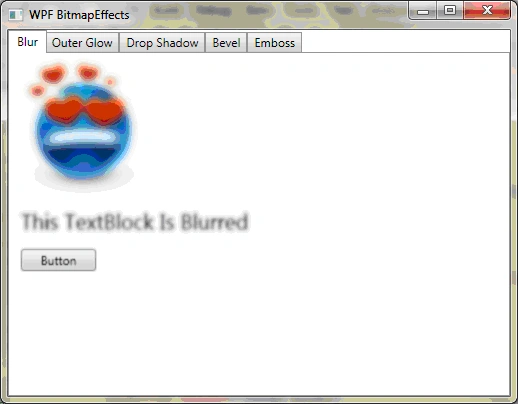
As you see in above image, the Radius of image is 10 and for Button is 2.
Outer Glow Bitmap Effect
This bitmap effect creates a halo of color around the perimeter of an object. Let's see how it is effective.
Again, let's have few other controls that would be great right!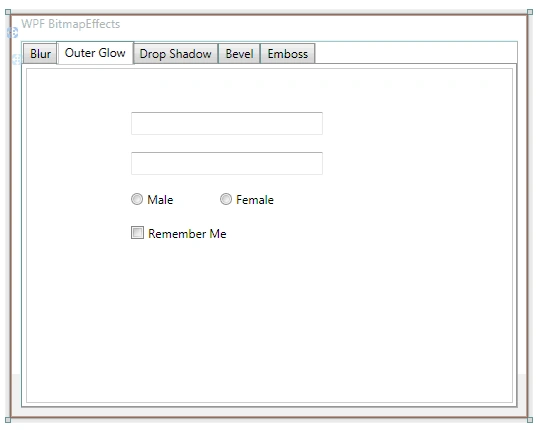
The above controls would better suit for the Outer glow effect. Let's add the effect.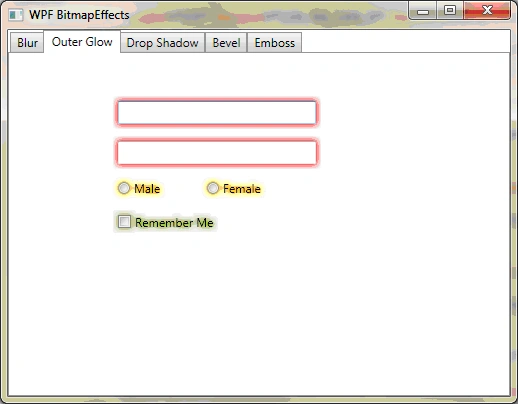
As similar to Blur Effect it can be added the same way in xaml.
As you see we have two different properties such as GlowColor and GlowSize that would determine the effect.
We will see the other effects in next part of this article series.
Hope this article helps.
Akshay PatilPosted Jan 11, 2018, 11:58 PM
I cant make it work in .Net Framework 4.0 can you please help?