

Introduction
In this article we will try to incorporate the drawing in Silverlight 3.
Creating the Silverlight Project
We will create a simple Silverlight Project and name it as SilverlightPaintApplication. 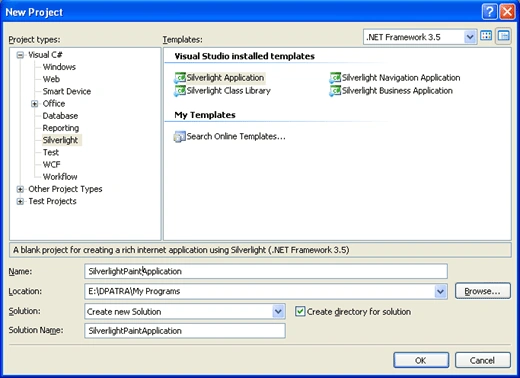
Figure 1.1 Creating Silverlight Project
Designing our Sample Application
I have used Blend 3 for designing the application. We will do some simple things like when user clicks one color; the user can draw in that particular color. We can change the Drawing Pen based on the user selection. And the user can change the Brush Size and Opacity. Last but not the least the drawings can be cleared at any time. Now follow the image below to know more about the application design.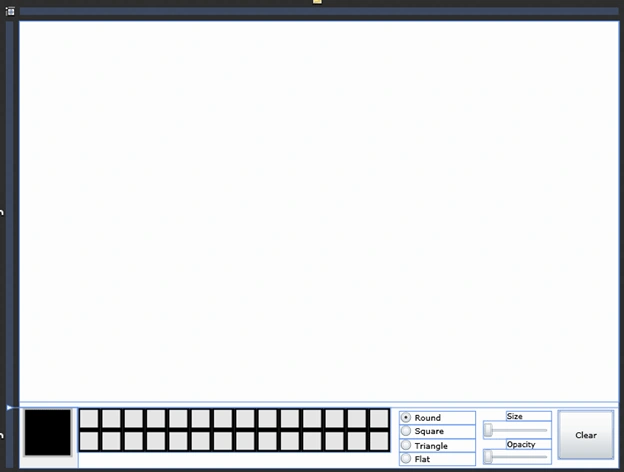
Figure 1.2 Designing the Application in Blend 3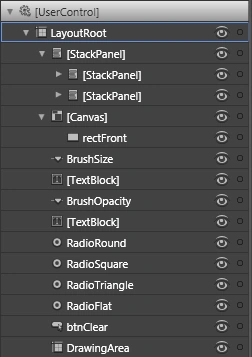
Figure 1.3 Control Hierarchies
Follow the XAML Code below to understand and correlate in a better way.
<UserControl
xmlns="http://schemas.microsoft.com/winfx/2006/xaml/presentation"
xmlns:x="http://schemas.microsoft.com/winfx/2006/xaml"
xmlns:d="http://schemas.microsoft.com/expression/blend/2008" xmlns:mc="http://schemas.openxmlformats.org/markup-compatibility/2006" x:Class="SilverlightPaintApplication.MainPage"
Width="805" Height="600" mc:Ignorable="d" BorderThickness="0,0,0,0" BorderBrush="{x:Null}">
<Grid x:Name="LayoutRoot" Background="#FFFFFFFF" Width="Auto" >
<Grid.ColumnDefinitions>
<ColumnDefinition Width="800"/>
</Grid.ColumnDefinitions>
<Grid.RowDefinitions>
<RowDefinition Height="0.865*"/>
<RowDefinition Height="0.135*"/>
</Grid.RowDefinitions>
<StackPanel Grid.Row="1" Orientation="Vertical" HorizontalAlignment="Left" Background="#FFE7E7E7" Width="420" Margin="78,0,0,21">
<StackPanel Orientation="Horizontal">
<Rectangle x:Name="rect0" Height="30" Width="30" Stroke="#FF000000" StrokeThickness="3" MouseLeftButtonDown="rect0_MouseLeftButtonDown"/>
<Rectangle x:Name="rect1" Height="30" Width="30" Stroke="#FF000000" StrokeThickness="3" MouseLeftButtonDown="rect1_MouseLeftButtonDown"/>
<Rectangle x:Name="rect2" Height="30" Width="30" Stroke="#FF000000" StrokeThickness="3" MouseLeftButtonDown="rect2_MouseLeftButtonDown"/>
<Rectangle x:Name="rect3" Height="30" Width="30" Stroke="#FF000000" StrokeThickness="3" MouseLeftButtonDown="rect3_MouseLeftButtonDown"/>
<Rectangle x:Name="rect4" Height="30" Width="30" Stroke="#FF000000" StrokeThickness="3" MouseLeftButtonDown="rect4_MouseLeftButtonDown"/>
<Rectangle x:Name="rect5" Height="30" Width="30" Stroke="#FF000000" StrokeThickness="3" MouseLeftButtonDown="rect5_MouseLeftButtonDown"/>
<Rectangle x:Name="rect6" Height="30" Width="30" Stroke="#FF000000" StrokeThickness="3" MouseLeftButtonDown="rect6_MouseLeftButtonDown"/>
<Rectangle x:Name="rect7" Height="30" Width="30" Stroke="#FF000000" StrokeThickness="3" MouseLeftButtonDown="rect7_MouseLeftButtonDown"/>
<Rectangle x:Name="rect8" Height="30" Width="30" Stroke="#FF000000" StrokeThickness="3" MouseLeftButtonDown="rect8_MouseLeftButtonDown"/>
<Rectangle x:Name="rect9" Height="30" Width="30" Stroke="#FF000000" StrokeThickness="3" MouseLeftButtonDown="rect9_MouseLeftButtonDown"/>
<Rectangle x:Name="rect10" Height="30" Width="30" Stroke="#FF000000" StrokeThickness="3" MouseLeftButtonDown="rect10_MouseLeftButtonDown"/>
<Rectangle x:Name="rect11" Height="30" Width="30" Stroke="#FF000000" StrokeThickness="3" MouseLeftButtonDown="rect11_MouseLeftButtonDown"/>
<Rectangle x:Name="rect12" Height="30" Width="30" Stroke="#FF000000" StrokeThickness="3" MouseLeftButtonDown="rect12_MouseLeftButtonDown"/>
<Rectangle x:Name="rect13" Height="30" Width="30" Stroke="#FF000000" StrokeThickness="3" MouseLeftButtonDown="rect13_MouseLeftButtonDown"/>
</StackPanel>
<StackPanel Orientation="Horizontal" d:LayoutOverrides="HorizontalMargin">
<Rectangle x:Name="rect14" Height="30" Width="30" Stroke="#FF000000" StrokeThickness="3" MouseLeftButtonDown="rect14_MouseLeftButtonDown"/>
<Rectangle x:Name="rect15" Height="30" Width="30" Stroke="#FF000000" StrokeThickness="3" MouseLeftButtonDown="rect15_MouseLeftButtonDown"/>
<Rectangle x:Name="rect16" Height="30" Width="30" Stroke="#FF000000" StrokeThickness="3" MouseLeftButtonDown="rect16_MouseLeftButtonDown"/>
<Rectangle x:Name="rect17" Height="30" Width="30" Stroke="#FF000000" StrokeThickness="3" MouseLeftButtonDown="rect17_MouseLeftButtonDown"/>
<Rectangle x:Name="rect18" Height="30" Width="30" Stroke="#FF000000" StrokeThickness="3" MouseLeftButtonDown="rect18_MouseLeftButtonDown"/>
<Rectangle x:Name="rect19" Height="30" Width="30" Stroke="#FF000000" StrokeThickness="3" MouseLeftButtonDown="rect19_MouseLeftButtonDown"/>
<Rectangle x:Name="rect20" Height="30" Width="30" Stroke="#FF000000" StrokeThickness="3" MouseLeftButtonDown="rect20_MouseLeftButtonDown"/>
<Rectangle x:Name="rect21" Height="30" Width="30" Stroke="#FF000000" StrokeThickness="3" MouseLeftButtonDown="rect21_MouseLeftButtonDown"/>
<Rectangle x:Name="rect22" Height="30" Width="30" Stroke="#FF000000" StrokeThickness="3" MouseLeftButtonDown="rect22_MouseLeftButtonDown"/>
<Rectangle x:Name="rect23" Height="30" Width="30" Stroke="#FF000000" StrokeThickness="3" MouseLeftButtonDown="rect23_MouseLeftButtonDown"/>
<Rectangle x:Name="rect24" Height="30" Width="30" Stroke="#FF000000" StrokeThickness="3" MouseLeftButtonDown="rect24_MouseLeftButtonDown"/
<Rectangle x:Name="rect25" Height="30" Width="30" Stroke="#FF000000" StrokeThickness="3" MouseLeftButtonDown="rect25_MouseLeftButtonDown"/>
<Rectangle x:Name="rect26" Height="30" Width="30" Stroke="#FF000000" StrokeThickness="3" MouseLeftButtonDown="rect26_MouseLeftButtonDown"/>
<Rectangle x:Name="rect27" Height="30" Width="30" Stroke="#FF000000" StrokeThickness="3" MouseLeftButtonDown="rect27_MouseLeftButtonDown"/>
</StackPanel>
</StackPanel>
<Canvas Grid.Row="1" Background="#FFF2F2F2" Width="78" HorizontalAlignment="Left">
<Rectangle Height="67" x:Name="rectFront" Width="70" Fill="#FF000000" Stroke="#FFB9B9B9" StrokeThickness="3" StrokeLineJoin="Miter"StrokeStartLineCap="Flat" Stretch="Uniform" Canvas.Left="4"/>
</Canvas>
<Slider x:Name="BrushSize" HorizontalAlignment="Right" Margin="0,18,86,39" Width="90" Grid.Row="1"/>
<TextBlock Height="13" HorizontalAlignment="Right" VerticalAlignment="Top" Width="59" FontSize="10" Text="Size" TextWrapping="Wrap" Grid.Row="1" Margin="0,5,86,0"/>
<Slider x:Name="BrushOpacity" HorizontalAlignment="Right" Margin="0,0,86,5" Width="90" Grid.Row="1" VerticalAlignment="Bottom" Height="20"/>
<TextBlock HorizontalAlignment="Right" Margin="0,0,86,25" Width="59" FontSize="10" Text="Opacity" TextWrapping="Wrap" Grid.Row="1" Height="14" VerticalAlignment="Bottom"/>
<RadioButton x:Name="RadioRound" Height="18" HorizontalAlignment="Right" Margin="0,5,188,0" VerticalAlignment="Top" Width="101" Grid.Row="1" Content="Round" IsChecked="True"/>
<RadioButton x:Name="RadioSquare" HorizontalAlignment="Right" Margin="0,23,188,39" Width="101" Grid.Row="1" Content="Square" />
<RadioButton x:Name="RadioTriangle" HorizontalAlignment="Right" Margin="0,0,188,21" Width="101" Grid.Row="1" Content="Triangle" VerticalAlignment="Bottom" Height="18" />
<RadioButton x:Name="RadioFlat" HorizontalAlignment="Right" Margin="0,0,188,3" Width="101" Grid.Row="1" Content="Flat" Height="18" VerticalAlignment="Bottom" />
<Button x:Name="btnClear" HorizontalAlignment="Right" Margin="0,4,2,12" Width="74" Grid.Row="1" Content="Clear" Click="btnClear_Click" ToolTipService.ToolTip="Click to Clear the Drawing"/>
<Grid x:Name="DrawingArea" Margin="0,0,-5,8" MouseMove="DrawingArea_MouseMove" MouseLeftButtonDown="DrawingArea_MouseLeftButtonDown" MouseLeftButtonUp="DrawingArea_MouseLeftButtonUp" Background="#FFFFFFFF"/>
</Grid>
</UserControl>
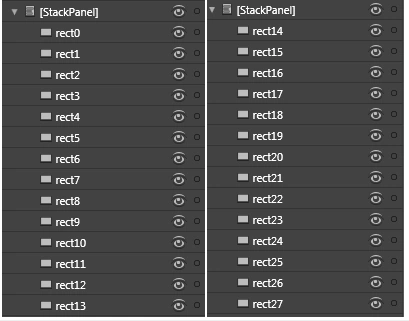
Figure 1.4 Stack Panels Containing the Color Rectangles
Loading Colors
Our idea is not to fill the rectangles at design time. So I am filling the rectangles at runtime. As you can see from the following code, the rectangles are filled with their respective color.
rect0.Fill = new SolidColorBrush(Color.FromArgb(100,0,0,0));
rect1.Fill = new SolidColorBrush(Color.FromArgb(100,128,128,128));
rect2.Fill = new SolidColorBrush(Color.FromArgb(100,128,0,0));
rect3.Fill = new SolidColorBrush(Color.FromArgb(100,128,128,0));
rect4.Fill = new SolidColorBrush(Color.FromArgb(100,0,128,0));
rect5.Fill = new SolidColorBrush(Color.FromArgb(100,0,128,128));
rect6.Fill = new SolidColorBrush(Color.FromArgb(100,0,0,128));
rect7.Fill = new SolidColorBrush(Color.FromArgb(100,128,0,128));
rect8.Fill = new SolidColorBrush(Color.FromArgb(100,128,128,64));
rect9.Fill = new SolidColorBrush(Color.FromArgb(100,0,64,64));
rect10.Fill = new SolidColorBrush(Color.FromArgb(100,0,128,255));
rect11.Fill = new SolidColorBrush(Color.FromArgb(100,0,64,128));
rect12.Fill = new SolidColorBrush(Color.FromArgb(100,128,0,255));
rect13.Fill = new SolidColorBrush(Color.FromArgb(100,128,64,0));
rect14.Fill = new SolidColorBrush(Color.FromArgb(100,255,255,255));
rect15.Fill = new SolidColorBrush(Color.FromArgb(100,192,192,192));
rect16.Fill = new SolidColorBrush(Color.FromArgb(100,255,0,0));
rect17.Fill = new SolidColorBrush(Color.FromArgb(100,255,255,0));
rect18.Fill = new SolidColorBrush(Color.FromArgb(100,0,255,0));
rect19.Fill = new SolidColorBrush(Color.FromArgb(100,0,255,255));
rect20.Fill = new SolidColorBrush(Color.FromArgb(100,0,0,255));
rect21.Fill = new SolidColorBrush(Color.FromArgb(100,255,0,255));
rect22.Fill = new SolidColorBrush(Color.FromArgb(100,255,255,128));
rect23.Fill = new SolidColorBrush(Color.FromArgb(100,0,255,128));
rect24.Fill = new SolidColorBrush(Color.FromArgb(100,128,255,255));
rect25.Fill = new SolidColorBrush(Color.FromArgb(100,128,128,255));
rect26.Fill = new SolidColorBrush(Color.FromArgb(100,255,0,128));
rect27.Fill = new SolidColorBrush(Color.FromArgb(100,255,128,64));
You must be wondering how did I get all the combinations right. Actually I did assign the rectangle's Fill property and then typed manually in my code.
I think up to this you must be pretty tired of designing. So I will explain the rest in Part II.
Gowtham RajamanickamPosted May 20, 2015, 12:58 AM
helpful...
Amarjeet KumarPosted Mar 5, 2014, 6:51 AM
please tell me about this problem
Amarjeet KumarPosted Mar 5, 2014, 6:51 AM
rror 3 Invalid XmlnsDeclaration occurs in assembly 'System.Windows.Ria, Version=2.0.5.0, Culture=neutral, PublicKeyToken=31bf3856ad364e35'. XmlnsDeclaration references a namespace 'System.Windows.Ria' that is not in the assembly.
Amarjeet KumarPosted Mar 5, 2014, 6:46 AM
when run i have got
Amarjeet KumarPosted Mar 5, 2014, 6:44 AM
Great Post but some error
Amit KohaneditedPosted Apr 12, 2012, 9:05 PMEdited Apr 12, 2012, 9:06 PM
I'm new to silverlight and after running the application (have silverlight developer ver 5.0) I got this message indicating that it is designed for beta and cannot run it. Would you please give me some hint how to fix and run it? Thanks.