SIGN UP MEMBER LOGIN:    
ARTICLE

Create Custom Theme Using Microsoft Office for SharePoint 2010

Posted by Ravishankar Articles | SharePoint April 19, 2011
In this article I am going to explain how to use Microsoft Office to create a theme for SharePoint 2010. We can create our own custom theme from Microsoft Word, Excel, Outlook or PowerPoint.
Reader Level:


In this article I am going to explain how to use Microsoft Office to create a theme for SharePoint 2010. We can create our own custom theme from Microsoft Word, Excel, Outlook or PowerPoint.

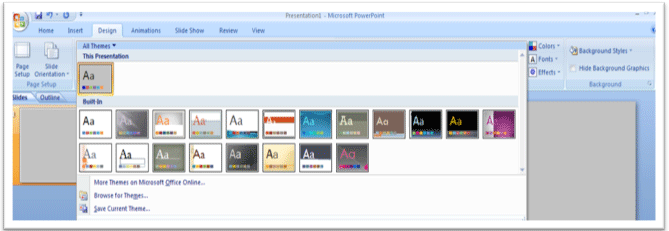
Following are the steps to create a theme for SharePoint 2010 using PowerPoint:

Step 1: Open Microsoft PowerPoint; click on the Design tab.
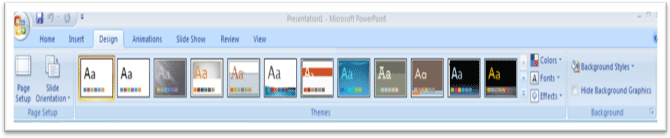
OfficeShare1.gif

In Excel, click on the Page Layout tab.

OfficeShare2.gif

In Word, click on the Page Layout tab.

OfficeShare3.gif

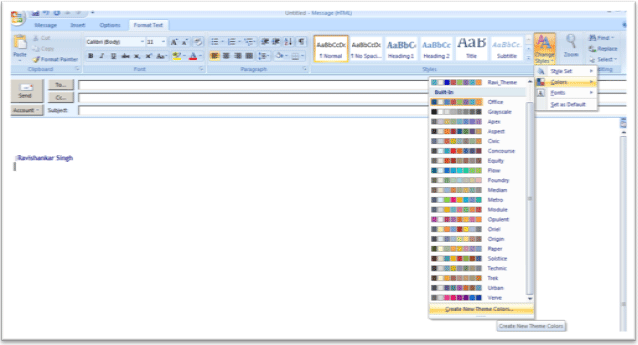
In Outlook, use Format Text.

OfficeShare4.gif

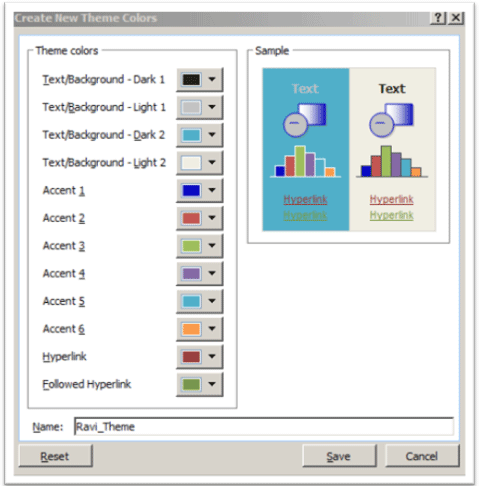
Step 2: In the themes option, create a custom theme by setting colors, fonts and effects. Click on Colors to create a new theme.
OfficeShare5.gif

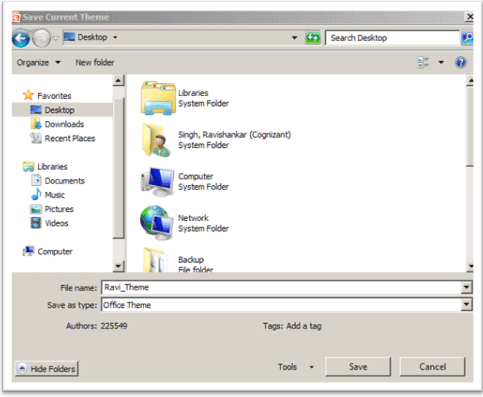
Step 3: Click on Save to save the theme.

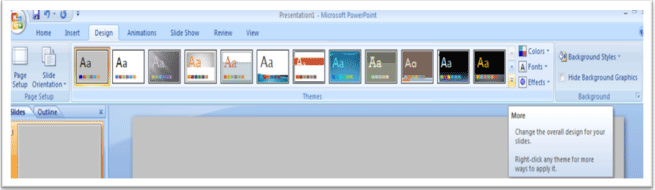
Step 4: Click on more to save theme.
OfficeShare6.gif

OfficeShare7.gif

OfficeShare8.gif

Now we are done with the theme creation. The next step we need to do is to upload the theme and apply the theme to the SharePoint site.

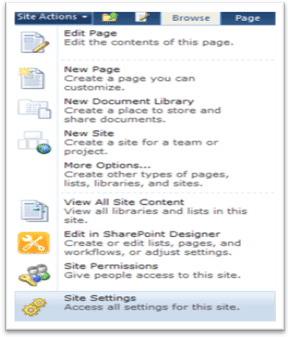
Step 5: Open the SharePoint site, click on Site Action->Site Settings.
OfficeShare9.gif

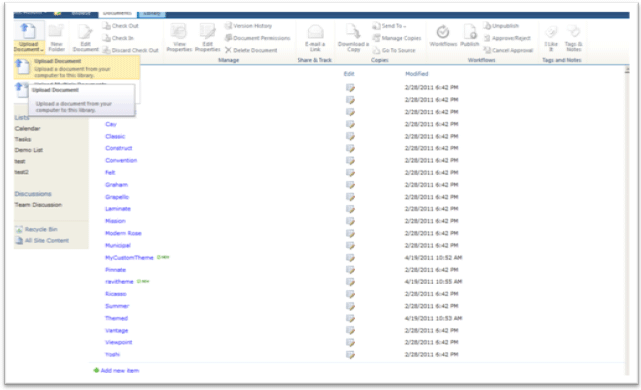
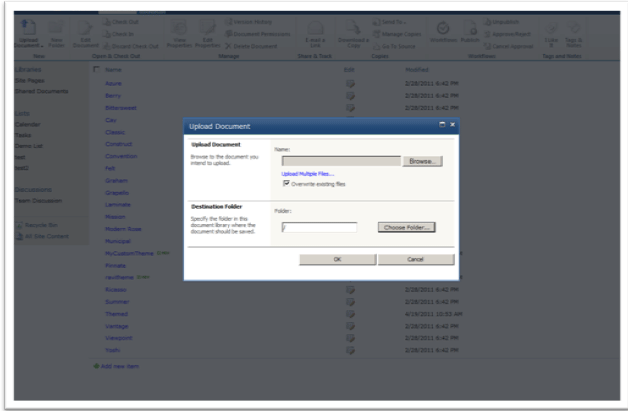
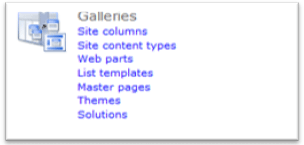
Step 6: Under Galleries, click on Themes to upload a custom theme.
OfficeShare10.gif

OfficeShare11.gif

OfficeShare12.gif

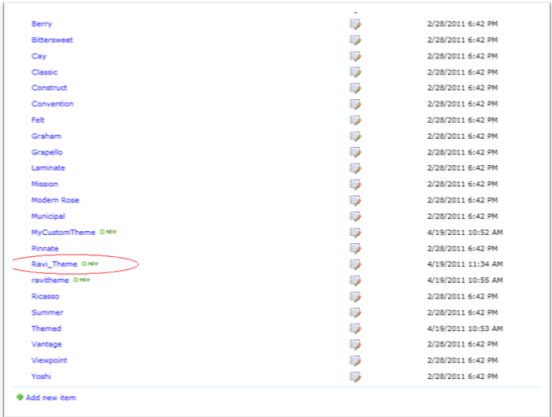
OfficeShare13.gif

Now we have successfully uploaded a custom theme into the SharePoint site. The next task is to apply the theme.

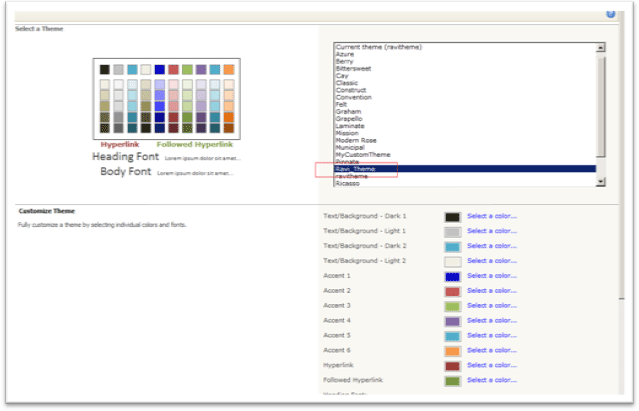
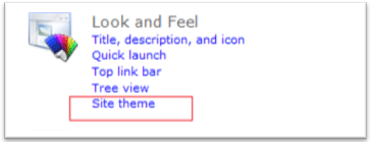
Step 7: Go To Site Action->Site Setting, under the Look and Feel section, click on Theme.
OfficeShare14.gif

OfficeShare15.gif

Click on Apply to apply the custom theme for the current site.

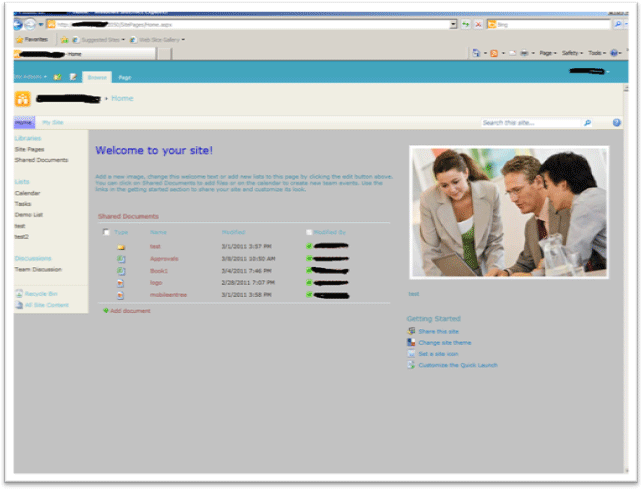
Step 8: The SharePoint site is ready with the custom theme.
OfficeShare16.gif

Hope you enjoy this article and it saves your time and effort too.

Login to add your contents and source code to this article
share this article :
post comment
 

Thank you so Karthikeyan and Hung!! Your comments are giving me confidence!!

Posted by Ravishankar Apr 20, 2011

your article is usefull, thanks.

Posted by Hung Hung Apr 19, 2011

Good article ravi...

Posted by Karthikeyan Anbarasan Apr 19, 2011
Team Foundation Server Hosting
Become a Sponsor
PREMIUM SPONSORS
  • Finally – a virtual platform that delivers next-generation Windows Server 2008 Hyper-V virtualization technology from a managed hosting partner you can truly depend on. Visit www.maximumasp.com/max for a FREE 30 day trial. Hurry offer ends soon. Climb aboard the MaxV platform and take advantage of High Availability, Intelligent Monitoring, Recurrent Backups, and Scalability – with no hassle or hidden fees. As a managed hosting partner focused solely on Microsoft technologies since 2000, MaximumASP is uniquely qualified to provide the superior support that our business is built on. Unparalleled expertise with Microsoft technologies lead to working directly with Microsoft as first to offer IIS 7 and SQL 2008 betas in a hosted environment; partnering in the Go Live Program for Hyper-V; and product co-launches built on WS 2008 with Hyper-V technology.
    The leading .NET charting control now features PDF, Flash and Silverlight export, visualization of large datasets and more. Deliver true charting functionality to your BI, Scorecard, Presentation or Scientific apps. Download evaluation now.
6 Months Free & No Setup Fees ASP.NET Hosting!
Become a Sponsor