

In SharePoint 2010 all mobile devices are redirected by default to the mobile
SharePoint rendering engine. The mobile rendering engine of SharePoint provides
mobile users access to the sites with a completely stripped interface. Its main
function is to list all libraries and to provide basic access to them.
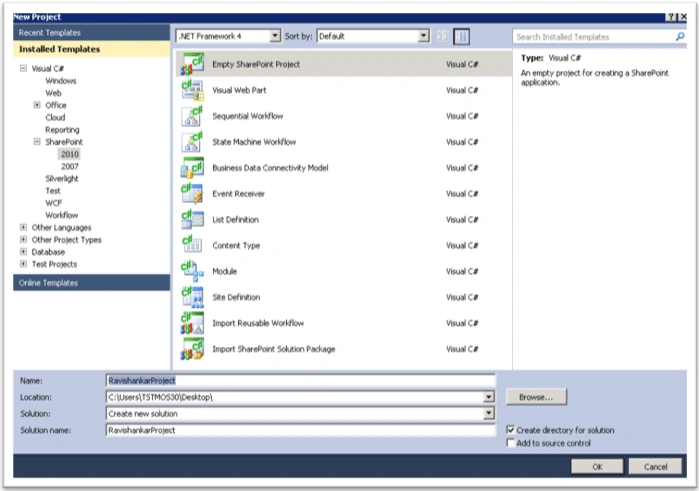
1. Create a Visual Studio 2010 Visual Web Part Project
Add a new item as "Visual Web Part".
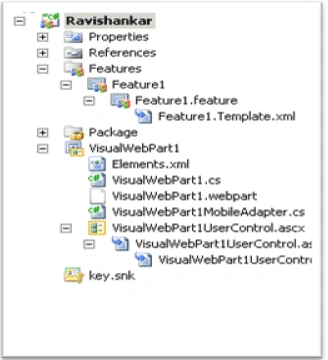
Your solution will look like:
2. Add your control in VisualWebPart1UserControl.ascx.cs
Open the class file "VisualWebPart1UserControl.ascx.cs" and add the following
code to the load event:
namespace
MobileWebPartDemo.VisualWebPart1
{
public partial
class
VisualWebPart1UserControl : UserControl
{
TextBox txt;
Label latest;
Button btn;
protected void
Page_Load(object sender,
EventArgs e)
{
StringBuilder strDiv =
new StringBuilder();
Literal heading =
new Literal();
Literal litHello =
new Literal();
txt = new
TextBox();
btn = new
Button();
latest = new
Label();
btn.Text = "Enter";
btn.Click += new
EventHandler(btn_Click);
heading.Text = "Hello,You are in Normal
browser now<BR/>";
litHello.Text = "Enter value: ";
Controls.Add(heading);
Controls.Add(litHello);
Controls.Add(txt);
Controls.Add(btn);
Controls.Add(latest);
}
protected void
btn_Click(object sender,
EventArgs e)
{
latest.Text = "<BR/><strong>Your entered
value is: " + txt.Text + "</strong>";
}
}
}
3. Create the mobile (adapter) version of
our web part
To add web part to the mobile version of the site we must provide SharePoint
with a mobile optimized version of our web part. We do this by adding a new
class. Microsoft calls this class an adapter.
Add a new class and name it "VisualWebPart1MobileAdapter.cs". Note that we added
the name of our web part in front and added the text "MobileAdapter" at the end.
Microsoft recommends using the namespace "SharePoint.
WebPartPages.MobileAdapters" so modify the namespace to use
"Ravishankar.SharePoint.WebPartPages .MobileAdapters".
Our class should inherit the "WebPartMobileAdapter" class.
The adapter does not use the "OnLoad" event. Instead it uses the
"CreateControlsForSummaryView" to render. Override this class and add the
following code:
namespace
Ravishankar.SharePoint.WebPartPages.MobileAdapters
{
public class
VisualWebPart1MobileAdapter :
WebPartMobileAdapter
{
TextBox txt;
Label latest;
Button btn;
protected
override void
CreateControlsForSummaryView()
{
//base.CreateControlsForSummaryView();
StringBuilder strDiv =
new StringBuilder();
Literal heading =
new Literal();
Literal litHello =
new Literal();
txt = new
TextBox();
btn = new
Button();
latest = new
Label();
btn.Text = "Enter";
btn.Click += new
EventHandler(btn_Click);
heading.Text = "Hello,You are in Mobile
now<BR/>";
litHello.Text = "Enter value: ";
Controls.Add(heading);
Controls.Add(litHello);
Controls.Add(txt);
Controls.Add(btn);
Controls.Add(latest);
}
protected void
btn_Click(object sender,
EventArgs e)
{
latest.Text = "<BR/><strong>Your entered
value is: " + txt.Text + "</strong>";
}
}
}
4. Add the adapter to the safe controls
Open the web.config file of SharePoint IIS site (example: C:\inetpub\wwwroot\wss\VirtualDirectories\80)
and add the line below into the safe controls section. Replace the
PublicKeyToken with your own key!
<SafeControl Assembly="Ravishankar, Version=1.0.0.0, Culture=neutral,
PublicKeyToken=d33553c133c4f434" Namespace="Ravishankar.VisualWebPart1" TypeName="*"
Safe="True" SafeAgainstScript="False" />
5. Configure the compat.browser file to use our mobile web part
Inside SharePoint IIS directory you will see a directory "App_Browsers" and
inside that directory is a file called "compat.browser". Load this file in the
editor.
At the top of this file you will find a "<controlAdapters>" section. Add the
line below to this section:
<adapter controlType="Ravishankar.VisualWebPart1.VisualWebPart1, Ravishankar,
Version=1.0.0.0, Culture=neutral, PublicKeyToken=d33553c133c4f434" adapterType="
Ravishankar.SharePoint.WebPartPages.MobileAdapters.VisualWebPart1MobileAdapter,
Ravishankar, Version=1.0.0.0, Culture=neutral, PublicKeyToken=d33553c133c4f434"
/>
Again, replace the PublicKeyToken with your own key! Save the configuration and
exit the file.
6. Build the project, Add web part to the page
We finished the required steps to provide SharePoint with a web part that is
optimized for the mobile page. Build the project and deploy. Add the web part in
your page
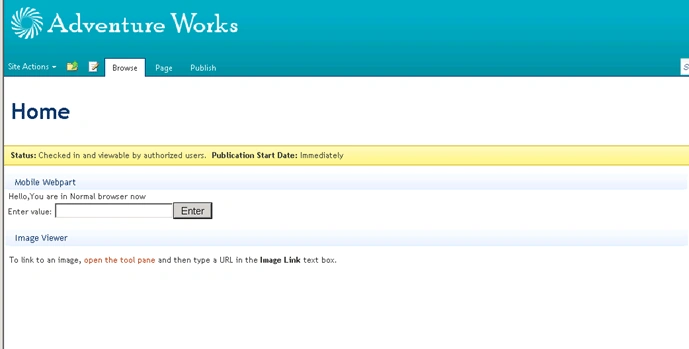
Web Page Preview:
Mobile View:
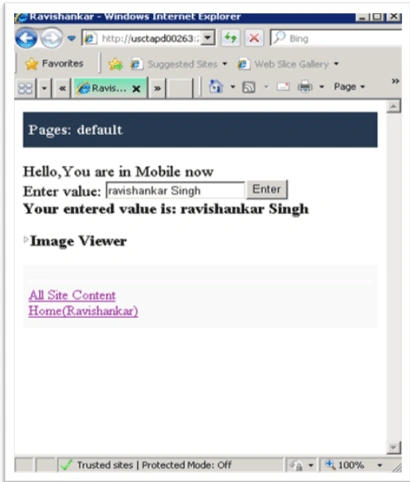
To view the web site in mobile view, type a "?mobile=1" after the normal site
url. For example: "http://localhost/pages/default.aspx?mobile=1".
And that's it. Enjoy!
AddyPosted Jan 29, 2016, 6:18 AM
Type 'Ravishankar.VisualWebPart1.VisualWebPart1, Ravishankar, Version=1.0.0.0, Culture=neutral, PublicKeyToken=b48675d2f94c4899' does not inherit from 'System.Web.UI.Control'.
AddyPosted Jan 29, 2016, 5:57 AM
Hi, we have tried it out your blog but when we deploy our solution it's throw error
Ravishankar SinghPosted Aug 29, 2013, 1:58 PM
can you please share me the error?
appalaraju marpuPosted Aug 29, 2013, 12:35 PM
Hi, i have followed your article and created a same web part for mobile view. i am able to see the web part in mobile view with collapsed state by default but when i try to expand it,it is throwing java script error.what is the problem and how to resolve it? or am i doing anything working