

In this article, we will learn how to make an image editing tool with the help of C#. In this image editing tool, we include resizing images, cropping images, brightness and contrast in images, rotation, and other various common image editing functionality.
First, we will learn how to implement these functionalities for images one by one. So first we need to learn how to show an image in a Windows form. For that we can take a picturebox control; a picturebox control can load an image file format like bmp, jpeg, gif, or tiff file also.
Start a new Windows application and add a split container, picturebox, menu strip, and tool strip on the Windows form.
Arrange controls on the form like this.
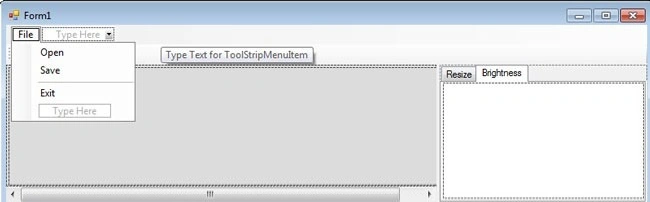
Now we need to be able to open images on the form so we use the open file dialog class for selecting image files.
Code
Private Img As Image
Declare Img as an object of the Image class. The Image class is a member of the System. Drawing namespace; it is an abstract base class that provides functionality for raster images (bitmaps) and vector images (Metafile) descended classes.
Use openfiledialog on OpenToolStripMenuItem_Click event.
private void OpenToolStripMenuItem_Click(object sender, EventArgs e)
{
    OpenFileDialog Dlg = new OpenFileDialog();
    Dlg.Filter = "";
    Dlg.Title = "Select image";

    if (Dlg.ShowDialog() == System.Windows.Forms.DialogResult.OK)
    {
        Img = Image.FromFile(Dlg.FileName);
        // Image.FromFile(String) method creates an image from the specified file
        // Dlg.FileName contains the name of the file from which to create the image
        LoadImage();
    }
}

private void LoadImage()
{
    // We set the PictureBox size according to image dimensions
    int imgWidth = Img.Width;
    int imgHeight = Img.Height;

    PictureBox1.Width = imgWidth;
    PictureBox1.Height = imgHeight;
    PictureBox1.Image = Img;

    PictureBoxLocation();
    OriginalImageSize = new Size(imgWidth, imgHeight);
    SetResizeInfo();
}
Suppose that your picturebox or image size is smaller than the background panel; then the image will show in the corner of the panel on the upper side this is not a professional look for the tool so we set the picturebox or image location on the panel.
After doing this the image will always show in the center of the panel.
private void PictureBoxLocation()
{
    int _x = 0;
    int _y = 0;

    if (SplitContainer1.Panel1.Width > PictureBox1.Width)
    {
        _x = (SplitContainer1.Panel1.Width - PictureBox1.Width) / 2;
    }

    if (SplitContainer1.Panel1.Height > PictureBox1.Height)
    {
        _y = (SplitContainer1.Panel1.Height - PictureBox1.Height) / 2;
    }

    PictureBox1.Location = new Point(_x, _y);
}

private void SplitContainer1_Panel1_Resize(object sender, EventArgs e)
{
    PictureBoxLocation();
}
You can try this code for making an image editing tool. In this article you learned how to show an image on a form; the next article of this series will describe resizing images. Thanks.
vestanbul vestanbulPosted Jun 1, 2012, 6:49 AM
Nice...
Karthiga MPosted Mar 29, 2011, 1:54 AM
good job
Gobi GPosted Mar 22, 2011, 3:27 AM
Nice Tutorial
rajeshwar sharmaPosted Mar 21, 2011, 1:31 PM
excellent