

Charting in WPF
The WPF Toolkit released in June 2009 comes with a data visualization assembly called System.Windows.Controls.DataVisualization.Toolkit.dll that hosts the charting functionality in WPF. This article demonstrates how to draw charts using the WPF Toolkit.
Note: This article is written by using the WPF Toolkit June 2009 that you can
download from here:
WPF Toolkit - Release: WPF Toolkit June 2009. This toolkit may be a part of WPF in near future versions.
Adding WPF Toolkit Reference
Before you can use any charting related functionality in a WPF application, you must download the WPF Toolkit. After that, you need to add a reference to an
assembly.
To add a reference, right-click the References folder of your project in
Solution Explorer and select Add Reference. This action will open the Add
Reference dialog as you can in the following Figure 1. On this dialog, select
Browse option and browse the
System.Windows.Controls.DataVisualization.Toolkit.dll assembly from the folder where you installed the WPF Toolkit. This assembly resides in the Binaries folder.
Tip: If you do not want to download WPF Toolkit, you can download the attached
project and copy WPFToolkit.dll and
System.Windows.Controls.DataVisualization.Toolkit.dll assemblies from this project to the bin folder of your project and add a reference.
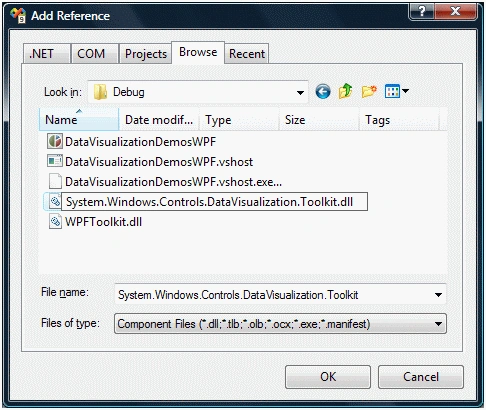
Figure 1
Once you add the reference, you will see the
System.Windows.Controls.DataVisualization.
Toolkit added to your References dialog as you see in Figure 2.
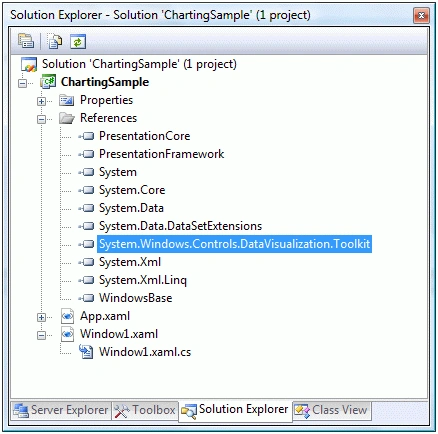
Figure 2
Now, the next step is to import the
System.Windows.Controls.DataVisualization.toolkit and the
System.Windows.Controls.DataVisualization.Charting namespaces to the page. Once
you type xmlns= in your page, you will see these namespaces in the Intellisense.
Select and add both of them to your page as you can see in Figure 3.
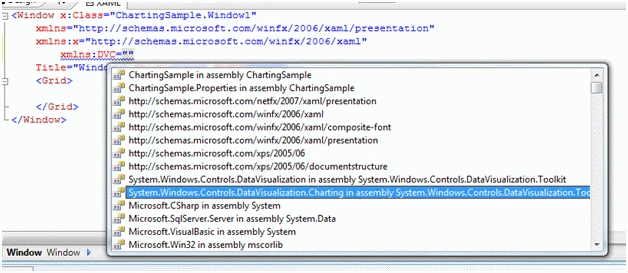
Figure 3
The final reference added to the page looks like following. As you can see here,
I added name of this reference to ToolkitRef.
- xmlns:DV="clr-namespace:System.Windows.Controls.DataVisualization;assembly=System.Windows.Controls.DataVisualization.Toolkit"
- xmlns:DVC="clr-namespace:System.Windows.Controls.DataVisualization.Charting;assembly=System.Windows.Controls.DataVisualization.Toolkit"
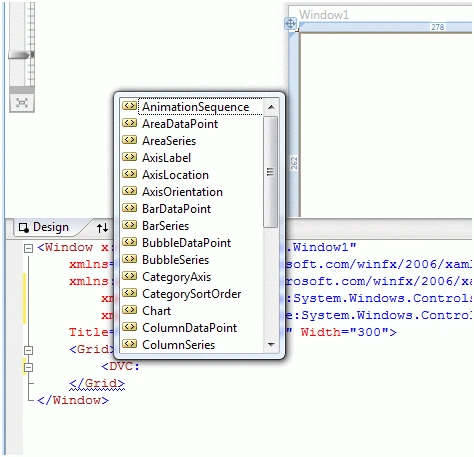
Figure 4
Creating a WPF Chart
The Chart element represents a WPF Chart control in XAML.
- <DVC:Chart></DVC:Chart>
- <DVC:Chart Name="MyChart"Width="400" Height="250"
- Background="YellowGreen">
- </DVC:Chart>
The output of Listing 1 looks like Figure 5.
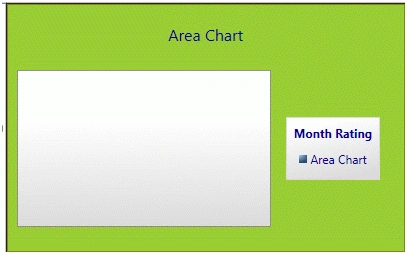
Figure 5
Chart Types in WPF
The Series attribute of the Chart element is used to create a chart type. If you
see in Figure 6, you will notice BarSeries, ColumnSeries, LineSeries, PieSeries,
and ScatterSeries attributes and based on the attribute, the chart will be
created.
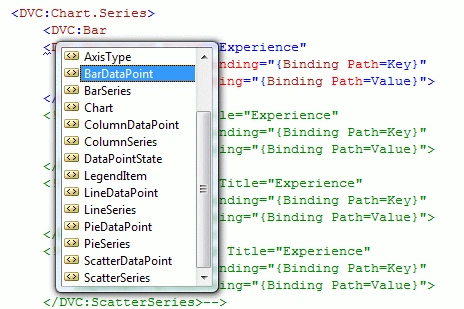
Figure 6
Bar Chart in WPF
The code snippet in Listing 2 creates a bar chart by setting Chart.Series to
BarSeries. As you see, the binding is occurred on Key and Value fields of a data
source.
- <DVC:ChartCanvas.TopDVC:ChartCanvas.Top="80" Canvas.Left="10" Name="mcChart"
- Width="400" Height="250"
- Background="LightSteelBlue">
- <DVC:Chart.Series>
- <DVC:BarSeriesTitleDVC:BarSeriesTitle="Experience"
- IndependentValueBinding="{Binding Path=Key}"
- DependentValueBinding="{Binding Path=Value}">
- </DVC:BarSeries>
- </DVC:Chart.Series>
- </DVC:Chart>
The code snippet in Listing 3 creates a collection in KeyValuePair form and sets
the ItemsSource property of the chart series. Same data can be used for other
chart types.
- private void LoadBarChartData()
- {
- ((BarSeries)mcChart.Series[0]).ItemsSource =
- new KeyValuePair<string,int>[]{
- newKeyValuePair<string,int>("Project Manager", 12),
- newKeyValuePair<string,int>("CEO", 25),
- newKeyValuePair<string,int>("Software Engg.", 5),
- newKeyValuePair<string,int>("Team Leader", 6),
- newKeyValuePair<string,int>("Project Leader", 10),
- newKeyValuePair<string,int>("Developer", 4) };
- }
The output looks like Figure 7.
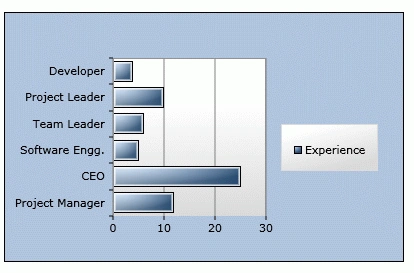
Figure 7
Column Chart in WPF
The code snippet in Listing 4 creates a column chart by setting Chart.Series to
ColumnSeries. As you may see, the binding is occurred on Key and Value fields of
a data source.
- <DVC:ChartCanvas.TopDVC:ChartCanvas.Top="80" Canvas.Left="10"Name="mcChart"
- Width="400" Height="250"
- Background="LightSteelBlue">
- <DVC:Chart.Series>
- <DVC:ColumnSeriesTitleDVC:ColumnSeriesTitle="Experience"
- IndependentValueBinding="{Binding Path=Key}"
- DependentValueBinding="{Binding Path=Value}">
- </DVC:ColumnSeries>
- </DVC:Chart.Series>
- </DVC:Chart>
The code snippet in Listing 5 creates a collection in KeyValuePair form and sets
the ItemsSource property of the chart series. Same data can be used for other
chart types.
- private void LoadColumnChartData()
- {
- ((ColumnSeries)mcChart.Series[0]).ItemsSource =
- new KeyValuePair<string,int>[]{
- new KeyValuePair<string,int>("Project Manager", 12),
- new KeyValuePair<string,int>("CEO", 25),
- new KeyValuePair<string,int>("Software Engg.", 5),
- new KeyValuePair<string,int>("Team Leader", 6),
- new KeyValuePair<string,int>("Project Leader", 10),
- new KeyValuePair<string,int>("Developer", 4) };
- }
The output looks like Figure 8.
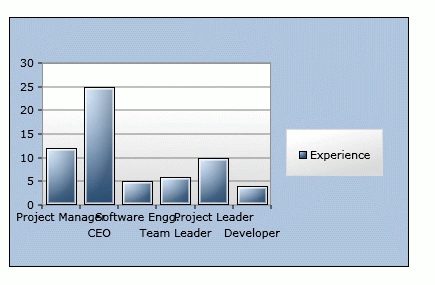
Figure 8
Pie Chart in WPF
The code snippet in Listing 6 creates a pie chart by setting Chart.Series to
BarSeries. As you may see, the binding is occurred on Key and Value fields of a
data source.
- <DVC:ChartCanvas.Top="80" Canvas.Left="10" Name="mcChart"
- Width="400" Height="250"
- Background="LightSteelBlue">
- <DVC:Chart.Series>
- <DVC:PieSeriesTitle="Experience"
- IndependentValueBinding="{Binding Path=Key}"
- DependentValueBinding="{Binding Path=Value}">
- </DVC:PieSeries>
- </DVC:Chart.Series>
- </DVC:Chart>
The code snippet in Listing 7 creates a collection in KeyValuePair form and sets
the ItemsSource property of the chart series. Same data can be used for other
chart types.
- private void LoadPieChartData()
- {
- ((PieSeries)mcChart.Series[0]).ItemsSource =
- new KeyValuePair<string,int>[]{
- newKeyValuePair<string,int>("Project Manager", 12),
- newKeyValuePair<string,int>("CEO", 25),
- newKeyValuePair<string,int>("Software Engg.", 5),
- newKeyValuePair<string,int>("Team Leader", 6),
- newKeyValuePair<string,int>("Project Leader", 10),
- newKeyValuePair<string,int>("Developer", 4) };
- }
The output looks like Figure 9.
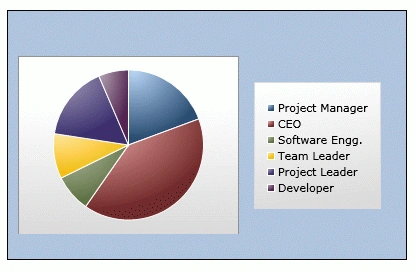
Figure 9
Line Chart in WPF
The code snippet in Listing 8 creates a line chart by setting Chart.Series to
LineSeries. As you may see, the binding is occurred on Key and Value fields of a
data source.
- <DVC:ChartCanvas.Top="80" Canvas.Left="10" Name="mcChart"
- Width="400" Height="250"
- Background="LightSteelBlue">
- <DVC:Chart.Series>
- <DVC:LineSeriesTitle=" Monthly Count"
- IndependentValueBinding="{Binding Path=Key}"
- DependentValueBinding="{Binding Path=Value}">
- </DVC:LineSeries>
- </DVC:Chart.Series>
- </DVC:Chart>
The code snippet in Listing 9 creates a collection in KeyValuePair form and sets
the ItemsSource property of the chart series. Same data can be used for other
chart types.
- private void LoadLineChartData()
- {
- ((LineSeries)mcChart.Series[0]).ItemsSource =
- new KeyValuePair<DateTime,int>[]{
- newKeyValuePair<DateTime,int>(DateTime.Now, 100),
- newKeyValuePair<DateTime,int>(DateTime.Now.AddMonths(1), 130),
- newKeyValuePair<DateTime,int>(DateTime.Now.AddMonths(2), 150),
- newKeyValuePair<DateTime,int>(DateTime.Now.AddMonths(3), 125),
- new KeyValuePair<DateTime,int>(DateTime.Now.AddMonths(4),155) };
- }
The output looks like Figure 10.

Figure 10
Scatter Chart in WPF
The code snippet in Listing 9 creates a scatter chart by setting Chart.Series to
ScatterSeries. As you may see, the binding is occurred on Key and Value fields
of a data source.
- <DVC:ChartCanvas.Top="80" Canvas.Left="10" Name="mcChart"
- Width="400" Height="250"
- Background="LightSteelBlue">
- <DVC:Chart.Series>
- <DVC:ScatterSeriesTitle="Dots"
- IndependentValueBinding="{Binding Path=Key}"
- DependentValueBinding="{Binding Path=Value}">
- </DVC:ScatterSeries>
- </DVC:Chart.Series>
- </DVC:Chart>
The code snippet in Listing 10 creates a collection in KeyValuePair form and
sets the ItemsSource property of the chart series. Same data can be used for
other chart types.
- private void LoadScatterChartData()
- {
- ((ScatterSeries)mcChart.Series[0]).ItemsSource =
- new KeyValuePair<DateTime,int>[]{
- new KeyValuePair<DateTime,int>(DateTime.Now, 100),
- new KeyValuePair<DateTime,int>(DateTime.Now.AddMonths(1), 130),
- new KeyValuePair<DateTime,int>(DateTime.Now.AddMonths(2), 150),
- new KeyValuePair<DateTime,int>(DateTime.Now.AddMonths(3), 125)
- };
- }
The output looks like Figure 11.

Figure 11
Area Chart in WPF
The code snippet in Listing 11 creates an area chart by setting Chart.Series to
AreaSeries. As you may see, the binding is occurred on Key and Value fields of a
data source.
- <!-- Area Chart in Code Behind -->
- <DVC:ChartCanvas.Top="80" Canvas.Left="10"Name="mcChart"
- Width="400" Height="250"
- Background="LightSteelBlue"
- Title="Area Chart"
- LegendTitle="Month Rating">
- <DVC:Chart.Series>
- <DVC:AreaSeries
- Title="Area Chart"
- IndependentValuePath="Key"
- DependentValuePath="Value">
- </DVC:AreaSeries>
- </DVC:Chart.Series>
- </DVC:Chart>
The code snippet in Listing 12 creates a collection in KeyValuePair form and
sets the ItemsSource property of the chart series. Same data can be used for
other chart types.
- private void LoadAreaChartData()
- {
- ((AreaSeries)mcChart.Series[0]).ItemsSource =
- new KeyValuePair<string,int>[]{
- new KeyValuePair<string,int>("Jan 2009", 100),
- new KeyValuePair<string,int>("Apr 2009", 180),
- new KeyValuePair<string,int>("July 2009", 110),
- new KeyValuePair<string,int>("Oct 2009", 95),
- new KeyValuePair<string,int>("Jan 2010", 40),
- new KeyValuePair<string,int>("Apr 2010", 95)
- };
- }
The output looks like Figure 12.

Figure 12
Chart Axes
The Axes property of Chart is used to add x and y axis to the chart. The code
snippet in Listing 13 adds a linear axis to the chart with its orientation,
title, font and other properties.
- <DVC:Chart.Axes>
- <!-- Add Horizontal and Vertical Axes-->
- <DVC:LinearAxis
- Orientation="Y"
- Title="New Hires"
- Interval="40"
- Foreground="Black"
- Background="GreenYellow"
- FontFamily="Georgia"
- FontSize="14"
- FontWeight="Bold"/>
- </DVC:Chart.Axes>
The new output looks like Figure 13 that shows a left side chart title and
formatting.

Figure 13
Generating an Area Chart from a Collection
Now we are going to generate a bar chart from a collection. I have a class Fruit
that looks like Listing 14. It has two members Name and Share.
- class Fruit
- {
- public string Name { get; set; }
- public Int16 Share { get;set; }
- }
Listing 15 is a Fruit collection class that adds some Fruit objects in the
constructor.
- class FruitCollection : System.Collections.ObjectModel.Collection<Fruit>
- {
- publicFruitCollection()
- {
- Add(new Fruit { Name = "Mango", Share = 10 });
- Add(new Fruit { Name = "Banana", Share = 36 });
- Add(new Fruit { Name = "Apple", Share = 24 });
- Add(new Fruit { Name = "Guava", Share = 4 });
- Add(new Fruit { Name = "Orange", Share = 12 });
- Add(new Fruit { Name = "Pear", Share = 10 });
- Add(new Fruit { Name = "Pineapple", Share = 4 });
- }
- }
Now in our XAML code, I create a resource called FruitCollection and bind it to
the AreaSeries using the ItemsSource property as listed in Listing 16.
- <Grid.Resources>
- <local:FruitCollectionx:Key="FruitCollection" />
- </Grid.Resources>
XAML code for binding a FruitCollection with an AreaSeries is listed in Listing
17.
- <DVC:Chart.Series>
- <DVC:AreaSeriesTitle="Fruits"
- ItemsSource="{StaticResourceFruitCollection}"
- IndependentValueBinding="{Binding Path=Name}"
- DependentValueBinding="{Binding Path=Share}">
- </DVC:AreaSeries>
- </DVC:Chart.Series>
Now simply build and run the project. New output looks like Figure 14.
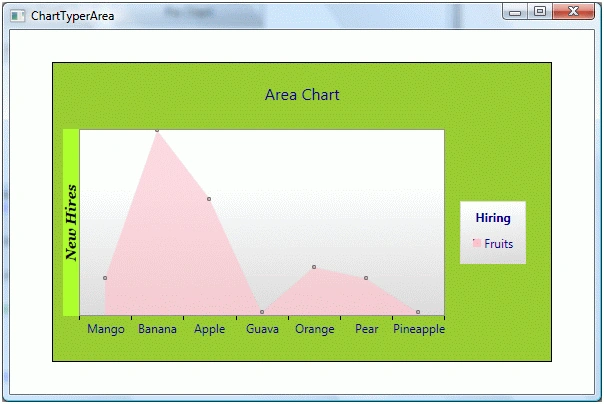
Figure 14
Summary
This tutorial discusses how to the WPF Toolkit to create various charts
including a bar chart, column chart, pie chart, area chart, scatter chart and a
line chart.
Ivana MayerPosted Oct 3, 2021, 9:21 PM
Hallo please i need help. i cannot download the wpf toolkit
Christophe SIMONPosted Sep 7, 2020, 9:31 AM
Hello,Thanks for these examples. Is it possible to hide the X axis values ??when using LineSeries? Or use another line model to have the Y axis values, but not the Xs. Thank you.
Dinesh GabhanePosted Nov 13, 2019, 12:01 AM
Good Article, Thanks
Dinesh KudalePosted Oct 17, 2019, 8:33 AM
In Column chart, Is it possible to give different color to each column? If yes, then can you explain it? Thanks in advance.
Muhammad SadiqPosted Aug 27, 2019, 4:28 PM
Great service to humanity by spreading knowledge to all
Ashok KaralePosted May 6, 2017, 7:03 AM
Written in 2009 but still useful! Thanks a lot.
Gowtham RajamanickamPosted Apr 12, 2016, 2:16 AM
keep write
Gowtham RajamanickamPosted Apr 12, 2016, 2:16 AM
Good One, Thanks for sharing
NAGARAJAN RPosted Mar 1, 2016, 5:22 AM
How to define separate back color for each pie?
Alejandro Quispe MachacaPosted May 3, 2014, 1:31 AM
as I put the text X axis vertical orientation
Alejandro Quispe MachacaPosted May 3, 2014, 1:30 AM
as I put the X axis vertical orientation
DharshiniPosted Jan 9, 2013, 10:08 AM
Nice article, could you please show how to bind the pie chart with a datasource ?
TatranPosted Dec 21, 2012, 4:50 AM
Nice article, thanks. How does one keep the horizontal axis set to 0-100 all the time?
Nguyen Tran Ngoc TrongPosted Oct 24, 2012, 2:20 AM
Thanks so much.
avirup ghatakPosted May 18, 2011, 8:16 AM
Access to the path 'C:\Documents and Settings\Desktop\New Folder' is denied i am getting this exception when i am trying export and save an image using a wpf charting application.i am using the system.windows.control.datavisualization.toolkit dll
turi tanoPosted May 7, 2011, 11:50 AM
Hi, great article, really. Just a question: how can I bind a ListView item to the bar chart? What kind of Binding I must write in the IndependentValueBinding and DependentenValueBinding? Thanks, marshall
mahesh pardeshiPosted Apr 3, 2011, 12:43 PM
sorry sir but i want to draw a best fit nonlinear curve so if any code on it plz tell me
Gideon RaveheditedPosted Aug 13, 2010, 12:12 AMEdited May 13, 2012, 11:07 PM
Since the WPF Toolkit team decided to move the Chart Control to Silverlight, I chose to use this article as a guide to charting, and it really helps. However, I need an MSDN like documentation for this version (June 2009) of WPF Toolkit.
AlanPosted Jul 21, 2010, 8:34 PM
Excellent article! How to you change the point colour on a line chart based on their value? For example I want the points on a WPF line chart to turn red if their value is greater than 12? Thanks! Alan
YanPosted Jun 14, 2010, 6:57 AM
Hi, I wonder if it was possible to display the values with thousands separators?
soumya shanbhagPosted May 7, 2010, 7:54 AM
Hi, How to use this concept to create bar chart in C#.net framework 2.0 Web application
DanieleditedPosted Jan 4, 2010, 5:48 PMEdited Jan 5, 2010, 1:10 AM
Hi Mahesh, I'm hoping to create an interactive plot control, where a user can click on the plot area in order to draw their own line chart. What would you suggest is the best way to get the X and Y coordinates on the chart for a mouse click event? I have done the following, but wonder if there's a better way: 1. Put a blank canvas over the top of the axes area of the chart 2. Create a mouse click event on the chart 3. Get the mouse coordinates from the canvas. e.g: Point mousepos = e.GetPosition(canvas1); // e is a MouseEventArgs from the event 4. Normalize the coordinates but dividing by the canvas ActualHeight and ActualWidth 5. Multiply by the size of my axes. One reason I'm not a huge fan of this hack is that it requires careful placement of the canvas on top of the chart axes. Thanks again, Daniel.
DanielPosted Jan 3, 2010, 9:50 PM
Hi Mahesh, Great article, thanks. Can the size of the background area around the plot be reduced? I'm referring to the green area in Figure 14. In my application, the axis area needs to fill the chart. Thanks, Daniel.