

A cursor in Windows is an icon that is displayed when you move a mouse, a pen, or a trackball. Usually, a different cursor image is displayed for different activity. For instance, the default cursor is different than a wait cursor.
Cursors may be different for different operating systems. Figure 1 displays some of the cursors available on machine loaded with Windows 7 operating system. As you can presume from Figure 1, the Default cursor is loaded most of the time, the AppStarting cursor is displayed when any application is starting and loading, and the Size cursors are loaded when you are resizing an application.
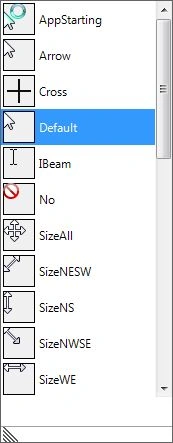
Figure 1
Windows Forms allows us to change this cursor image using the Cursor and its related classes and enumerations.
In this article, I will demonstrate how to apply and manage cursors in your Windows Forms applications.
Setting Cursor of Controls
In Windows Forms, all Windows controls are derived from the Control class. The Control class has a Cursor property that represents a cursor respective to that control. That means, each control can have its own cursor. So the default cursor on a Form can be different than the default cursor on a child control on the same Form. The Cursor property is of type Cursors class.
For example, the following code snippet sets default cursor of a Button and a ListBox control to Hand and No respectively. So when you rollover on button1 control, you will see hand cursor and when you rollover on listBox1 control, you will see a No cursor. You may use the same approach to define a cursor for any control.
- button1.Cursor = Cursors.Hand;
- listBox1.Cursor = Cursors.No;
Cursors Class
The Cursors class provides a set of cursors that can be used in Windows Forms. Each cursor is represented by a static property. Here is a list of cursors with brief description as described in MSDN.
- AppStarting - Gets the cursor that appears when an application starts.
- Arrow - Gets the arrow cursor.
- Cross - Gets the crosshair cursor.
- Default - Gets the default cursor, which is usually an arrow cursor.
- Hand - Gets the hand cursor, typically used when hovering over a Web link.
- Help - Gets the Help cursor, which is a combination of an arrow and a question mark.
- HSplit - Gets the cursor that appears when the mouse is positioned over a horizontal splitter bar.
- IBeam - Gets the I-beam cursor, which is used to show where the text cursor appears when the mouse is clicked.
- No - Gets the cursor that indicates that a particular region is invalid for the current operation.
- NoMove2D - Gets the cursor that appears during wheel operations when the mouse is not moving, but the window can be scrolled in both a horizontal and vertical direction.
- NoMoveHoriz - Gets the cursor that appears during wheel operations when the mouse is not moving, but the window can be scrolled in a horizontal direction.
- NoMoveVert - Gets the cursor that appears during wheel operations when the mouse is not moving, but the window can be scrolled in a vertical direction.
- PanEast - Gets the cursor that appears during wheel operations when the mouse is not moving, but the window can be scrolled in a horizontal direction.
- PanNE - Gets the cursor that appears during wheel operations when the mouse is moving and the window is scrolling horizontally to the right.
- PanNorth - Gets the cursor that appears during wheel operations when the mouse is moving and the window is scrolling horizontally and vertically upward and to the right.
- PanNE - Gets the cursor that appears during wheel operations when the mouse is moving and the window is scrolling vertically in an upward direction.
- PanNW - Gets the cursor that appears during wheel operations when the mouse is moving and the window is scrolling horizontally and vertically upward and to the left.
- PanSE - Gets the cursor that appears during wheel operations when the mouse is moving and the window is scrolling horizontally and vertically downward and to the right.
- PanSouth - Gets the cursor that appears during wheel operations when the mouse is moving and the window is scrolling vertically in a downward direction..
- PanSW Gets the cursor that appears during wheel operations when the mouse is moving and the window is scrolling horizontally and vertically downward and to the left.
- PanWest - Gets the cursor that appears during wheel operations when the mouse is moving and the window is scrolling horizontally to the left.
- SizeAll - Gets the four-headed sizing cursor, which consists of four joined arrows that point north, south, east, and west.
- SizeNESW - Gets the two-headed diagonal (northeast/southwest) sizing cursor
- SizeNS - Gets the two-headed vertical (north/south) sizing cursor.
- SizeNWSE - Gets the two-headed diagonal (northwest/southeast) sizing cursor.
- SizeWE - Gets the two-headed horizontal (west/east) sizing cursor.
- UpArrow - Gets the up arrow cursor, typically used to identify an insertion point.
- VSplit - Gets the cursor that appears when the mouse is positioned over a vertical splitter bar.
- WaitCursor - Gets the wait cursor, typically an hourglass shape.
Creating a Cursor
Cursor is not a typical Windows Forms control. It is used as a helper control and does not have a user interface or design view. The Cursor class represents a cursor and it is created either using the Cursors class or load a cursor form a file.
The following code snippet creates a cursor object and sets current Form's cursor to wait cursor.
- Cursor cur = Cursors.WaitCursor;
- this.Cursor = cur;
Visual Studio allows you to create cursor (.cur) files. A cursor file is a bitmap file with .cur extension. To create a cursor file, right click on your project and select Add New Item menu item. After that, select Cursor File from the items. This action will add a default Cursor1.cur file. See Figure 2.

Figure 2
Once a cursor file is added, you will land in bitmap editor where you can change the bitmap using drawing tools as you can see in Figure 3.
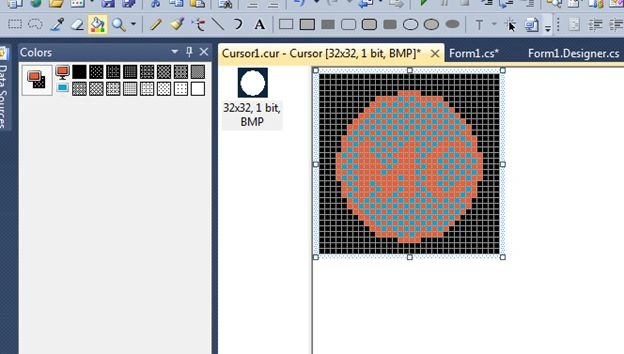
Figure 3
Once you're done editing your file, save it.
Now copy Cursor1.cur file to your Debug or Release folder where your executable file is stored.
Once a file is saved, we can create a cursor from the cursor file using following code snippet.
- this.Cursor = new Cursor(Application.StartupPath + "\\Cursor1.cur");
Current Cursor
Cursor.Current static property gets and sets the current cursor. The following code snippet gets and sets the current cursor.
- this.Cursor = Cursor.Current;
Move a Cursor Position
The Position property of Cursor class is used to change the position of a cursor. The following code snippet moves a cursor from its current position to 150 pixels less in both directions.
- Cursor.Position = new Point(Cursor.Position.X - 150, Cursor.Position.Y - 150);
Show and Hide a Cursor
The Hide and Show static methods of Cursor class are used to hide and show a cursor in a Windows application. The following code snippet hides and displays a cursor.
- Cursor.Hide();
- Cursor.Show();
Set and Change Current Cursor
There are occasions when you need to change cursors based on some activity. For example, if you have a lengthy file copy or processing operation, you may want uses to wait and display a wait cursor for that. But once the processing is done, you change the cursor back the default cursor.
The following code snippet shows how to do the same. Before processing, set the cursor is set to the wait cursor and once the processing is done, the cursor is set to the default cursor.
- this.Cursor = Cursors.WaitCursor;
- // Do something here
- this.Cursor = Cursors.Default;
Summary
In this article, I discussed how to create and user cursors in your Windows Forms applications. We also discussed how to create custom cursors and set other cursor properties.
Manjit HadaPosted Nov 30, 2019, 12:12 AM
How to reset command to move pen to initial position at top left of the screen
hps shahPosted Jul 2, 2019, 11:37 PM
Very useful article.
Corné AspelingPosted Sep 28, 2017, 5:04 PM
How would you assert custom mouse image has changed in a test assert when I do not see how to get hold of anything other than the cursor state?
Former memberPosted Jul 25, 2015, 7:14 AM
We can set current cursor by using this code ,this.Cursor = Cursors.WaitCursor; but how can we get current cursor type. I want to get current cursor type and then perform some action based on the cursor type. I tried this but does not work var CurType=this.cursor; if(CurType==Cursors.Hand){//some code}
marco canazzaPosted Apr 16, 2015, 12:17 PM
hi man! i have c# 2010 express but i cannot found "Cursor File" on the visual c# item list, can you tell me how to install or find that? thanks!
Saineshwar BageriPosted Jun 13, 2014, 12:32 AM
Nice example sir
Prerana TiwariPosted Jun 12, 2014, 11:00 PM
Nice one sir..........
move backPosted Feb 29, 2012, 8:44 AM
hey, this is for windows application. i need to set the cursor position for web application. how to do that? really need help
Fred SanderseditedPosted Dec 13, 2011, 6:05 PMEdited Dec 13, 2011, 6:07 PM
The problem with creating a custom cursor with the Visual Studio bitmap editor is that when you create a cursor using the resultant .CUR file, the hotspot is always at (0,0), regardless of where you set it with the hotspot tool.
Ricky DowlatrameditedPosted Nov 7, 2011, 9:27 AMEdited Nov 7, 2011, 9:34 AM
Hi, I want to place a cursor in a certain texbox in a webapplication. Can anybody help me. C# code please.
Abdullah AKALINPosted Jun 16, 2010, 5:12 AM
Thanks...
Abdullah AKALINPosted Jun 15, 2010, 3:38 PM
Hmm...I've got VisualStudio 2008...Where can I find Visual Studio 2010 express edition?
Abdullah AKALINPosted Jun 15, 2010, 2:26 PM
I've tried to manage it but I couldn't.Because my Visual C# Express Edition doesn't have this template.Where can I find this template? Thanks... (sorry for my English)