

The new Microsoft Speech API (SAPI) version 5.3, which is an integral part of Windows Vista, is a managed API that allows developers to write speech-enable applications in .NET Framework 3.0. This speech functionality is defined in the System.Speech and its five sub namespaces. Physically, the speech API resides in System.Speech.Dll assembly.
Here is a list of the five namespaces that defines the Speech-related functionality:
-
System.Speech.Audioformat
-
System.Speech.Recognition
-
System.Speech.Recognition.SrgsGrammar
-
System.Speech.Synthesis
-
System.Speech.Synthesis.TtsEngine
To access the Speech API in WPF, you must add a System.Speech.Dll assembly reference to a project. Right-click on the project name in Solution Explorer, select Add Reference and select System.Speech on the .NET Tab and select OK button as shown in Figure 1.
Figure 1.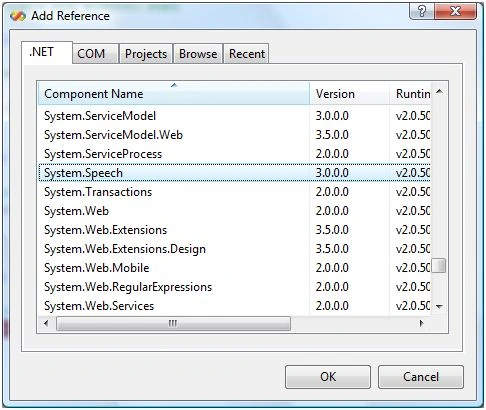
This action will add a System.Speech assembly reference and copy the System.Speech.dll to the bin folder of your project. Now you can import the System.Speech related namespaces to your application.
Speech Synthesis
Speech Synthesis, also known as text-to-speech in previous versions of SAPI, is a process of converting text to speech.
Windows Vista comes with a default voice called Microsoft Anna. Let's have a look at it. Go to the Control Panel and click on Text to Speech. You will see the Speech Properties dialog with two tabs, "Text to Speech" and "Speech Recognition" as you can see in Figure 2 and Figure 3.
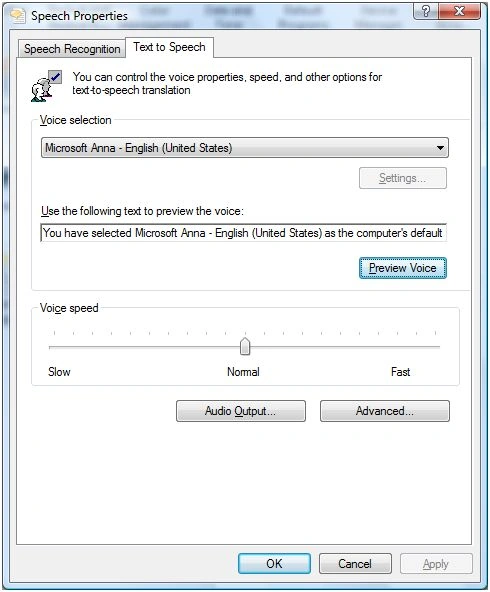
Figure 2.
In the Text to Speech dialog box, you will see a Voice Selection dropdown showing Microsoft Anna. In this dialog, you may also test the voice and audio output. If you have more voices installed, you will see them in the dropdown list as well. You can install more voices when you install Microsoft Speech SDK. 5.1.
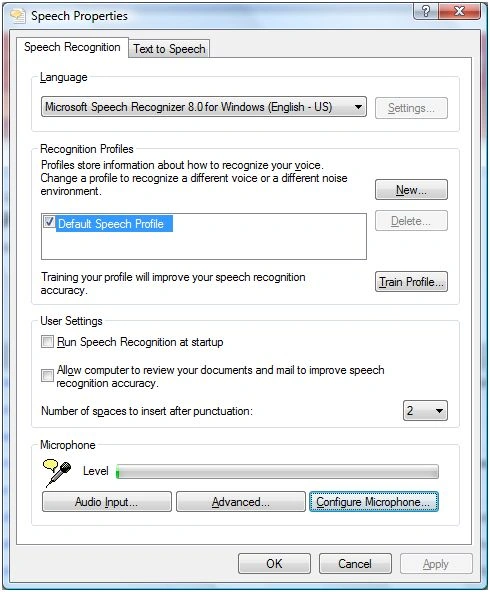
Figure 3.
Table 1 describes the classes available in the System.Speech.Synthesis namespace.
|
Class |
Description |
|
FilePrompt |
Represents a prompt spoken from a file. |
|
InstalledVoice |
Represents an installed Voice object. |
|
Prompt |
Plays a prompt from text or from a PromptBuilder. |
|
PromptBuilder |
Creates an empty Prompt object and provides methods for adding content. |
|
PromptStyle |
Defines a style of prompting that consists of settings for emphasis, rate, and volume. |
|
SpeechSynthesizer |
Supports the production of speech and DTMF output. |
|
VoiceInfo |
Represents a text-to-speech (TTS) voice. |
In this article, our focus is on the SpeechSynthesizer class and its methods and properties.
SpeechSynthesizer
The SpeechSynthesizer generates text to speech.
The Speak method speaks the text synchronously. The following code creates a SpeechSynthesizer object and calls the Speak method that says "Hello WPF.". By default, the SpeechSynthesizer uses the Microsoft Mary voice.
SpeechSynthesizer ss = new SpeechSynthesizer();
ss.Speak("Hello WPF.");
SpeechSynthesizer Properties
The SpeechSynthesizer has four the properties - Rate, State, Voice, and Volume to get and set the rate, state, voice, and volume of the speech. The value of rate is between -10 to 10 and the value of Volume is between 0 and 100. The Voice is the VoiceInfo object and State is SynthesizerState object. I will discuss these properties in more details in my forthcoming articles.
Asynchronous Speech
The SpeakAsync method speaks asynchronously and takes a Prompt, PromptBuilder or string as input text.
SpeechSynthesizer ss = new SpeechSynthesizer();
ss.SpeakAsync("Hello WPF");
The Application
Based on the above class, properties, and methods, I built an application that allows you to browse a text file, open it in a RichTextBox control, set the volume and rate of the speech and it speaks it for you.
The application UI looks like Figure 4.
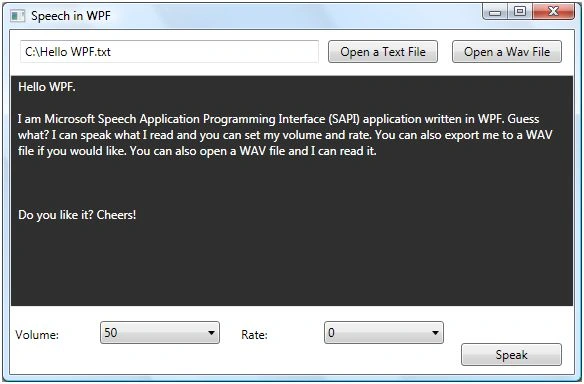
Figure 4.
The XAML code for controls looks like following:
<Button Height="23" HorizontalAlignment="Right" Margin="0,0,12,8"
Name="TalkButton" VerticalAlignment="Bottom" Width="101" Click="TalkButton_Click">
Speak
</Button>
<RichTextBox Margin="0,45,0,67" Name="richTextBox1" Background="#FF302F2F"
Foreground="White" />
<Button Height="23" HorizontalAlignment="Left" Margin="318,10,0,0"
Name="OpenTextFileButton" VerticalAlignment="Top" Width="110" Click="OpenTextFileButton_Click">
Open a Text File
</Button>
<Button Height="23" HorizontalAlignment="Right" Margin="0,10,12,0" Name="OpenWavFileButton"
VerticalAlignment="Top" Width="110" Click="OpenWavFileButton_Click">
Open a Wav File
</Button>
<TextBox Height="23" Margin="10,10,0,0" Name="FileNameTextBox" VerticalAlignment="Top"
HorizontalAlignment="Left" Width="299" />
<ComboBox Height="23" HorizontalAlignment="Left" Margin="90,0,0,30"
Name="VolumeList" VerticalAlignment="Bottom" Width="120" SelectedIndex="4" >
<ComboBoxItem>10</ComboBoxItem>
<ComboBoxItem>20</ComboBoxItem>
<ComboBoxItem>30</ComboBoxItem>
<ComboBoxItem>40</ComboBoxItem>
<ComboBoxItem>50</ComboBoxItem>
<ComboBoxItem>60</ComboBoxItem>
<ComboBoxItem>70</ComboBoxItem>
<ComboBoxItem>80</ComboBoxItem>
<ComboBoxItem>90</ComboBoxItem>
<ComboBoxItem>100</ComboBoxItem>
</ComboBox>
<Label Height="28" HorizontalAlignment="Left" Margin="0,0,0,25"
Name="label1" VerticalAlignment="Bottom" Width="83">Volume:</Label>
<ComboBox Height="23" HorizontalAlignment="Right" Margin="0,0,130,30"
Name="RateList" VerticalAlignment="Bottom" Width="120"
SelectedIndex="2">
<ComboBoxItem>-10</ComboBoxItem>
<ComboBoxItem>-5</ComboBoxItem>
<ComboBoxItem>0</ComboBoxItem>
<ComboBoxItem>5</ComboBoxItem>
<ComboBoxItem>10</ComboBoxItem>
</ComboBox>
<Label Height="28" Margin="226,0,249,25" Name="label2" VerticalAlignment="Bottom">
Rate:</Label>
In this application, the Open a Text File button opens a file browser and you can open a text file. After that it reads the text file and opens it in the RichTextBox control. The code listing is shown below on the Open a Text File button click event handler.
private void OpenTextFileButton_Click(object sender, RoutedEventArgs e)
{
OpenFileDialog dlg = new OpenFileDialog();
dlg.InitialDirectory = "c:\\";
dlg.Filter = "Text files (*.txt)|*.txt|All Files (*.*)|*.*";
dlg.RestoreDirectory = true;
if (dlg.ShowDialog() == System.Windows.Forms.DialogResult.OK)
{
LoadTextDocument(dlg.FileName);
FileNameTextBox.Text = dlg.FileName;
}
}
private void LoadTextDocument(string fileName)
{
TextRange range;
System.IO.FileStream fStream;
if (System.IO.File.Exists(fileName)) {
range = new TextRange(richTextBox1.Document.ContentStart, richTextBox1.Document.ContentEnd);
fStream = new System.IO.FileStream(fileName, System.IO.FileMode.OpenOrCreate);
range.Load(fStream, System.Windows.DataFormats.Text);
fStream.Close();
}
}
The Speak button click event handler sets the volume and rate of the speech after getting these values from the Volume and Rate ComboBoxes and sets the Rate and Volume property of SpeechSynthesizer and after that calls the Speak method.
The following ConvertRichTextBoxContentsToString method reads the contents of the RichTextBox and converts to a string.
Here is the Speak button click event handler:
private void TalkButton_Click(object sender, RoutedEventArgs e)
{
ComboBoxItem volumeItem = (ComboBoxItem)VolumeList.Items[VolumeList.SelectedIndex];
Int32 vol = Convert.ToInt32(volumeItem.Content.ToString());
ComboBoxItem rateItem = (ComboBoxItem)RateList.Items[RateList.SelectedIndex];
Int32 rate = Convert.ToInt32(rateItem.Content.ToString());
talker.Volume = vol;
talker.Rate = rate;
talker.Speak(ConvertRichTextBoxContentsToString());
}
string ConvertRichTextBoxContentsToString()
{
TextRange textRange = new TextRange(richTextBox1.Document.ContentStart,
richTextBox1.Document.ContentEnd);
return textRange.Text;
}
Summary
The Speech API (SAPI) 5.3 is a managed API that comes with Windows Vista. In this article, I discussed how to use the SAPI in a WPF application to build speech-enabled applications. This article covered the text-to-speech (TTS) or Speech Synthesis where we built an application that converts text to speech.
In my next articles in this series, I will add more features to this application including word highligting and spell check. In the next part of this series, I will cover speech recognition in SAPI and WPF.
I hope you enjoyed this article. All feedback and criticisms are most welcome. Feel free to post them at the bottom of this article.
sreenivasa kPosted Feb 19, 2015, 12:20 PM
Dear Mahesh, recently i am continously going thru this website and very useful. Just to add to this site if we have option "Copy" for all code snippets it would be greatful. Please don't mind. thx.
Mursit Hakan CilPosted Mar 25, 2012, 2:26 PM
Dear Sir, I'm not coding with C#.Microsoft Forum.But Thanks a lot for your Interest Sincerely Hakan
Michael DiLeoPosted Nov 12, 2011, 4:10 PM
thanks for the post. I found it very helpful.
Eddie ShipmanPosted Mar 12, 2010, 11:23 PM
Can you show an example of using a BackgroundWorker with WorkerSupportsCancellation set to true to run the speak method? I'd like to be able to cancel the speaking.
fei yaoPosted Apr 7, 2009, 5:19 PM
excellent tutorial on Text to Speech, do you have anything to share with Speech to Text?
mary vandadPosted Apr 6, 2009, 2:03 PM
I want to know how to play an audio file automatic when I press a button. Such as: When I press F1, it will play "F1.mp3" Please help me. Thank you.
mary vandadeditedPosted Mar 17, 2009, 2:14 PMEdited Mar 17, 2009, 2:19 PM
IS SAPI INSTALL WITH VISUAL STUDIO 2008 OR NOT? THANK YOU
mary vandadPosted Mar 16, 2009, 1:04 PM
HI Can SAPI work with win xp ? thank you
Clive NormanPosted Dec 9, 2008, 2:58 PM
I notice that the above regarding Synthesized text-to-speech is based around Windows Vista is there away of synthesizing speech in both Vista and XP? I ask because I am trying to develop a program using XP but should it develop into a reasonable program I would naturally like to seeing it being used on both formats. I look forward to recieivng any replies Regards Clive 1950
WouterPosted Oct 1, 2008, 8:06 AM
There are no files at the sample file :-(