

WPF does not support the functionality to view Microsoft Word documents but there is a work-around for this problem. The WPF DocumentViewer control is used to display fixed documents such as an XML Paper Specification (XPS) document. We can open a Word document if we can convert a Word document to an XPS document. This conversion is possible by using Office Interop and Office Tools frameworks for working with Office documents.
Add Reference to XPS and Office Interop Assemblies
Before we do any actual work, we must add reference for the following assemblies:
- ReachFramework.dll
- Microsoft.Office.Tools.v9.0.dll
- Microsoft.Office.Tools.Word.v9.0dll
- Microsoft.VisualStudio.Tools.Office.Runtime.v9.0.dll
- Microsoft.Office.Interop.Word.dll
The first assembly, ReachFramework.dll hosts the functionality for XPS documents and the other assemblies host the functionality of Office Interop and provide Office Tools support.
Note: You must also install 2007 Microsoft Office Add-in: Microsoft Save as PDF or XPS that you can download using the following link. http://www.microsoft.com/downloads/details.aspx?FamilyID=4d951911-3e7e-4ae6-b059-a2e79ed87041&displaylang=en
To add a reference to these assemblies, right-click on the project name and select "Add Reference" in the Solution Explorer. On the .NET Framework, select ReachFramework and select the other assemblies from the list and click the OK button. Figure 1 shows ReachFramework in the Add Reference dialog.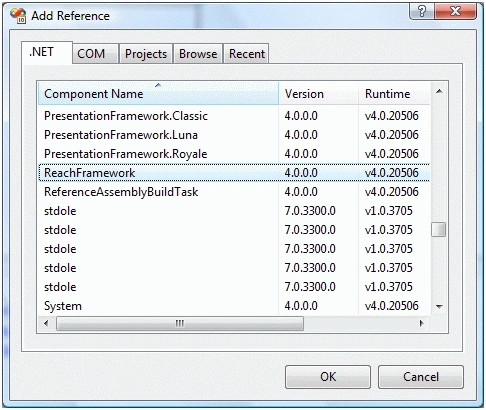
Figure 1
You may have multiple assemblies installed on your machine. Make sure you select Version 12 for Microsoft.Office.Interop.Word assemblies as you see in Figure 2, otherwise your conversion will fail.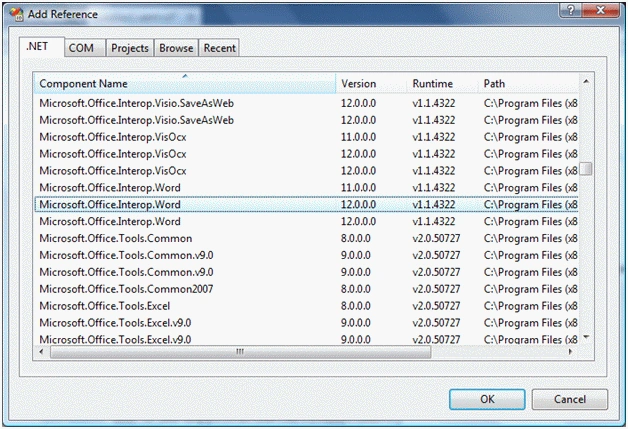
Figure 2
Once you have added the reference to assemblies, you must import the following namespaces to your code behind.
using System.IO;
using Microsoft.Office.Interop.Word;
using Microsoft.Win32;
using System.Windows.Xps.Packaging;
Convert Doc to XPS
The SaveAs method of the Document class available in OfficeInterop allows us to save a Word document as an XPS document. However, you must ensure you have version 12 of the assembly added to your project as I mentioned before.
The ConvertWordDocToXPSDoc method takes a full path of a Word document file and a new full path of a XPS document and convert the doc file to an xps file.
/// <summary>
/// This method takes a Word document full path and new XPS document full path and name
/// and returns the new XpsDocument
/// </summary>
/// <param name="wordDocName"></param>
/// <param name="xpsDocName"></param>
/// <returns></returns>
private XpsDocument ConvertWordDocToXPSDoc(string wordDocName, string xpsDocName)
{
// Create a WordApplication and add Document to it
Microsoft.Office.Interop.Word.Application
wordApplication = new Microsoft.Office.Interop.Word.Application();
wordApplication.Documents.Add(wordDocName);
Document doc = wordApplication.ActiveDocument;
// You must ensure you have Microsoft.Office.Interop.Word.Dll version 12.
// Version 11 or previous versions do not have WdSaveFormat.wdFormatXPS option
try
{
doc.SaveAs(xpsDocName, WdSaveFormat.wdFormatXPS);
wordApplication.Quit();
XpsDocument xpsDoc = new XpsDocument(xpsDocName, System.IO.FileAccess.Read);
return xpsDoc;
}
catch (Exception exp)
{
string str = exp.Message;
}
return null;
}
XPS Viewer Application
Let's create a WPF Application using Visual Studio 2010 and add a TextBox, Button, and a DocumentViewer. Here is what the XAML code looks like.
<Grid>
<DocumentViewer HorizontalAlignment="Left" Margin="0,42,0,0"
Name="documentViewer1" VerticalAlignment="Top" Height="508" Width="766" />
<TextBox Height="29" HorizontalAlignment="Left" Margin="6,6,0,0"
Name="SelectedFileTextBox" VerticalAlignment="Top" Width="276" />
<Button Content="Browse" Height="30" HorizontalAlignment="Right" Margin="0,6,353,0"
Name="BrowseButton" VerticalAlignment="Top" Width="122" Click="BrowseButton_Click" />
</Grid>
The application looks like Figure 3 where the Browse button is used to browse Word documents on your machine.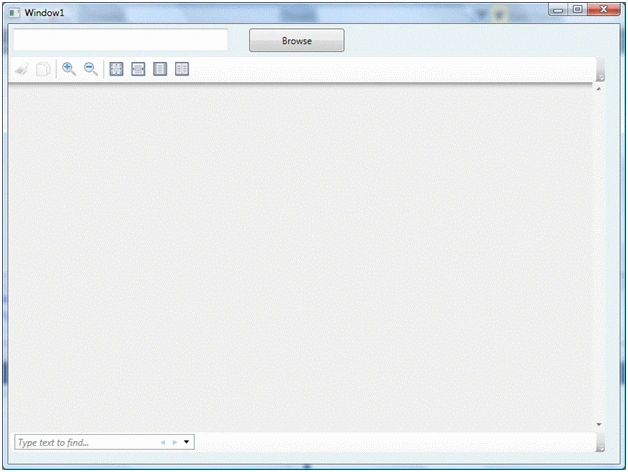
Figure 3
The Browse button click event handler code looks like this where we convert a Word document to an XPS document and view that in a DocumentViewer control.
private void BrowseButton_Click(object sender, RoutedEventArgs e)
{
// Create OpenFileDialog
Microsoft.Win32.OpenFileDialog dlg = new Microsoft.Win32.OpenFileDialog();
// Set filter for file extension and default file extension
dlg.DefaultExt = ".doc";
dlg.Filter = "Word documents (.doc)|*.doc";
// Display OpenFileDialog by calling ShowDialog method
Nullable<bool> result = dlg.ShowDialog();
// Get the selected file name and display in a TextBox
if (result == true)
{
if (dlg.FileName.Length > 0)
{
SelectedFileTextBox.Text = dlg.FileName;
string newXPSDocumentName = String.Concat(System.IO.Path.GetDirectoryName(dlg.FileName), "\\",
System.IO.Path.GetFileNameWithoutExtension(dlg.FileName), ".xps");
// Set DocumentViewer.Document to XPS document
documentViewer1.Document =
ConvertWordDocToXPSDoc(dlg.FileName, newXPSDocumentName).GetFixedDocumentSequence();
}
}
}
Run the Application
Just run your application, click the Browse button, select a Word document and your output will look as in Figure 4.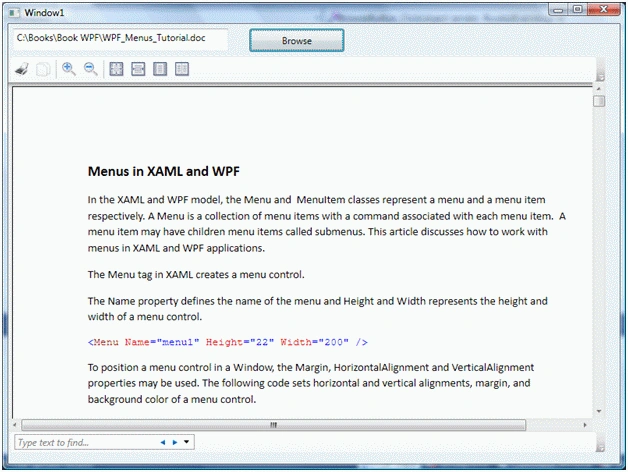
Figure 4
Ashley HooithinPosted Oct 30, 2020, 7:24 AM
Hi, the code is working for me, but i cannot move the scrollbar, may i know how to enable it?
Erwin AlcantaraPosted Sep 26, 2019, 3:50 PM
It works for me.. but if I want to edi the document the document Viewer
Erwin AlcantaraPosted Sep 26, 2019, 3:49 PM
What if I want to edit the document inside the document viewer?
aa bbPosted Dec 29, 2014, 3:08 AM
I have the following exception "System.NullReferenceException was unhandled HResult=-2147467261 Message=?e? ??e? ???ste? a?af??? a?t??e?µ???? se µ?a pa???s?a a?t??e?µ????. Source=WordToXpsDocument StackTrace: se WordToXpsDocument.Window1.BrowseButton_Click(Object sender, RoutedEventArgs e) st? c:\Users\dislis\Downloads\WordToXpsDocument\WordToXpsDocument\Window1.xaml.cs:??aµµ? 88 se System.Windows.RoutedEventHandlerInfo.InvokeHandler(Object target, RoutedEventArgs routedEventArgs) se System.Windows.EventRoute.InvokeHandlersImpl(Object source, RoutedEventArgs args, Boolean reRaised) se System.Windows.UIElement.RaiseEventImpl(DependencyObject sender, RoutedEventArgs args) se System.Windows.UIElement.RaiseEvent(RoutedEventArgs e) se System.Windows.Controls.Primitives.ButtonBase.OnClick() se System.Windows.Controls.Button.OnClick() se System.Windows.Controls.Primitives.ButtonBase.OnMouseLeftButtonUp(MouseButtonEventArgs e) se System.Windows.UIElement.OnMouseLeftButtonUpThunk(Object sender, MouseButtonEventArgs e) se System.Windows.Input.MouseButtonEventArgs.InvokeEventHandler(Delegate genericHandler, Object genericTarget) se System.Windows.RoutedEventArgs.InvokeHandler(Delegate handler, Object target) se System.Windows.RoutedEventHandlerInfo.InvokeHandler(Object target, RoutedEventArgs routedEventArgs) se System.Windows.EventRoute.InvokeHandlersImpl(Object source, RoutedEventArgs args, Boolean reRaised) se System.Windows.UIElement.ReRaiseEventAs(DependencyObject sender, RoutedEventArgs args, RoutedEvent newEvent) se System.Windows.UIElement.OnMouseUpThunk(Object sender, MouseButtonEventArgs e) se System.Windows.Input.MouseButtonEventArgs.InvokeEventHandler(Delegate genericHandler, Object genericTarget) se System.Windows.RoutedEventArgs.InvokeHandler(Delegate handler, Object target) se System.Windows.RoutedEventHandlerInfo.InvokeHandler(Object target, RoutedEventArgs routedEventArgs) se System.Windows.EventRoute.InvokeHandlersImpl(Object source, RoutedEventArgs args, Boolean reRaised) se System.Windows.UIElement.RaiseEventImpl(DependencyObject sender, RoutedEventArgs args) se System.Windows.UIElement.RaiseTrustedEvent(RoutedEventArgs args) se System.Windows.UIElement.RaiseEvent(RoutedEventArgs args, Boolean trusted) se System.Windows.Input.InputManager.ProcessStagingArea() se System.Windows.Input.InputManager.ProcessInput(InputEventArgs input) se System.Windows.Input.InputProviderSite.ReportInput(InputReport inputReport) se System.Windows.Interop.HwndMouseInputProvider.ReportInput(IntPtr hwnd, InputMode mode, Int32 timestamp, RawMouseActions actions, Int32 x, Int32 y, Int32 wheel) se System.Windows.Interop.HwndMouseInputProvider.FilterMessage(IntPtr hwnd, WindowMessage msg, IntPtr wParam, IntPtr lParam, Boolean& handled) se System.Windows.Interop.HwndSource.InputFilterMessage(IntPtr hwnd, Int32 msg, IntPtr wParam, IntPtr lParam, Boolean& handled) se MS.Win32.HwndWrapper.WndProc(IntPtr hwnd, Int32 msg, IntPtr wParam, IntPtr lParam, Boolean& handled) se MS.Win32.HwndSubclass.DispatcherCallbackOperation(Object o) se System.Windows.Threading.ExceptionWrapper.InternalRealCall(Delegate callback, Object args, Int32 numArgs) se MS.Internal.Threading.ExceptionFilterHelper.TryCatchWhen(Object source, Delegate method, Object args, Int32 numArgs, Delegate catchHandler) se System.Windows.Threading.Dispatcher.LegacyInvokeImpl(DispatcherPriority priority, TimeSpan timeout, Delegate method, Object args, Int32 numArgs) se MS.Win32.HwndSubclass.SubclassWndProc(IntPtr hwnd, Int32 msg, IntPtr wParam, IntPtr lParam) se MS.Win32.UnsafeNativeMethods.DispatchMessage(MSG& msg) se System.Windows.Threading.Dispatcher.PushFrameImpl(DispatcherFrame frame) se System.Windows.Threading.Dispatcher.PushFrame(DispatcherFrame frame) se System.Windows.Threading.Dispatcher.Run() se System.Windows.Application.RunDispatcher(Object ignore) se System.Windows.Application.RunInternal(Window window) se System.Windows.Application.Run(Window window) se System.Windows.Application.Run() se WordToXpsDocument.App.Main() st? c:\Users\dislis\Downloads\WordToXpsDocument\WordToXpsDocument\obj\x86\Debug\App.g.cs:??aµµ? 0 se System.AppDomain._nExecuteAssembly(RuntimeAssembly assembly, String[] args) se System.AppDomain.ExecuteAssembly(String assemblyFile, Evidence assemblySecurity, String[] args) se Microsoft.VisualStudio.HostingProcess.HostProc.RunUsersAssembly() se System.Threading.ThreadHelper.ThreadStart_Context(Object state) se System.Threading.ExecutionContext.RunInternal(ExecutionContext executionContext, ContextCallback callback, Object state, Boolean preserveSyncCtx) se System.Threading.ExecutionContext.Run(ExecutionContext executionContext, ContextCallback callback, Object state, Boolean preserveSyncCtx) se System.Threading.ExecutionContext.Run(ExecutionContext executionContext, ContextCallback callback, Object state) se System.Threading.ThreadHelper.ThreadStart() InnerException: " if i try to open a file for second time the programm opens the word but does not close it so the document remains open and locked i must terminate the proccess WINWORD.EXE using Task Manager to reopen the file. I try to use the close() method for document but nothing change can you help me
aa bbPosted Dec 29, 2014, 2:56 AM
I have the following exception
piyush vaghasiaPosted Mar 27, 2014, 2:05 AM
i want c# code for "Add To Dictionary" in wpf windows form application
Vuong TranPosted Mar 10, 2014, 10:03 PM
Sory, It's not working
Pavan RamamurthyPosted Sep 18, 2013, 6:05 AM
it's working
munish yadavPosted Sep 2, 2013, 8:59 AM
it is not working if office is unistall on my local machine , can u have any other solution for that
Mithila MestryPosted Apr 11, 2013, 7:24 AM
I want same functionality in windows store application and "DocumentViewer " control is not present in windows store app xaml control list so which control should I use instead of "DocumentViewer" to view word file?
amjad islam amjadPosted Mar 21, 2013, 3:55 AM
nice job
gvozden GvozdenPosted Aug 23, 2012, 9:46 AM
Program reported a bug that did not instantiated object. Reports an error in this line of code: //Set DocumentViewer.Document to XPS Document documentViewer1.Document = ConvertWordDocToXPSDoc (dlg.FileName, newXPSDocumentName). GetFixedDocumentSequence (); Error: Object reference not set to an instance of an object Please quick help, this is very important.
gvozden GvozdenPosted Aug 23, 2012, 9:45 AM
Program reported a bug that did not instantiated object. Reports an error in this line of code: //Set DocumentViewer.Document to XPS Document documentViewer1.Document = ConvertWordDocToXPSDoc (dlg.FileName, newXPSDocumentName). GetFixedDocumentSequence (); Error: Object reference not set to an instance of an object Please quick help, this is very important.
Former memberPosted Aug 20, 2012, 5:12 AM
I found a component named Spire.DocViewer which can view word document directly.
Akanksha GuptaPosted Aug 16, 2012, 4:58 AM
hey is it possible to view all kind of file in document viewer
ABCPosted Jul 16, 2012, 7:34 AM
Im getting warning mesages "Do you want save changes made to documentX" and "The file is in use by another application or User" When try to open word document.
Mahesh ChandPosted May 30, 2012, 10:51 AM
Have you added reference to the dll.
erik gonzalezPosted May 9, 2012, 12:46 PM
hi ,when it try to save the WordDocument as XPSdocument in the following line :" doc.SaveAs(xpsname, Microsoft.Office.Interop.Word.WdSaveFormat.wdFormatXPS)" so the application throw me a NulllReferenceExeptin in the method ConvertWordDocToXPSDoc, Can tou help pleas?? it's very importat
heba seiregPosted Sep 1, 2011, 8:45 PM
hi,it is work in vstudio2010 but i want it in vstudio2008 which reference i need to be add
Romit MewadaPosted Apr 7, 2011, 9:03 AM
sorry to say this but this code have 3 silly error
ahikam orenPosted Jan 10, 2011, 4:50 AM
do not download
sumesh akshayaPosted Nov 12, 2010, 3:55 AM
zcfgasdfasd
swethaPosted Jul 15, 2010, 6:35 AM
error regarding the 'saveAs' and the other argument' Add' being overloaded in the above code example.. can any1 give the correct code...
Keith PoseyPosted Feb 3, 2010, 11:48 AM
Hey Mahesh... thanks for the how-to. I am getting a compile-time error with the following lines of code, basically indicating that there is no overload available for the methods as they are written... wordApplication.Documents.Add(wordDocName); doc.SaveAs(xpsDocName, WdSaveFormat.wdFormatXPS); I have checked and I am using v12 of the Microsoft.Office.Interop.Word.dll. It looks like these methods also exist in another namespace that is conflicting with the Interop namespace. I had to change the wordApplication.Documents.Add(wordDocName) line to the following in order to have that line compile without error... but I am still out of luck with the other line I already mentioned. object fileName = wordDocName; object newTemplate = System.Reflection.Missing.Value; object documentType = System.Reflection.Missing.Value; object visibility = System.Reflection.Missing.Value; // Create a WordApplication and add Document to it Microsoft.Office.Interop.Word.Application wordApplication = new Microsoft.Office.Interop.Word.Application(); wordApplication.Documents.Add(ref fileName, ref newTemplate, ref documentType, ref visibility); And the wordApplication.Quit() method gives a compile-time error message that mentions an ambiguity between Microsoft.Office.Interop.Word._Application.Quit(ref object, ref object, ref object) and non-method Microsoft.Office.Interop.Word.Application4_Event.Quit. Using method group. Any help you can give on this issue would be great. Thanks!
Former memberPosted Sep 26, 2009, 7:02 AM
Very Informative